Messaging a guest
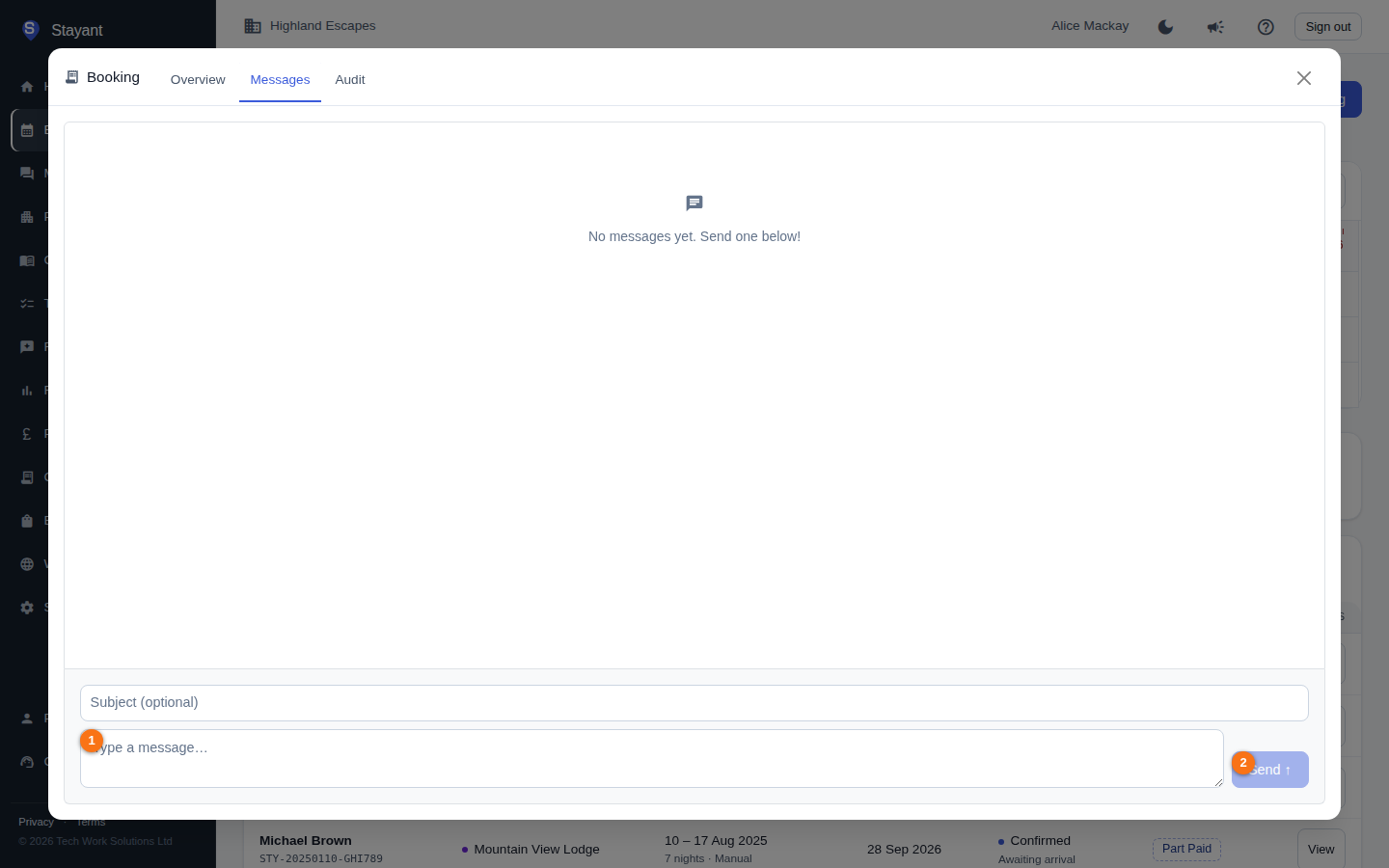
Every booking has a Messages tab next to Overview (open a booking from Bookings → View, then click Messages). It holds the full conversation with the guest in a single thread, with a compose box ① and a Send button ② at the bottom.
Read the conversation
Messages appear newest at the bottom. Each shows the sender's name, the time it was sent, and the channel it came through:
- Your replies appear on the right.
- Guest messages appear on the left.
- Inbound email carries an Email badge; messages from a connected channel/OTA carry an OTA badge (for example the channel's name).
- System messages are centred and shown in italics — these are automated notes (for example confirmations or reminders the system sent).
If an email has a subject line, it's shown above the message body.
Send a message
- Open the Messages tab.
- For a direct booking you can add a Subject (optional).
- Type your message in the box at the bottom (①).
- Click Send (②).
Your message is added to the thread immediately.
Channels — email vs OTA
How a reply is delivered depends on where the booking came from:
- Direct bookings are messaged by email. You can set a subject line.
- OTA bookings (imported from a connected channel) show an OTA booking banner. Replies are sent back through the channel to the guest, so the subject field is hidden — you just type the message body.
Long conversations
The most recent messages load automatically when you open the Messages tab. If the conversation has many older messages, a Load older messages button appears at the top of the thread. Click it to load the previous batch of messages above the current view — you can keep clicking to scroll back through the full history.
Common gotchas
- OTA replies route through the channel. For an OTA booking, your reply goes to the guest via the channel connection, not by direct email. If the channel rejects the message you'll see an error in the compose bar — try again or contact the guest another way.
- Empty thread. A booking with no messages yet shows "No messages yet" — just type one to start the conversation.
- Unread badge. The Messages tab shows a red count of unread guest replies; opening the tab clears it.