The guest portal (what guests see)
Every booking has its own guest portal — a self-service web page your guest opens from a private link. They don't need an account or password; the link itself (a unique token) is what grants access. From the portal a guest can review their booking, complete online check-in, pay an outstanding balance, open the property guidebook, and download an invoice.
This article covers both sides: what the guest sees on the portal, and how you (the manager) share the link and review what they submit.
What the guest sees
When a guest opens their portal link they land on a Your Booking page showing:
- Booking reference and a summary card with the property name, check-in and check-out dates, number of guests, and the booking status — plus the property's address and an Open in maps link, when the property has a location set. On a property with more than one room the card also shows the Room and Rate; single-room properties show neither.
- Cost Breakdown — accommodation, any charges and extras, any discount, sales tax, the grand total, the amount paid, and the outstanding balance.
- Payment Schedule (if one is set on the booking) — the deposit and balance instalments with their due dates and a Paid / Due / Overdue status, plus Download Invoice and, when something is due, a Pay Now button. If there's no schedule but a balance is outstanding, the guest instead sees a Pay Outstanding Balance button. See How guests pay for what happens next.
- Payment History — each recorded payment with its date, method, and amount.
- Check-in Information — any free-text check-in instructions you've set on the property.
- A Guidebook card at the top, whenever the property has a published guidebook or your account has a published overall guidebook (see Guidebooks).
- A Messages card, whenever your plan includes both Guest Portal and Send Email. This opens a thread where the guest can read your messages and write back — it's where guests are now sent to reply, instead of replying to your emails. See Guest messages.
Online check-in (the guest's side)
If the guest hasn't checked in yet, the portal shows a Complete Your Online Check-in prompt with a Start Check-in button. Tapping it opens a form where the guest can provide:
- Estimated arrival time (constrained to the property's check-in window).
- Vehicle registration (optional).
- Identity document type and number (optional).
- Party composition — number of adults and children.
- Dietary requirements (optional).
- Emergency contact name and phone (optional).
- Special requests (optional).
Most fields are optional; the form pre-fills the guest count from the booking and the arrival time from the property default. After the guest submits, the portal shows a Check-in Submitted summary with a timestamp, and — if an access code is configured for the booking — reveals Your Access Code in a highlighted card. Guests can re-open the form to Update Check-in at any time.
Sharing the portal link (manager)
The portal link lives on the Guest portal card (①) in the booking detail panel (open a booking from the Bookings page). The portal URL is shown on the card, and the card header shows Check-in submitted or Not checked in.
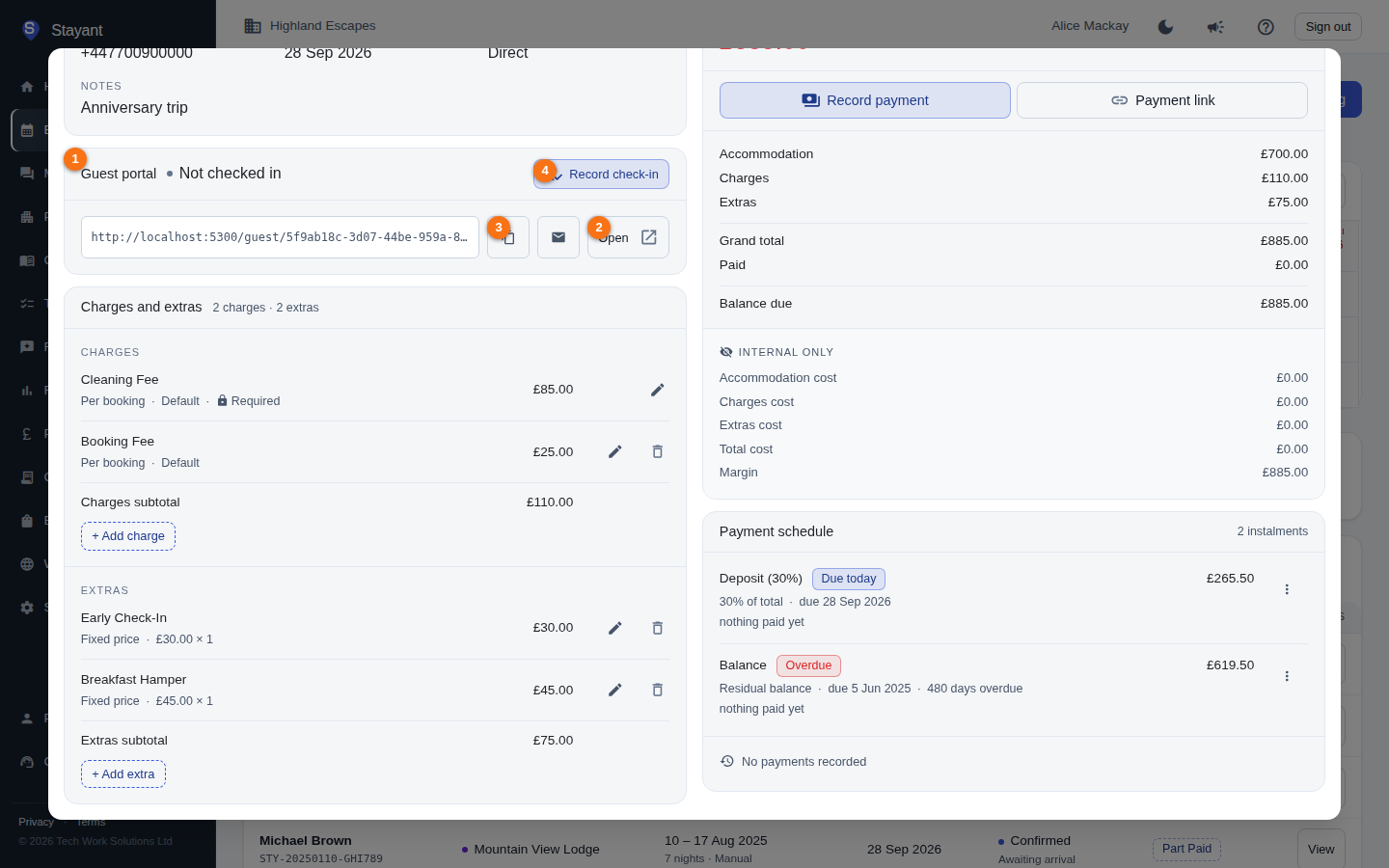
From the card you can:
- Open (②) — opens the guest's portal in a new tab so you can preview exactly what they see.
- Copy link (③, the copy icon) — copies the portal URL to your clipboard to paste into your own message.
- Email link (the envelope icon) — sends the link to the guest's email address on file.
The portal's web address
Guest links always use your own domain. If you've connected and verified a custom domain for
your site, portal links use it (for example https://yourdomain.co.uk/guest/…); otherwise they use
your Stayant subdomain (https://yourslug.stayant.co.uk/guest/…). The same applies to every link
Stayant sends on your behalf — confirmations, payment reminders, check-in prompts, review requests
and scheduled messages — so guests only ever see your branding.
A custom domain is only used once it's verified. While verification is pending, links fall back to your Stayant subdomain, which keeps working throughout. See Custom domains under the Website category.
How long a portal link works
A portal link shows your access code and the guest's check-in details, so it doesn't stay open for ever:
- It stops working 60 days after check-out. A guest who opens it after that sees This link has expired and a note to contact you directly. Sixty days leaves time for a late review request, which uses the same link.
- Cancelling a booking disables every link already sent for it. Any message you send the guest afterwards carries a new link.
You don't need to do anything for either of these. If a guest needs their portal again after it has expired, send them what they need directly.
Reviewing submitted check-in data (manager)
When a guest has completed check-in, the Guest portal card shows a View submitted check-in data expander listing everything they entered — arrival time, ID type and number, vehicle, dietary requirements, emergency contact, and special requests.
You can also record or edit check-in on the guest's behalf: use Record check-in (④ on the card above, or Edit check-in if data already exists) to open the same set of fields in the panel and save them yourself. This is useful for phone bookings or walk-ins. The property's check-in time window is shown next to the arrival-time field for reference.
If an invoice can't be produced
Download Invoice regenerates the PDF each time, so it always reflects the current charges. If generation fails, the guest is returned to their portal with a banner reading "We couldn't produce your invoice just now. Please try again, or contact your host if it keeps happening." — they keep the portal and everything else they can do on it. The underlying error is recorded in your account's logs rather than shown to the guest.
Related
- How guests pay — the payment options a guest sees from the portal.
- Guidebooks — the property guidebook surfaced at the top of the portal.