The booking calendar
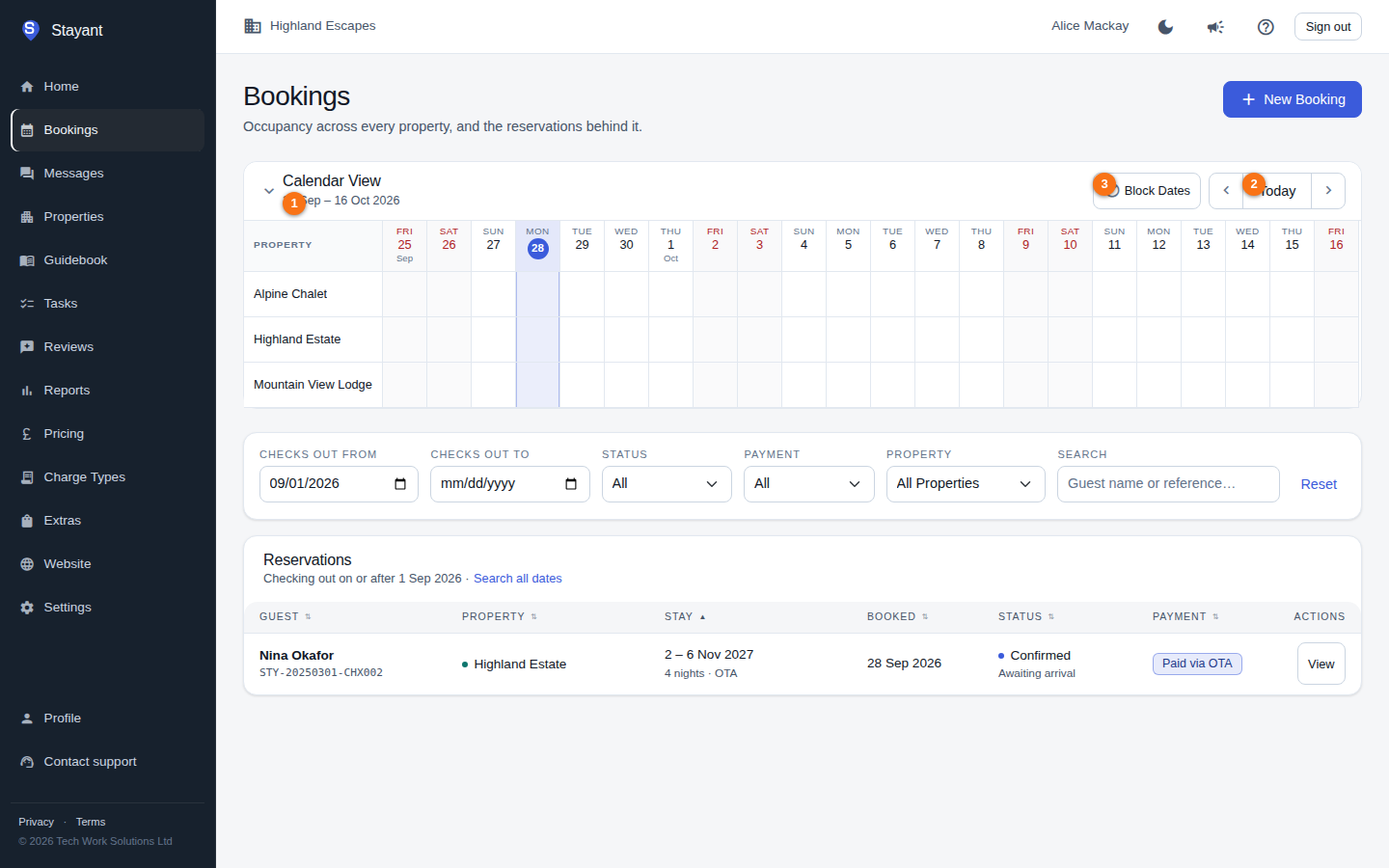
The Bookings page shows two views of the same data: a Calendar View at the top and a booking list below it. The calendar gives you an at-a-glance, property-by-property timeline of who is staying when. The toolbar shows the visible date range ①, a Today button ② to jump back to the current date, and Block Dates ③ to make dates unavailable.
Reading the calendar
- Each row is a property. If a property has more than one room, it shows a property header row followed by one sub-row per room.
- Each column is a date. Weekend columns are shaded and today's date is highlighted.
- Each booking is a pill spanning its nights, coloured by source (for example direct, website, or a connected channel/OTA). Draft bookings have a dashed edge. The legend at the bottom explains every colour and treatment in use, including a hatched bar for blocked dates.
- A pill that runs past the edge of the visible range shows a ‹ or › chevron, so a longer stay is never mistaken for a short one.
- Cancelled bookings and expired holds are not shown on the calendar.
Rows you might not expect
- A deactivated room still gets its own row while it has bookings, labelled (inactive). Its stays stay visible and separate instead of being folded into another room's row.
- An "Unassigned" row appears when a booking can't be tied to a specific room (older bookings recorded before rooms existed, for example). It's tinted and marked with a ? — the bookings are real and the dates are genuinely occupied, so treat that row as booked. Open the booking and pick a room to clear it.
- Overlapping stays are stacked, not hidden. If two stays on the same row overlap, they're drawn one above the other, outlined in red, and the row label shows a ⚠ with the number of overlapping bookings. A double booking can't be invisible.
Keyboard and touch
Every day cell and every booking pill is a button:
- Tab into a row, then ← / → to move between days, and Enter (or Space) to open the create-booking form for the focused day.
- Tab to a pill and press Enter to open that booking.
- Nothing important is hidden behind a mouse hover: dates, source, status and a blocked range's reason are all readable without hovering, which matters on a phone or tablet.
Navigating
Use the toolbar at the top of the Calendar View:
- ‹ / › (chevrons) move back and forward by roughly one screen of dates.
- Today jumps back to the current date.
- On a touch device you can swipe left or right across the calendar to page through dates.
The visible date range adapts to your screen width — wider screens show more days at once. The current range is shown next to the Calendar View title.
Create a booking from the calendar
Click an empty cell on a property's row. The Create Booking form opens pre-filled with that date, property, and room — fill in the rest and save (see Creating a booking). To open an existing booking, click its pill.
Block dates
To make dates unavailable (for maintenance, an owner stay, and so on):
- Click Block Dates in the calendar toolbar.
- In the Add Date Block form, choose a Property ① (or All Properties), a Start Date ② and End Date ③, and an optional Reason.
- Click Block.
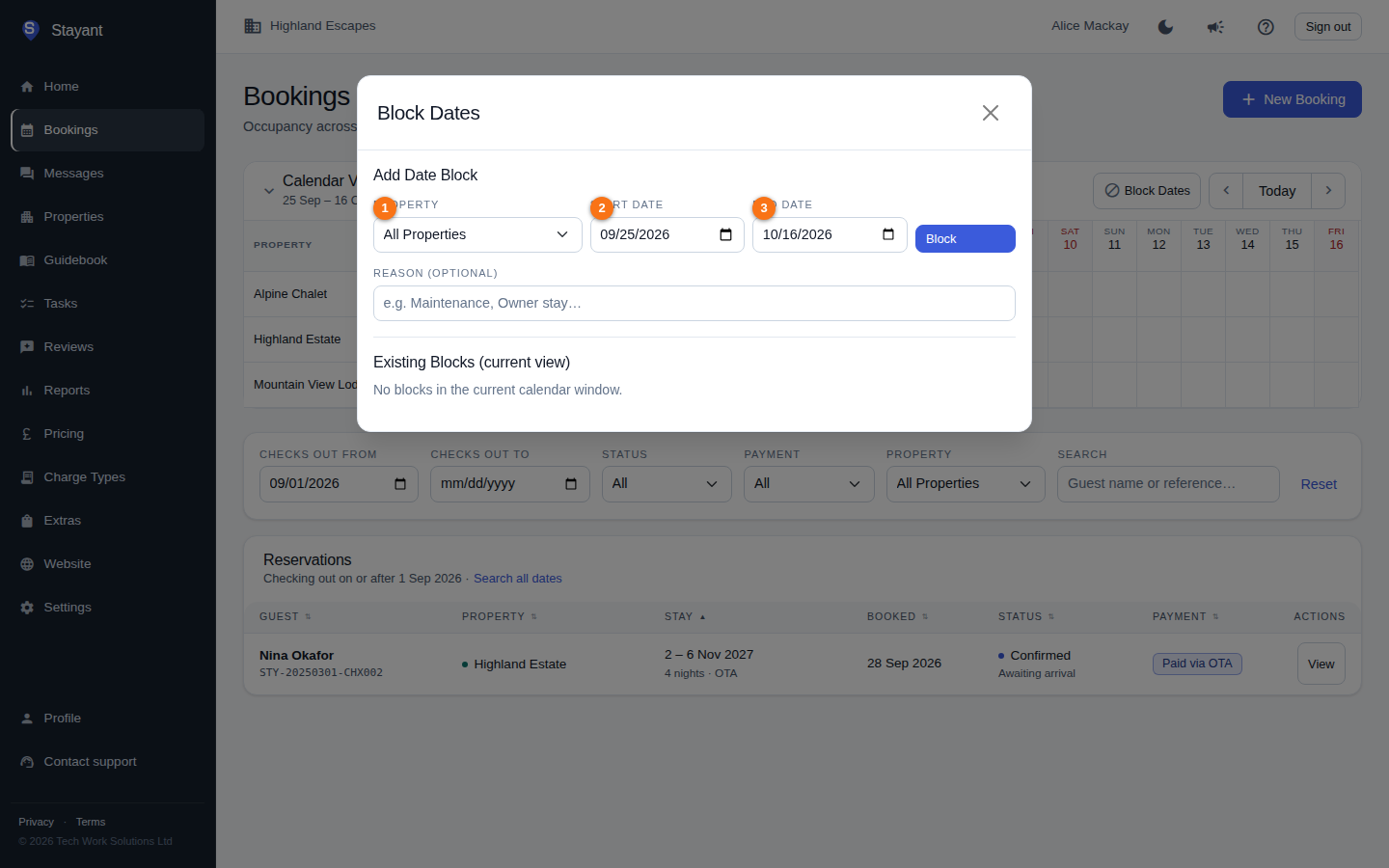
Blocked ranges appear as a hatched bar on the calendar, with the reason printed in the bar where there's room for it. The dialog also lists existing blocks in the current view, each with a delete button to remove it. If the dates clash with existing bookings, you'll see the conflicting bookings listed and the block won't be created until you resolve them.
The list view
Below the calendar, the list shows bookings with their guest (with the booking reference beneath), property and source, stay dates, the date booked, status, and payment status (with a red Overdue label when a payment is past its due date), along with a filter toolbar (date range, status, payment, overdue, property, search) and sortable columns — see Managing a booking for the full rundown. The list and the calendar above it are independent: filtering or sorting the list never changes what the calendar shows, and vice versa. Click a row (or its View button) to open the full booking. On a phone each booking is a compact row showing the guest, dates, property, nights, status and payment; tap it to open the booking. Confirming and cancelling are done from the booking's own header.
Search only covers the dates you're filtering. By default the list shows bookings checking out this month or later, and the note under the Search box always states the window in use. If you're looking for an older booking — an exact reference from last year, say — use Search all dates next to that note; Reset deliberately restores the default window rather than widening it.
The Stay column sorts by check-in (the first date it shows). Check-out orderings are in the Sort by dropdown on a phone, which also spells out the order for Status and Payment (those sort by workflow order — Draft → Confirmed → Cancelled, Unpaid → Part paid → Paid — not alphabetically).
Common gotchas
- A blocked range won't save over a booking. Cancel or move the conflicting bookings first, then create the block.
- Don't see a booking on the calendar? Cancelled bookings and expired holds are hidden there — check the list view, which includes them.
- "No bookings…" vs. an error. An empty result says which date window it searched. If a request actually fails you get a red Couldn't load bookings message with a Retry button instead — so "nothing found" always means nothing matched, never "the request broke". The same applies to the calendar: if its data can't be loaded you'll see a warning above it, because an empty grid would otherwise look like a fully available one.