Creating a booking
You create bookings on behalf of a guest from the Bookings page. The form lets you pick the property (and room/rate plan where relevant), enter the guest's details, set the dates, and see a live pricing summary before you save.
Open the create form
There are three ways to start a new booking:
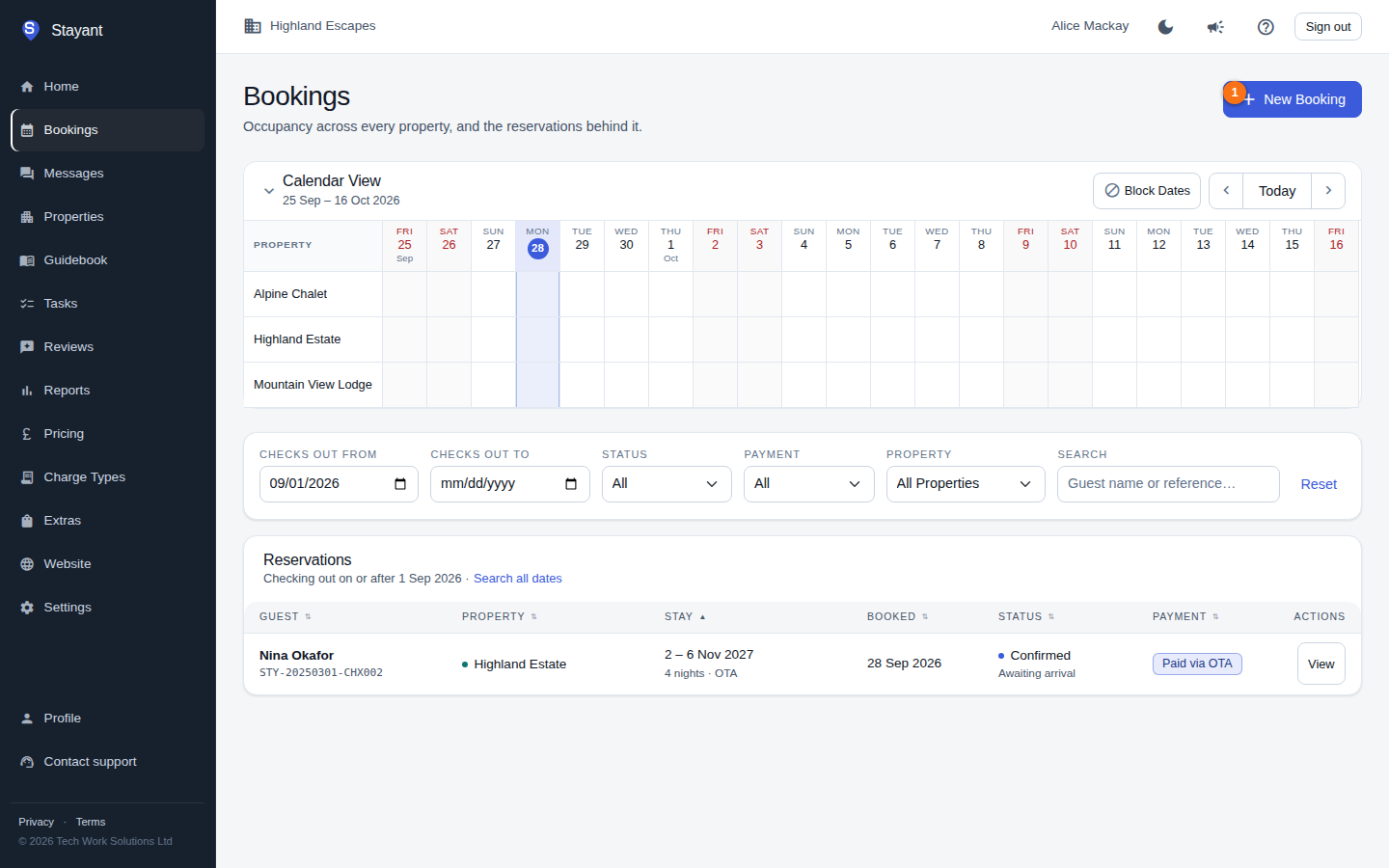
- From Bookings, click New Booking ① (top right). The create form opens in a dialog.
- Click an empty cell in the Calendar View — the form opens with that date and property already filled in.
- Go directly to
/bookings/createfor the full-page form.
Fill in the form
The dialog opens to the booking form. The fields at the top identify the booking — Property ①, Guest Name ②, and Check-In Date ③:
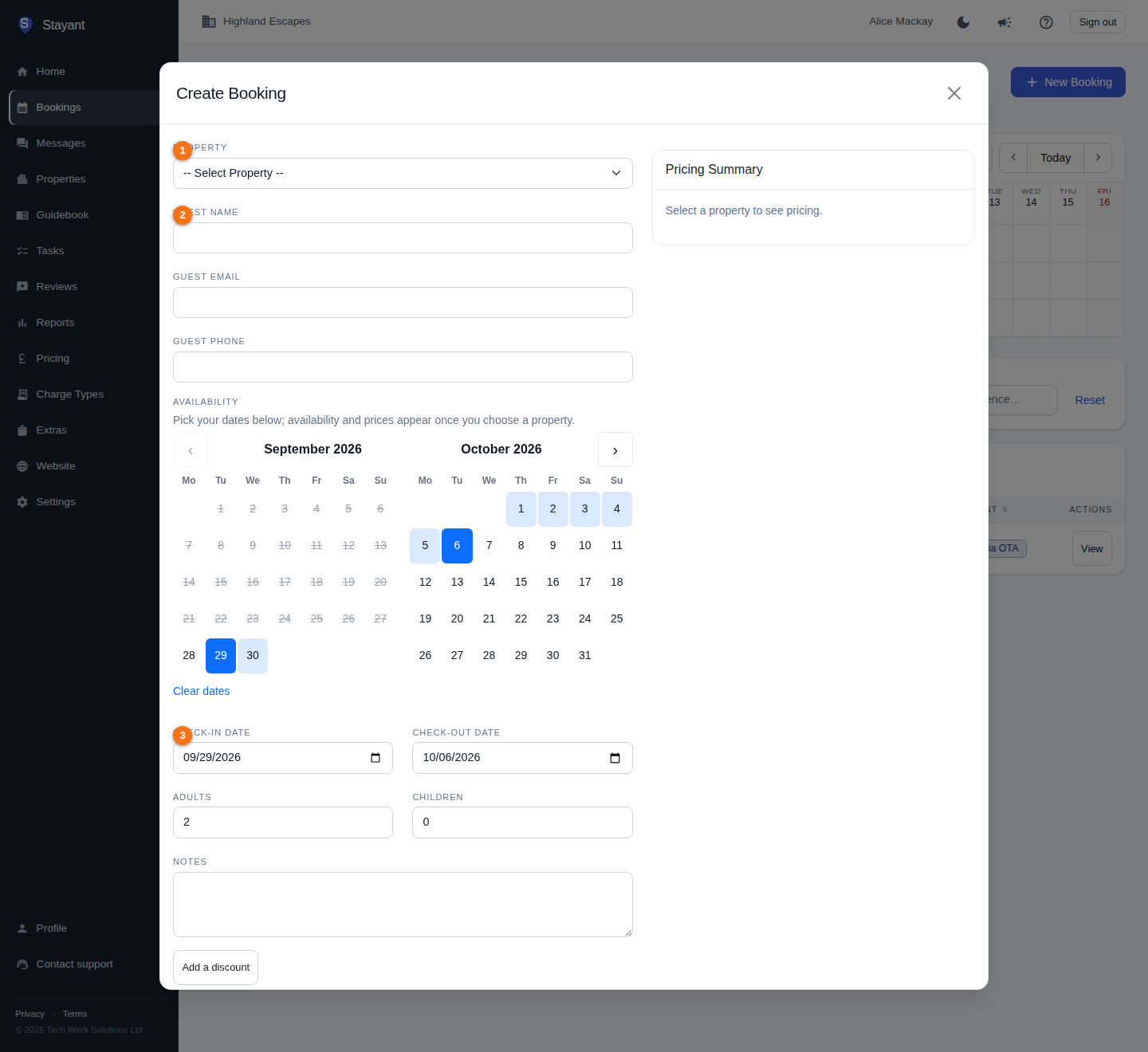
- Property (①) — choose the property. You don't have to pick it first: the Availability calendar is there as soon as the form opens and you can start clicking dates on it right away — its real per-day prices and availability, the extras list, and the Pricing Summary only populate once a property is selected. See Check availability and price as you pick dates below.
- Room — only shown when the property has two or more active rooms. Single-room properties skip this and book the default room automatically.
- Rate plan — only shown when the chosen room has two or more active rate plans. The plan's policy (deposit, cancellation) is described beneath the picker. Single-plan rooms skip this.
- Guest Name (②), Guest Email, Guest Phone — the guest's contact details.
- Availability — the calendar; see Check availability and price as you pick dates below.
- Check-In Date (③) and Check-Out Date — fill in automatically when you pick a range on the calendar, or type them directly.
- Adults and Children — guest counts (at least one adult). The room's maximum capacity is enforced — see Guest count and room capacity below.
- Notes — optional internal notes.
Check availability and price as you pick dates
You don't need to choose a Property first — the Availability calendar is visible as soon as the form opens, and you can click a date range on it straight away. Until you pick a property it just prompts you to choose one; once you do, it refreshes with that property's real per-date availability and pricing, and any dates you already picked carry over.
With a property selected, an open day on the calendar shows its nightly price directly (e.g. £120) so you don't have to guess and hit a conflict — or an unexpected rate — on save:
- Greyed-out, struck-through days are booked or blocked — you can't check in on those nights (no price shows for these).
- Hover any open day for a tooltip with the full detail: the price, and — if the stay starting that night needs more than one night — the minimum stay (e.g. "£120 · Minimum stay 3 night(s)"). Minimum stay is no longer a visible badge on the day itself; the warning below the calendar still catches it if you select or type a range that's too short.
- Checking out onto a busy day is allowed. A booking's first booked night still shows as unavailable, but its checkout day is free — like a hotel, the room can turn over the same day, so your new stay can end on the first day an existing booking begins.
- Click a date to start a range, then click a later date to complete it — the Check-In Date / Check-Out Date fields fill in automatically. You can also type the dates directly; the calendar stays in sync either way. If the range you pick or type isn't bookable, a warning appears under the calendar.
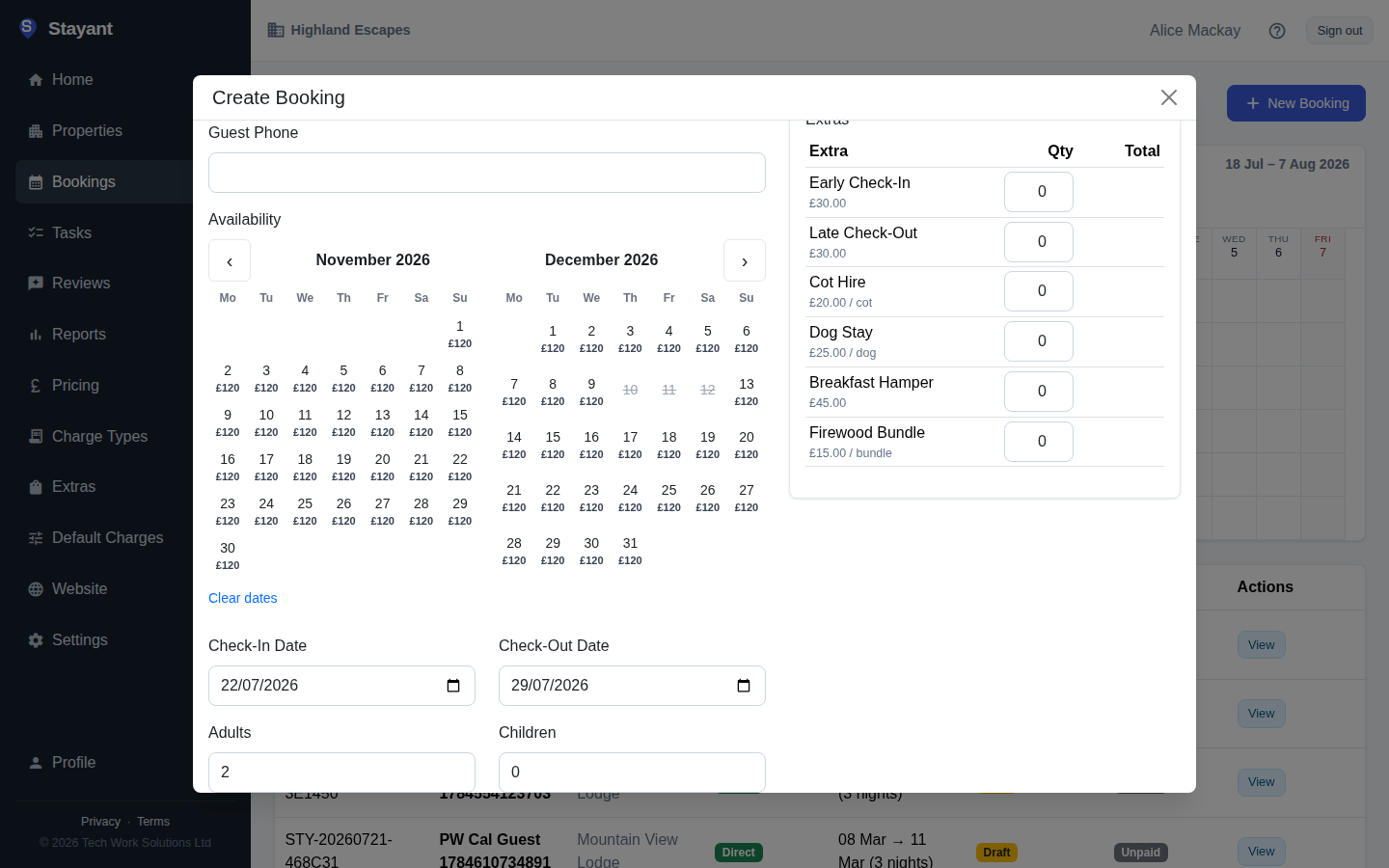
No room selected yet? (The default on a single-room property, or before you choose one on a multi-room property.) The calendar shows a day as available — and prices it — using any room that fits the current guest count: the price shown is a "from" price, the cheapest nightly rate among those rooms, so changing Adults/Children can change what the calendar shows. Once you pick a specific Room (and Rate plan, where there's more than one), the calendar switches to that room's own availability and shows its exact price and minimum stay instead.
Guest count and room capacity
- On a multi-room property, the Room dropdown marks any room too small for the current party with — sleeps N (its maximum guest count) — those rooms also don't count toward "no room selected" availability above.
- The dropdown also flags a room as — unavailable for these dates when it fits the party but is booked or blocked for the check-in/check-out dates you've entered.
- A booking can't exceed the room's maximum guests. If Adults + Children goes over the limit, a warning appears on the form before you save; if you submit anyway, the server rejects it with
Room '<name>' sleeps a maximum of <n> guest(s).
Read the pricing summary
The Pricing Summary panel on the right updates as you change the property, dates, guests, room, or rate plan. It shows:
- Accommodation for the number of nights (or No rates set if the property has no price for those dates).
- Any mandatory or per-property charges.
- Sales tax / VAT where your account has it enabled.
- A Grand Total.
If there is an Extras table, set a quantity against any extra you want to add — the line total and grand total update immediately.
Save
Click Create Booking. The booking is created as a Draft and you are taken to its detail page, where you can confirm it, record payments, and message the guest.
Common gotchas
- No rates set. If accommodation shows as "No rates set", set up pricing for those dates on the property's Prices tab before saving — bookings can't be created without a valid pricing preview.
- Minimum stay. If the stay is shorter than the property's minimum, a warning appears and you'll need to extend the dates. Hover a day on the calendar to see the minimum stay for that check-in date before you even submit.
- Room or rate plan required. On a multi-room property (or a room with several rate plans) you must make an explicit choice — the form won't silently pick one for you.
- Guest count over the room's limit. The form warns and the server rejects the booking rather than silently overbooking a room — reduce Adults/Children or pick a bigger room.
- New bookings always start as Draft. Confirm them from the booking's detail page (see Managing a booking).