Recording payments & refunds
All money on a booking is handled from two cards on the booking's Overview tab (open a booking from Bookings → View). The Billing card ① shows Outstanding, Total, and Paid at a glance, a breakdown of accommodation, charges, extras, discount, and tax, plus the Record payment ② and Payment link buttons. The Payment schedule card beneath it lists the instalments, with the Payments and Refunds taken so far at its foot.
Recording payments, issuing refunds and removing payments are available to Owners, Admins and Managers.
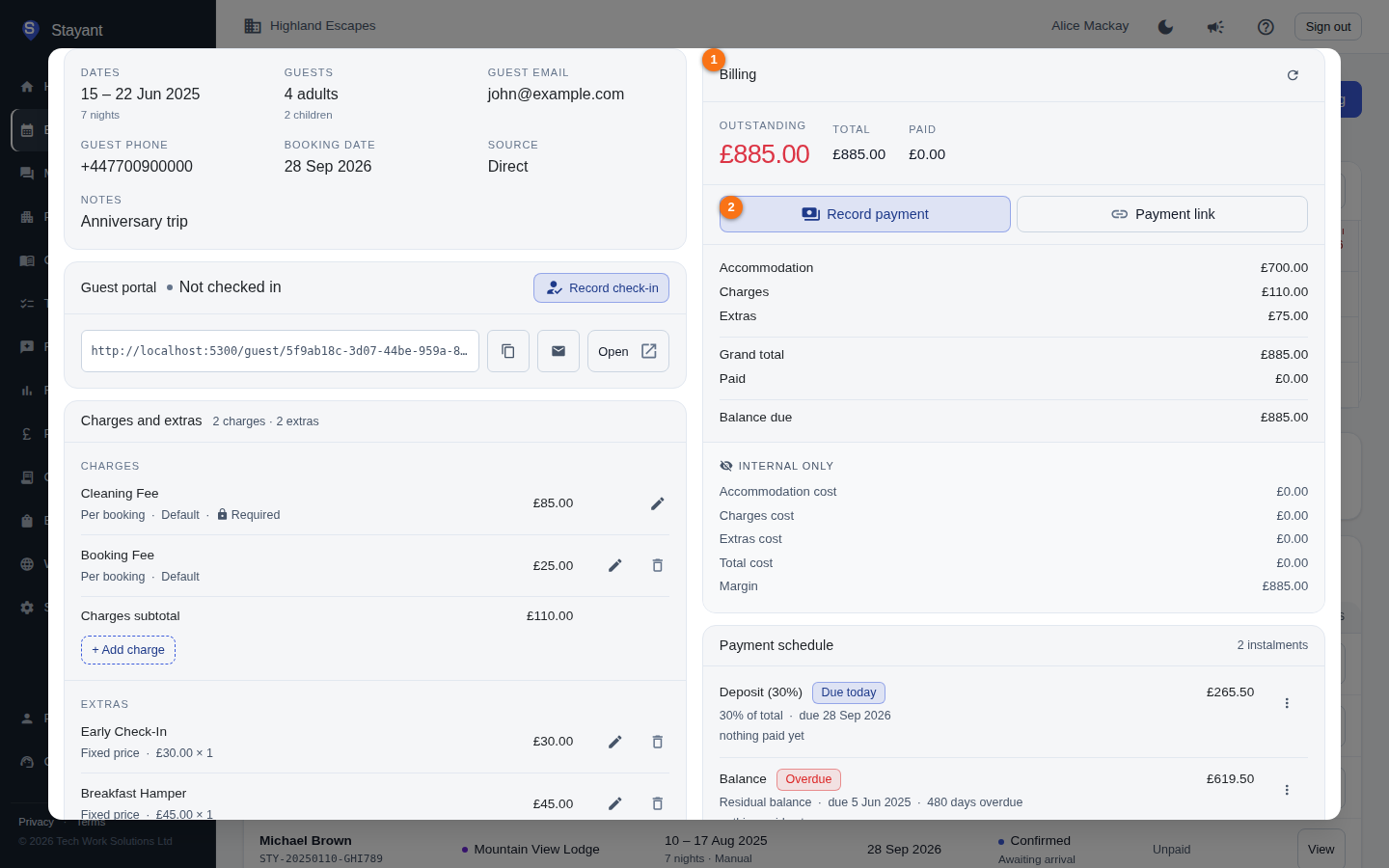
Record a payment
- Click Record payment ② in the Billing card. A Record Payment dialog opens with everything you need to decide the amount: the booking's Total / Paid / Outstanding, the payment schedule, and the payments already taken.
- Enter the Amount — or click an instalment in the schedule to fill it in for you (see below).
- Choose a Method: Cash, Bank Transfer, Card, Cheque, or Other.
- Set Paid On (defaults to today) and optionally a Reference and Notes.
- Click Record Payment.
The payment appears in the Payments list and the Paid / Outstanding figures update.
If the amount is more than the booking owes
Type an amount larger than the Outstanding figure and an amber note appears under the box, telling you how far over you are — for example "That is £250.00 more than the £570.00 outstanding — the booking will be overpaid." On a booking with nothing left to pay it says so directly.
It is a warning, not a block: overpaying is perfectly normal — a guest pays a round number, adds a tip, or puts money down against a change they've already asked for — so Record Payment still works. It's there to catch the accidental case, most often the same payment being keyed twice.
A booking that ends up overpaid also shows an Overpaid — refund due banner on the Billing card, so the excess stays visible after the fact. If the extra entry was a mistake rather than a genuine overpayment, remove it — see Remove a payment entered by mistake.
Filling the amount from the schedule
Each instalment in the dialog shows what it costs, how much has landed against it, and what's left. Click one and the Amount is filled with the figure that actually leaves that instalment settled — the dialog tells you what it covers, e.g. "Settles Deposit + Balance in full."
That figure isn't always the instalment's own remaining balance. Payments settle oldest instalment first, and a payment isn't tied to the instalment you clicked. So if a £300 deposit is still outstanding and you click a £900 balance, the amount fills with £1,200 — paying £900 would clear the deposit first and leave the balance £300 short.
You can always type a different amount; doing so clears the highlighted instalment.
Send the guest a payment link
For a booking that still has a balance, click Payment link in the Billing card. This generates a secure Stripe checkout link and shows it in a Payment Link dialog, where you can:
- Copy to share manually,
- Open in New Tab to preview, or
- Email to Guest so they receive it directly.
When the guest pays through the link, the payment is recorded automatically.
Bank transfers awaiting funds
A bank-transfer payment can sit as Awaiting (amount shown as "—") until the money arrives. When it clears, click Mark as paid on that row, enter the Amount received, add optional notes, and click Confirm.
The payment schedule
The Payment schedule card ① lists the instalments due on the booking — typically a Deposit (a fixed amount or a percentage of the total) and a Balance (the residual). Each row shows the amount, the due date, and how much of it has been paid so far against how much is left; paid instalments are marked Paid (and locked).
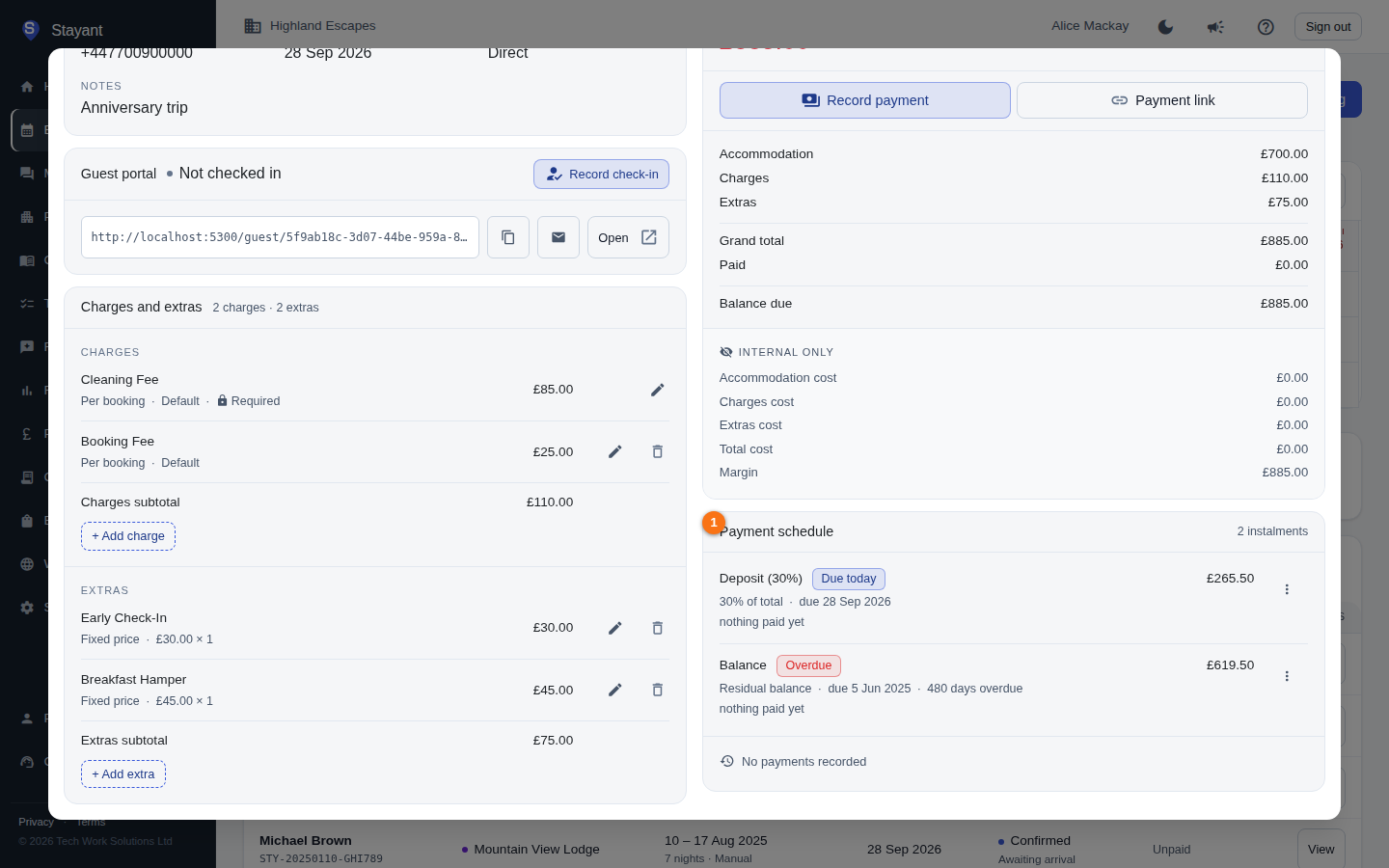
For an unpaid instalment, use the ⋮ menu to:
- Change due date — set a new date and an optional note.
- Put on hold — pause the instalment so automated reminders and auto-charge skip it. Held items show an On hold badge.
- Resume — take a held instalment off hold.
Issue a refund
Refunds are available on online payments — rows taken through a payment processor (Stripe or PayPal) show a Refund button.
- Click Refund on the payment row.
- Enter the Refund Amount — partial refunds are allowed. The most you can refund is what's left of that payment after any earlier refunds, and the cancellation policy may lower it further (see below).
- Add an optional Reason.
- Click Issue Refund.
Refunds appear in the Refunds list at the foot of the Payment schedule card. You can also refund all online payments at once when you cancel a booking (see Managing a booking).
Remove a payment entered by mistake
Recording the same payment twice is easy to do and, unlike a refund, there's no money to move — the entry itself is simply wrong. Manually recorded payments (Cash, Bank Transfer, Card, Cheque, Other) therefore show a Remove (bin) button on their line.
- Click the Remove (bin) button on the payment line.
- Check the dialog is describing the right payment ① — it names the amount, method and date.
- Click Remove Payment ②.
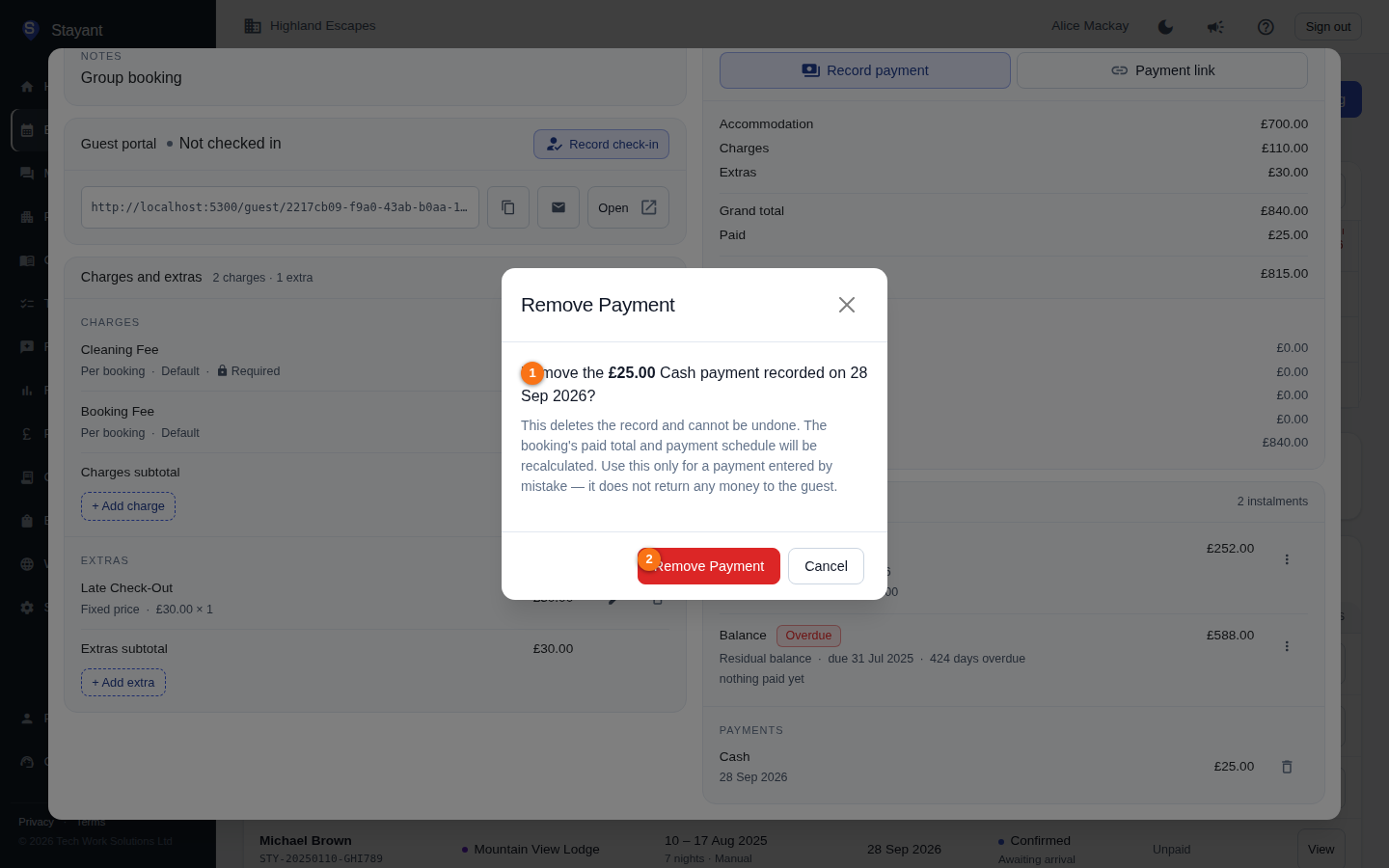
The row disappears and the booking's Paid and Outstanding figures, its payment status badge and its payment schedule are all recalculated — an instalment the removed payment had settled goes back to unpaid, so reminders and auto-charge pick it up again.
Worth knowing before you use it:
- This is a correction, not a refund. No money goes back to the guest. If the guest actually paid and wants it back, issue a refund instead.
- It cannot be undone, and the payment row is deleted outright. The removal is recorded in the booking's Audit tab — who removed it, when, and the amount, method and reference it had — so there is still a trail, but the row itself is gone.
- Online payments can't be removed. A Stripe or PayPal payment has a record at the processor that must stay in step with ours, so those rows offer Refund instead.
- A payment that has been refunded can't be removed either — both legs of the money belong in the record.
- Removing a payment doesn't un-confirm a booking. If the payment was what confirmed it, the booking stays Confirmed; change the status yourself if that's not what you want.
The rate plan's cancellation policy limits refunds
Refunds are capped by the cancellation policy of the rate plan the guest booked — the same policy they were shown at booking time, saved onto the booking so later edits to the rate plan never change the terms of an existing booking:
- Non-refundable plan — nothing can be refunded.
- Free cancellation up to N days before arrival — refund in full on or before that date. After it, the plan's cancellation fee (a percentage of the booking total) is retained and the rest can be refunded.
- The cap applies to the booking as a whole, so several partial refunds can't add up to more than the policy allows.
If you ask for more than the policy allows, Stayant refuses the refund and tells you the maximum and which policy produced it. Cancelling a booking with Also refund all online payments ticked never fails for this reason — it refunds as much as the policy allows and keeps the rest, and tells you how much was retained.
There's currently no way in the app to refund more than the policy allows. If you want to make a goodwill payment above the cap, do it outside Stayant.
Common gotchas
- Refunds need an online payment. Cash, cheque, and manually-entered payments have no Refund button — move the money back outside Stayant. If the payment should never have been recorded at all, use Remove on the row instead (see Remove a payment entered by mistake).
- The first payment confirms the booking. Recording (or receiving) any payment moves a Draft booking to Confirmed automatically — a deposit is enough, you don't have to wait for the balance. See Managing a booking.
- Cancelled bookings lock down. Once a booking is cancelled, Record payment is disabled and Payment link is no longer offered (it's also hidden once a booking is fully paid).
- Holding an instalment stops automation. A held schedule item won't trigger reminder emails or Stripe auto-charge until you resume it.