Inviting teammates
You can give colleagues access to your Stayant account and control what each of them can do by assigning a role. Team members are managed under Settings → Team.
Inviting a member
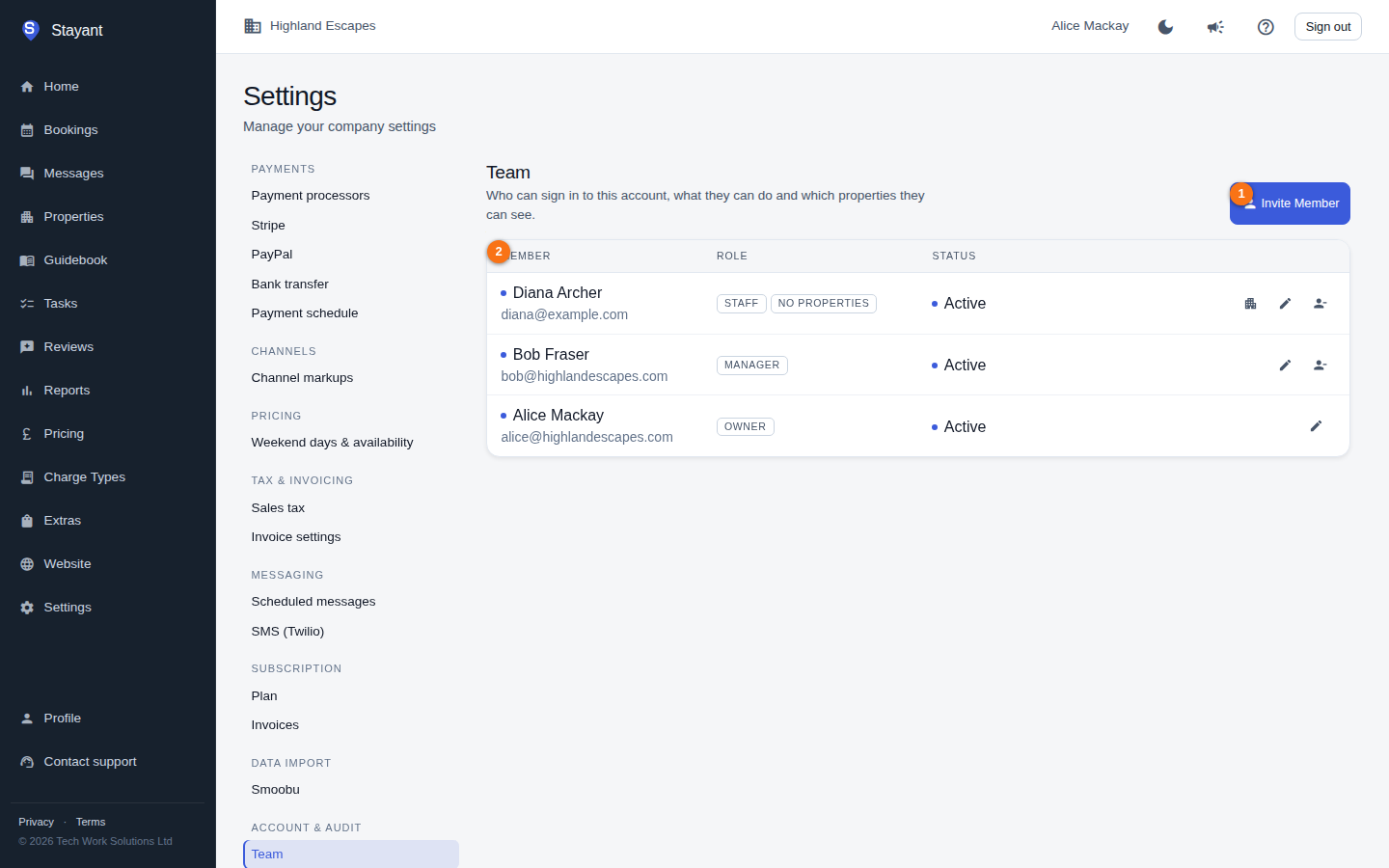
Go to Settings and open Team (under Account & audit). Click Invite Member (①) to open the invite dialog. Existing members are listed in the table below it (②), showing each person's name, email, role, and status.
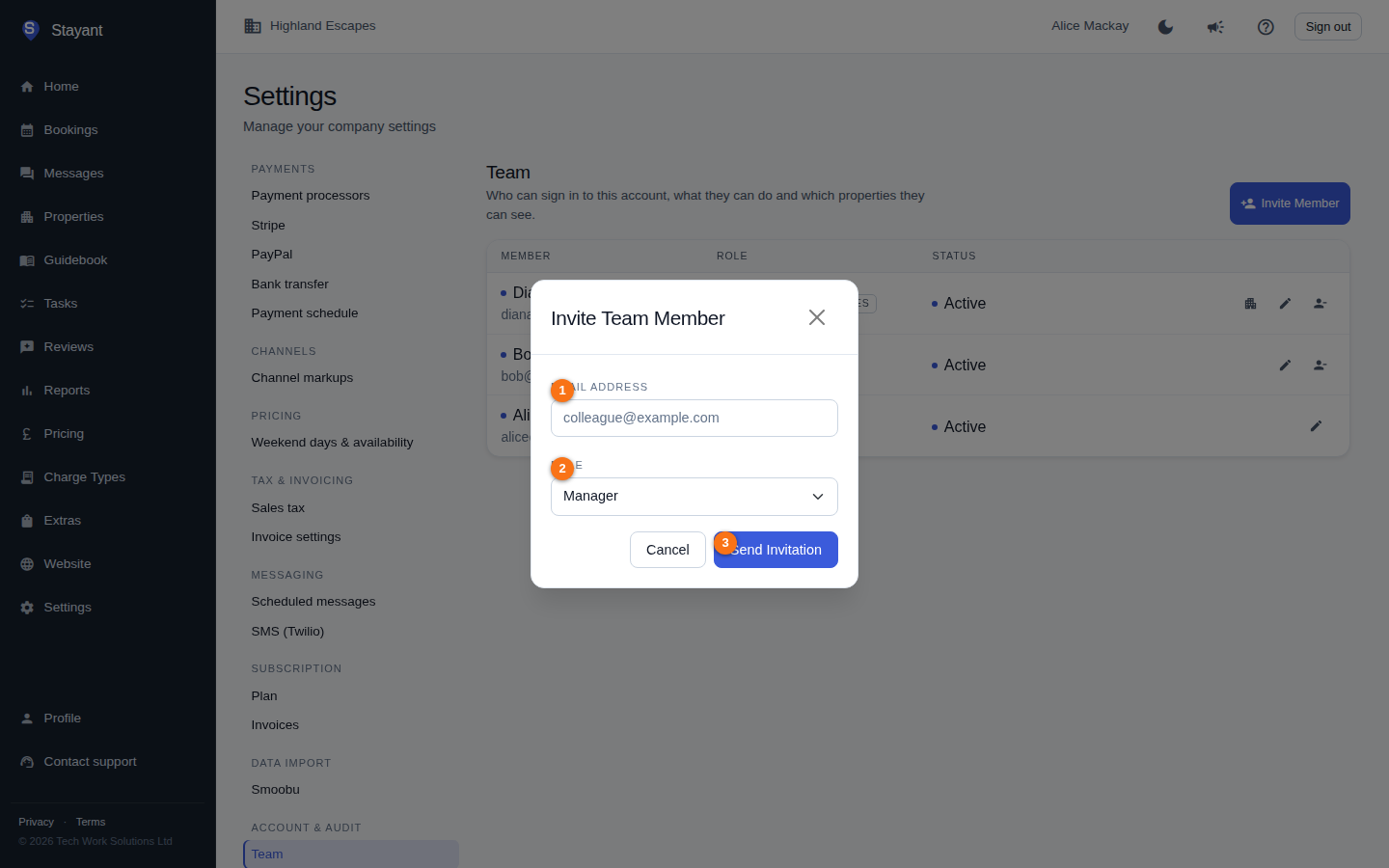
In the dialog, enter the colleague's Email Address (①).
Choose a Role (②) (see below).
Click Send Invitation (③).
You'll see a confirmation that the invitation was sent to that address. Click Done to close the dialog.
Choosing a role
Pick the role that matches how much access the person needs:
- Admin — broad access to manage the account.
- Manager — manages day-to-day operations (the default for new invites).
- Staff — a limited role focused on assigned tasks. Staff members see a simplified app with just their Tasks, and you can restrict which properties they can see.
An Owner role also exists and can be assigned when editing an existing member's role, but isn't offered on the invite form.
What happens next
- The invitation appears in the Invitations list with a Pending status and an expiry date. Once the person accepts, it shows as Accepted.
- To cancel a pending invite, click the delete (trash) icon next to it and confirm. The same icon removes any other invitation from the list.
Managing existing members
Each member row shows their name, email, role, and whether they're Active or Inactive. From the actions on each row you can:
- Edit role (pencil icon) — change a member's role, including to Owner.
- Manage property scope (building icon, Staff only) — pick which properties a Staff member can see in their Tasks list. An empty selection means they see no tasks — handy for temporarily suspending access without changing their role. Use Select all or Clear to set the list quickly, then Save scope.
- Remove member (person-remove icon) — remove someone from the team after confirming. You can't remove yourself, and the button doesn't appear on members who are already Inactive.
Common gotchas
- No property scope set on a Staff member? They'll see no tasks at all. Open the scope picker and select at least one property.
- Invitation expired? Delete the pending invitation and send a fresh one.
- Invite link says the invitation is no longer available? That also happens when the account it points at has been deactivated — nobody can sign in to a deactivated account, so an invitation into one is refused rather than half-completed. The invitation stays Pending, so the same link works again once the account is reactivated (as long as it hasn't expired in the meantime).
- Can't see the building/scope button? It only appears for active members with the Staff role.