Finding your way around
Stayant keeps everything one click away from the sidebar on the left. The sections you see depend on your role and the features included in your plan.
The sidebar
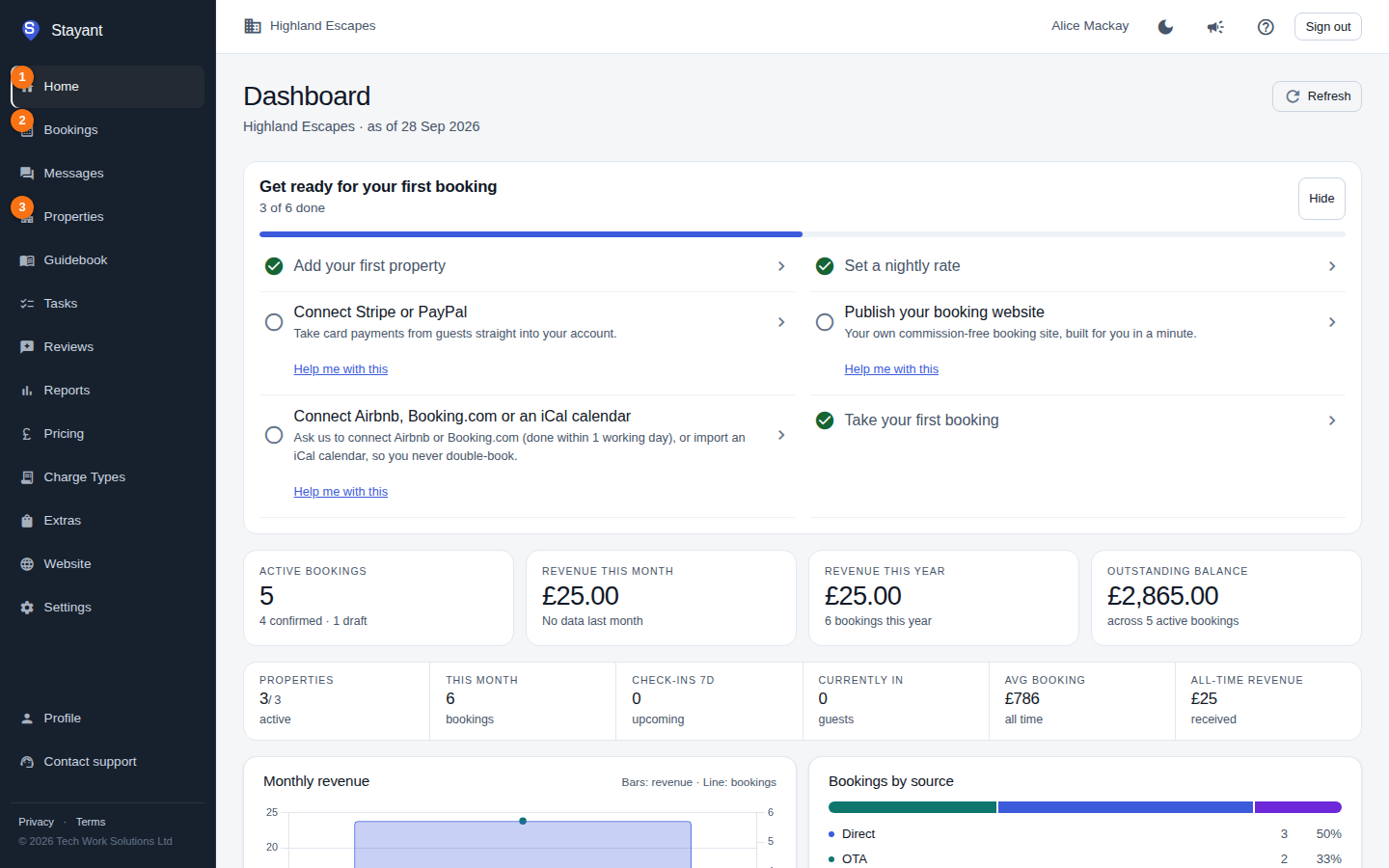
For most users, the sidebar includes:
- Home (①) — your dashboard with KPIs, charts, and the setup checklist.
- Bookings (②) — view and create bookings.
- Messages — your conversations with guests (shown when sending email to guests is included in your plan). Bookings and Messages both show a badge with the number of unread guest messages.
- Properties (③) — add and manage the places you let.
- Guidebook — guest guidebooks and their pages (shown when guidebooks are included in your plan).
- Tasks — operational to-dos (shown when task management is enabled).
- Reviews — guest reviews (shown when reviews are enabled).
- Reports — revenue and booking reports.
- Pricing — set nightly rates and pricing rules.
- Charge Types, Extras — configure the fees and add-ons applied to bookings (shown when the relevant features are enabled).
- Website — the site builder for your guest-facing website (shown when the website builder is enabled).
- Settings — company, team, billing, and other account settings.
- Profile — your personal account details, always at the bottom.
- Contact support — reach the Stayant team, directly under Profile.
Some links only appear when your plan includes that feature. If you expected a section and don't see it, check your plan or ask an account Owner or Admin.
If you're a Staff member, your sidebar is intentionally simplified to Tasks (plus Profile and Contact support at the bottom) — the work assigned to you.
Opening help (Ctrl+K / Cmd+K)
Help is available from anywhere in the app without leaving your current page:
Press Ctrl + K (Windows or Linux) or Cmd + K (Mac), or click the ? button in the top bar, to open the help bar. Press the same shortcut again, click outside it, or press Esc to close it.
Start typing in the search box (①) to find articles — results update as you type.
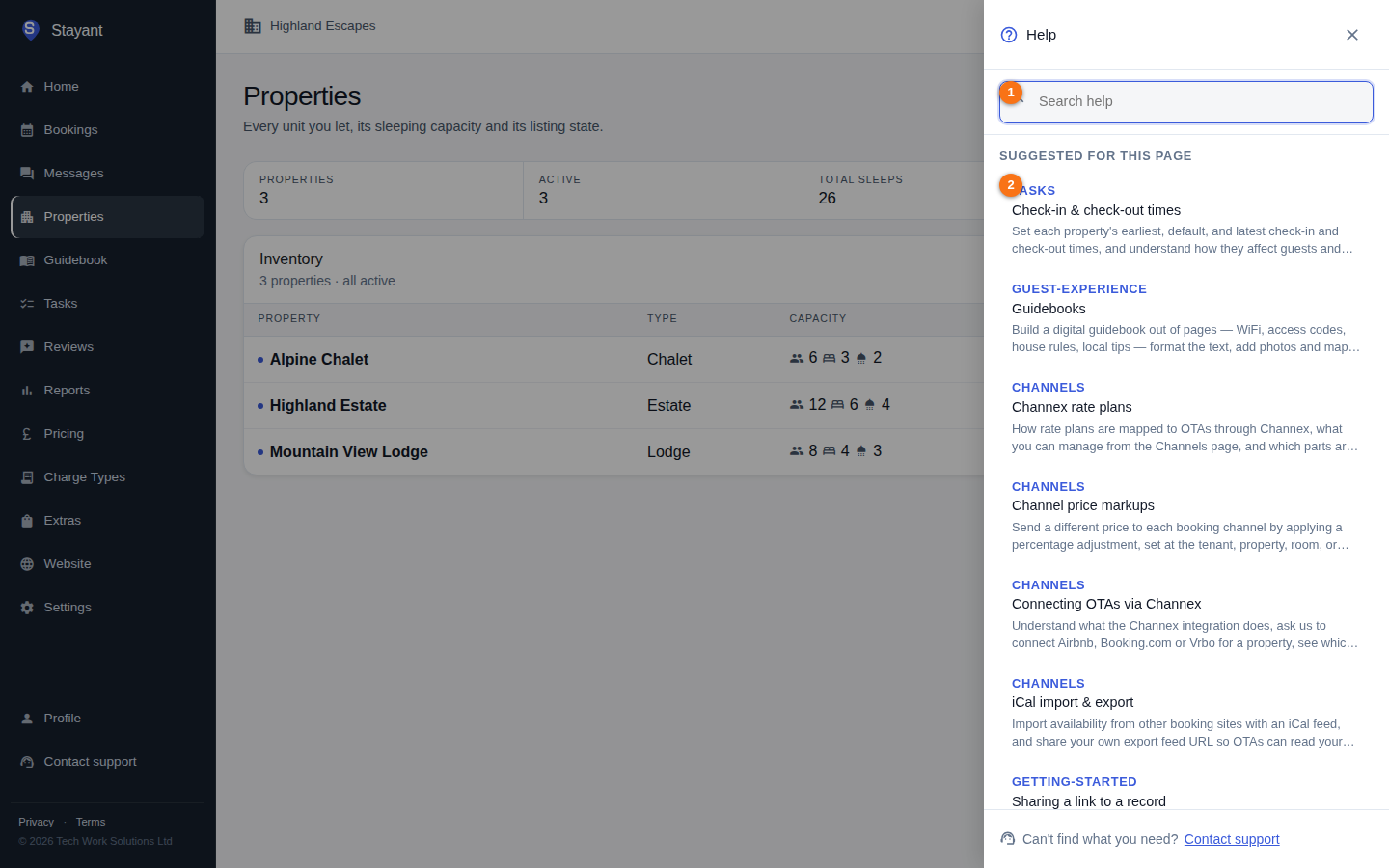
When you open help, the bar suggests articles relevant to the page you're on under Suggested for this page (shown in the screenshot above when the current page has related articles).
Click any result to read the article right there in the panel. Use Back to results to return to the list.
Click View full article to open the full page on the public help centre in a new tab.
In the iPhone app
The iPhone app puts the main sections in the tab bar at the bottom (Home, Bookings, Messages, Properties and More for everything else, including Pricing). The bar at the top shows the page you're on:
- ? (top left) opens the help bar.
- + (top right) adds something new on pages that have an add action: a booking on Bookings, a property on Properties, and likewise on Tasks, Reviews, Extras and Charge Types.
- To sign out, go to More → Profile and tap Sign out at the bottom.
Lists such as Bookings, Properties, Extras and Charge Types have a Search bar just above the tabs at the bottom of the screen. It stays there while you scroll: tap it and type to narrow the list, then tap any row to open it.
A booking, property, extra or charge type opens as its own page, and so do the pages you open from More and the forms for adding something new: tap the back arrow at the top left, or swipe in from the left edge of the screen, to go back to where you were.
When you add or edit something, tap the ✓ at the top right to save, or the back arrow at the top left to cancel, instead of using buttons at the bottom of the form.
Contacting support
If the help articles don't answer your question, click Contact support. It's at the bottom of the sidebar and at the foot of the help bar. Wherever the app needs something set up by us, for example connecting a property to a booking channel, the message there includes a Contact support link too. It opens a message to the Stayant team, with a subject line that says what it's about where the app knows.
How things look
Stayant uses one quiet visual language on every screen, so once you know it you can read any page at a glance:
- A dot and a word for status. A booking's status, a page's published state or a property's active state is a small coloured dot beside a plain word — never a coloured block. Blue is the app's one accent; grey means inactive or not yet set.
- Payment as a chip. On bookings, payment is a small chip: filled once paid, dashed while part paid, plain while unpaid.
- A booking in one window. Opening a booking shows one bar with its Overview, Messages and Audit tabs, the property and guest as the title, the stay facts, the guest-portal link, charges and extras side by side, and billing on the right: the outstanding balance first, then Record payment and Payment link, then the ledger and the payment schedule.
- One primary button per screen. The main action (New Booking, Add Property, Save) is the only filled button. Everyday actions are outlined; delete and cancel only turn red when you hover or focus them, so a page never shouts.
- Figures in plain ink. Totals and balances are stated once, in body colour, with the breakdown underneath — a red figure always means a real negative or a real problem.
- Uppercase labels above values. Details pages use a small uppercase label over each value, with a rule under each pair, so the eye tracks label to value.
- Only the thing you're editing expands. Lists of pages, blocks and rows stay compact; the row you open shows its editor and the rest stay one line each.
Everything works the same in the light and dark themes — switch with the sun/moon button in the top bar.