How guests pay
Guests pay online through their booking portal (see The guest portal). This article describes what the guest experiences when they pay and how you, the manager, send them to it. It does not cover setting up payment processors — for that, see the Payments category.
What the guest sees
From the portal, a guest reaches the payment page by tapping Pay Now (when a payment-schedule instalment is due) or Pay Outstanding Balance (when there's a balance but no schedule). The Pay for your booking page then shows the booking reference and the outstanding amount, and behaves based on how many online payment methods you've enabled:
- One method enabled — the guest is taken straight to it (no chooser step).
- Several methods enabled — the guest sees a chooser: a button per method (for example Card (Stripe) — supports Apple Pay, PayPal, or Bank transfer). They pick one and continue.
- No online methods enabled — the page shows "No online payment methods are currently available for this booking. Please contact your host."
What happens after they choose depends on the method:
- Card / PayPal-style processors redirect the guest to that processor's secure checkout. On success they're returned to the portal with a "Payment received — thank you!" confirmation; on cancel they return to the portal unchanged.
- Opening the Pay page again (a reload, a second tab, coming back later) takes the guest back to the same Stripe checkout while it is still open and still for the right amount, so they can't end up with two live checkouts for one payment. If the amount owed has changed since — a refund, a part-payment or an added extra — or the checkout has expired, a fresh checkout for the new amount is opened and the old one is closed.
- Bank transfer doesn't redirect — instead the page shows the transfer instructions inline for the guest to follow.
Back on the portal, a Download Invoice button sits next to the pay buttons so the guest can save a PDF invoice — including once the booking is fully paid.
When the page refuses to take a payment
A portal link keeps working until 60 days after check-out, so a guest can come back to it long after booking — from an old email, or a bookmark. (Cancelling a booking disables every link already sent for it; see The guest portal.) The payment page checks the booking before offering anything, and refuses in three cases:
- The booking has been cancelled — "This booking has been cancelled, so no payment can be taken." A guest can only reach this from a link sent after the cancellation. Nothing is charged, and the guest is pointed back to their booking. If a guest reports this unexpectedly, check the booking's status on the Bookings page.
- An unpaid website hold has expired — "This booking was only held while payment was completed, and that hold has since expired, so no payment can be taken." The dates have been released, so the guest is asked to make a new booking or contact you.
- There's nothing outstanding — "There's nothing left to pay on this booking." This covers a fully-paid booking and a zero-value one.
Both are shown on the payment page itself, with a link back to the portal — the guest is never sent on to a payment processor for a booking they shouldn't be paying for, even when you only have one method enabled.
If a payment can't be started
If something goes wrong while opening the processor's checkout — a mis-configured or disconnected processor, for example — the guest is returned to their portal with a red banner: "We couldn't start your payment just now. Please try again, or contact your host if it keeps happening."
The guest is deliberately never shown the underlying technical error. The detail is recorded in your account's logs instead, so if a guest reports this banner, check the payment processor's connection status in Settings, under Payments (Payment processors, Stripe or PayPal).
Sending a payment link (manager)
You can also push payment from the booking. Open a booking from the Bookings page; the Billing card (①) shows the booking's Outstanding balance, with Total and Paid beside it.
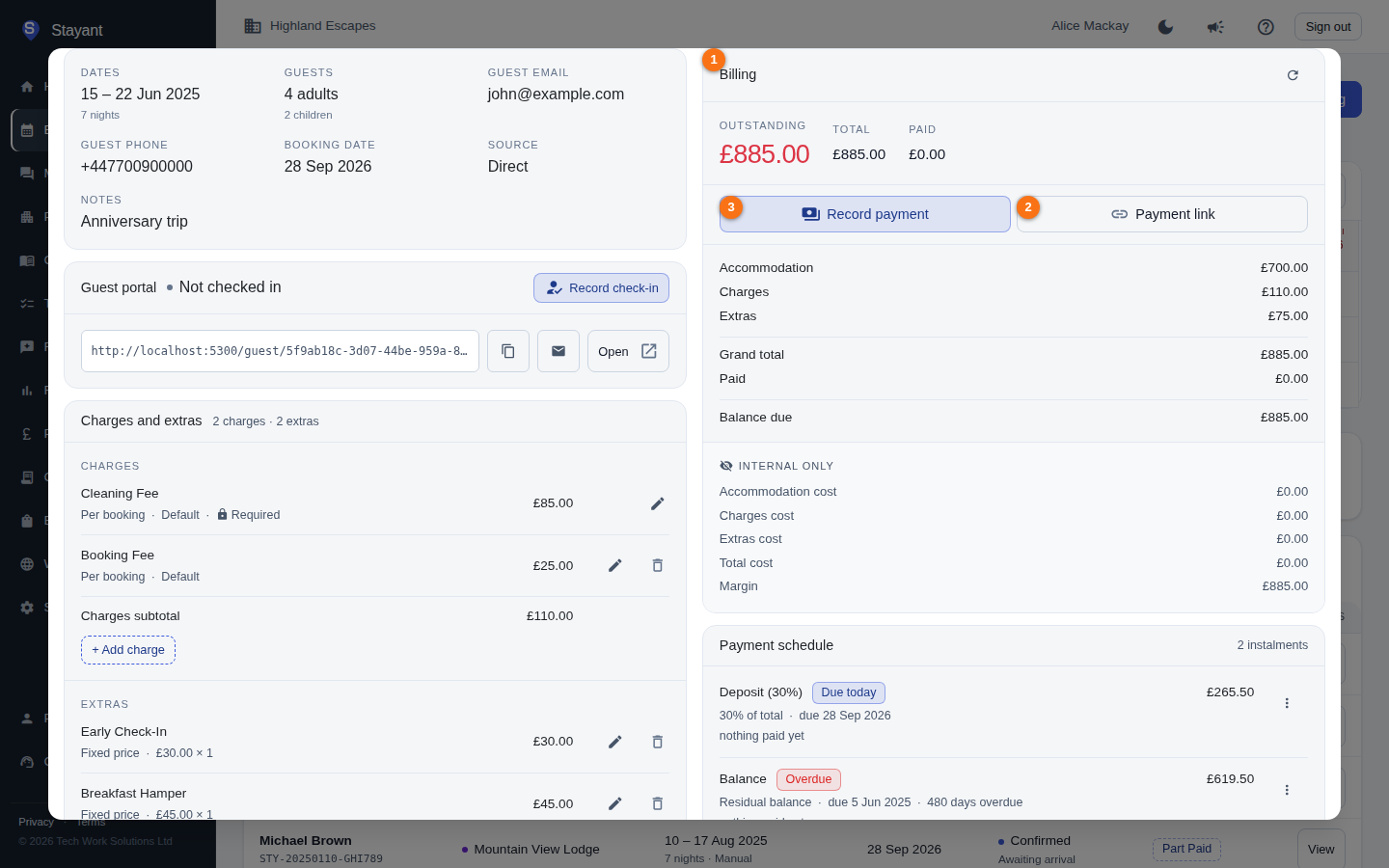
When the booking isn't fully paid (and isn't cancelled), use Payment link (②). This mints a Stripe checkout session for the booking and opens a dialog where you can:
- Copy the Stripe checkout link to share it yourself,
- Open in New Tab to preview the checkout, or
- Email to Guest to send the guest a payment email.
To log a payment you collected yourself (cash, manual card, etc.), use Record payment (③) instead.
Note: Email to Guest sends the guest a link to their own portal's Pay page, not to the Stripe checkout page. The portal shows their balance, payment schedule and invoice around the payment and starts checkout itself, so the guest keeps that context and can still pick any method you've enabled. The Stripe link in the dialog is there for when you want to share a checkout URL directly — Copy and Open in New Tab still give you that.
Related
- The guest portal — where guests start a payment from.
- The Payments category — enabling and configuring Stripe, PayPal, and bank-transfer processors.
- The Bookings category — recording payments and refunds against a booking.