Automated & scheduled messages
Scheduled messages are sent to guests automatically based on what happens to a booking — a confirmation lands, check-in approaches, a payment comes in, or a balance falls overdue. You manage them all from Settings → Scheduled messages.
Each entry in the list is a message template: its name and subject, then one line saying whether it's active, when it sends, and any conditions that must be met.
The Owner notifications card at the top of the same page sets where the emails addressed to you go — see Owner notifications.
Open the messages list
- Go to Settings → Scheduled messages.
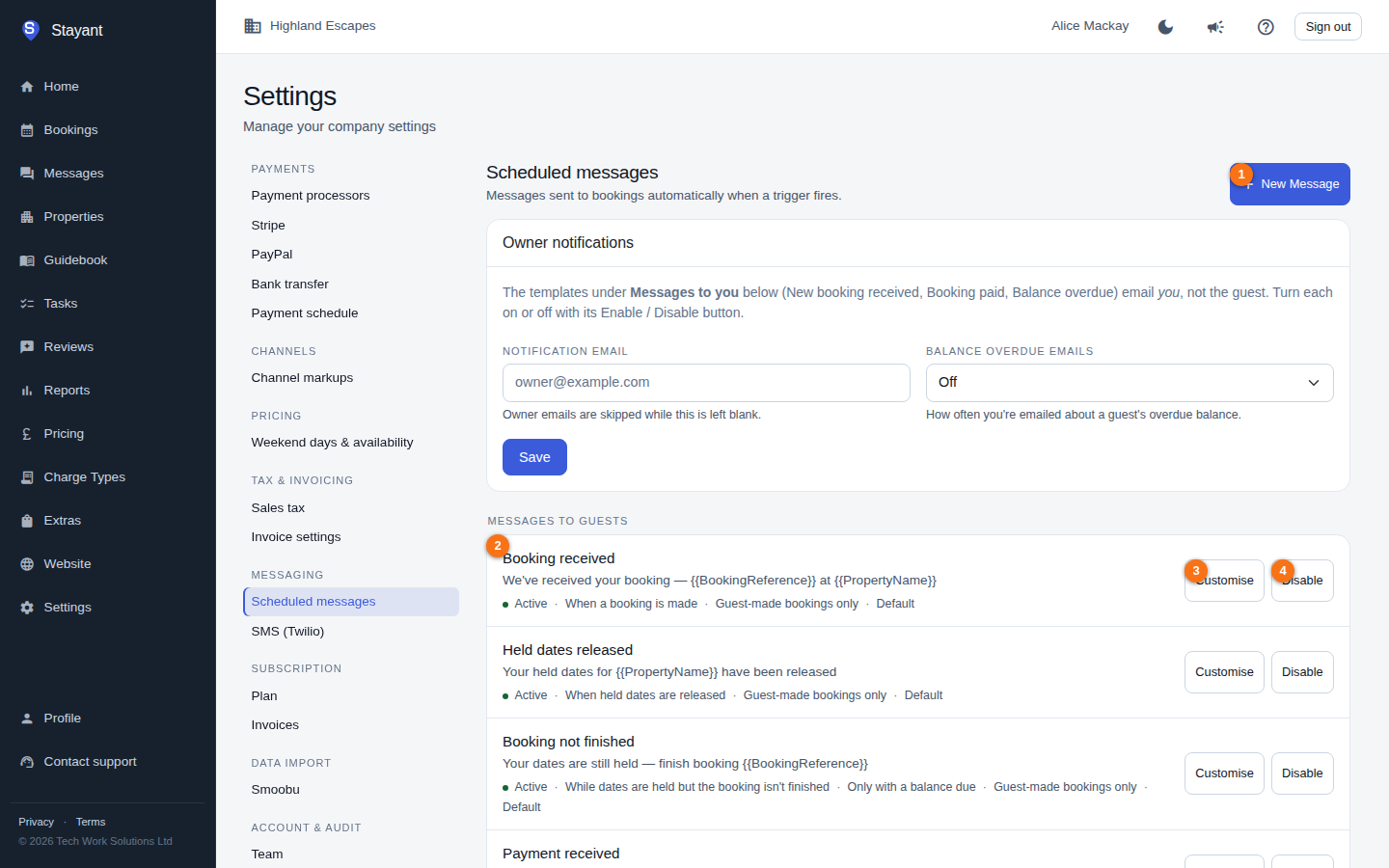
- New Message (①, top right) starts a brand-new template.
- When templates exist, the list (②) shows every scheduled message, grouped into Messages to guests and Messages to you (the owner notifications). Each entry reads, for example, Active · 2 days before check-in at 09:00 · Only with a balance due. If you haven't created anything yet, you'll see "No scheduled messages yet".
System default templates
Stayant ships a set of starter templates marked Default at the end of their detail line. These are read-only — you can't edit or delete a default directly. Instead, each guest-facing default gives you two buttons (owner-notification defaults get the Disable/Enable button only):
- Customise (③) — makes an editable copy you own. The copy opens straight into the editor so you can tailor it; the original default stays in place.
- Disable / Enable (④) — stops the default from sending for your account (or turns it back on). Disabled defaults show greyed out, with Disabled as their status.
(Badges ③ and ④ only appear on Default templates, so they're absent if your account has no default templates.)
Your own (non-default) templates show Edit and Delete buttons instead.
Create a new scheduled message
- Click New Message at the top right.
- Fill in the message content (see Editing message templates for the body, subject, channel, and placeholders).
- Choose a Trigger — this decides when the message fires.
- Set any Conditions that must be true for the message to send.
- Click Save.
Triggers — what fires a message
The Trigger dropdown groups the available triggers into three sets:
Date-relative (fire relative to a booking date, with a day offset):
- Days before / after Check-in — e.g. a pre-arrival reminder two days before arrival, or a welcome message on the day.
- Days before / after Check-out — e.g. a checkout-instructions message the morning of departure, or a thank-you the day after.
Booking events (fire once, when the event happens):
- Booking Confirmed — sent when you confirm a booking in the management app. It isn't sent when a guest's payment confirms their booking automatically — they get the Payment Received message instead.
- Booking Cancelled — sent when a booking is cancelled.
Payment events:
Payment Received — sent when a payment lands: a guest paying online by card (Stripe) or PayPal, an automatic balance charge, or a bank transfer you mark as received. Payments you record by hand (Cash, Cheque, Other) do not fire this trigger — staff often record those long after the fact, so an automatic "thanks for your payment" would arrive out of the blue.
The trigger is skipped for a cancelled or expired booking, whatever the method: thanking a guest for paying for a stay that no longer exists reads worse than saying nothing, so the host gets an alert to refund or reinstate instead.
Final Payment Reminder — sent once per scheduled instalment, when that instalment's due date comes within the next 7 days. (The dropdown still labels this "24h before auto-charge"; the reminder actually goes out up to a week ahead, and covers every instalment, not just the balance.) It only runs when your payment schedule is switched on, and it skips instalments that are on hold and bookings that are already paid in full.
Balance Overdue – daily repeat — sent each day while a balance remains overdue. Chasing stops once the check-in date arrives.
Which bookings scheduled messages reach
Two guardrails apply to every scheduled message, on top of any conditions you set:
Confirmed bookings only — for the date-relative and overdue sweeps. The Check-in, Check-out and Balance Overdue triggers skip Draft and Cancelled bookings. The event triggers (Booking Confirmed / Cancelled / Payment Received) fire on the event itself, and the Final Payment Reminder skips only cancelled and expired bookings — so a Draft booking with a payment schedule can still be reminded.
"Overdue" means the due date has actually passed. The Balance Overdue – daily repeat trigger only starts once the booking's balance due date is in the past. A guest who has paid a deposit on a stay months away isn't chased until their balance genuinely falls due.
The balance due date comes from your payment schedule settings (Settings → Payment schedule), or from the per-booking override if one is set. A balance falling due today isn't overdue yet — the first reminder goes out the day after.
Two defaults share the Payment Received trigger
Stayant seeds two templates on this trigger and both fire on the same event:
- Payment received — goes to the guest. Their receipt: the amount paid, the booking reference and dates, and the balance still to pay if there is one.
- Booking paid — goes to the owner. The host-facing heads-up that money landed, written in the third person about the guest.
Edit either independently, or switch one off, in Settings → Scheduled messages. Turning off the guest one stops receipts without touching the host notification, and vice versa.
Guests who book themselves
A guest who books through your website gets no other automatic email until either you confirm their booking or their payment lands. If they abandon payment, or payment fails, they would otherwise hear nothing at all while their dates sit held. The Booking received default closes that gap: it goes out as soon as the booking is made, confirms the dates and total, and includes a payment link when there's a balance to pay.
It is deliberately limited to bookings the guest made themselves — your hosted website and the embeddable booking widget. It does not fire when:
- You enter a booking yourself in the management app. You're usually already talking to the guest, so an automatic "we've received your booking" would be odd.
- A booking arrives from a channel such as Booking.com. The channel has already sent the guest its own confirmation.
Templates with this restriction show Guest-made bookings only in their detail line. Stayant sets it on the seeded default — there's no control for it in the template editor.
Unfinished website bookings
When a guest books on your website but doesn't finish paying, Stayant holds their dates for 30 minutes. Two more Default templates cover that hold:
- Booking not finished — sent about 10 minutes into the hold if the guest still hasn't paid, with a link to pick up where they left off.
- Held dates released — sent when the 30 minutes run out without payment and the dates are put back on sale.
Like Booking received, both are for guest-made bookings only, so they never go to bookings you enter yourself or ones from a channel. Their triggers aren't in the Trigger dropdown — the timing is fixed — but you can switch either one off with its Disable button like any other default.
Timing and offset
For the two date-relative triggers (Check-in / Check-out), two extra fields appear:
- Days offset — a number. Negative = before the date, 0 = on the day, positive = after. For example,
-2on a Check-in trigger sends two days before arrival. - Send at hour (UTC) — the hour of the day the message goes out, chosen from a 24-hour list. Note this is UTC, not your local time.
The Final Payment Reminder and Balance Overdue – daily repeat triggers also show a Send at hour (UTC) field, but only Balance Overdue actually uses it — the Final Payment Reminder goes out whenever the payment-schedule sweep next runs. The plain booking events (Confirmed / Cancelled / Payment Received) send when the event occurs and have no timing fields.
In the list, each template says when it sends in plain words — "2 days before check-in at 09:00", "On check-out day at 10:00", or for an event trigger "When a payment is received".
Conditions — only send when it's relevant
The Conditions section lets you narrow which bookings a message applies to. A message only sends if all the conditions you set are met:
- Only send if guest has an outstanding balance — a checkbox. Useful for payment chasers so guests who've paid in full aren't messaged.
- Minimum guests / Maximum guests — optional numbers; restrict the message to bookings within a guest-count range.
- Required extras — if you've defined booking extras, you can require that at least one of the selected extras is on the booking (for example, only send a "your cot is ready" note to bookings that added Cot Hire). This section only appears when extras exist.
Conditions work the same way for every trigger — date-relative, booking events and payment events alike.
In the list these appear in the template's detail line: Only with a balance due, a guest range such as 2–6 guests, and With a chosen extra. A seeded default may also show Guest-made bookings only — Stayant sets that one; there's no control for it in the editor.
Enable, disable, and delete
- Active toggle — when you edit one of your own templates, an Active switch controls whether it sends. Inactive templates show Inactive as their status and won't fire.
- Status — the first word of each template's detail line: Active, Inactive, or (for defaults you've turned off) Disabled.
- Delete — removes one of your own templates. You're asked to confirm, and it can't be undone. (Defaults can't be deleted — disable them instead.)
Channel
Each message has a Preferred channel — Email, SMS, or WhatsApp. SMS and WhatsApp need a connected Twilio account and fall back to email automatically when a guest has no phone number on file or Twilio isn't set up. See Sending SMS via Twilio to connect Twilio.
Tips
- Times are in UTC — account for the gap between UTC and your guests' local time when picking a send hour.
- Prefer customising a default over building from scratch when one is close to what you want — you keep the proven structure and just adjust the wording.
- Use the outstanding-balance condition on payment reminders so fully-paid guests aren't nagged.