Sending SMS via Twilio
By default, Stayant sends guest messages by email. To also send SMS and WhatsApp messages, connect your own Twilio account under Settings → SMS (Twilio). Once connected, any scheduled message whose preferred channel is SMS or WhatsApp will go out over Twilio.
Twilio is a separate, paid service you sign up for directly with Twilio. Stayant uses your Twilio credentials to send on your behalf — message charges are billed by Twilio, not Stayant.
What you'll need from Twilio
From your Twilio account you'll need:
- Account SID — your account identifier. It starts with
AC. - Auth Token — the secret token paired with the SID.
- SMS from number — an SMS-capable Twilio phone number in E.164 format (e.g.
+447700900123), verified for your account. - WhatsApp from number (optional) — a number linked to a WhatsApp Business profile at Twilio, also in E.164 format. Twilio's sandbox number works for testing.
Treat the Auth Token like a password — don't share it.
Connect your account
- Go to Settings → SMS (Twilio).
- In the Update credentials card, enter your Account SID (①) and Auth Token (②).
- Enter your SMS from number (E.164) (③) — for example
+447700900123. Leave it blank if you only intend to send via WhatsApp. - Optionally enter your WhatsApp from number (E.164). Stayant stores it as a bare E.164 number and adds the
whatsapp:prefix itself at send time, so don't add the prefix yourself. - Tick Enable Twilio sending (④).
- Click Save. A "Settings saved." confirmation appears.
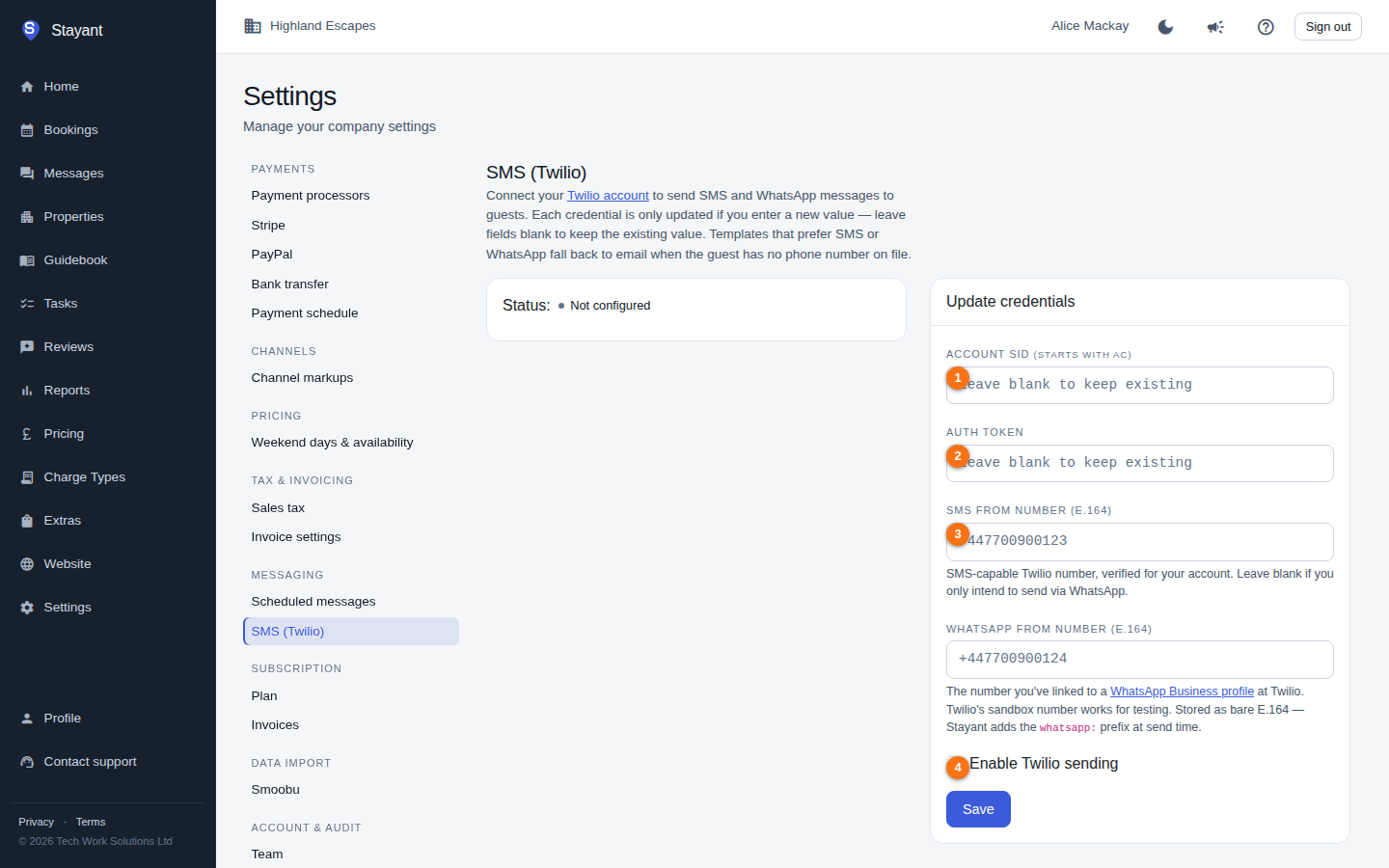
For security, the Account SID and Auth Token fields are cleared after a successful save.
You can't tick Enable Twilio sending on its own: saving is refused unless an Account SID, an Auth Token and at least one from-number (SMS or WhatsApp) are saved or entered.
SMS (Twilio) only appears in Settings if your plan includes Send SMS, and only account owners and admins can change these settings.
Updating credentials later
Each credential is only changed if you type a new value. Leave a field blank to keep the existing value — so to rotate just your Auth Token, enter the new token and leave the SID and numbers untouched. The phone-number and "Enable" fields always reflect what's currently saved.
Reading the status
The left-hand card shows the current state:
- Active (green) — Twilio is configured and sending is enabled. SMS/WhatsApp messages will go out.
- Configured but disabled (amber) — credentials are saved but the Enable Twilio sending box is off. Nothing sends until you re-enable it.
- Not configured (grey) — no credentials saved yet.
When configured, the card lists your Account SID and Auth Token masked, so you can confirm what's stored without exposing the secrets, plus your SMS From and WhatsApp From numbers in full.
What connecting Twilio affects
Connecting and enabling Twilio is what lets your scheduled message templates actually deliver over SMS or WhatsApp. In the message editor (Settings → Scheduled messages) you choose a Preferred channel of Email, SMS, or WhatsApp per template:
- If Twilio is connected and enabled, SMS/WhatsApp templates send over Twilio.
- If Twilio isn't configured (or a particular guest has no phone number on file), those messages fall back to email automatically. Always keep a usable email subject and body on every template.
Tips
- Use E.164 format for every number — a leading
+, country code, then the number, no spaces or dashes (e.g.+447700900123). - If messages aren't arriving, check the status badge first: Configured but disabled means the Enable Twilio sending box needs ticking.
- For WhatsApp, outbound transactional messages must use a Twilio-approved template/profile — confirm yours is approved on the Twilio side before relying on it.
- Don't enter real credentials anywhere other than this settings page, and never share your Auth Token.