Bank transfer payments
Bank transfer lets guests pay by sending money directly to your account. When enabled, Stayant shows your bank details to the guest at checkout and on any payment link you send, so they know where to pay.
Open Settings → Bank transfer (/settings/bank-transfer).
These details are visible to anyone you send a payment link to, so Stayant does not treat them as secrets — the form shows the actual saved values so you can see exactly what guests are shown.
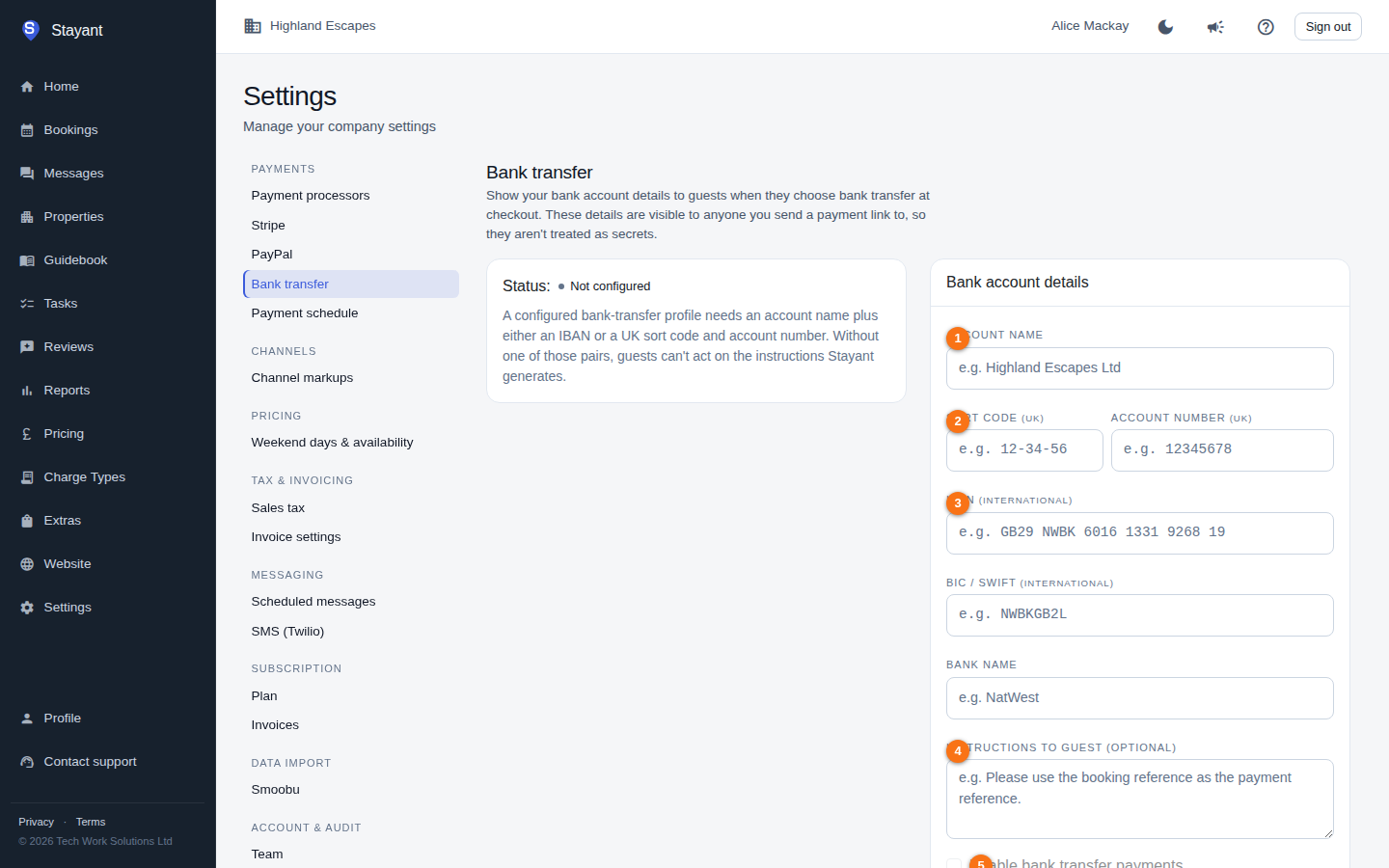
Entering your bank details
In the Bank account details card:
- Account name (①) — the name on the account (e.g. Highland Escapes Ltd).
- Sort code and Account number (②) — for UK accounts.
- IBAN (③) and BIC / SWIFT — for international transfers.
- Bank name — e.g. NatWest.
- Instructions to guest (④, optional) — free text shown alongside the details. Stayant already shows an auto-generated Reference with the bank details, so you don't need to ask for one; use this box for anything extra, such as clearing times or a contact number. A common use is asking guests to quote their booking reference as the payment reference.
Fill in your details and click Save. Then tick Enable bank transfer payments (⑤) and Save again.
Why the Enable checkbox starts greyed out
Enable bank transfer payments stays disabled until your saved details are complete — that's why enabling it takes two saves the first time. This is deliberate: a guest who picks bank transfer with no account details on file has nowhere to send the money, and if bank transfer is your only payment method they can't pay at all. Once you save a complete set of details the checkbox becomes available.
The same rule applies in reverse. If you later clear your account details, bank transfer is switched off automatically rather than left on and broken.
What counts as "configured"
For Stayant to generate usable instructions, a profile needs an account name plus either an IBAN or a UK sort code and account number. Without one of those pairs, guests can't act on the instructions, and the profile won't be treated as configured.
A partial set doesn't count — a sort code with no account number, or an account number with no sort code, still leaves the guest unable to pay.
Status and what the badges mean
The status card shows:
- Active (green) — configured and enabled; bank transfer is offered to guests.
- Configured but disabled (amber) — details are saved but Enable bank transfer payments is unticked.
- Not configured (grey) — required details are missing.
Whether bank transfer actually appears at checkout, and where it sits relative to card and PayPal, is also controlled in Choosing payment processors. Until the status here reads Active, bank transfer stays greyed out on that page and can't be offered to guests.