Connecting Stripe
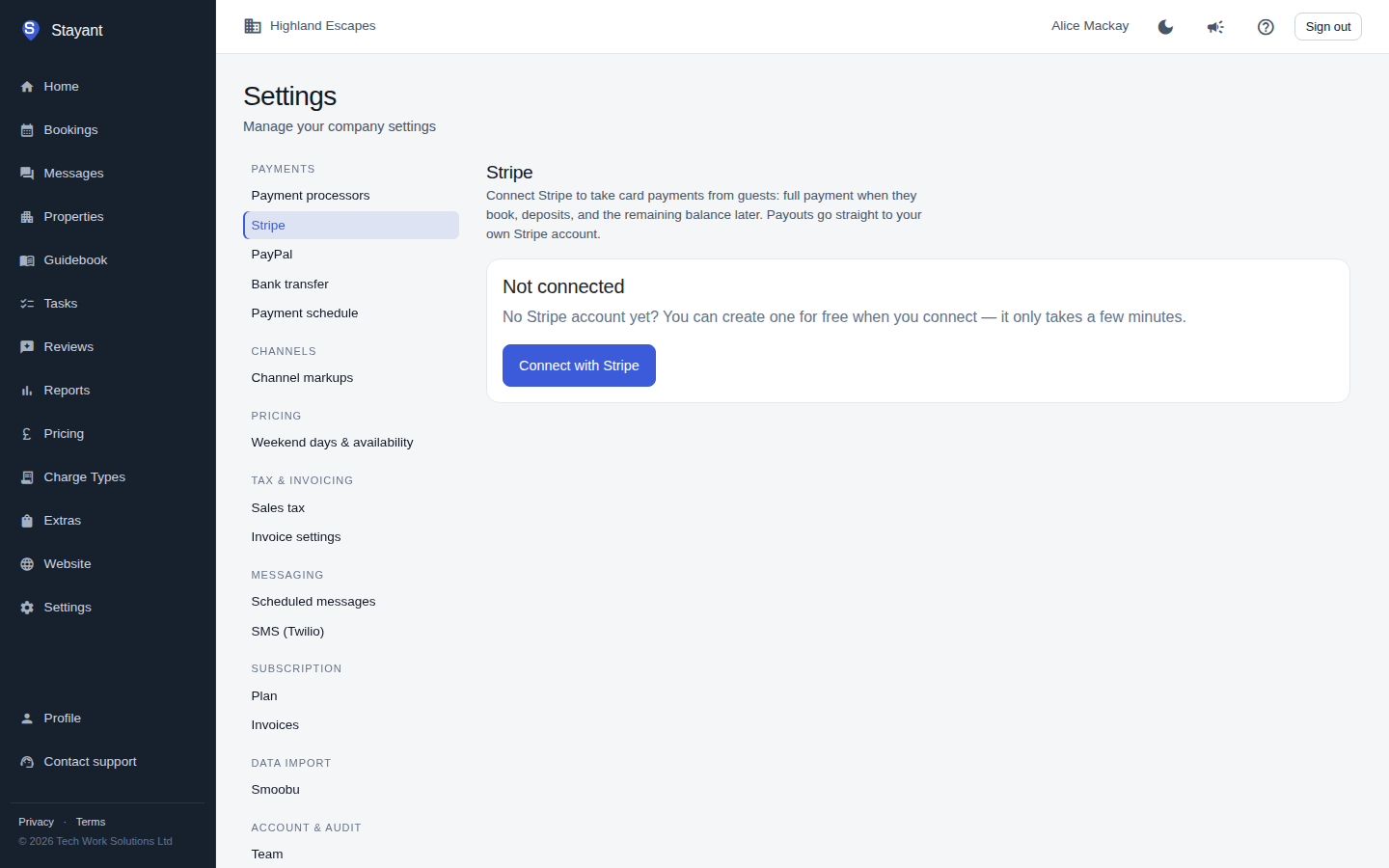
Connect your Stripe account to take card payments from guests. Once Stripe is connected and enabled, card payment becomes available at checkout (subject to the processors you allow — see Choosing payment processors).
Open Settings → Stripe (/settings/stripe).
You don't need to copy any Stripe keys — you connect your Stripe account with a single click, the same way you'd connect it to any other app.
Connecting for the first time
Click Connect with Stripe. You'll be taken to Stripe to sign in and authorise Stayant. No Stripe account yet? You can create one for free on the same screen. Stripe sends you back to this page once you're done.
Moving from an older Stayant Stripe set-up
If you used Stripe with Stayant before: connect the same Stripe account you used previously, not a new one. Stayant stores no Stripe secrets of its own — your guests' saved cards and any past payments that are still refundable live in your Stripe account, not Stayant's database. Connecting a different account starts from zero: no saved cards, and earlier payments won't be refundable through Stayant.
Status and what the badges mean
Once connected, a status card shows your account details:
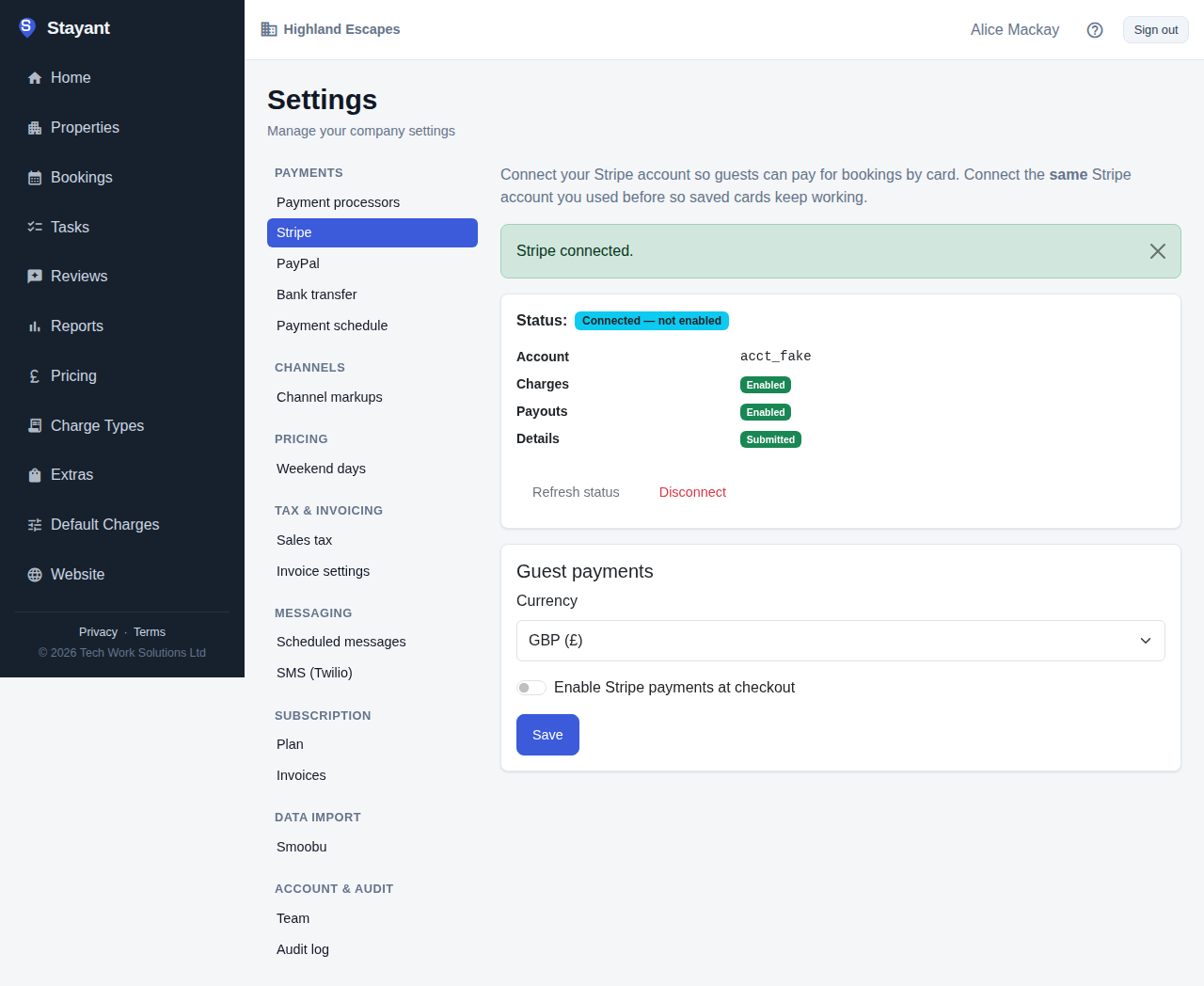
- Account — your Stripe account id (
acct_…), for reference if you need to contact support. - Charges / Payouts / Details badges — green Enabled/Submitted once Stripe has fully verified your account; these can start grey/amber if Stripe still needs more information from you (business details, bank account, identity verification). Finish that in your Stripe dashboard — Stayant just reflects Stripe's own state.
- Refresh status — re-checks your account with Stripe (useful right after finishing Stripe's own verification steps).
- Disconnect — removes the connection and turns Stripe off for guest checkout. You can reconnect at any time; reconnecting the same account restores your saved cards and refund history.
The status at the top of the card summarises where you are. Before you link an account the card reads Not connected. Once connected, the badge shows one of:
- Connected — onboarding incomplete — Stripe hasn't enabled charges on your account yet.
- Connected — not enabled — Stripe is happy, but you haven't ticked the toggle below.
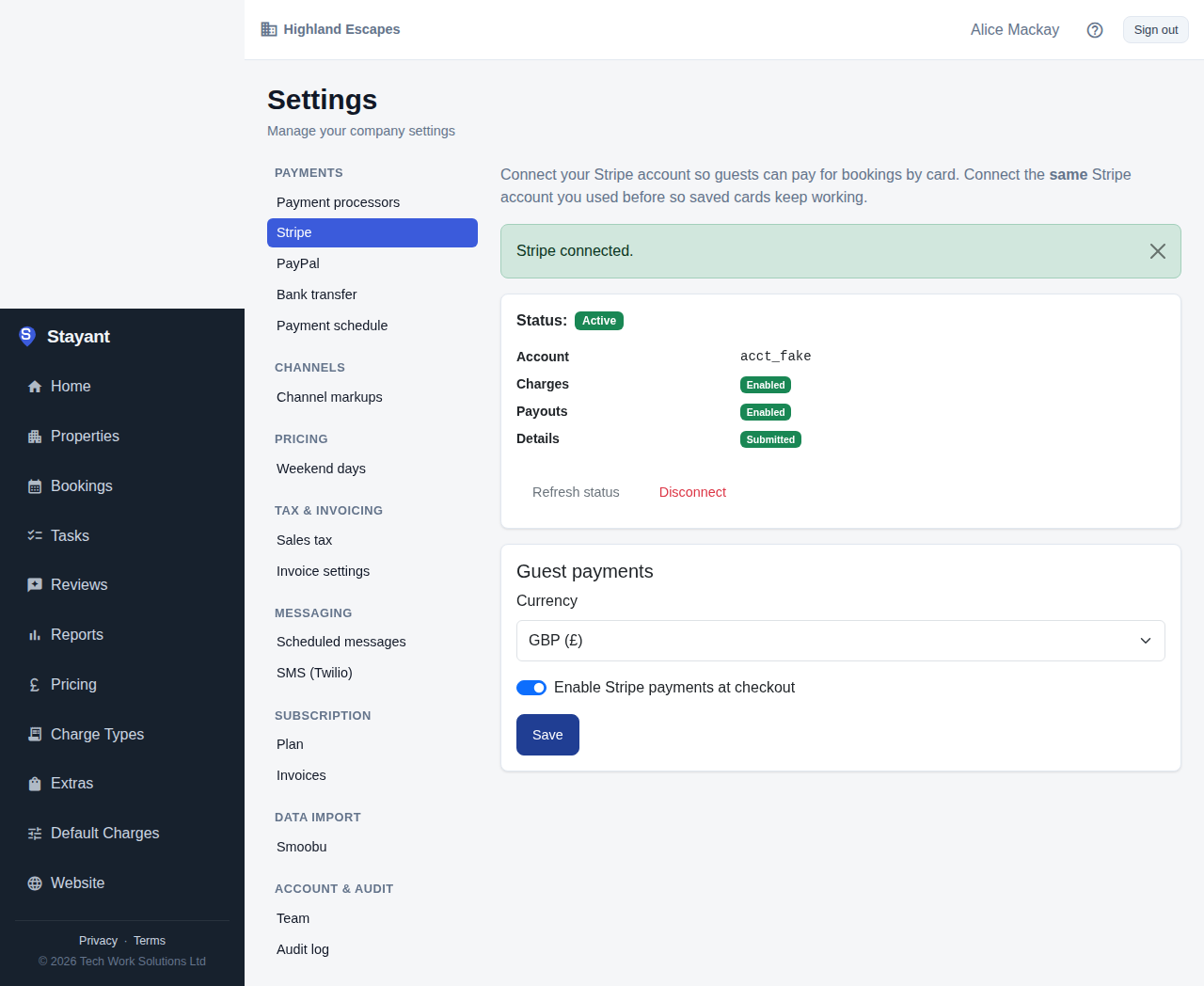
- Active — connected, verified, and taking payments.
Currency and enabling
Below the status card:
- Currency — the currency guests are charged in: GBP, USD, EUR, AUD, or CAD. Your booking site shows every price (property cards, room prices, the calendar, the price breakdown and extras) in this currency.
- Enable Stripe payments at checkout — stays off until your account passes Stripe's charge check. Tick it once you're ready to take live payments, then Save.
If your account won't enable
The Enable toggle only unlocks once Stripe reports charges_enabled = true for your account.
If it stays locked:
- Click Refresh status — Stripe verification can take a few minutes, especially right after signing up.
- Check your Stripe dashboard for any outstanding verification requirements (business details, bank account, identity documents).
- If you disconnected and reconnected recently, give it a moment and refresh again.
"Total amount due must add up to at least £0.30"
Stripe won't process a payment below a small per-currency minimum (about £0.30 in GBP, and the equivalent in other currencies). If a booking's next payment falls under it — a very cheap stay, or a deposit percentage that rounds down to a penny or two — generating a payment link fails and Stayant shows Stripe's explanation.
To take the money anyway, either raise the amount above the minimum (adjust the rate, the deposit percentage, or take the full balance in one payment instead of splitting it), or record the payment manually against the booking once the guest has paid you another way.
Channel-booking cards (Booking.com, etc.)
Bookings that arrive through a connected channel (Booking.com via Channex) don't come with a card the way a direct booking does — the guest paid the channel, not you. See Channel-booking cards and auto-charge for how Stayant fetches a chargeable card for these bookings and the toggle that controls whether they're charged automatically on their due dates.