Seasonal & weekend pricing
Stayant gives you two ways to vary pricing beyond editing individual nights: seasonal pricing rules for date ranges, and a tenant-wide weekend days setting that controls which nights use your weekend price.
Seasonal pricing rules
A seasonal rule sets a fixed weekday and/or weekend nightly rate for a date range — for example Summer 2026. Where a rule is active, its rate fills any night you haven't given a specific daily rate. A daily rate you type into the grid always overrides the rule.
Rules are managed in the Seasonal pricing rules section of the Pricing page. (You can also add and delete rules from a single property's Prices tab under Pricing Rules (Seasonal).)
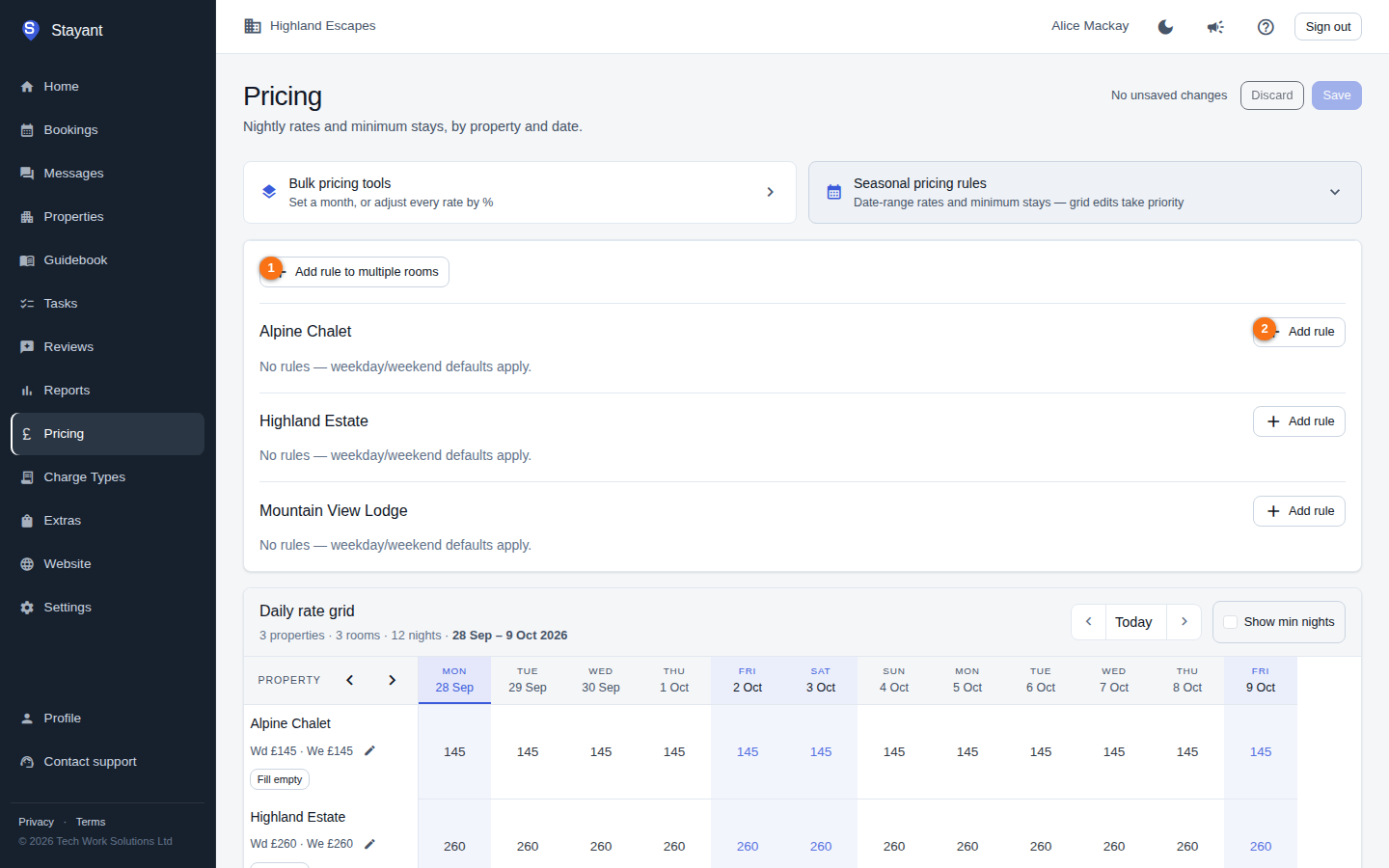
The section lets you add a rule to many rooms at once (①) or to a single room (②).
Add a rule to one room
- On the Pricing page, expand Seasonal pricing rules.
- Find the room and click Add rule (②).
- Fill in the fields:
- Name — for example Summer 2026.
- From and To — the date range.
- Priority — higher numbers win when ranges overlap.
- Weekday £ and Weekend £ — set one or both.
- Min nights — the minimum stay for arrivals in this range. A rule can set just min nights and no prices.
- If the room has more than one rate plan, choose the Rate plan the rule applies to (leave on the default to apply to the default plan). A rule only prices the plan it's assigned to — it doesn't change the room's other plans.
- Click Save.
Add a rule to several rooms at once
- Expand Seasonal pricing rules.
- Click Add rule to multiple rooms (①).
- Tick All rooms (every property), or untick it and choose specific rooms.
- Fill in the rule fields as above and click Save rule.
Edit or delete rules
Each room lists its rules in a table showing the name, dates, weekday/weekend price, min nights, priority, and status (Active/Inactive). To edit one, click its edit (pencil) icon, change the values — including the Active toggle — and click the check icon to save. Click the delete icon to remove a rule. To change several rules together, tick their checkboxes and use Edit selected.
How rules combine
- A rule only applies between its From and To dates and while it is Active.
- When ranges overlap, the higher Priority rule wins. If two rules share the same Priority, the one covering the narrower date range wins; if they're the same width, the most recently created wins.
- A rule can supply just a weekday price, just a weekend price, or both — whichever side is missing falls through to a lower-priority rule or the room's default.
- In the daily rate grid, a night taking its price from a rule is tinted and shows the rule's price in colour; a daily rate you enter overrides it.
Weekend days
The weekday £ / weekend £ split — in seasonal rules, room defaults, and bulk pricing — depends on which days you treat as weekend nights. This is a single tenant-wide setting, in the Weekend nights card. The default is Friday + Saturday.
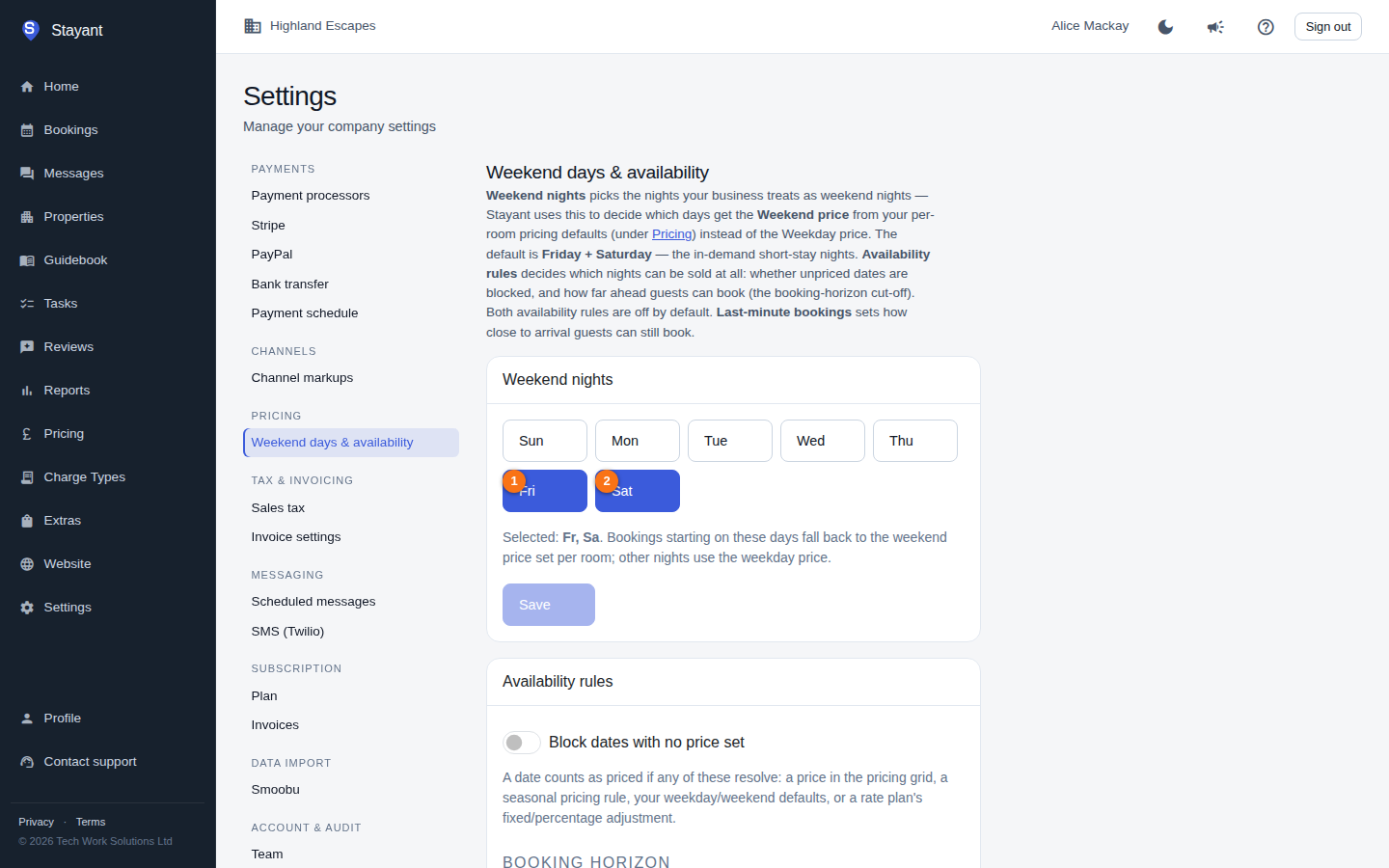
To change it:
- Go to Settings and open the Weekend days & availability section (
/settings/pricing). - Click the day buttons to toggle each day on (highlighted) or off — for example Fri (①) and Sat (②).
- The line below shows your current selection, for example Selected: Fri, Sat.
- Click Save.
Gotcha: You must keep at least one day selected — the Save button is disabled if no days are chosen. Changing the weekend definition affects which nights use the weekend price everywhere across pricing, so review your rates after changing it. In the daily rate grid, weekend columns are shaded so you can see the effect.