Blocking dates & managing availability
To make dates unavailable, add a date block from the Block Dates dialog on the Bookings calendar. A date block closes the dates everywhere — in Stayant itself, and on your connected channels, where it is pushed as a stop sell. You can also keep availability in sync with external calendars using iCal Sync.
Block a date range
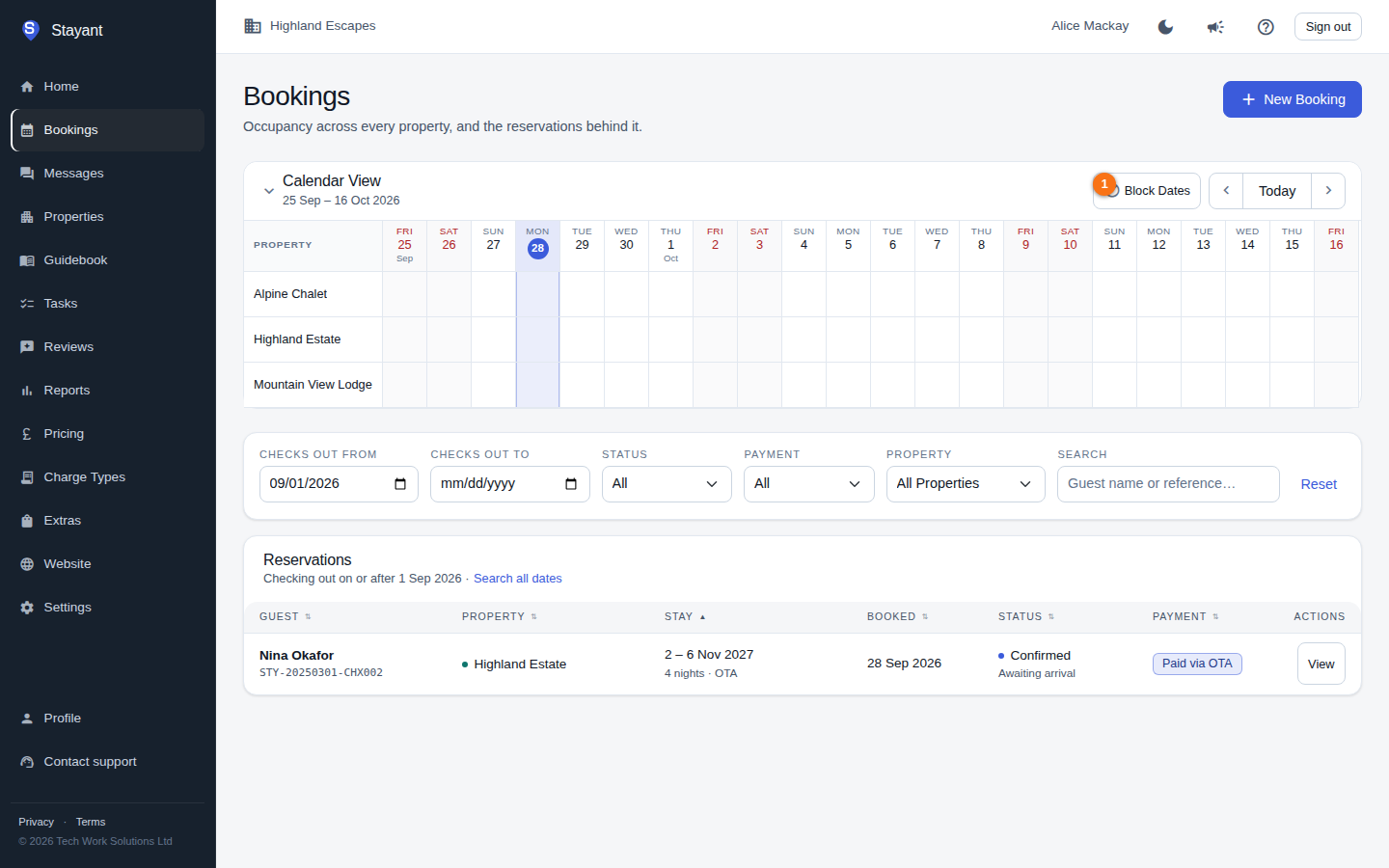
- Open the Bookings page and use the Calendar View at the top.
- Click Block Dates in the calendar toolbar.
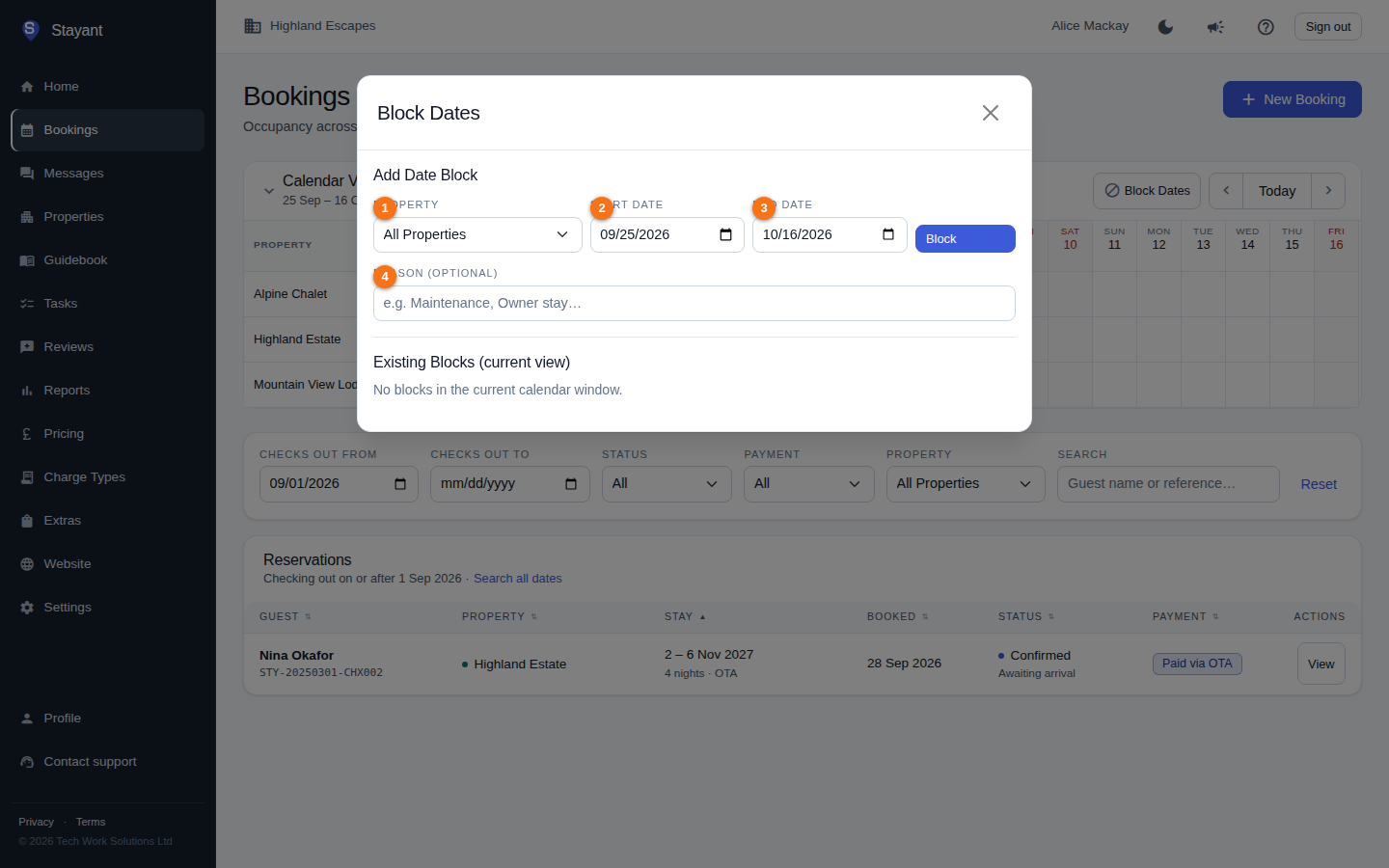
- Under Add Date Block, choose the Property (or leave it on All Properties to block every property at once).
- Set the Start Date and End Date.
- Optionally add a Reason — for example Maintenance or Owner stay. It's shown to you on the calendar, never to guests.
- Click Block.
The blocked range appears on the calendar as a hatched bar, and the dates stop being bookable — in the management app, on your website, and on your connected channels.
If any booking that isn't cancelled or expired already overlaps the range, the block is refused and the conflicting bookings are listed by reference so you can move or cancel them first.
Reopen a blocked range
Open Block Dates again. Blocks that fall inside the calendar's current date window are listed under Existing Blocks (current view); click the delete button on the row to remove one. The dates become bookable again immediately.
Date blocks vs restriction overrides
The property's Restrictions tab also has Stop sell, Closed to arrival, Closed to departure, Minimum stay and Maximum stay settings. These are enforced on direct bookings in Stayant as well as being sent to your connected channels — but staff can choose Book anyway to take a one-off booking that breaks them, and bookings arriving from a channel are always accepted. See Minimum/maximum stay & restrictions.
Use restriction overrides to set the terms on which dates can be sold. Use a date block when the dates must be unavailable for any reason — maintenance, an owner stay — with no option to book over them.
Sync availability from external calendars (iCal)
If you list the property on other sites, use the iCal Sync tab to import their calendars so external bookings block your availability automatically. Imported events become date blocks, so they do stop new bookings. (iCal import runs on a schedule in the background.)
Common gotchas
- Blocking lives on the Bookings calendar, not the property page. There's no blocking control on the property's own tabs — use Block Dates on the calendar (or iCal sync).
- A stop-sell override can be overridden by staff. Guests can't book stop-sold dates, but staff can still take a booking on them with Book anyway. Use a date block if the dates must stay closed.
- You can't block over an existing booking. Cancel or move the booking first.
- The restriction-override editor only covers a rolling window from today up to two years ahead.
- End date must be on or after the start date.