Property address and location
Each property can have a postal address and map coordinates. Stayant uses them to:
- show guests roughly where the property is before they book;
- give booked guests the full address and a map link;
- tell search engines where the property is, so it can appear in local search results.
Add the address
- Go to Properties and open the property.
- On the General tab, find the Location card and click Add address (or Edit if there is one already).
- Fill in Address line 1, Town or city and Country. Address line 2 and County or region are optional.
- Enter the Postcode.
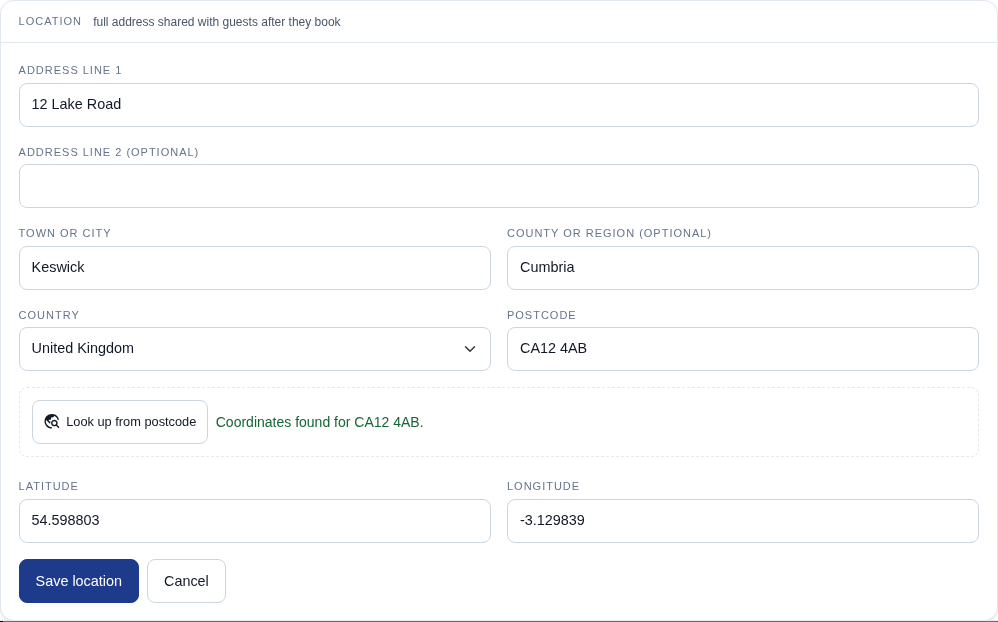
Look up the coordinates from the postcode
For UK addresses, click Look up from postcode. Stayant finds the postcode's coordinates and fills in Latitude and Longitude, replacing any coordinates already in those boxes. It may also tidy the postcode's formatting. If the town or county fields are empty, it fills those in too, but it never overwrites a town or county you have already typed.
The message next to the button tells you what happened:
- Coordinates found for …: check the numbers look right, then save.
- We couldn't find …: check the postcode for typos, or enter the coordinates yourself.
- The postcode lookup service isn't responding: you can still save the address and add the coordinates later.
A postcode covers a small area, so its coordinates point to the middle of it rather than your front door. That is fine for search results. If you want them exact, type your own coordinates instead.
Enter the coordinates yourself
For addresses outside the UK, or to be more exact, type the Latitude and Longitude. To find
them, open the property in a map app, drop a pin on it and copy the two numbers (for example
54.598803 and -3.129839).
Click Save location when you're done. The Location card then shows whether the coordinates came from postcode or were entered manually.
What guests see
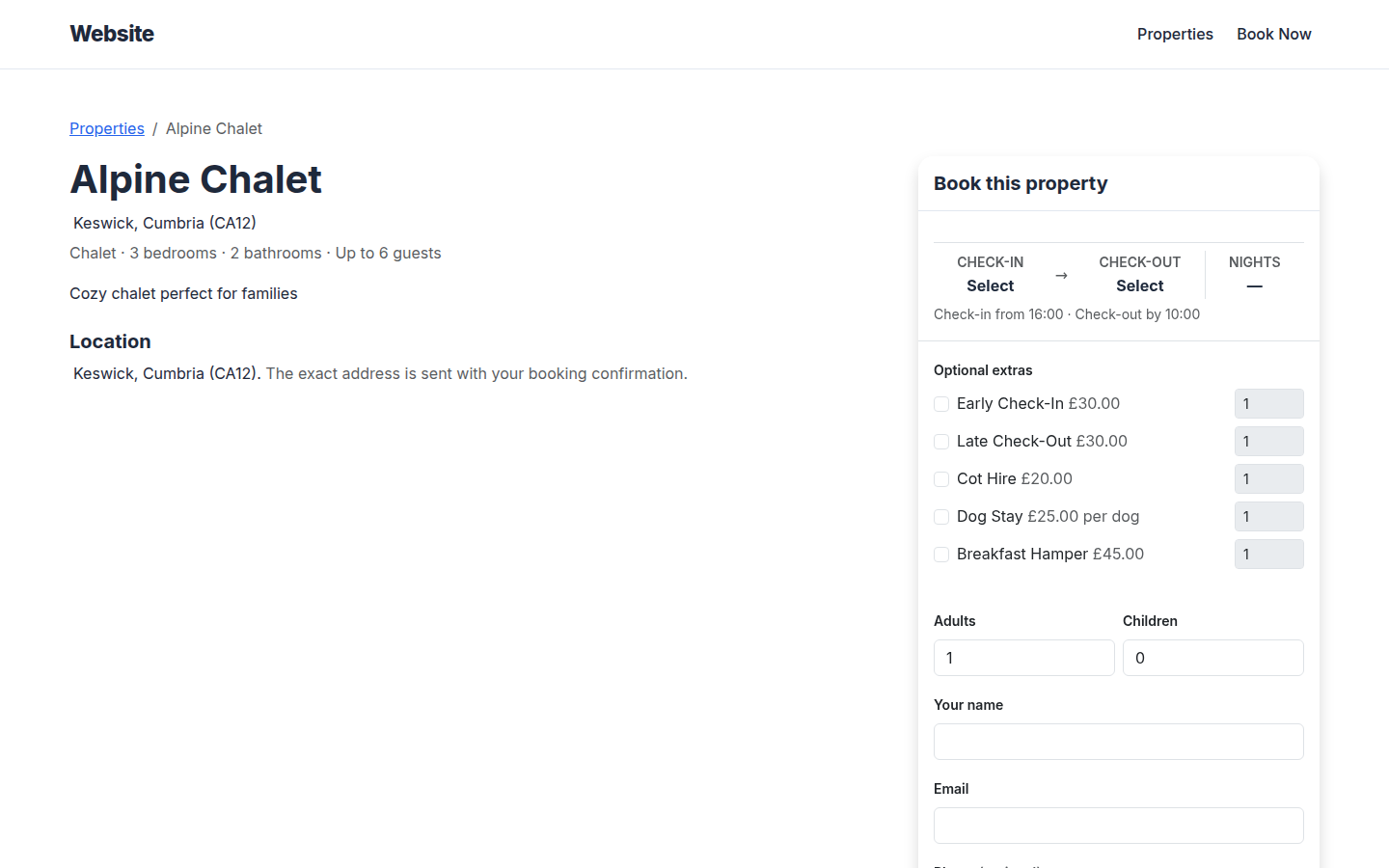
Before booking, your booking site shows only the general area: the town, county and the first half of the postcode, for example Keswick, Cumbria (CA12). The Location card shows you this under Guests see before booking. The street address and exact coordinates are never shown on your public booking site.
After booking, guests see the full address and an Open in maps button in their guest portal.
You can also put the address in booking messages with the {{PropertyAddress}} placeholder (see
Message templates).
Search engines and structured data
Property pages on your booking site now include structured data: a machine-readable summary that search engines and AI assistants read. It covers the property's name, photos, general location, number of guests, bedrooms and bathrooms, check-in and check-out times, amenities, your lowest nightly price, your published FAQs, and your star rating. The rating only counts approved reviews that guests left through Stayant. Reviews you imported from other sites don't count, because search engines don't allow them.
This helps search engines understand your pages. It doesn't guarantee special results in Google: Google only shows its holiday-rental results for sites it partners with directly, and it shows FAQ results for very few sites.
Remove the address
Click Edit, clear all the address and coordinate fields, and click Save location.