Exporting data
The Reports page can export your bookings to a CSV file you can open in Excel, Google Sheets, or any spreadsheet tool. The export is a row-per-booking list — it is not the occupancy or profit/loss summary you see on screen.
Once you have run a report, the Export CSV button (①) appears next to Run Report at the top of the page (②).
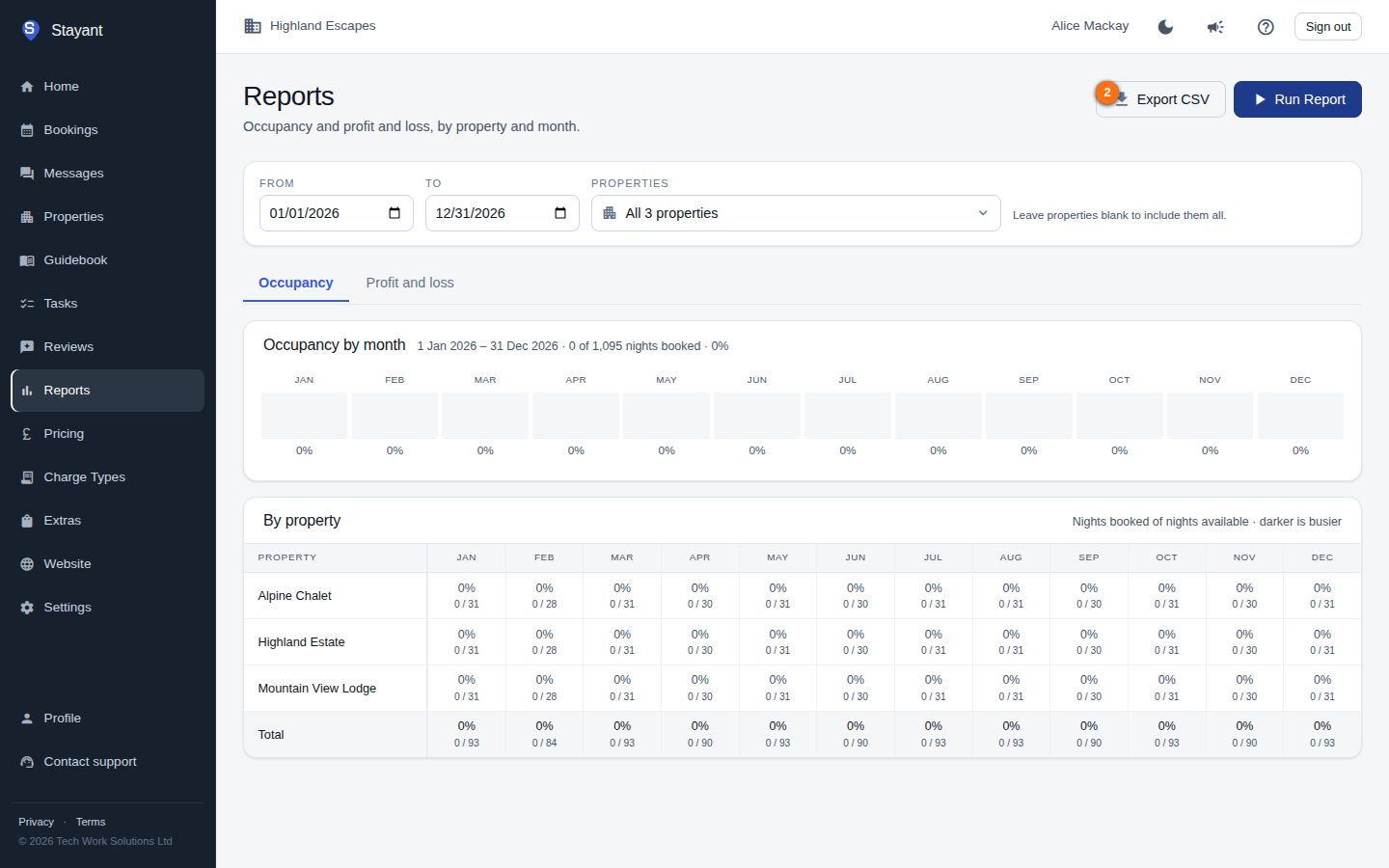
Export bookings to CSV
- Go to Reports.
- Set your From / To dates and, optionally, tick the Properties you want to include.
- Click Run Report.
- Once the report has run, an Export CSV button (①) appears next to Run Report at the top of the page (②). Click it.
- Your browser downloads a file named bookings.csv.
The export uses the From / To dates and property selection currently in the filter bar when you click Export CSV — if you've changed them since running the report, the export follows the new values. The filter matches bookings by check-in date falling within the range, including check-ins on the To date itself. Unlike the on-screen reports, the CSV is not restricted to non-cancelled bookings — cancelled bookings appear with a Status of Cancelled.
What's in the file
One row per booking, sorted by check-in date, with these columns:
- Booking Reference
- Property
- Guest Name
- Guest Email
- Check In (YYYY-MM-DD)
- Check Out (YYYY-MM-DD)
- Nights
- Adults
- Children
- Status
- Accommodation Total
- Charges Total
- Extras Total (after any discount on the individual extras)
- Discount — the booking-level discount amount
- Discount Description
- Grand Total (uses the booking's total override if one is set, otherwise accommodation + charges + extras, minus the booking discount)
- Booking Source
- Created Date (YYYY-MM-DD)
Gotchas
- The Export CSV button only appears after you've run a report — run the report first.
- One export covers at most two years of check-in dates. If you choose a longer range, the page asks you to shorten it. To export a longer history, export it in two-year pieces.
- Money columns are plain numbers with two decimal places and no currency symbol, so they import cleanly into spreadsheets.
- There is currently no PDF or Excel (.xlsx) export from this page, and the occupancy / profit-and-loss summary tables themselves aren't exported — only the booking list. To keep an occupancy or profit/loss summary, copy the on-screen table or take a screenshot.