Your subscription plan
Your Stayant subscription is what your company pays Stayant to use the platform. Manage it from Settings → Plan (/settings/subscription). Everything on this page applies to the company (tenant) you're currently working in — if you belong to more than one company, switch to the one you want to manage first. If no company is active, the page shows "Switch to a tenant to manage subscriptions" and nothing else can be done until you do.
Your free trial
Every new Stayant account starts on a 14-day free trial the moment you sign up. There is nothing to pick and nothing to pay: no card, no plan, and you don't even need to verify your email first (you'll see a reminder banner until you do, but it doesn't block anything). The trial gives you the whole product.
While you're on the trial, the Plan page shows a You're on a free trial until date notice with the number of days left, and the rest of the app carries on as normal. Billing deliberately stays out of the way until the end is near:
- Throughout the trial — a small N days left in trial chip sits in the top bar. Owners and Admins can click it (Upgrade) to go straight to checkout — see Upgrading in one click below.
- More than 3 days left — nothing to do. You can pick a plan early if you like (see below); you won't be charged until the trial ends.
- 3 days or fewer left — a Your free trial ends in N days banner appears at the top of every page, with an Upgrade button (shown to Owners and Admins) that takes you straight to checkout — see Upgrading in one click below.
- After the trial ends without a plan and payment method — the banner changes to Your free trial has ended, and you get a short grace period (normally a week) during which everything keeps working. Choose a plan and add payment details before it closes; if you don't, the account is paused until you do (see If a payment fails for what a paused account looks like).
Choosing a plan during the trial is free and can be changed as often as you like — the plan you're on when the trial ends is the one your first invoice is for.
Trial length is a platform setting, so it may differ from 14 days on some deployments — the notice always shows your actual end date.
Upgrading in one click
Owners and Admins see an Upgrade button in the trial chip in the top bar, in the trial banner and in the free-trial notice on the Plan page. One click takes you to Stripe's secure checkout page, in the same tab, where you enter:
- your card, and
- your billing address — the address printed on your Stayant invoices. There's no separate address form to fill in on the Plan page.
The upgrade is for the plan you've already chosen. If you haven't chosen one, it's for the first plan in the list, on monthly billing where the plan offers it. You can still switch plans for free until your trial ends (see Changing your package). When you finish checkout you come back to the Plan page, which confirms "Payment method saved successfully." During a trial, nothing is charged until the trial ends.
If you'd rather pick the plan first, click a package card and then Upgrade to <package> (see below). That takes you to the same checkout.
The Upgrade button doesn't appear in the Stayant iPhone and Android apps. Manage your plan from a web browser instead.
Choosing a package (free trial, no subscription yet, or cancelled)
If you're on a free trial and haven't chosen a plan yet, don't have a subscription, or previously cancelled, the page shows the packages available. Each package is shown as a card with:
- The package name and an optional short description.
- A base monthly price (shown as "/ month base").
- A per-property price if the package charges one (shown as "+ £x.xx per property / month"). If the package has no per-property charge, this line is hidden.
- Monthly and/or Yearly badges showing which billing cycles the package allows.
- A Save x% yearly badge if the package offers a discount for yearly billing.
To subscribe (or, on a trial, to choose your plan):
- Click a package card to select it. It gets a Selected badge and a highlighted border.
- A Subscribe to <package> panel appears (Choose <package> while you're on a trial). Choose a Billing Cycle — Monthly or Yearly, depending on what the package allows. The panel shows the price for each cycle. A yearly cycle is normally priced as twelve times the monthly amounts, but some packages offer a yearly billing discount — when one applies you'll see the reduced yearly price and a "Save x%" badge next to the Yearly option.
- Click Subscribe (or Upgrade to <package> on a trial).
Your plan is saved and you go straight on to Stripe's secure checkout page to add your card and billing address. If a card is already saved, you stay on the Plan page instead. On a trial, nothing is charged until the trial ends — the confirmation says which plan you'll be billed for and when. The actual package names, prices, and which cycles are allowed are configured by Stayant, so what you see may differ from the examples here.
If no packages are available, the page shows "No subscription packages are currently available" — check back later or contact support. On a free trial the message is "No plans are available to choose yet — your free trial carries on as normal", and there's nothing you need to do.
Viewing your current subscription
Once you have an active subscription, the page shows a Current Subscription card (①).
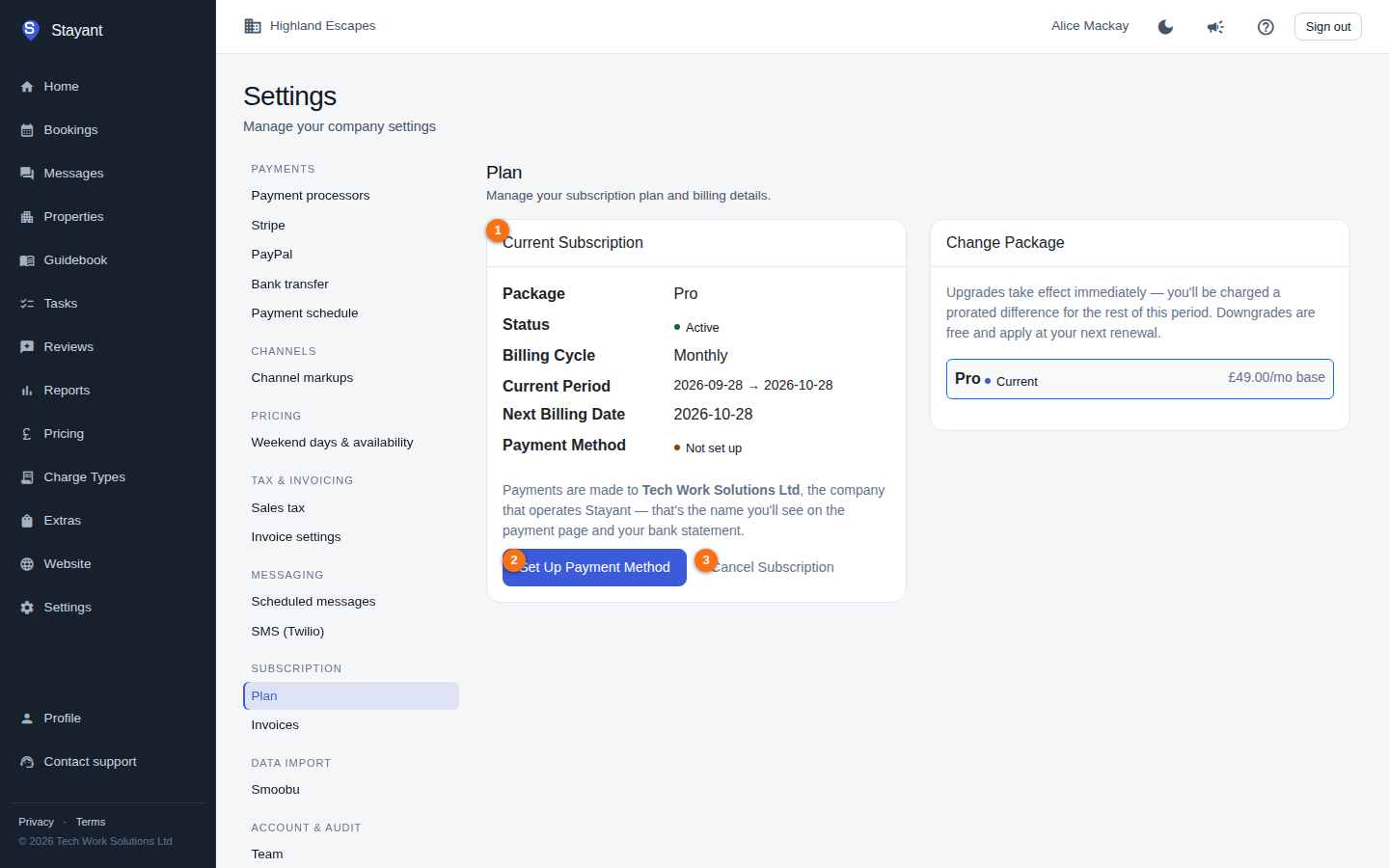
The card (①) lists:
- Package — the package you're on.
- Status —
Active, Free trial, Awaiting payment (a new subscription whose first invoice hasn't been paid yet), Past due (a recent payment failed), orCancelled, shown as a coloured badge. - Billing Cycle — Monthly or Yearly.
- Current Period — the start and end dates of the period you're currently paying for.
- Next Billing Date — when your next invoice will be generated.
- Payment Method — Saved (green) or Not set up (amber).
If a recent payment failed, a Last payment issue warning appears with the reason reported by the payment processor.
If a payment fails
Cards expire and banks decline automatic charges — it happens, and it doesn't switch your account off straight away.
When a subscription payment fails:
- We email your account owner(s) the same day, with the amount, the reason your bank gave, the date your access would stop, and a link back to this page.
- A grace period starts. For 7 days everything keeps working exactly as before — your properties, your public website, channel sync, guest payments and all your plan's features. A "Your payment failed" warning appears at the top of every page and on this one, naming the date you need to fix it by.
- We retry the payment automatically, about once a day, and email you again after each failed attempt.
- When the grace period ends, the subscription locks: plan features stop and the app redirects to this page until payment succeeds. See What your plan includes for exactly what changes.
To fix it, click Update Payment Method and enter working card details. Saving a card retries the payment immediately — you don't have to wait for the next daily retry. Once it succeeds the warning disappears, your status returns to Active, and an invoice for the new period appears under Billing & invoices.
If you've already updated your card and the warning is still showing, reload the page — the status refreshes once the retry has completed.
Setting up or updating your payment method
In the Current Subscription card, click Set Up Payment Method (②, or Update Payment Method if one is already saved). You'll be redirected to Stripe's secure checkout page to enter your card details and billing address, then returned to the subscription page, which confirms "Payment method saved successfully." Stayant never stores raw card numbers itself — payment details are held by the payment processor.
Paying your first invoice with a saved card
If your status is Awaiting payment and a card is already saved (for example, after you re-subscribe, or after Stayant sets up your plan for you), the yellow "Your subscription is awaiting payment" banner at the top of the Plan page has a Pay now button. Click it to pay your first invoice with the saved card straight away. You don't need to enter the card again.
- If the payment goes through, the page reloads and confirms "Payment received — your subscription is now active." Your plan features unlock straight away, and the invoice appears under Billing & invoices.
- If the card is declined, your status stays Awaiting payment and the reason appears as Last payment issue in the Current Subscription card. Click Pay now to try again, or Update Payment Method to pay with a different card. Saving a new card charges it straight away.
Any discount on your plan is applied to the amount charged. Only Owners and Admins see the Pay now button.
Changing your package (upgrade or downgrade)
While your subscription is Active, a Change Package card (①) appears alongside the current subscription.
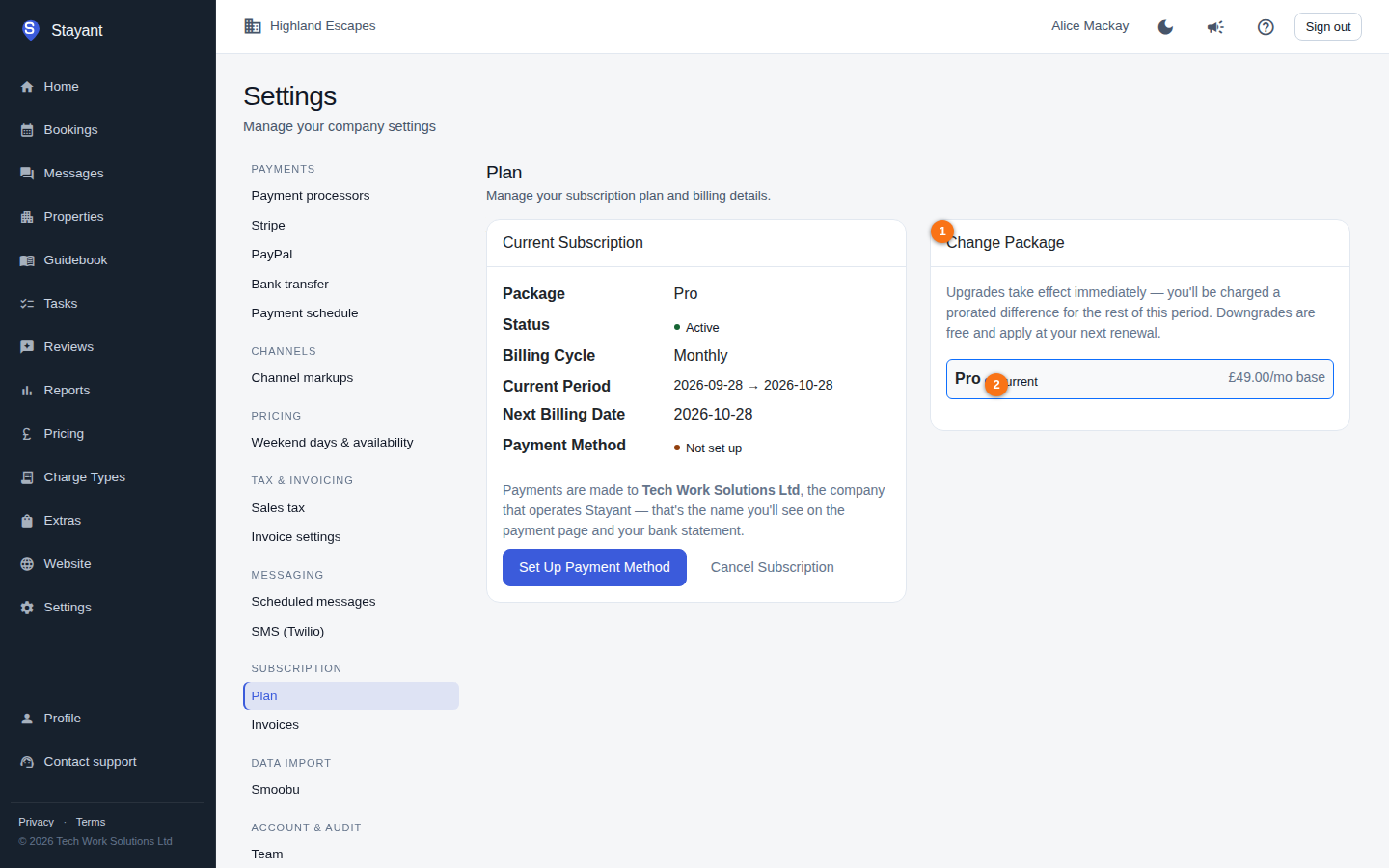
To switch:
- Pick a different package from the list. Your current package is marked Current (②).
- Choose a Billing Cycle for the new package. The package list shows each package's monthly base price, but the billing-cycle choice here doesn't show yearly prices — if the new package offers a yearly billing discount it still applies, and choosing the yearly cycle bills you the discounted yearly price.
- Click Switch to <package>.
What happens next depends on whether you're moving up or down:
- Upgrades take effect immediately. You're charged the prorated difference for the rest of the current period, and the new package's features unlock straight away. You need a saved payment method first — without one you'll be asked to add one before the switch goes through.
- Downgrades are free and apply at your next renewal. You keep your current package for the rest of the period you've paid for, and a banner reads Switching to <package> at your next renewal.
Changed your mind? Click Cancel scheduled change on that banner (Owners and Admins only) — you stay on your current package and nothing is charged.
Founding price
If you joined Stayant as a founding customer, you're on a Founding plan that isn't listed with the other packages. Its price is fixed, and the Current Subscription card shows a Price fixed until date with a Founding price tag.
You can still move to one of the listed packages from the Change Package card. Before the switch goes through, a warning explains that you'll lose the founding price and won't be able to switch back yourself. Click Switch anyway to go ahead, or Keep founding price to stay where you are. If you change your mind later, contact Stayant support.
Cancelling your subscription
In the Current Subscription card, click Cancel Subscription (③ on the card above). A confirmation prompt explains that you keep access until the end of your current period (the Current Period end date). Click Yes, Cancel to confirm, or Keep Subscription to back out.
If your status is Past due or Awaiting payment, there's no paid period left to honour, so cancellation takes effect immediately — the confirmation prompt says so, and you lose access as soon as you confirm.
Your subscription then stays fully usable until that date. The page shows a banner — Your subscription will end on <date>. You keep full access until then — with a Resume Subscription button. Clicking it cancels the pending cancellation at no charge, because you're already paid up for the period. The package-selection view only comes back once the period has actually ended.
Important: When a subscription is Awaiting payment, Past due, or
Cancelled, plan features are locked. See What your plan includes for exactly what changes.
Billing address
Your billing address is the address printed on your Stayant invoices. You enter it on the checkout page when you add your card, and Stayant saves it for you. Once a card is on file, the Billing address card below the subscription cards shows the saved address.
To correct it, click Edit billing address, change the fields and click Save billing address. Adding or updating your card through checkout also replaces the saved address with the one you enter there. Address line 1, town/city and postcode are required before invoices can be issued. If any of them is missing, a warning stays on the card until you add it.
Discounts applied by Stayant
If Stayant has applied a discount or complimentary period to your account, a banner appears at the top of the page describing it — for example "20% discount applied", "Complimentary subscription", or a fixed amount off each cycle — along with how long it lasts (until a date, or for a number of billing cycles). You don't need to do anything; the discount is reflected automatically on your invoices.