Operational tasks
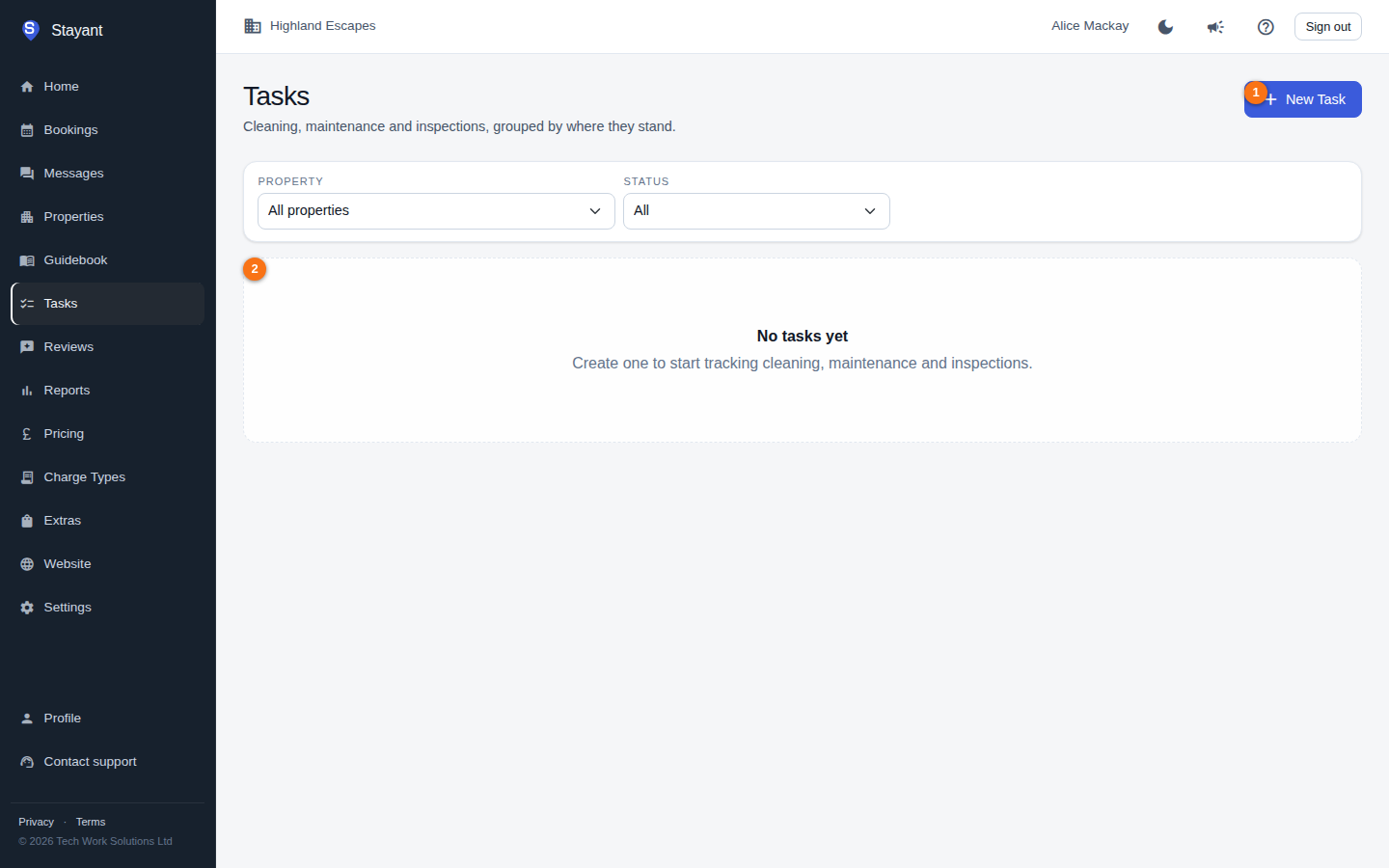
The Tasks page (Tasks in the main menu, or /tasks) is where you track the work that keeps your properties running — turnover cleans, maintenance jobs, and inspections. Each task belongs to a single property and moves through a simple set of statuses from start to finish.
From the board, New Task (①, top-right) opens the create dialog, and existing tasks are shown grouped by status (②).
Creating a task
- Open Tasks.
- Click New Task in the top-right.
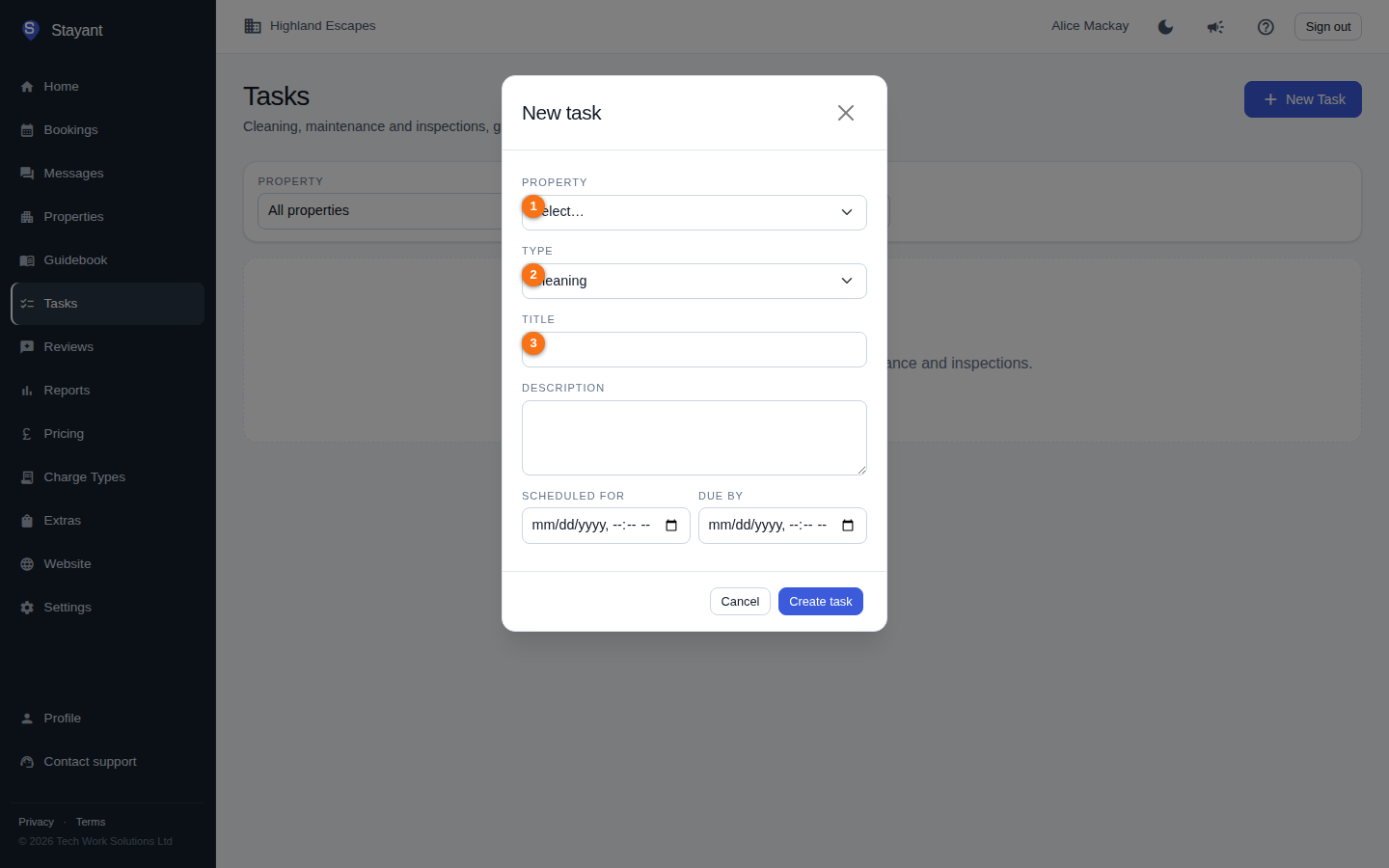
- In the dialog, fill in:
- Property (①) — which property the task is for. (If you only have one property, it is selected for you.)
- Type (②) — Cleaning, Maintenance, Inspection, or Other. The type controls the coloured badge shown on the task.
- Title (③) — a short description of the job (required).
- Description — optional longer notes.
- Scheduled for — optional date and time the task is planned for.
- Due by — optional deadline.
- Click Create task.
The new task is created with a Pending status and appears in the list immediately.
How tasks are listed
Tasks are grouped by status, in this order: In progress, Pending, Completed, then Cancelled. Each group shows a count badge. A task row shows its type badge, title, the property name, the scheduled time and due time (when set), and any description.
Moving a task through its statuses
Each task has action buttons on its row that change depending on its current status:
- Pending — a Start button (play icon) moves it to In progress. You can also Complete or Cancel it directly.
- In progress — Complete (check icon) or Cancel (cross icon).
- Completed or Cancelled — a Reopen button (refresh icon) returns the task to an active state.
Completing a task
Click Complete on a Pending or In-progress task. A dialog opens where you can add optional completion notes (for example, what was done or anything that needs following up). Click Mark complete. Once completed, the task moves to the Completed group, and any notes you entered are shown on the task row, prefixed "Completed:".
Cancelling and reopening
If a task is no longer needed, click Cancel — it moves to the Cancelled group. Cancelling does not delete the task; it stays on record. You can bring a Completed or Cancelled task back into play with Reopen.
Filtering the list
Two filters sit at the top of the page:
- Property — show tasks for a single property, or All properties.
- Status — show only Pending, In progress, Completed, or Cancelled tasks, or All.
The list reloads as soon as you change a filter.
Browsing large task lists
The task board loads 50 tasks at a time. When you have more than 50 tasks, a Prev / Next pager appears beneath the grouped list, along with a "Showing X–Y of N" count. Use Next and Prev to navigate through pages. Changing a filter (property or status) resets the list to page 1.
Related
- Auto-generated tasks — how Stayant creates cleaning tasks for you automatically.
- Check-in & check-out times — these set the time an auto-generated cleaning task is scheduled for.