The audit log
The audit log is a time-stamped record of significant actions taken in your account — who did what, and when. Open it under Settings → Audit log (/settings/audit). It's useful for reviewing changes, answering "who changed this?", and keeping an eye on account activity.
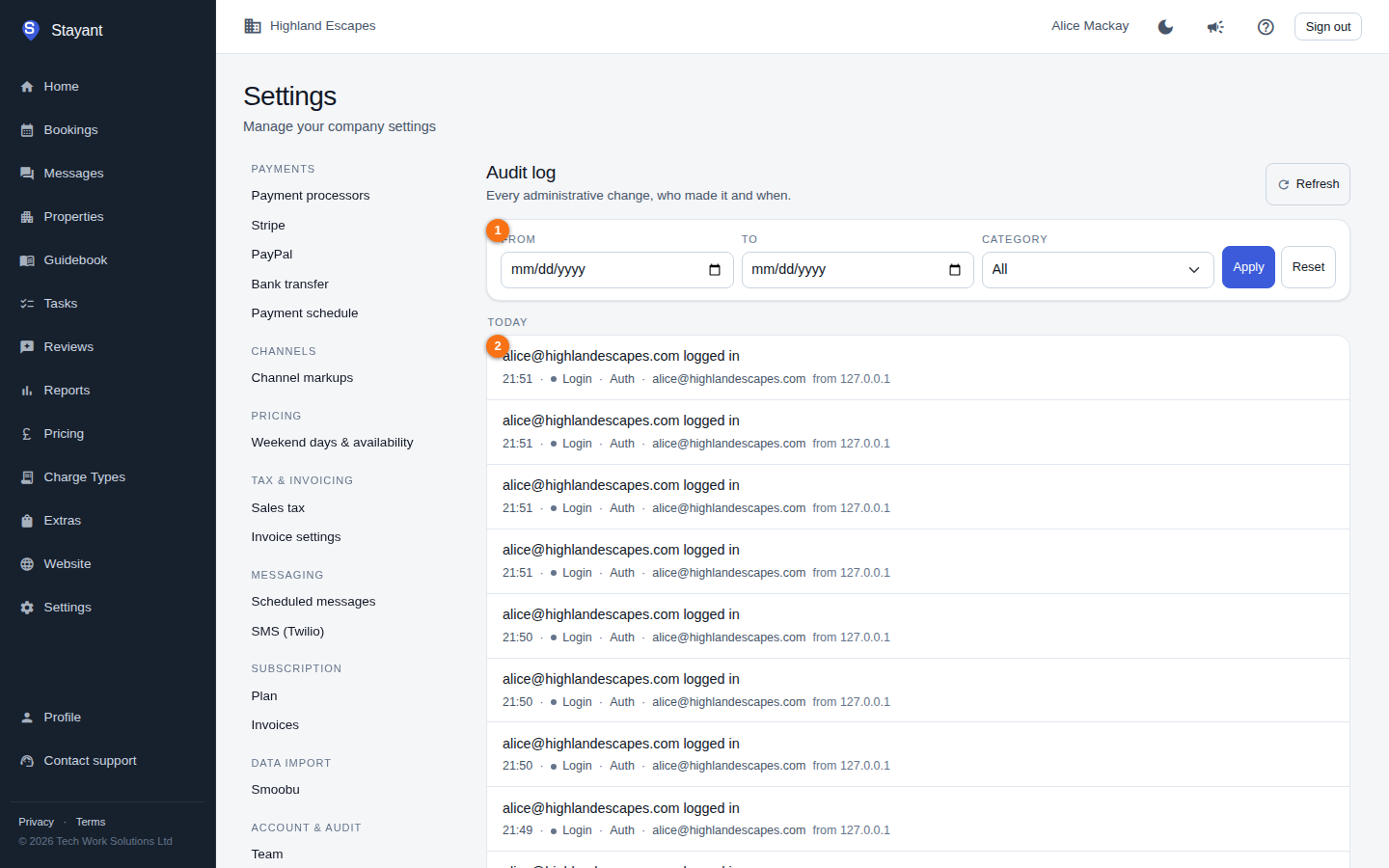
The filter card (①) at the top narrows the log; the entries below (②) list each action, grouped by day (they show once your account has audit activity).
What's recorded
You can filter the log by these categories:
- Bookings
- Properties
- Pricing — rates, rate plans, length-of-stay discounts, date blocks and availability restrictions (minimum/maximum stay, stop-sell, no arrivals, no departures)
- Extras
- Settings
- Payments
- Emails
- Auth
- Invitations
A few entries (for example team-member and SMS activity) carry other categories; they appear when the filter is set to All.
Reading an entry
Entries are grouped under a heading for each day — Today, Yesterday, then the date — newest first. Each entry is:
- A summary of what happened, in plain language.
- A line of detail underneath: the time (in your local time — hover for the exact UTC timestamp), the action with a coloured dot, the category (from the list above), and who did it — their email, or System for automatic actions — followed by the IP address it came from.
The dot picks out the entries worth a second look: green for a payment received, amber for a refund or a cancellation-policy override, red for a deletion or a failed sign-in.
When an entry records exactly what changed, a Show changes button sits beside it (a chevron on a phone). Click it to list each changed field as old value → new value; click Hide changes to collapse it again.
Sensitive values are never stored in the log. Passwords, API keys, tokens and similar fields show as <redacted> on both sides of a change, so you can see that a secret changed without seeing the secret itself.
How long entries are kept
Audit entries are kept for 90 days and then deleted automatically. Entries tied to a specific booking are exempt — they're kept for the life of the booking and also appear on that booking's own Audit tab.
Filtering
Use the filter card at the top to narrow the log:
- Set a From and/or To date.
- Choose a Category, or leave it on All.
- Click Apply.
Click Reset to clear all filters and return to the full log, or Refresh to reload the current view.
Paging
The log shows 50 entries per page. The footer shows which entries you're viewing out of the total (for example "Showing 1–50 of 240"), with ‹ Prev and Next › buttons either side of the current page number.