Notifications, app badge & Face ID
The Stayant iPhone app can tell you the moment something happens in your business — a new booking, a change, a cancellation, a payment or a guest message. Tap a notification and the app opens that booking or conversation, switching to the right workspace first if you belong to more than one.
Notifications go to workspace owners, admins and managers. Staff members don't receive them (the bookings they'd open aren't available to staff), so staff don't see the Notifications section either.
Choosing your notifications
Open your Profile (/profile) — on the web or in the app (More → Profile) — and find the Notifications section. It's on your profile rather than in the workspace's Settings because your choices are personal: they don't affect anyone else, and they apply in every workspace you belong to.
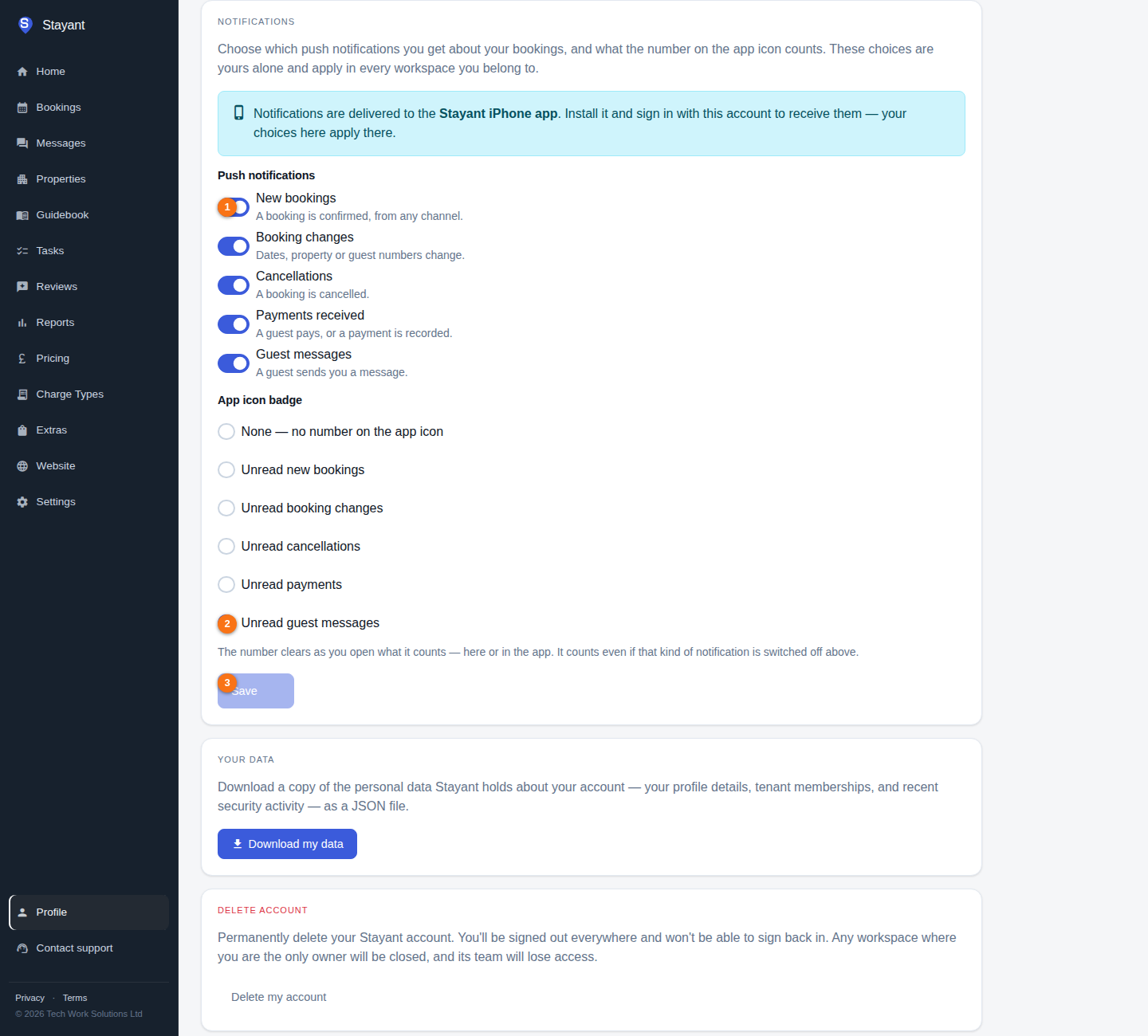
- Push notifications (①) — switch each kind on or off:
- New bookings — a booking is confirmed, from any channel. Bookings waiting for a bank transfer or a first payment are announced once they're confirmed.
- Booking changes — the dates, property or number of guests change.
- Cancellations — a booking is cancelled.
- Payments received — a guest pays online or a payment is recorded.
- Guest messages — a guest sends you a message, on any channel.
- App icon badge shows (②) — pick what the red number on the Stayant app icon counts: None, or unread items of one kind (for example unread guest messages, the default). The number counts even if you've switched that kind of notification off, so you can keep a quiet badge without alerts.
- Click Save (③).
On the web the page reminds you that notifications are delivered to the Stayant iPhone app — install it and sign in with the same account to receive them.
Allowing notifications on your iPhone
The first time you sign in to the app, iOS asks whether Stayant may send notifications. If you said Don't Allow, or notifications stop arriving, open the iPhone Settings app → Notifications → Stayant and turn on Allow Notifications. Stayant can't change this for you.
Signing out of the app stops notifications to that phone until you sign in again.
How the badge clears
The badge counts items you haven't opened yet. It goes down as soon as you open what it counts — the booking, the bookings list, or the guest's conversation — on the phone or on the web. It clears for the workspace you're working in; items from your other workspaces stay counted until you open them there.
Locking the app with Face ID
In the app, your Profile has an App lock section with a Require Face ID to open Stayant switch (Touch ID or Optic ID on devices that have those instead). It only appears in the app, on a device that supports it, and it applies to that phone only — turn it on separately on each phone you use.
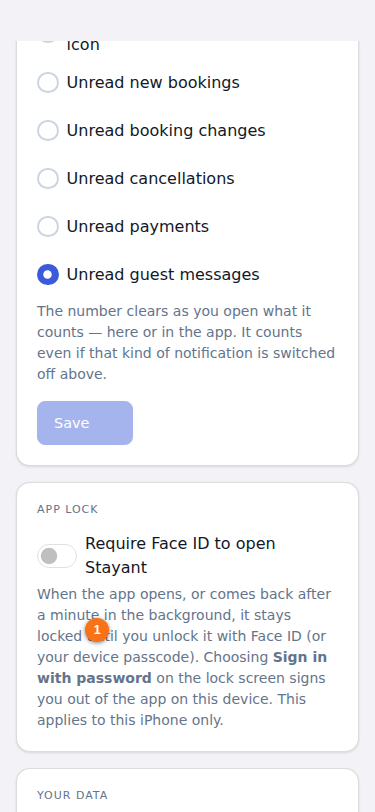
- Turning it on asks you to confirm with Face ID first; if that doesn't succeed, the switch stays off.
- When it's on, Stayant stays locked when you open it, or when you come back to it after more than a minute, until you unlock it with Face ID (or your device passcode).
- On the lock screen, Sign in with password signs you out of the app on that phone instead — use it if Face ID isn't working.
In the app your sign-in is kept in the iPhone's secure Keychain rather than in web storage, and it never leaves the device.
Quick actions from the app icon
Touch and hold the Stayant app icon on your Home Screen for shortcuts:
- Bookings — opens your bookings list.
- New booking — starts a new booking.
- Messages — opens your guest messages.
If you're signed out, Stayant opens the shortcut as soon as you've signed in.