Two-factor authentication
Two-factor authentication (2FA) adds a second step to signing in: after your password, you also enter a 6-digit code from an authenticator app. Stayant supports authenticator-app (TOTP) codes — apps such as Google Authenticator, Microsoft Authenticator, 1Password, or Authy. You manage 2FA from the Two-factor authentication card (①) on your My Profile page (/profile).
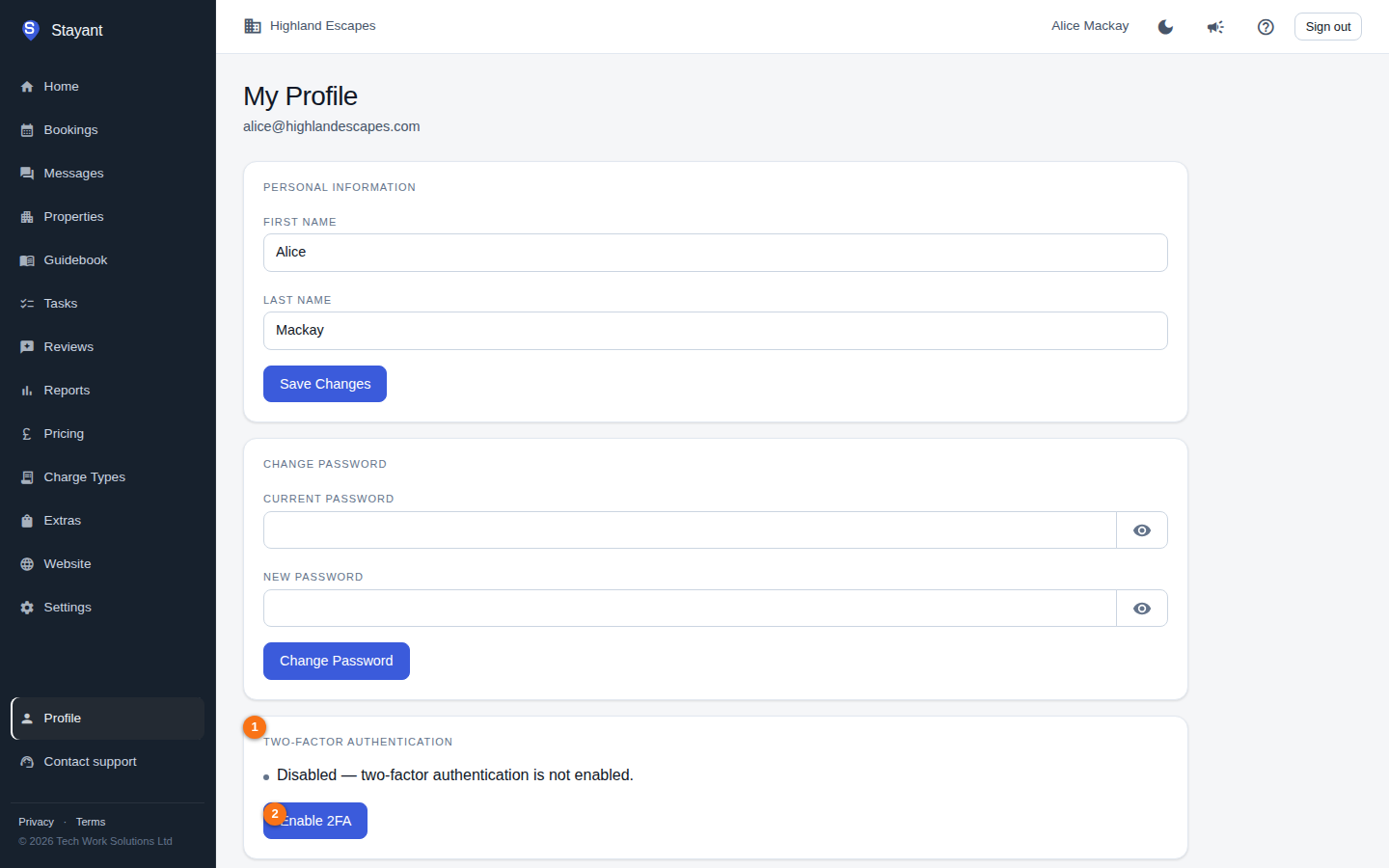
Enabling 2FA
- Open My Profile and find the Two-factor authentication card (①). While 2FA is off it reads Disabled — two-factor authentication is not enabled.
- Click Enable 2FA (②).
- Stayant shows a setup key (a string of letters and numbers). Add it to your authenticator app — type it in as a manual-entry key (spaces are optional).
- Your authenticator app now generates a 6-digit code that changes every 30 seconds. Enter the current code in the Confirmation Code field.
- Click Confirm & Enable 2FA.
A green message confirms 2FA is enabled, and the card switches to Enabled — two-factor authentication is active. If the code is rejected, the app shows "Invalid code. Please try again." — make sure you used the latest code, since it rotates frequently.
What you actually see: the setup screen mentions a QR code, but it displays only the manual-entry key as text. Type that key into your authenticator app rather than scanning a QR image. There are no printed recovery/backup codes — keep your authenticator device safe, because it's your only second factor.
You can click Cancel during setup to back out before confirming.
Disabling 2FA
- In the Two-factor authentication card (now showing Enabled), enter a current 6-digit code from your authenticator app in the field provided.
- Click Disable 2FA.
- Confirm in the dialog that warns disabling 2FA reduces account security.
You need a valid authenticator code to disable 2FA; an invalid code is rejected.
The login challenge
Once 2FA is on, signing in has an extra step:
- Enter your email and password as usual.
- You're taken to the Two-Factor Verification screen.
- Enter the 6-digit code from your authenticator app and click Verify.
After verifying you continue to wherever you'd normally land. If you can't complete the challenge, use Back to Sign In to return to the login page. The verification step is time-limited — if it expires you'll be sent back to sign in and can start again.