The Contact Form block
The Contact Form block lets guests send you a message straight from your booking site, without needing to book first. It works on any page, including inside a Columns block.
Adding the form to a page
- Open Website, then click Edit Blocks on the page you want (a Contact page works well).
- Click Add Block and choose Contact Form.
- In the block's settings, set the Form Heading and an optional Subtitle (for example, "Questions about a stay? Send us a message.").
- Click Publish Page when you're happy with it.
The form itself needs no setup. Guests fill in:
| Field | Required? |
|---|---|
| Name | Yes |
| Yes | |
| Phone | Optional |
| Property | Optional. Only shown when your site lists more than one active property |
| Arrival and departure dates | Optional |
| Message | Yes |
When a guest presses Send message, the page shows a thank-you note. If something is missing or looks wrong, such as an email address without a domain, the form shows what to fix and keeps everything the guest has already typed. The form works in every browser, including with JavaScript turned off.
In Preview the form is shown but disabled, so a test message never lands in your inbox as a real enquiry. Use your published site to try it out.
Where messages go
Every message is sent to you in two places:
- By email. Messages go to your website's contact email (Website → Website settings). If that's empty, they go to your workspace notification email. The email's Reply-To is the guest, so pressing Reply in your mail app answers them directly.
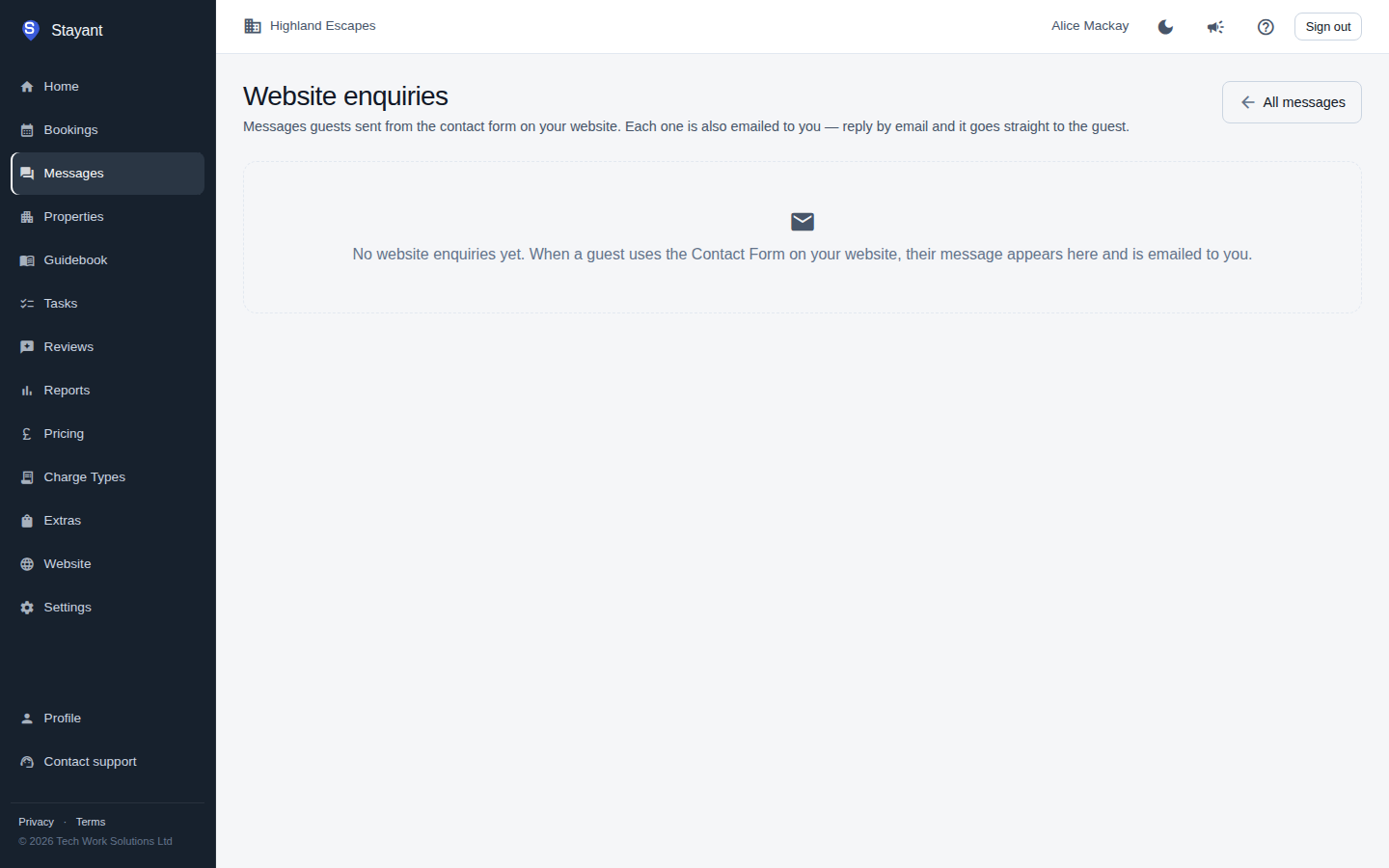
- In Stayant. Open Messages and click Website enquiries at the top of the conversation list. The number beside it shows how many enquiries you haven't opened yet. Click an enquiry to read it and see the guest's details. It's then marked as read. Reply by email opens your mail app with the guest's address filled in.
Tip: if you have no contact email and no notification email set, messages are still saved under Website enquiries, but you won't get an email. Add a contact email in Website settings so you don't miss any.
Spam protection
The form has spam protection built in, so there's nothing to set up:
- a hidden field that people never see but automated spam bots fill in. Those submissions are quietly discarded;
- a limit on how many messages one visitor can send in a short time, and a limit on how many your site accepts in an hour. A guest who hits a limit is asked to try again in a few minutes;
- security checks that stop other websites sending messages through your form.
Enquiries and bookings
Enquiries aren't linked to a booking, so they don't appear in a booking's conversation or in the main Messages list. If the guest goes on to book, carry on the conversation from that booking as usual.