Add a WhatsApp chat button to your website
Guests often prefer to ask a quick question on WhatsApp rather than fill in a form. Turn on the WhatsApp chat button and every page of your booking site shows a green Chat with us button in the bottom-right corner.
When a guest taps it, WhatsApp opens with a chat to your number:
- On a phone, it opens the WhatsApp app.
- On a computer, it opens WhatsApp Web, or the WhatsApp desktop app if they have it.
Your message (if you set one) is already typed in for them. Nothing is sent until the guest presses send, and they can change the text first. Their message arrives in your normal WhatsApp, or WhatsApp Business, like any other chat.
Turning it on
- Open Website, then Website Settings.
- Scroll to WhatsApp chat button.
- Enter your WhatsApp number with the country code, for example
+44 7700 900123. Spaces are fine. A number without the country code (like07700 900123) is flagged so you can fix it. - Optionally add a Pre-filled message, such as "Hi, I have a question about staying with you." (up to 300 characters).
- Click Test the link to check it opens a chat with the right number, then Save Settings.
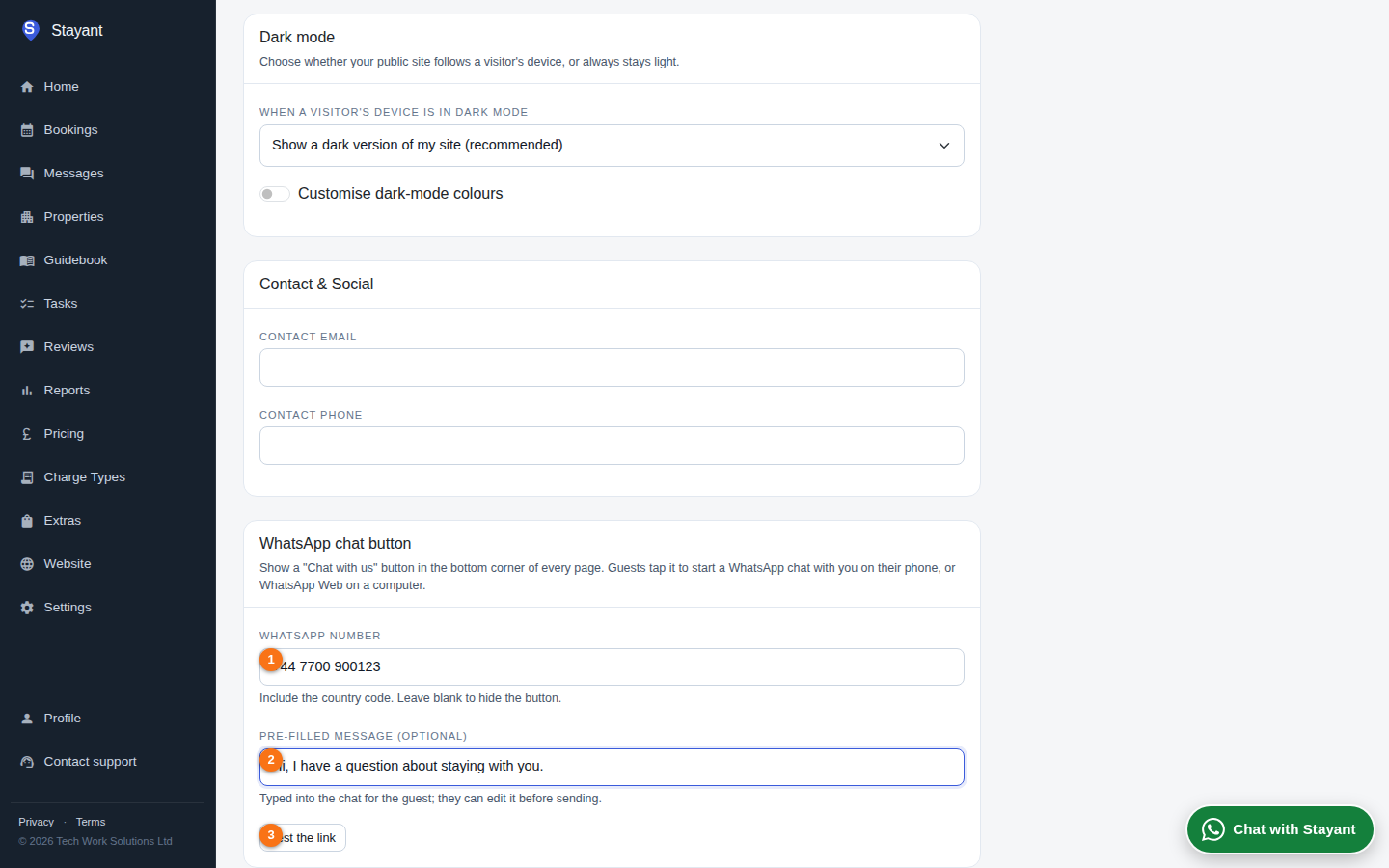
The button appears on your published site straight away. It isn't shown inside the embeddable booking widget, so it never covers another website you've embedded your booking form on.
Turning it off
Clear the WhatsApp number and click Save Settings. The button disappears from your site.
Seeing how often it's used
Each tap of the button is counted. Once guests have used it, Website → Analytics shows a WhatsApp chats started total next to your page views and booking starts. It counts taps on the button, so a guest who opens WhatsApp but doesn't send anything is still counted.
Getting help from Stayant on WhatsApp
Inside Stayant there is a green Chat with Stayant button in the bottom-right corner of every screen. (On a phone it's a round WhatsApp icon.) Tap it to message the Stayant team on WhatsApp. Your workspace name is typed in for you so we know who's asking. The help centre has the same button.