Importing from Smoobu
If you're moving to Stayant from Smoobu, you can bring your accommodations and existing bookings across by uploading the CSV that Smoobu produces when you export your reservations. This is a one-off file import — Stayant does not connect to Smoobu with an API key or stay in sync afterwards. Once your bookings are in, manage them in Stayant as normal.
The import screen opens on the upload step: an explainer of what gets imported (①) and the CSV file-picker (②).
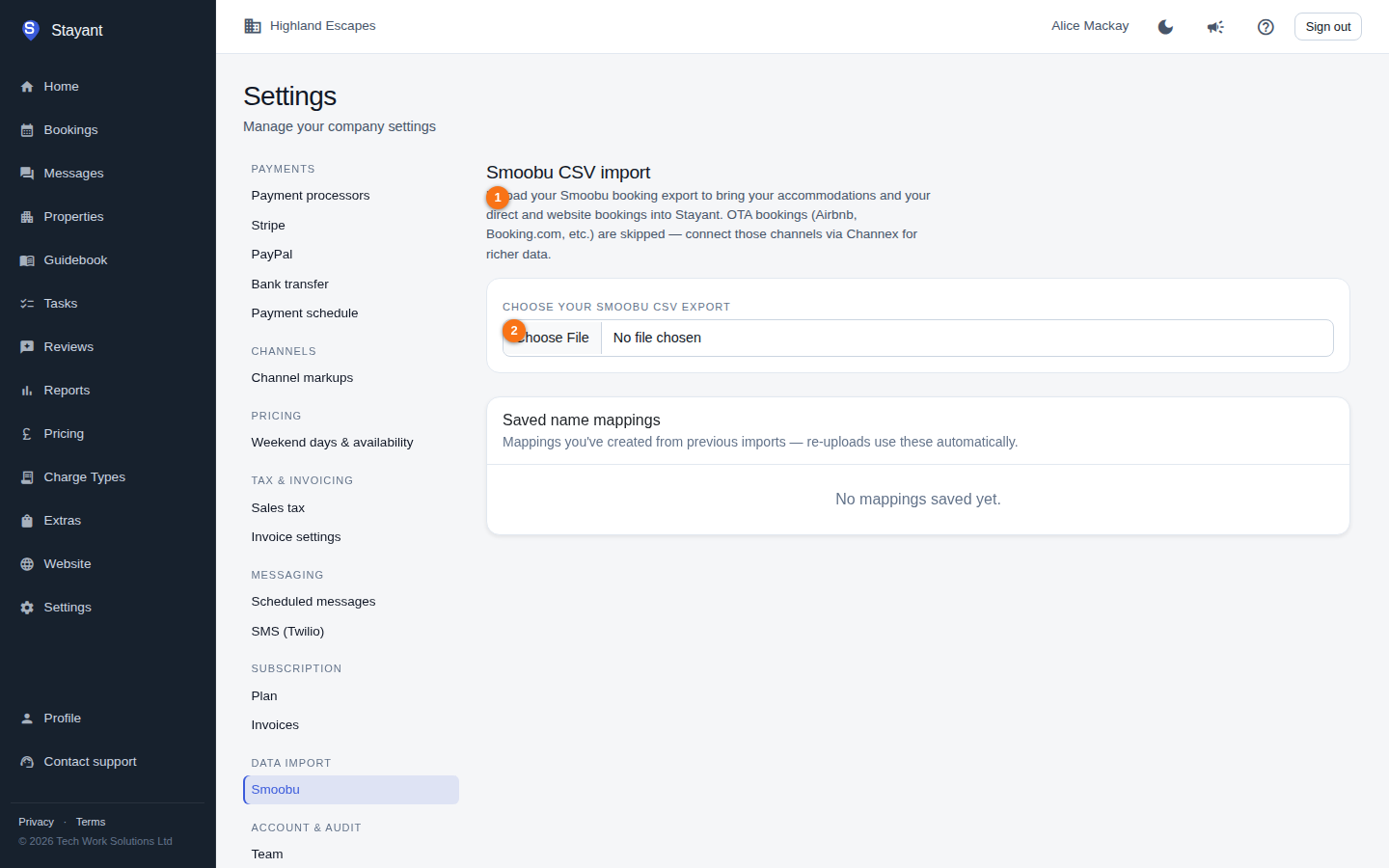
Open it from Settings → Smoobu, or go to /settings/smoobu. While you're setting up your account, it's also on the setup wizard's Add your properties step, under the Import from Smoobu tab — so a brand-new account can bring everything over in one go.
What gets imported (and what doesn't)
Stayant only brings in your direct and website bookings — rows where Smoobu's Portal column is Direct booking or Website. OTA bookings are deliberately skipped: anything from Airbnb, Booking.com, and other channels is left out, because those are better connected live through Channex, which gives richer, continuously-synced data. Connect those channels separately rather than importing them here.
A row is only imported if its Status is Booked, Confirmed, or Cancelled; rows with any other status (enquiries, requests, blocks) are skipped. Booked and Confirmed rows come in as confirmed bookings. Cancelled bookings are imported and marked as cancelled in Stayant so your history stays complete.
For each imported booking, Stayant brings across:
- Guest name, email, and phone
- Arrival and departure dates
- Number of adults and children
- The price (Smoobu's total — see below)
- Any notes (with a line noting it was imported from Smoobu, plus the import date)
The booking's source is recorded as Direct or Website to match the Smoobu portal it came from.
Imported bookings get a payment schedule
Every imported booking that isn't cancelled comes in with a payment schedule, the same way a booking made in Stayant does. That's what makes it show an outstanding balance on the booking's payment card, appear on its invoice, and be picked up by the deposit and final-payment reminders.
The schedule follows your Settings → Payment schedule defaults. For a stay whose balance date has already passed — which is most of what you'll import, since these are past bookings — there's no "pay later" left, so it comes in as a single instalment for the full amount, due on the booking's original creation date rather than a deposit-plus-balance split dated in the past.
Imported bookings arrive with no payments recorded against them, so they'll read as unpaid even where the guest settled up long ago on the original platform. Record the money on each booking as you'd record any other payment, and the schedule settles itself. Cancelled rows get no schedule at all.
About the price: Smoobu's price is treated as the final total the guest paid on the original platform, so it's stored as the booking total exactly as exported — Stayant won't re-price the stay against your current rates and silently change the figure. Bookings with a blank or zero price are imported without a fixed total.
Creating properties from your Smoobu accommodations
Smoobu's export doesn't list your properties separately, but every booking row names its Accommodation. When you upload a file, Stayant collects the distinct accommodation names and compares them with your existing properties — ignoring upper/lower case and spaces, so Sea View Flat and sea view flat count as the same — and with any saved name mappings.
Every accommodation that doesn't match is listed under New accommodations, with how many of its bookings will be imported. For each one, choose:
- Create as a new property (the default) — Stayant creates a property with that name, one room and a Standard rate plan, before importing its bookings.
- Use existing: … — the accommodation is the same unit as one of your existing properties. Stayant saves this as a name mapping, so you only choose once.
- Don't create — only offered for accommodations with no bookings to import (for example a unit whose bookings are all from Airbnb or Booking.com).
Before you import, a box lists exactly which properties will be created, and the button says how many (for example Create 2 properties and import bookings). Nothing is saved until you click it. An accommodation that already matches an existing property is never created twice.
The export only contains the accommodation's name, so new properties start with placeholder details: property type Other, one bedroom and bathroom, a maximum guest count equal to the largest party in its bookings, and no nightly rate. Open each one from the Properties page afterwards to add prices, photos and a description — until it has a rate it won't accept new bookings, which stops nights being sold at £0.
If the import is refused (for example because two bookings overlap on the same unit), nothing is saved — including the new properties.
Multi-room properties can't be imported
The Smoobu export has no room column — an Accommodation in Smoobu is a single unit, and Stayant maps it to a whole property. So if a property you're importing into has more than one active room, nothing in the file says which room each booking occupied, and Stayant refuses the import rather than guessing: the message names the properties concerned.
Two ways forward:
- Map one Smoobu accommodation to one single-room Stayant property. This is the natural shape, since each Smoobu accommodation is one unit — create a property per unit and map accordingly.
- Enter those bookings by hand, choosing the correct room on each, if there are only a few.
A property whose extra rooms are deactivated counts as single-room and imports normally.
Preparing your CSV
Use the standard Smoobu reservations export. It's a semicolon-separated file in Smoobu's documented 25-column layout, with this exact header row:
Position; Arrival; Departure; Accommodation; Guest; Portal; Created; Email; Phone; Address; Adults; Children; Check-in; Check-out; Notes; Price; Price details; Commission included; City tax; Paid; Prepayment; Prepayment paid; Number of nights; Status; Assistant Instructions
Don't rename, reorder, or remove columns — if the header doesn't match this layout exactly, the upload is rejected with a message telling you which column is wrong. The file must be 25 MB or smaller.
Dates are read day-first, in whichever style Smoobu exported them — both 07/09/26 and 07.09.2026 mean 7 September 2026. Export the file as-is rather than reformatting the dates in a spreadsheet.
Upload, preview, map, import
- On the Smoobu import screen, click Choose your Smoobu CSV export and pick your
.csvfile. Stayant uploads and parses it. - A Preview appears showing:
- Total rows in the file
- Skipped (OTA portal) — rows from Airbnb, Booking.com, etc.
- Skipped (not Booked/Confirmed/Cancelled) — rows with any other status
- Ready to import — how many bookings will come in
- If any accommodation names in the file don't match a Stayant property, they're listed under New accommodations. Each is set to be created as a new property; change the dropdown to map it to an existing property instead (see Creating properties from your Smoobu accommodations above). A box shows which properties will be created.
- A Sample rows table shows a few example bookings (line number, accommodation, guest, portal, arrival, departure) so you can sanity-check the file before committing.
- Click Import bookings (or Create N properties and import bookings when new properties are listed) to bring them in, or Cancel to start over.
- An Import complete summary shows any Properties created, how many bookings were Created and how many were skipped — including Skipped (already imported) for bookings that were already in Stayant.
Re-uploading and saved name mappings
The importer is safe to run more than once. It won't create duplicates: a booking that already exists (matched on property, guest email, and check-in date) is counted under Skipped (already imported) rather than added again.
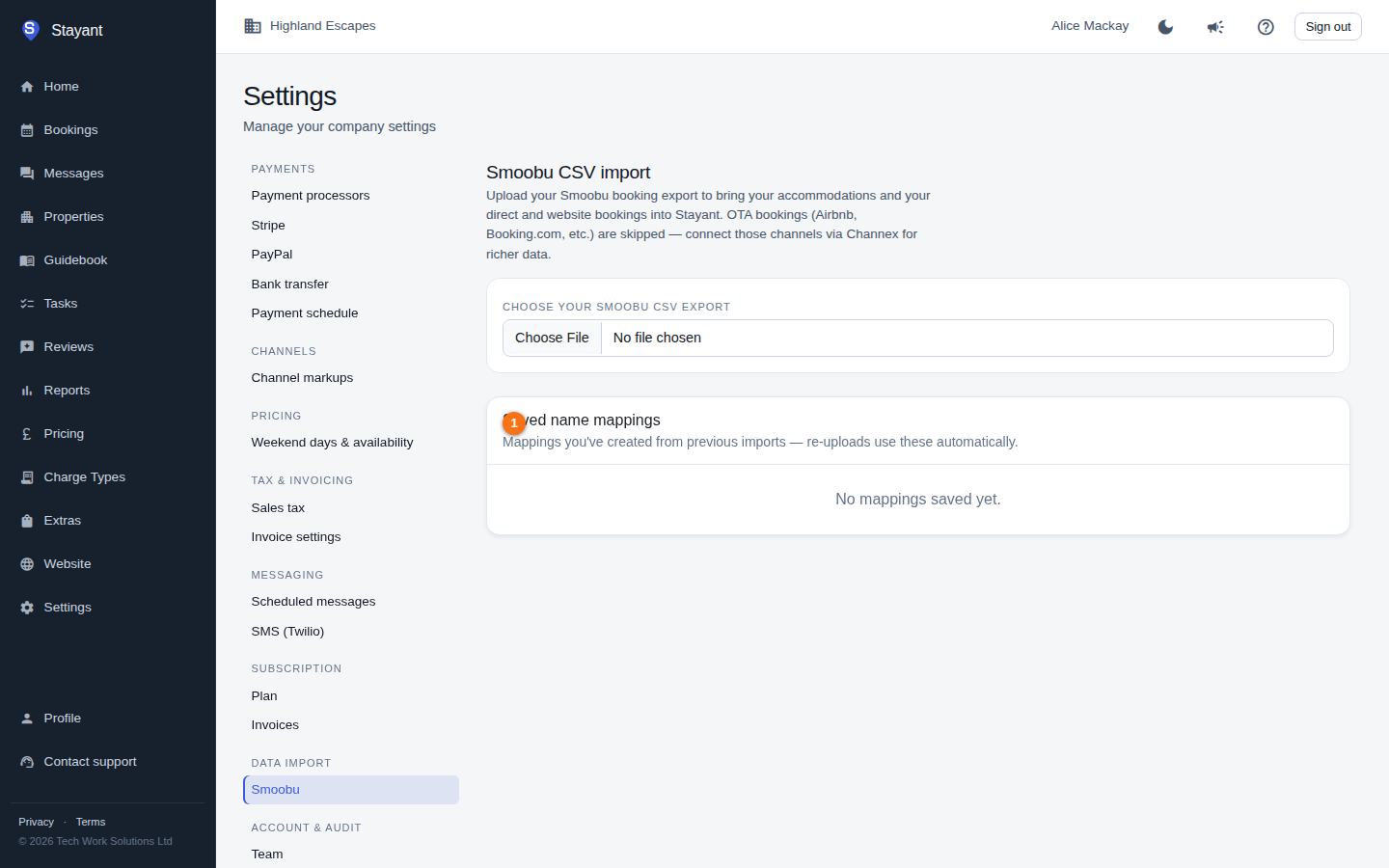
Every name mapping you make is saved and reused automatically on future uploads, so you only ever map an accommodation name once. Saved mappings are listed at the bottom of the Settings → Smoobu screen (not in the setup wizard's tab) under Saved name mappings (①), where each row pairs a Smoobu name with a Stayant property and a Delete button lets you remove any you no longer want.
Importing from Smoobu requires a manager-level role or higher.