Editing message templates
When you create or edit a scheduled message under Settings → Scheduled messages, the editor dialog is where you write the actual content guests receive — the subject line, the body, and any channel-specific versions. This article covers writing the content. For when a message fires (triggers, timing, conditions), see Automated & scheduled messages.
Open the editor
- Click New Message to start a blank template, or Edit on one of your own templates.
- For a Default template, click Customise first — that makes an editable copy and opens it in the editor. You can't edit a default in place.
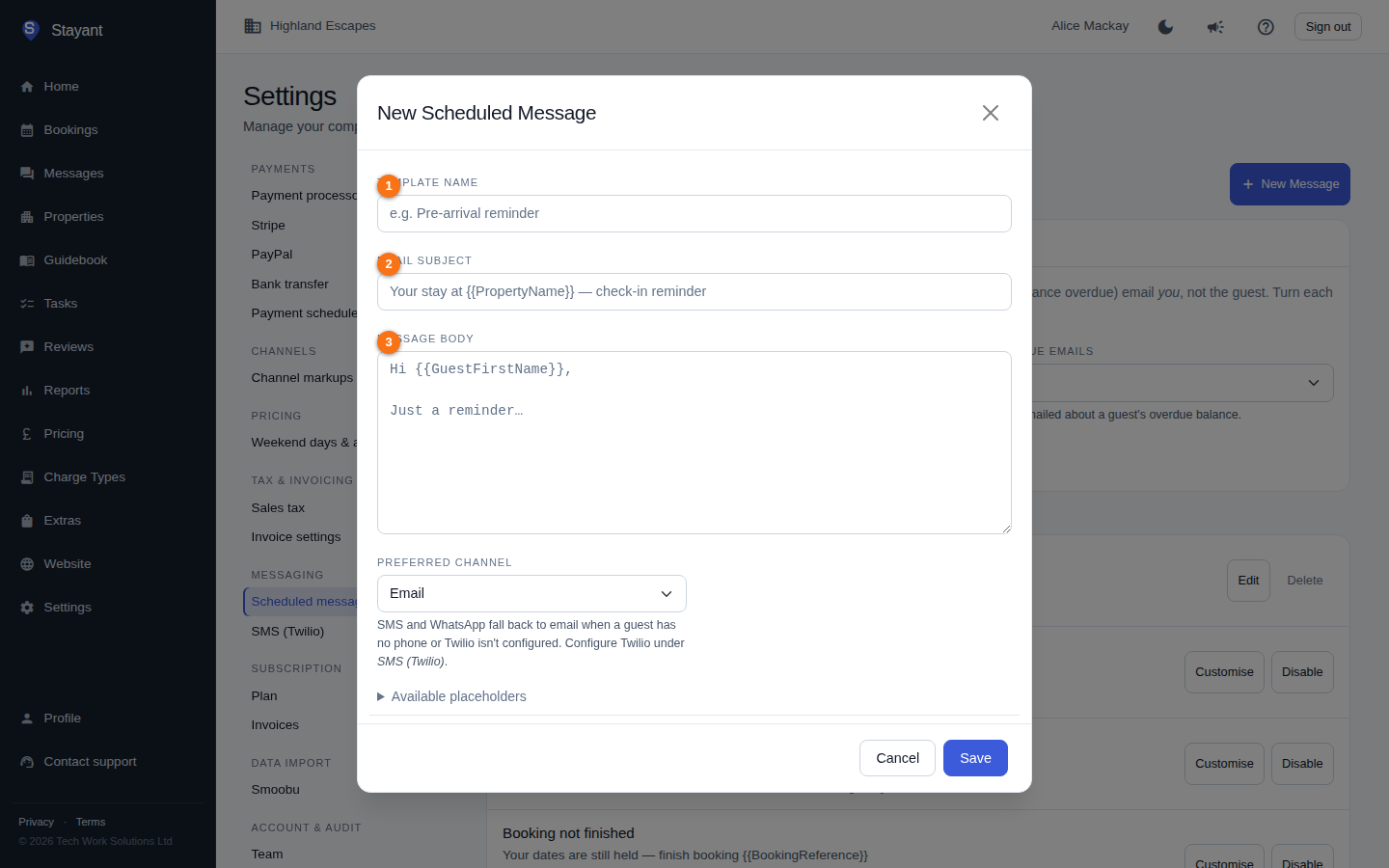
The content fields
- Template Name (①) — an internal label so you can recognise the message in the list. Guests never see it (e.g. "Pre-arrival reminder").
- Email Subject (②) — the subject line of the email. Supports placeholders, e.g.
Your stay at {{PropertyName}} — check-in reminder. - Message Body (③) — the main email content. Supports placeholders and Markdown formatting.
Name, subject, and body are all required before you can save.
Placeholders (merge fields)
Placeholders are tokens wrapped in double braces, like {{GuestFirstName}}. Stayant swaps each one for the real value when it sends the message. The editor lists every available placeholder under the Available placeholders section — click to expand it.
The full set of placeholders includes:
| Placeholder | What it inserts | Example |
|---|---|---|
{{GuestName}} |
Guest's full name | Jane Smith |
{{GuestFirstName}} |
Guest's first name | Jane |
{{GuestEmail}} |
Guest's email address | [email protected] |
{{GuestPhone}} |
Guest's phone number | +44 7700 900123 |
{{PropertyName}} |
Property name | Sea View Cottage |
{{TenantName}} |
Your business / operator name (for sign-offs) | Cornish Coastal Lets |
{{BookingReference}} |
Booking reference number | STY-0042 |
{{BookingStatus}} |
Booking status | Confirmed |
{{BookingSource}} |
How the booking was created | Direct |
{{OtaName}} |
OTA/source code for a channel booking | BDC |
{{ExternalBookingUniqueId}} |
OTA external booking identifier | BDC-123456789 |
{{CheckInDate}} |
Check-in date | 12 Jun 2025 |
{{CheckOutDate}} |
Check-out date | 19 Jun 2025 |
{{CheckInDayOfWeek}} |
Check-in weekday name | Thursday |
{{CheckOutDayOfWeek}} |
Check-out weekday name | Thursday |
{{Nights}} |
Number of nights | 7 |
{{StayLength}} |
Human-readable stay length | 7 nights |
{{Adults}} |
Number of adults | 2 |
{{Children}} |
Number of children | 1 |
{{TotalGuests}} |
Total number of guests | 3 |
{{BookingNotes}} |
Internal booking notes | Late arrival after 10pm |
{{AccommodationTotal}} |
Accommodation cost | £700.00 |
{{ChargesTotal}} |
Total of the booking's charges (charges you removed are left out) | £75.00 |
{{Discount}} |
Booking discount, signed. Blank when there is none. | -£50.00 |
{{DiscountDescription}} |
Why the discount was given. Blank when there is none. | Returning guest |
{{SalesTax}} |
Sales tax / VAT on the booking | £45.00 |
{{GrandTotal}} |
Total cost including charges | £775.00 |
{{AmountPaid}} |
Amount already paid, less any refunds | £232.50 |
{{BalanceOutstanding}} |
Remaining balance, as shown in the guest portal (never below zero) | £542.50 |
{{BalanceDueDate}} |
Balance payment due date | 29 May 2025 |
{{PaymentStatus}} |
Current payment status | PartPaid |
{{ExtrasList}} |
Bullet list of extras on the booking | • Cot Hire × 1 — £25.00 |
{{GuestPortalLink}} |
Guest portal URL | https://stay.example.com/guest/abc123 |
{{CheckInLink}} |
Guest check-in form URL | …/guest/abc123/check-in |
{{PaymentLink}} |
Guest payment URL | …/guest/abc123/pay |
{{GuidebookLink}} |
Guest guidebook URL | …/guest/abc123/guidebook |
{{MessagesLink}} |
Guest messages page — where guests reply to you | …/guest/abc123/messages |
{{PropertyPin}} |
Property access PIN / door code | 4827 |
{{PropertyAddress}} |
Property's full address, on one line. Blank until you add one on the property's General tab. | 12 Lake Road, Keswick, Cumbria, CA12 4AB, United Kingdom |
{{PaymentAmount}} |
Amount of the specific payment | £232.50 |
{{ChargeDate}} |
Date an auto-charge will run | 29 May 2025 |
Type a placeholder exactly as shown, braces included. The Available placeholders panel in the editor is the authoritative, always-current list — use it rather than memorising tokens.
The same placeholders work in your guidebook content — see Guidebooks. The two exceptions are {{PaymentAmount}} and {{ChargeDate}}, which are only filled in on the payment messages that carry them.
Conditional blocks
You can show part of a message only when a placeholder has a value, by wrapping it in {{#if Token}}…{{/if}}. Empty values — and a literal "0" — count as "no value". For example:
{{#if Children}}, {{Children}} children{{/if}}
This hides the comma and number entirely when a booking has zero children, so you don't end up with "2 adults, 0 children".
Formatting with Markdown
The body supports basic Markdown:
**bold**and*italic*[link text](https://…)for links- bullet lists### Headingfor headings
Per-channel content (SMS / WhatsApp)
The Preferred channel dropdown picks how the message is delivered: Email, SMS (Twilio), or WhatsApp (Twilio). Extra fields appear depending on the choice:
- SMS body — shown when the channel is SMS. A short, plain-text version sent over SMS, supporting the same placeholders. Keep it under about 160 characters to stay within a single SMS segment. An SMS body is required when SMS is the preferred channel.
- WhatsApp body — shown when the channel is WhatsApp. Plain text with basic Markdown and the same placeholders; longer messages are allowed than SMS, but keep paragraphs short for mobile. Outbound transactional WhatsApp messages must use a Twilio-approved template/profile. A WhatsApp body is required when WhatsApp is the preferred channel.
SMS and WhatsApp messages fall back to email automatically when the guest has no phone number on file or Twilio isn't configured — so always write a usable email subject and body even on an SMS/WhatsApp template. To set up SMS or WhatsApp delivery, see Sending SMS via Twilio.
Save
Click Save to store the template. If a required field is missing — name, subject, body, or the channel-specific body — you'll see an inline error and the dialog stays open so you can fix it.
Tips
- Use
{{GuestFirstName}}for a friendlier greeting than the full{{GuestName}}. - Wrap optional detail in
{{#if …}}…{{/if}}so messages read cleanly when a value is missing. - Keep SMS bodies tight — every extra segment over ~160 characters costs another SMS at your Twilio account.