Amenities & FAQs
Amenities and FAQs are shown on the property's public listing. Both are managed on the property's Website tab, below the Images section.
- Open the property from the Properties list.
- Select the Website tab.
FAQs
The FAQs section (①) is shown first, directly below Images. FAQs let you answer common guest questions directly on the listing. Each FAQ has a question, an answer, and a published/draft state.
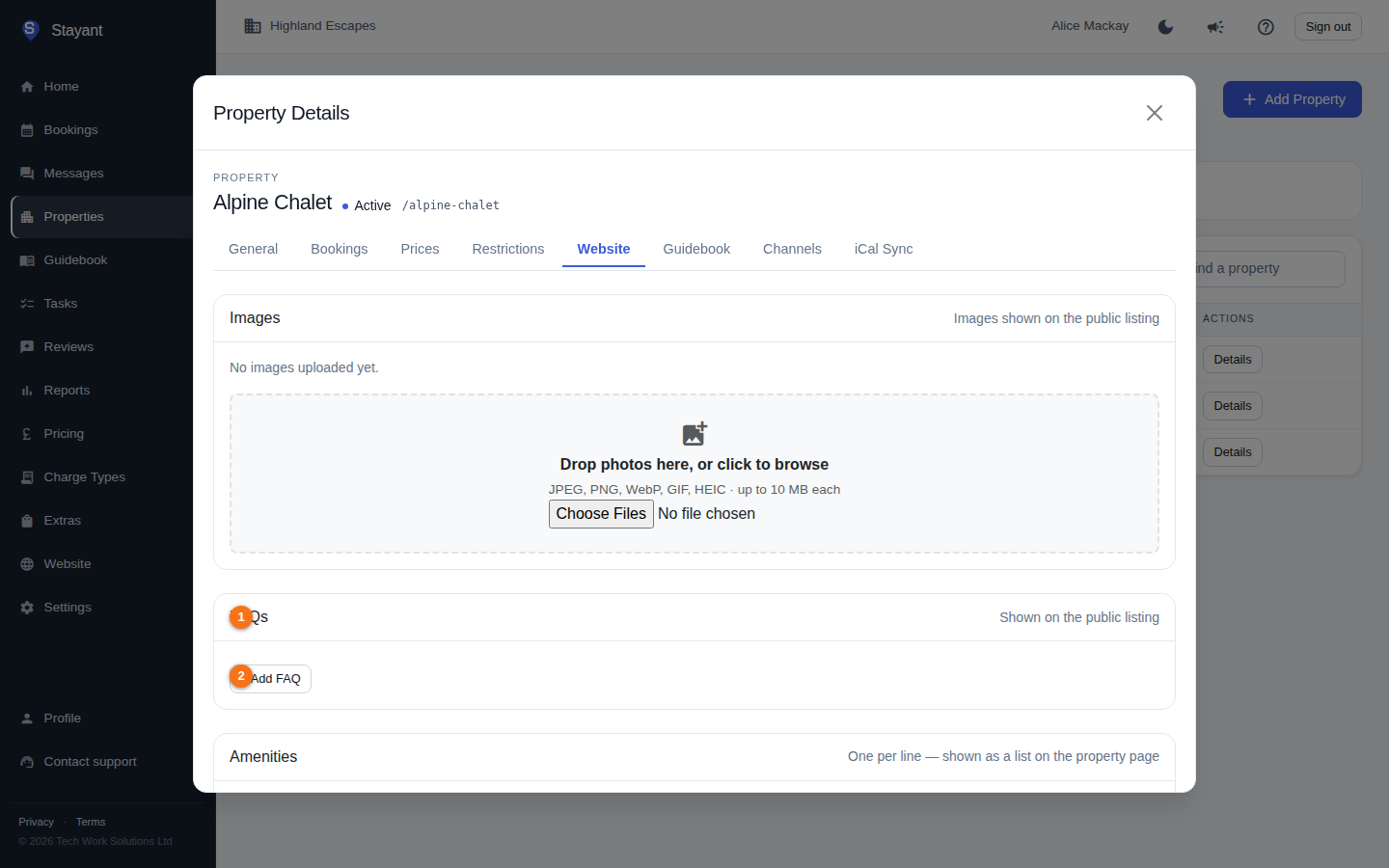
Add an FAQ
- Scroll to the FAQs section.
- Click + Add FAQ (②).
- Enter the Question and Answer.
- Click Add FAQ.
New FAQs are created published by default.
Edit an FAQ
- Click Edit on the FAQ.
- Change the question, answer, or the Published checkbox.
- Click Save.
Unticking Published turns the FAQ into a Draft — it's hidden from the public listing but kept for later. Draft FAQs are shown dimmed with a "Draft" badge in the editor.
Delete an FAQ
Click the ✕ button on the FAQ to remove it.
Amenities
The Amenities section (①) follows the FAQs. Amenities are a simple list — one item per line — displayed on the property page.
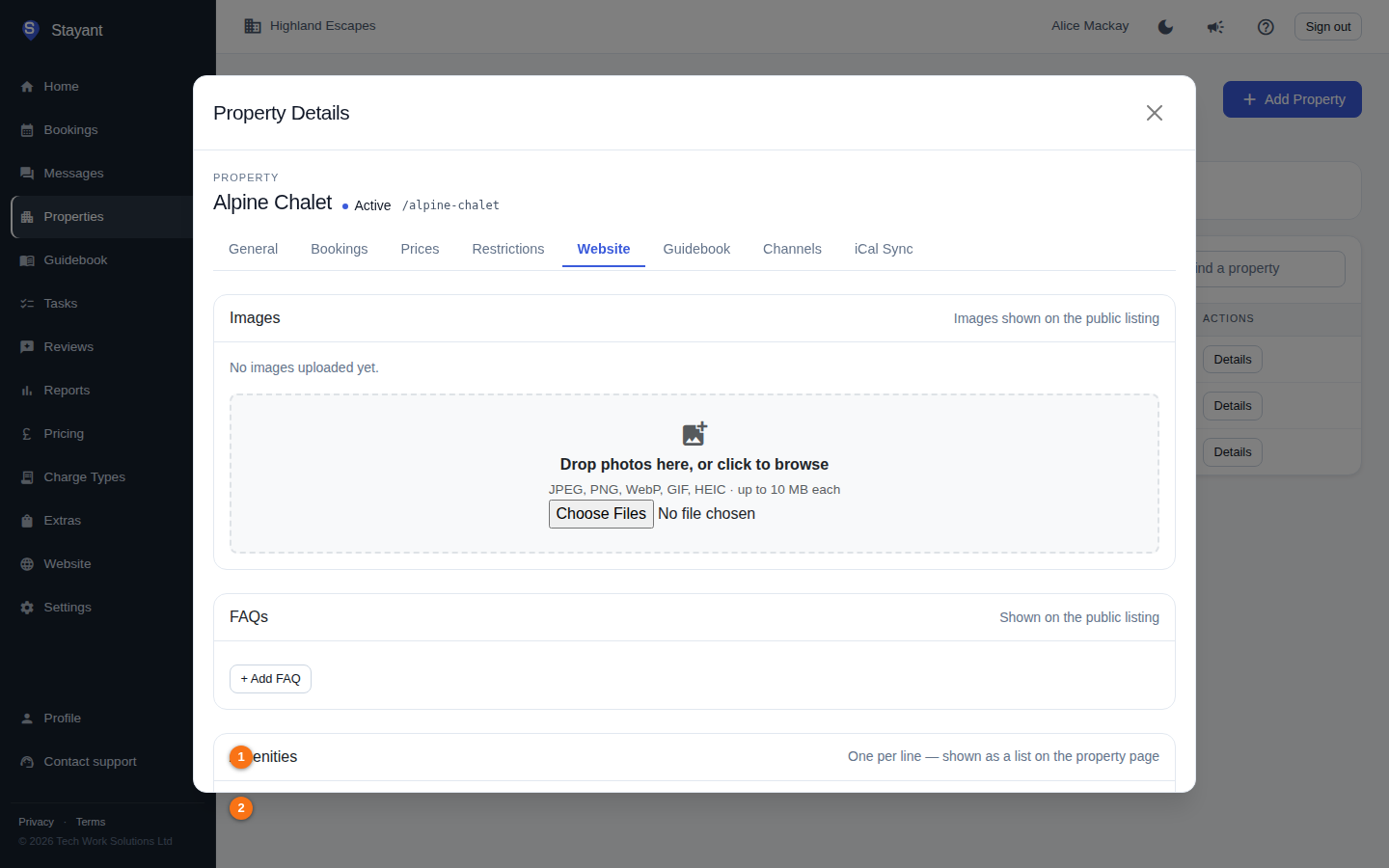
- Scroll to the Amenities section.
- Type one amenity per line in the text box (②) (for example:
Free WiFi,Off-street parking,Pet friendly,Wood burner). A running count of amenities is shown below the box. - Click Save (below the list).
Blank lines are ignored, so they don't count as amenities.
Common gotchas
- Amenities and FAQs are saved separately — saving the amenities box does not save FAQ edits, and vice versa.
- A draft FAQ stays in your editor list but never appears on the public site until you publish it.