Minimum/maximum stay & restrictions
The property's default minimum stay is set when you create or edit the property (and per room for multi-room properties). To change stay rules for specific date ranges — peak weeks, changeover days, and so on — use restriction overrides on the property's Restrictions tab. An override applies only within its date range and scope (room and rate plan); the property's defaults still apply everywhere else.
Restriction overrides also sync to any connected channel manager (Channex). A rate-plan-scoped override is sent only to that rate plan on the channel; an "All rate plans" override applies to every linked rate plan for the room.
Add a restriction override
- Open the property from the Properties list.
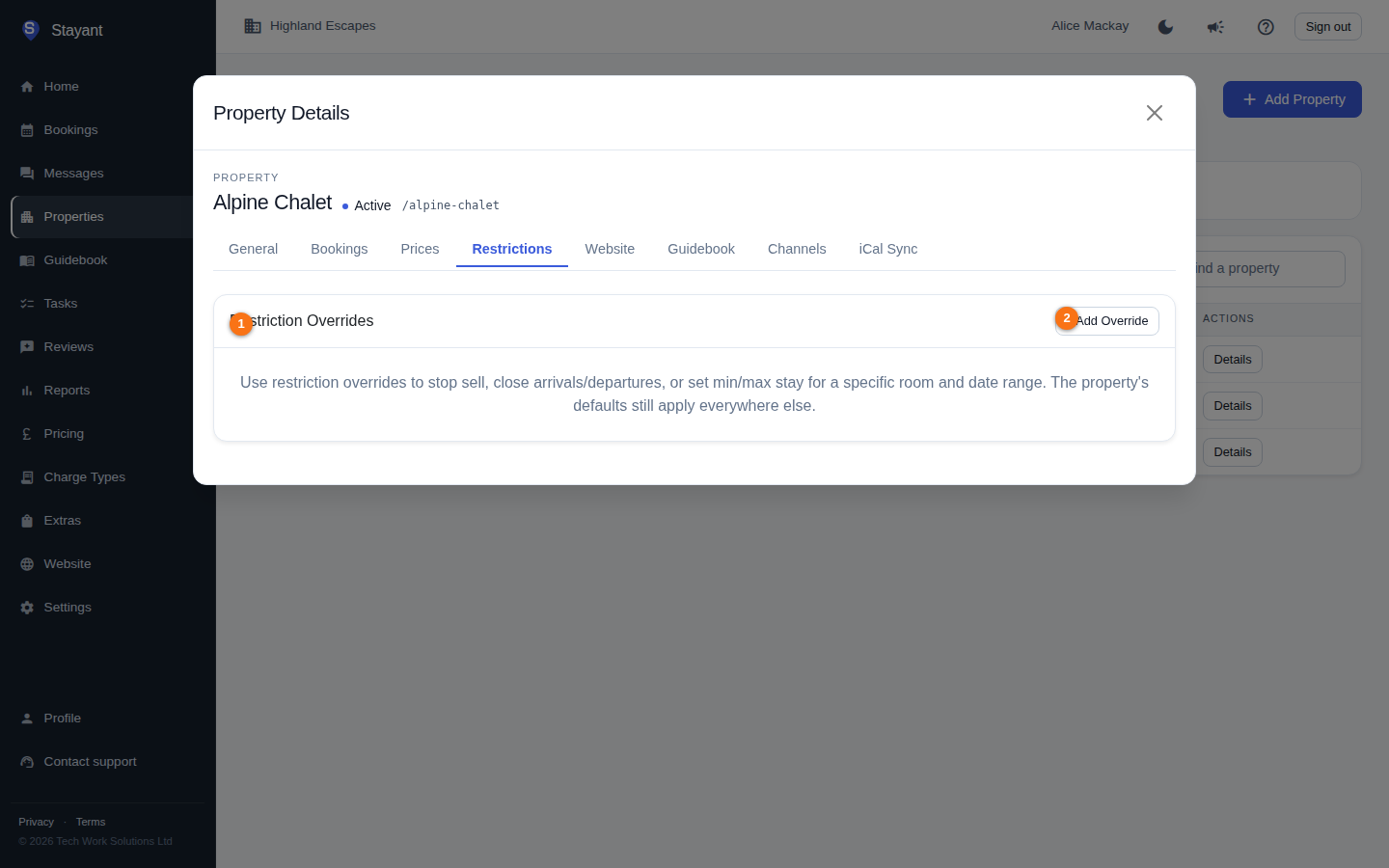
- Select the Restrictions tab to open the Restriction Overrides card (①). Each existing override is summarised as a table row with badges (see The overrides table).
- Click + Add Override (②).
Choose the Room the override applies to (required for multi-room properties).
Optionally choose a Rate plan — select a specific plan to target only that plan, or leave it as All rate plans to apply to every rate plan for the room.
Both selectors are hidden when there's nothing to choose: a single-room property shows no Room picker, and a room with only one rate plan shows no Rate plan picker.
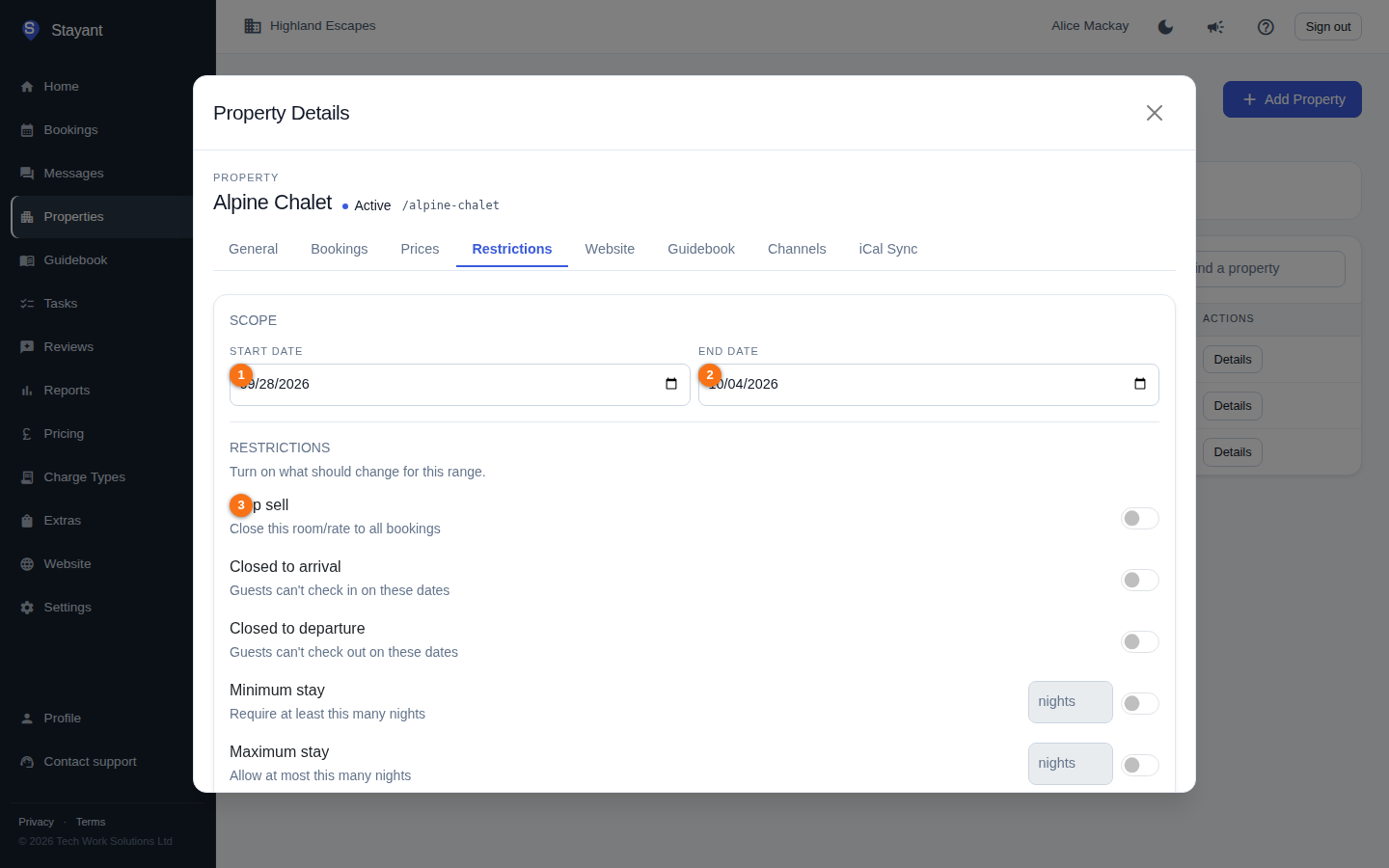
Set the Start date and End date.
Set one or more restrictions (see below).
Click Add override.
You must set at least one restriction for the override to be valid.
Available restrictions
The toggles appear on the form in this order:
- Stop sell — close this room/rate to all bookings for the range.
- Closed to arrival (CTA) — guests can't check in on these dates.
- Closed to departure (CTD) — guests can't check out on these dates.
- Minimum stay — enter a number of nights (minimum 1) to require a longer stay within this range.
- Maximum stay — enter a number of nights to cap the stay length.
Which of these affect bookings made in Stayant
All five are enforced on direct bookings, as well as being sent to your connected channels. A guest booking through your Stayant website, or staff creating or editing a booking in the management app, cannot break any of them without a deliberate override (see Overriding a restriction for one booking).
There is one deliberate exception: bookings that arrive from a connected channel are never rejected. Booking.com or Airbnb already applied your restrictions at the point of sale, so a reservation the guest has paid for is always ingested, even if it appears to break a rule. Turning a channel booking away because of a rule Stayant itself published would lose you a real reservation.
Restrictions say on what terms dates can be sold. To make dates genuinely unavailable for any reason at all — maintenance, an owner stay — add a date block instead; see Blocking dates & managing availability.
What a guest sees
On your public site, restrictions are shown while the guest is choosing dates, not after they have filled in the form:
- Stop-sell dates are greyed out in the calendar, alongside dates that are already booked, so they can't be picked at all.
- Closed-to-arrival and closed-to-departure dates stay selectable. This is deliberate — a date closed to arrival is still a perfectly valid middle night of a longer stay, so greying it out would wrongly stop guests booking straight across it. If the guest tries to start or end their stay on one, they're told as soon as they pick the dates.
- Minimum and maximum stay appear beneath the calendar for the dates in view, and a range that's too short or too long shows an explanation and keeps Review Booking disabled until the dates are changed.
Every one of these is re-checked on the server when the booking is submitted, so the calendar is a convenience rather than the control.
Overriding a restriction for one booking
Staff can take a booking that breaks a restriction without editing the restriction first — useful for a phone booking you want to accept as a one-off.
When you create or edit a booking in the management app that breaks a restriction, Stayant explains which rule it breaks and offers Book anyway. Confirming saves the booking and records an entry in the booking's audit trail naming the restrictions overridden and who overrode them, so the exception is explicable later.
This applies to minimum stay too. Guests can never override — the option exists only in the management app.
Edit or delete an override
- Edit: click Edit on the row, change the values, and click Save changes. The Room can't be changed after creation — delete the override and add a new one if you picked the wrong room.
- Delete: click Delete, then Confirm.
The overrides table
Once you have overrides, the table summarises each row with the room and rate-plan scope, the date range, and badges for the restrictions that are active (Min/Max stay, CTA, CTD, Stop sell).
Overlapping overrides
Overrides for the same room and rate plan scope can overlap in dates — you don't need to edit or delete an existing override to add another that covers some of the same days. This lets you layer restrictions, for example a week-long minimum-stay override plus a single-day closed-to-departure override on one day inside that week.
Different restriction types on overlapping dates combine. In the example above, every day in the week gets the minimum stay, and the single day additionally becomes closed to departure — both take effect together.
When two overrides set the same restriction on the same date, the more specific one wins:
- A rate-plan-specific override beats an "All rate plans" override.
- If both are scoped the same way, the override with the narrower date range wins.
- If the scope and date range are otherwise equivalent, the most recently created override wins.
For example, a week-long minimum stay of 7 plus a single-day minimum stay of 2 inside that week resolves to a minimum stay of 2 on that one day (the narrower override is more specific) — the rest of the week stays at 7.
How restrictions reach connected channels
When a property is connected via Channex, each restriction override is queued and sent to Channex automatically. A rate-plan-scoped override (set for a specific rate plan) is applied only to that rate plan in the channel; an "All rate plans" override is applied to every rate plan linked to the room. The same-restriction precedence above (plan-specific → narrower dates → most recent) applies to what's sent to the channel and to the checks on direct bookings alike — they are resolved by the same logic, so what your OTAs are told and what Stayant enforces cannot disagree.
Stop sell is the one exception to that precedence. It is sticky: if any override covering a date switches stop sell on, the date is closed, and a narrower override cannot reopen it. This matches what is sent to your channels. To reopen a stopped date, edit or delete the override that closed it.
Common gotchas
- Max stay must be greater than or equal to min stay when you set both.
- Min and max stay must each be at least 1 night.
- The editor covers a rolling window from today to two years ahead.
- Changing only the property's default minimum stay (on General) does not touch any overrides you've created.