Setting up rooms & units
A property can be a single unit or split into multiple rooms (or units), each with its own occupancy, minimum stay, default nightly rate, optional internal cost price, rate plans, prices, and bookings.
Single-room properties
Every property starts with one room. While a property has only one active room, the Rooms tab is hidden — you edit that single room's occupancy and pricing directly on the General and Prices tabs.
Add another room
- Open the property from the Properties list.
- If the Rooms tab is visible, select it. If it is hidden (single-room property), open the General tab and click + Add another room — that takes you straight to the Rooms tab.
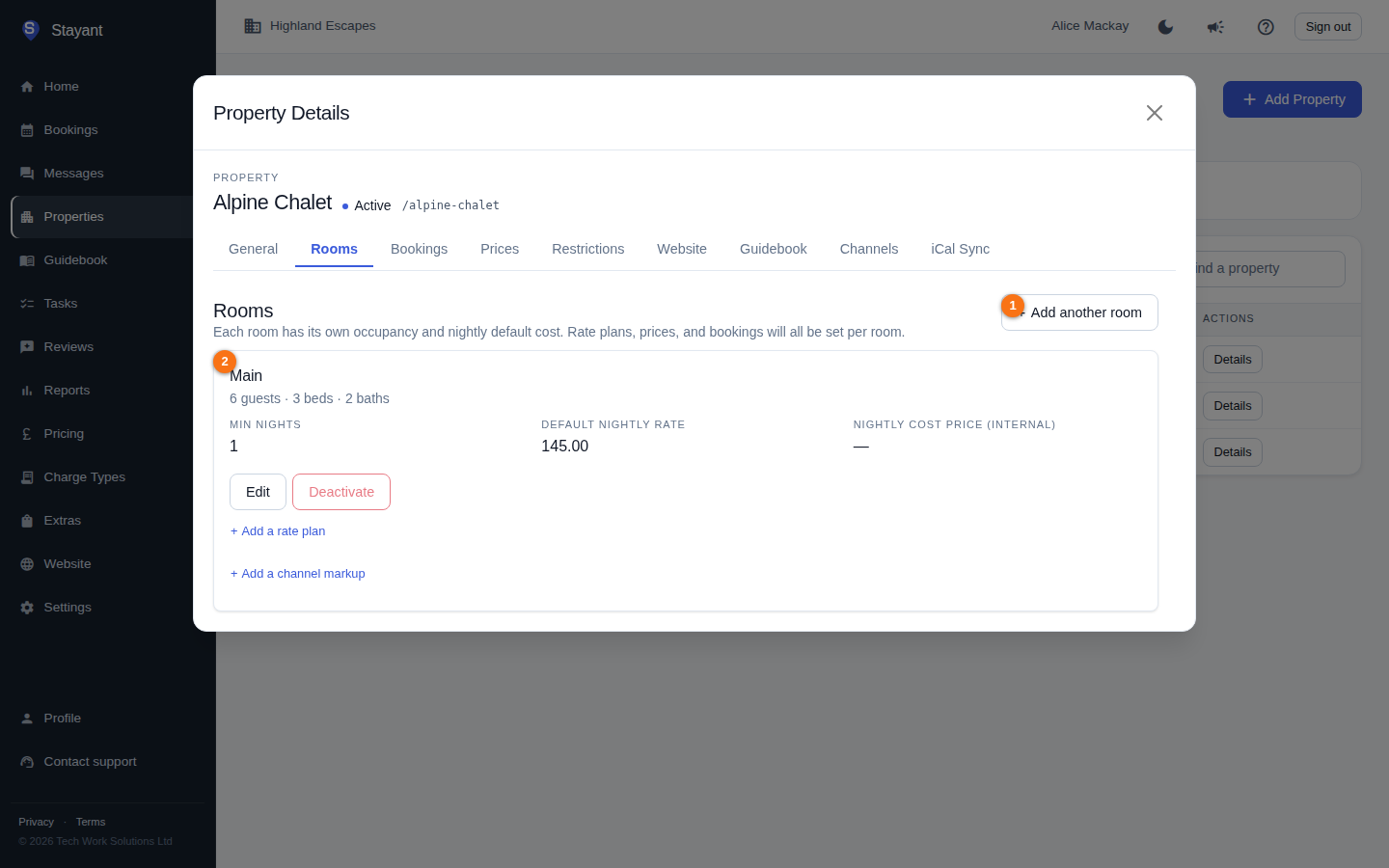
- Click Add another room (①). Each existing room is shown as a card (②) with its own occupancy, minimum stay, and nightly rate.
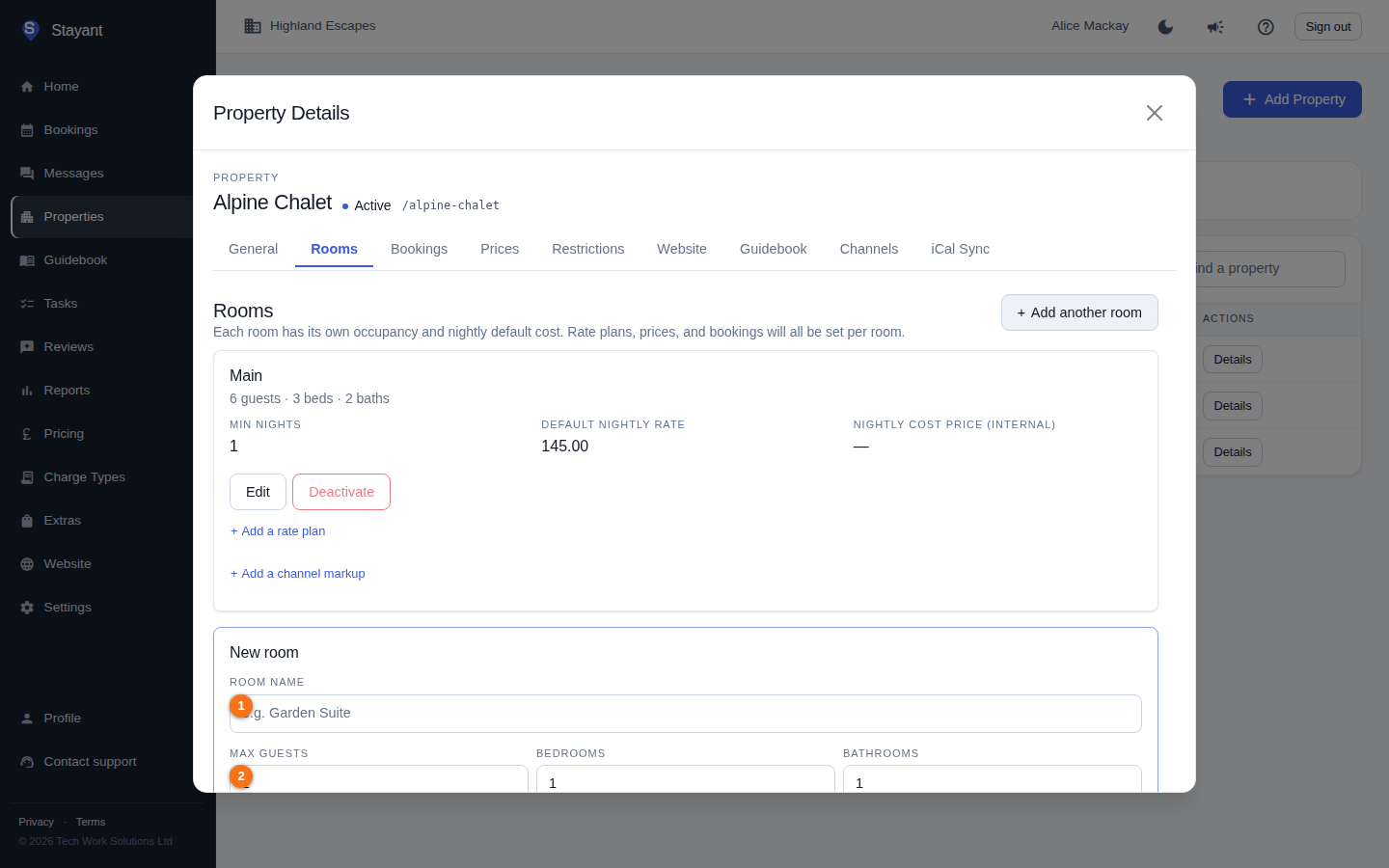
- Fill in the new room form:
- Room name (① — e.g. "Garden Suite")
- Max guests (②)
- Bedrooms
- Bathrooms
- Min nights
- Default nightly rate — the price guests pay
- Nightly cost price (internal) — your own cost per night, never shown to guests; used for profit reporting only. Optional. See Nightly rate vs cost price.
- Click Add room (at the bottom of the form).
Once a property has two or more rooms, the Rooms tab stays visible, and pricing/occupancy move out of the General tab and become per-room.
Edit a room
Each room is shown as a card on the Rooms tab. Edit a card to change its name, occupancy, minimum stay, default nightly rate, or internal nightly cost price.
If the room is connected to your channel manager, renaming it automatically pushes the new name to the linked room type so your connected channels (Booking.com, Airbnb, etc.) stay in sync — no re-provisioning needed. The update is queued and sent in the background within a minute or two. See Channel manager overview.
Deactivate a room
You can deactivate a room you no longer offer. The Deactivate action is disabled for the last active room — a property must always have at least one active room. If deactivating leaves only one active room, the property collapses back to single-room mode and the Rooms tab is hidden again.
If the room is connected to your channel manager, deactivating it also closes it on your connected channels (Booking.com, Airbnb, etc.): its availability is set to zero for the next 500 days, so guests can no longer book it there. Activating the room again re-opens it and sends its current availability, rates and restrictions. Both happen in the background, usually within a minute or two.
Because the tab counts active rooms, a property with one active and one deactivated room hides the Rooms tab — and with it the deactivated room's Activate button. To get back to it, add another room from the General tab; the tab reappears and both rooms are listed.
Common gotchas
- Can't find the Rooms tab? It's hidden until the property has more than one active room. Use + Add another room from the General tab to start.
- Rate plans and prices are per room. With multiple rooms, set each room's rates on the Prices tab.