Importing reviews
If you have a lot of existing reviews to bring in — for example after exporting them from Airbnb, Booking.com, VRBO, or a Google Business profile — use the CSV importer instead of adding them one at a time.
Open it with Import CSV on the Reviews page, or go to /reviews/import (①). Imported reviews go live immediately on your public site; you can unpublish or delete any of them afterwards.
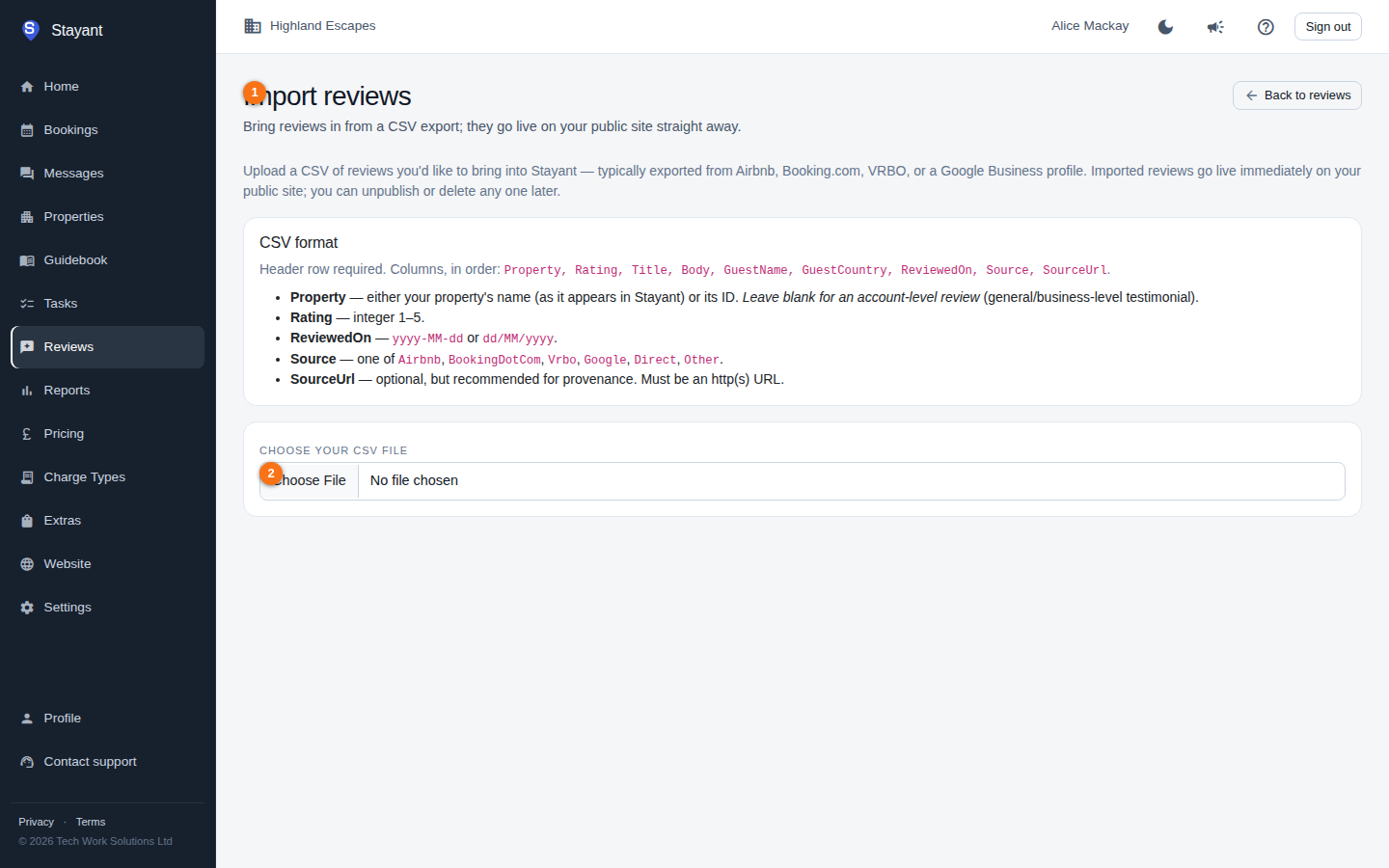
CSV format
The file needs a header row, and these columns in this order:
Property, Rating, Title, Body, GuestName, GuestCountry, ReviewedOn, Source, SourceUrl
- Property — your property's name (exactly as it appears in Stayant) or its ID. Leave it blank for an account-level review (a general/business-level testimonial not tied to one property).
- Rating — a whole number from 1 to 5.
- Title — optional.
- Body — the review text.
- GuestName — the name to show on the review.
- GuestCountry — optional.
- ReviewedOn — the original review date, as
yyyy-MM-ddordd/MM/yyyy. - Source — one of
Airbnb,BookingDotCom,Vrbo,Google,Direct, orOther. - SourceUrl — optional but recommended (it links the public review card back to the original). If supplied, it must be an
http(s)URL.
Upload, preview, confirm
- On the import page, click Choose your CSV file (②) and pick your
.csv. (The file must be under 2 MB.) - Stayant parses the file and shows a Preview: the total number of rows, how many are valid, and how many have errors.
- The preview table lists every row with its line number, property, rating, guest, source, date, and a status of OK or the specific error. Hover an error badge to read the full message.
- Imports are all-or-nothing. If any row has an error, the import button is disabled. Fix the errors in your CSV and re-upload — you can't import a partial file.
- When every row is valid, click Import N reviews to commit.
- A confirmation shows how many reviews were imported and published. Choose Import another to upload a further file, or Back to reviews to return to the list.
Use Cancel at the preview stage to discard the upload and start over.
After import, the new reviews appear in the Approved tab on the Reviews page and on your public site straight away.