Replying and publishing reviews
The Reviews page (/reviews) is where you moderate reviews and write public replies. The actions available on a review card depend on which tab it's in.
Approving and rejecting (publishing)
Guest-submitted reviews arrive in the Pending tab, marked Awaiting moderation, and are not visible to the public until you act on them. On a pending review you'll see two extra buttons (shown only on the Pending tab): Approve publishes the review (it moves to the Approved tab and shows on your public site, marked Visible on site), and Reject turns it down (it moves to the Rejected tab, Rejected — not visible, and never appears publicly).
Manually added and CSV-imported reviews skip this step — they're published on creation and start in the Approved tab.
Review-card actions
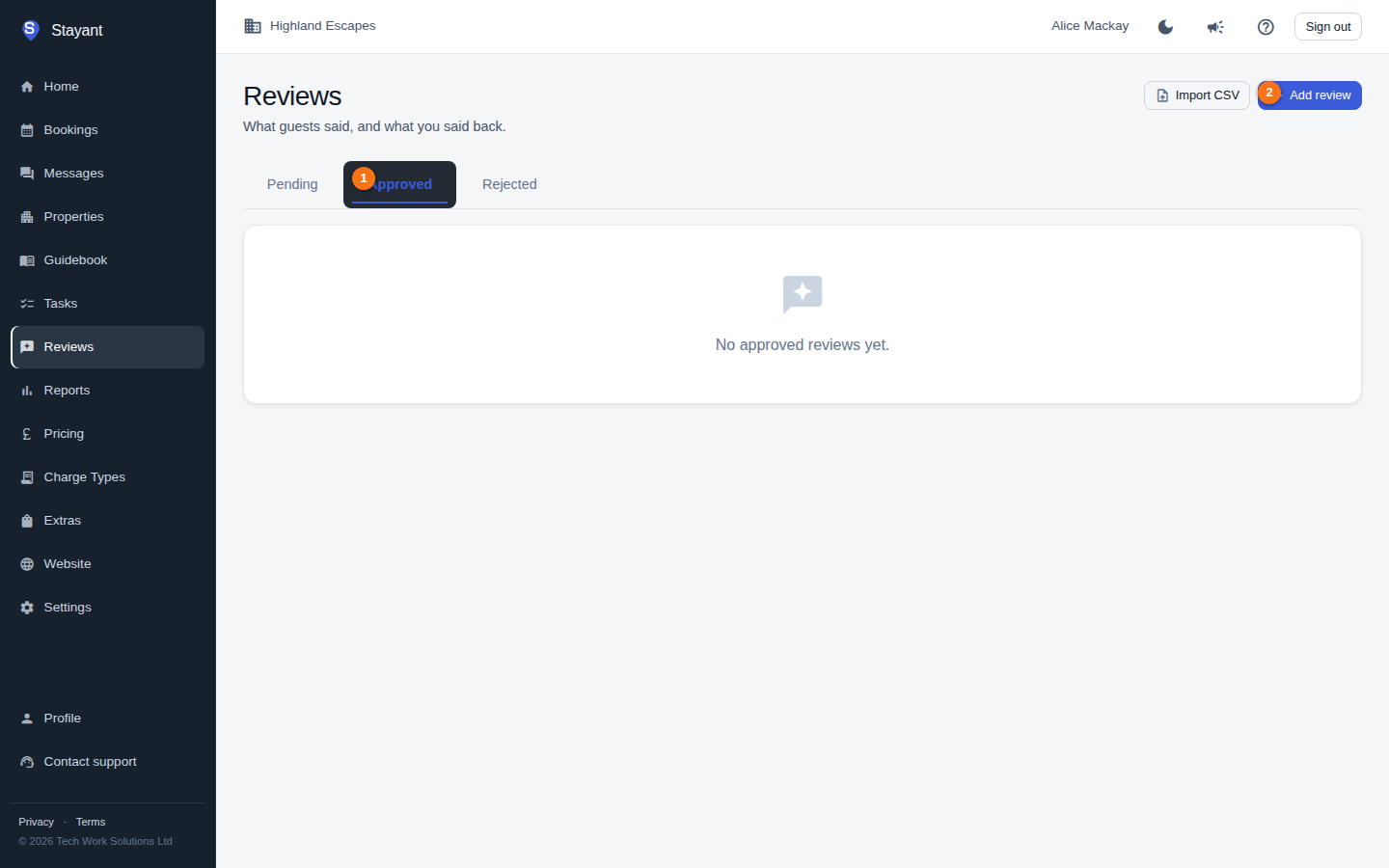
Published reviews live on the Approved tab (①). You can also add a review yourself with Add review (②) — manually added reviews publish straight to Approved. Each review card carries the actions described below: every card has an Add response button; an approved review also has an Unpublish button; and a pending review (on the Pending tab) shows Approve / Reject instead.
Unpublishing an approved review
To take a published review back down, open the Approved tab and click Unpublish on the review. It moves to the Rejected tab and stops showing on your public site. (Unpublishing uses the same mechanism as rejecting.)
Unpublishing is permanent. A rejected review cannot be approved again — there's no Approve button on the Rejected tab, and the server refuses the change. A guest-submitted review that you unpublish stays down for good; only reviews you added yourself or imported can be deleted and re-added.
Deleting a review
Reviews you added yourself — by hand or via CSV import — show a Delete button. This removes the review permanently. Reviews submitted by guests through the review link can be rejected/unpublished but are not deleted from this page.
Writing a public response
You can reply to any review, and your reply is shown publicly beneath it on your site. Every review card has an Add response button (it reads Edit response once a reply exists).
- Click Add response on the review.
- In the dialog, write a short, friendly reply (up to 4,000 characters). It's shown publicly under the review.
- Click Save response.
Your reply then appears on the card under Your response, and on the public review. To change it later, click Edit response; to clear it, open the dialog, empty the text, and save.
A response is shown publicly only when the review itself is published (Approved). Replying to a pending review doesn't publish the review — you still need to Approve it.