Check-in & check-out times
Each property has its own check-in and check-out times. These are set per property on the property's General tab — there is no single account-wide value. The time fields only appear once you click Edit on that tab; until then the section is read-only.
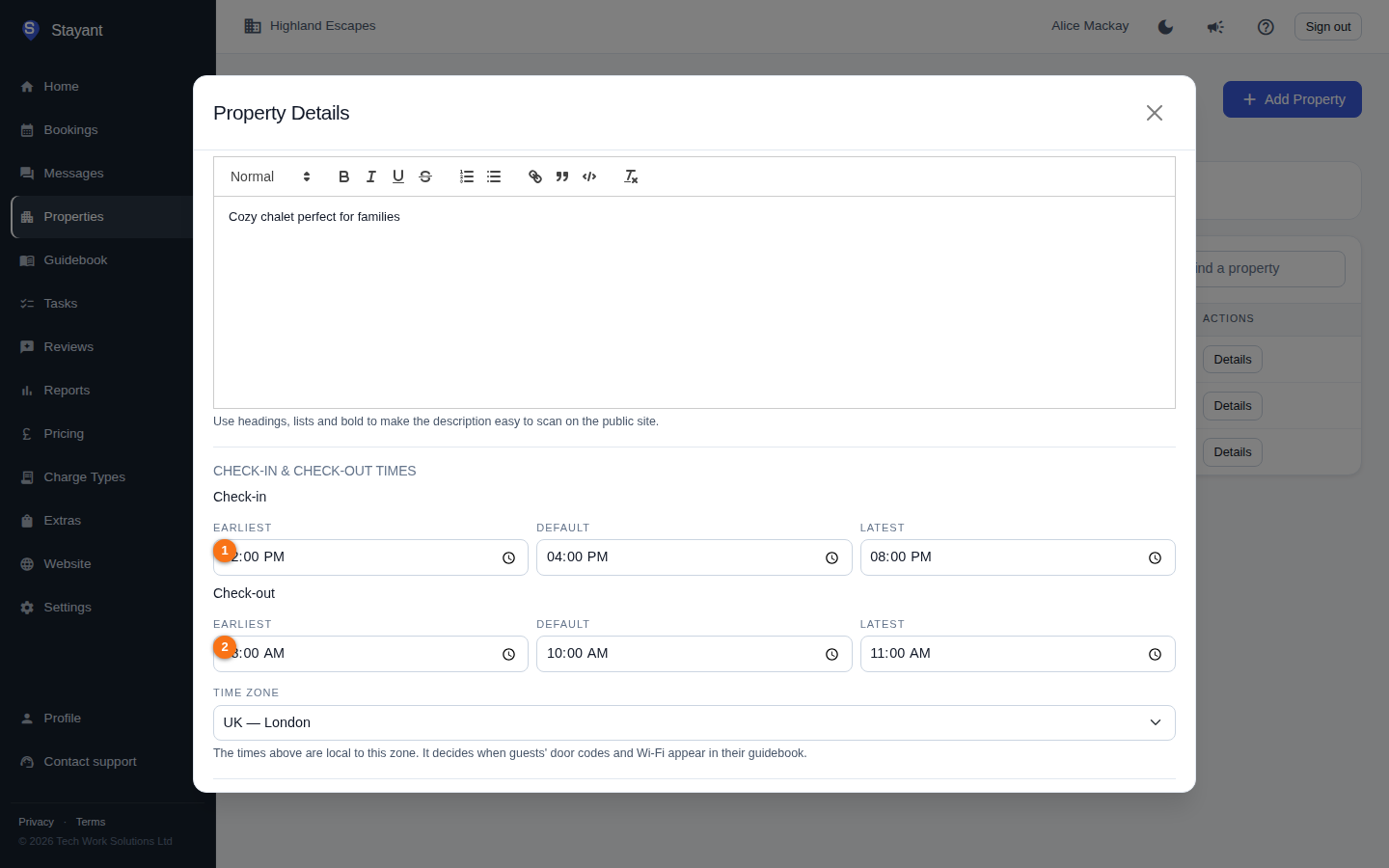
In edit mode you set the Check-in times (①) and the Check-out times (②), then click Save.
Where to set them
- Open Properties and select a property.
- On the General tab, click Edit.
- Scroll to the Check-in & check-out times section.
You set three values for each:
- Check-in (①) — Earliest, Default, and Latest.
- Check-out (②) — Earliest, Default, and Latest.
Each is a time of day (for example, 16:00). Out of the box a property uses sensible defaults — check-in 14:00 / 16:00 / 20:00 (earliest / default / latest) and check-out 08:00 / 10:00 / 11:00 — which you can change to match how the property actually operates. Click Save when done.
When you're not editing, the General tab's Check-in and check-out section shows each as a window with the default in brackets, for example "Check-in window 14:00 – 20:00 (16:00)".
How the times are used
- Guests — the check-in and check-out windows describe when guests may arrive and when they must leave.
- Cleaning tasks — the property's default check-out time is the time an auto-generated cleaning task is scheduled for. When a confirmed booking checks out, Stayant creates a Pending cleaning task scheduled for that property's default check-out time on the check-out date. If you change the default check-out time, future auto-generated cleaning tasks will be scheduled for the new time.
Tips
- Set the default check-out time to when the property is realistically vacated, so the cleaning task on your Tasks board lines up with when your cleaners can actually start.
- The earliest and latest values describe the bounds of each window; the default is the headline time shown to guests and used for cleaning-task scheduling.