Compare looks for your site
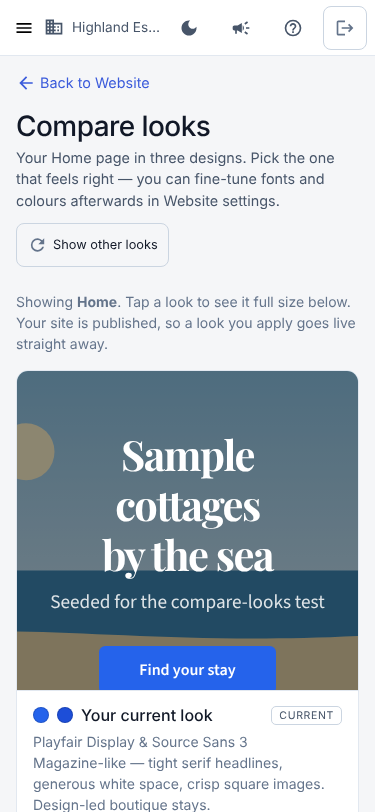
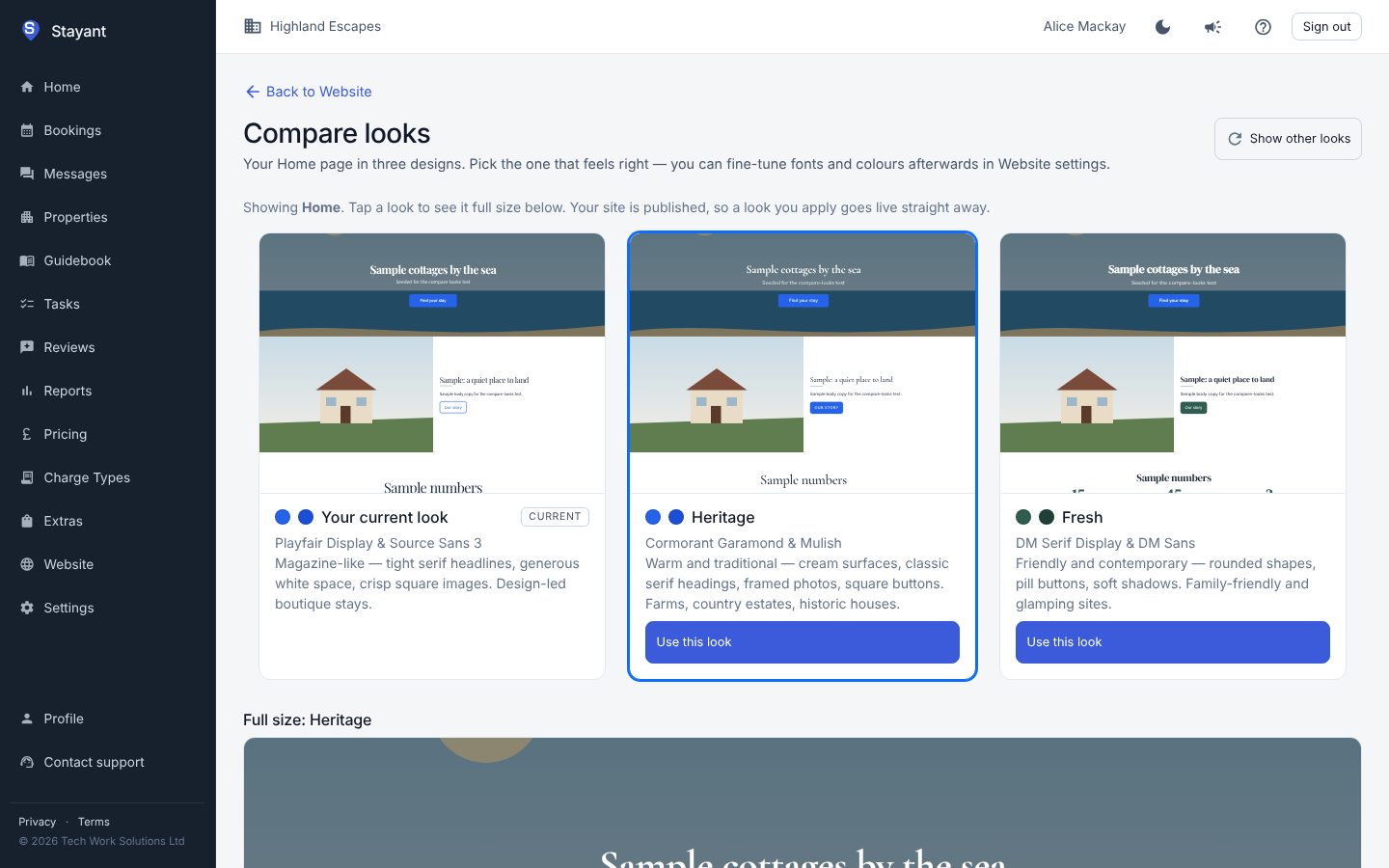
Not sure your site's design is right? Compare looks shows your real Home page in three designs side by side, so you can choose by eye instead of by name.
Opening it
- On the Website page, click Compare looks.
- After the AI builds your site, click Compare looks for your site in the green message.
- In Website settings, on the Design card, click Compare looks on your Home page.
What you see
- Your current look comes first, so you can compare against it.
- The second look is a contrasting design in your own colours, so only the style changes.
- The third look is another design with a new colour pair that reads well on white.
Each look sets the fonts, button shapes, spacing and colours. Your pages, text and photos stay the same.
Tap a look to see it full size below the cards. Show other looks brings up two more designs, and you can keep going until you've seen them all.
Choosing one
Click Use this look. It is applied straight away:
- The design and your primary and accent colours change.
- Your header, footer and dark-mode colours are kept.
If your site is already published, guests see the new look immediately. You can fine-tune it afterwards in Website settings → Design, or come back and choose another.
Comparing looks doesn't use any of your AI allowance.