FAQ search and the tap-to-load map
Searching the FAQ
When an FAQ Accordion has six or more answered questions, a search box appears above them. Guests type a word, such as "dogs" or "parking", and only the matching questions stay on screen. If nothing matches, the box says so. Press Escape to clear it.
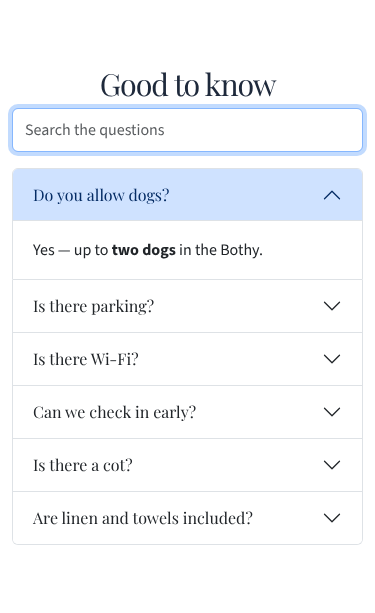
The search box is on by default. To turn it off, select the block and untick Show a search box under More options for this block.
Answers keep their formatting, such as bold text, links and lists.
Helping Google show your questions
The FAQ also adds hidden structured data (schema.org) that tells search engines which questions you answer. Google can then show them under your site in search results. Guests see no difference on the page. Only answered questions are included, and they never appear in Preview.
To turn it off, untick Help search engines show these questions under More options.
A faster map
A Map / Location block can show a map picture with your address first. Google Maps loads only when a guest taps Show map.
- Your page loads faster, because the map isn't downloaded unless it's wanted.
- No Google cookies or requests happen until the guest asks for the map.
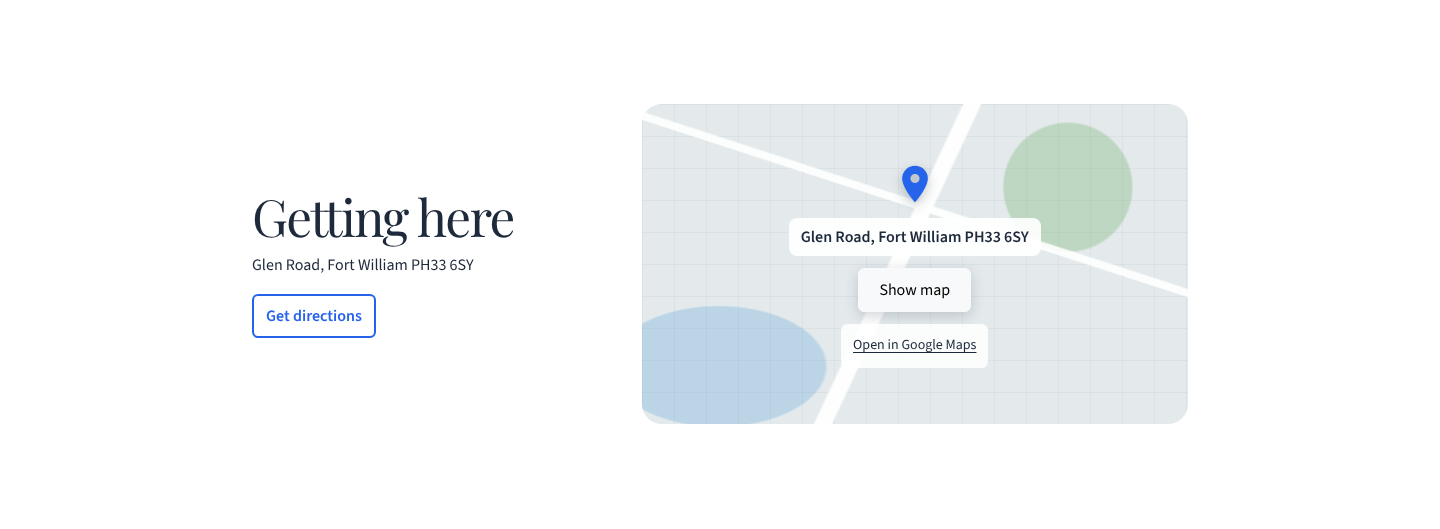
New Map blocks work this way. For an older block, tick Show a map picture first under More options.
Get directions. If you turn on the directions link but leave its address blank, the link opens a Google Maps search for your address instead.
Split layout. Choose Split under Style → Layout to put your address and a Get directions button beside the map.