Connecting OTAs via Channex
Channex is the channel manager Stayant uses to connect your properties to online travel agencies (OTAs) such as Booking.com, Airbnb, Expedia, and Vrbo. Once a property is connected, Stayant keeps availability, rates, and restrictions in sync with those channels automatically, and bookings made on them flow back into Stayant.
Open a property and select its Channels tab to check its connection status and manage its channels. A cross-property view of every property's status is on the Channels page. It isn't in the main menu yet: open it from the Connect Airbnb, Booking.com or an iCal calendar step of the dashboard checklist, or go to /channels.
Channel status is visible to owner/admin users only, and needs a plan that includes the Channex integration. If you see a red Could not load channel status error rather than a badge, check your role and plan before assuming the integration is broken.
What you'll see on the Channels page
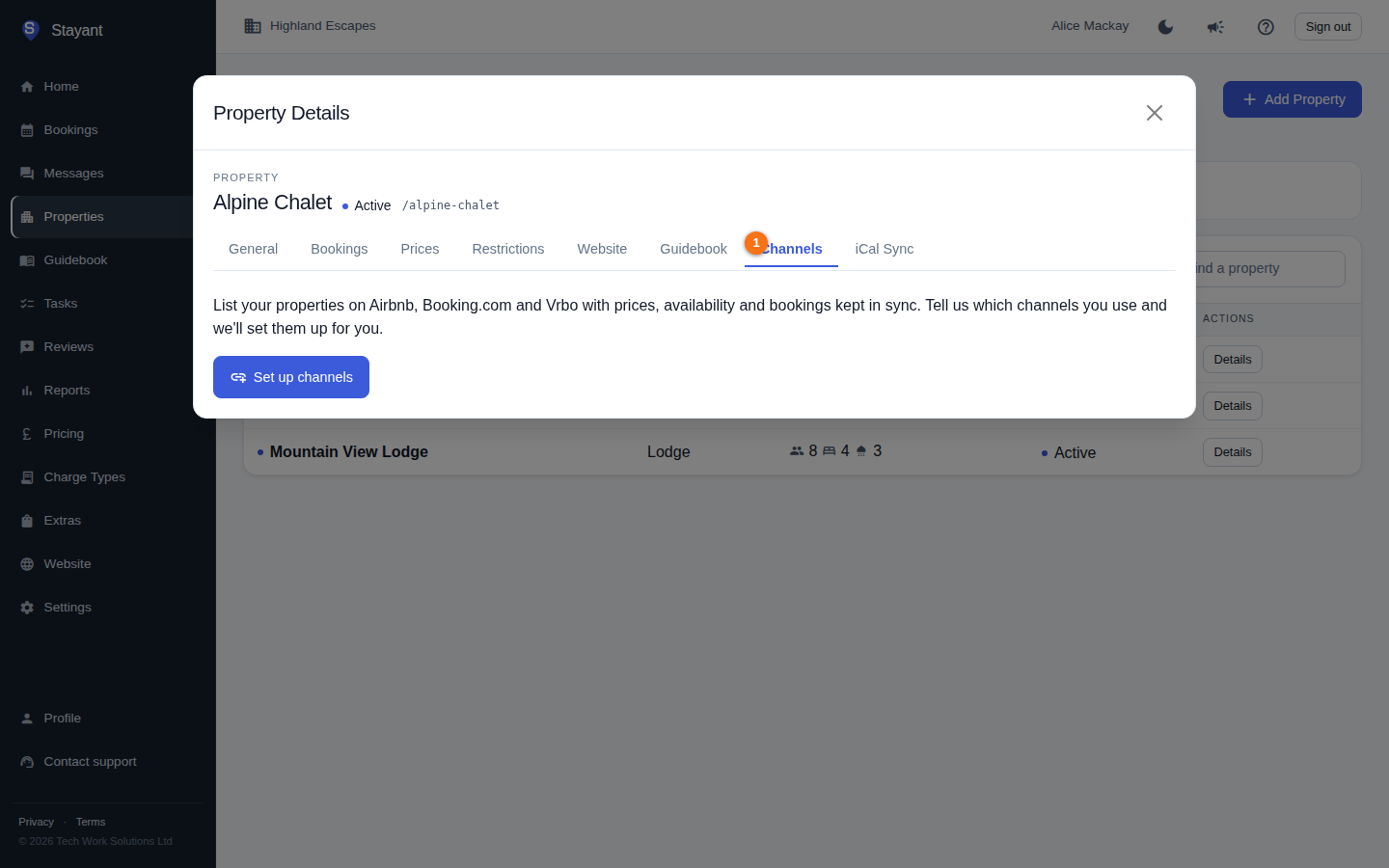
You can also check a single property's connection from its Channels tab (open the property, then select Channels ①). It shows the same status as the Channels page. Each property carries a connection status:
- Connected — the property is linked to Channex. A Connected channels list shows every OTA connected to it, where you connect, map and manage the property's individual OTA connections.
- Not Connected — the property hasn't been linked to Channex yet. Instead of the channel list you'll see Set up channels for this property; see Asking us to connect a property below.
On a property's Channels tab the status is a badge (②): green for Connected, amber for Not Connected. The Channels page shows the same status as a small dot next to each property name. If channels haven't been switched on for your account yet, the page shows Connect Airbnb, Booking.com and Vrbo with a Set up channels button instead. It works the same way as the per-property request below, for your whole account.
What Stayant shows about each channel
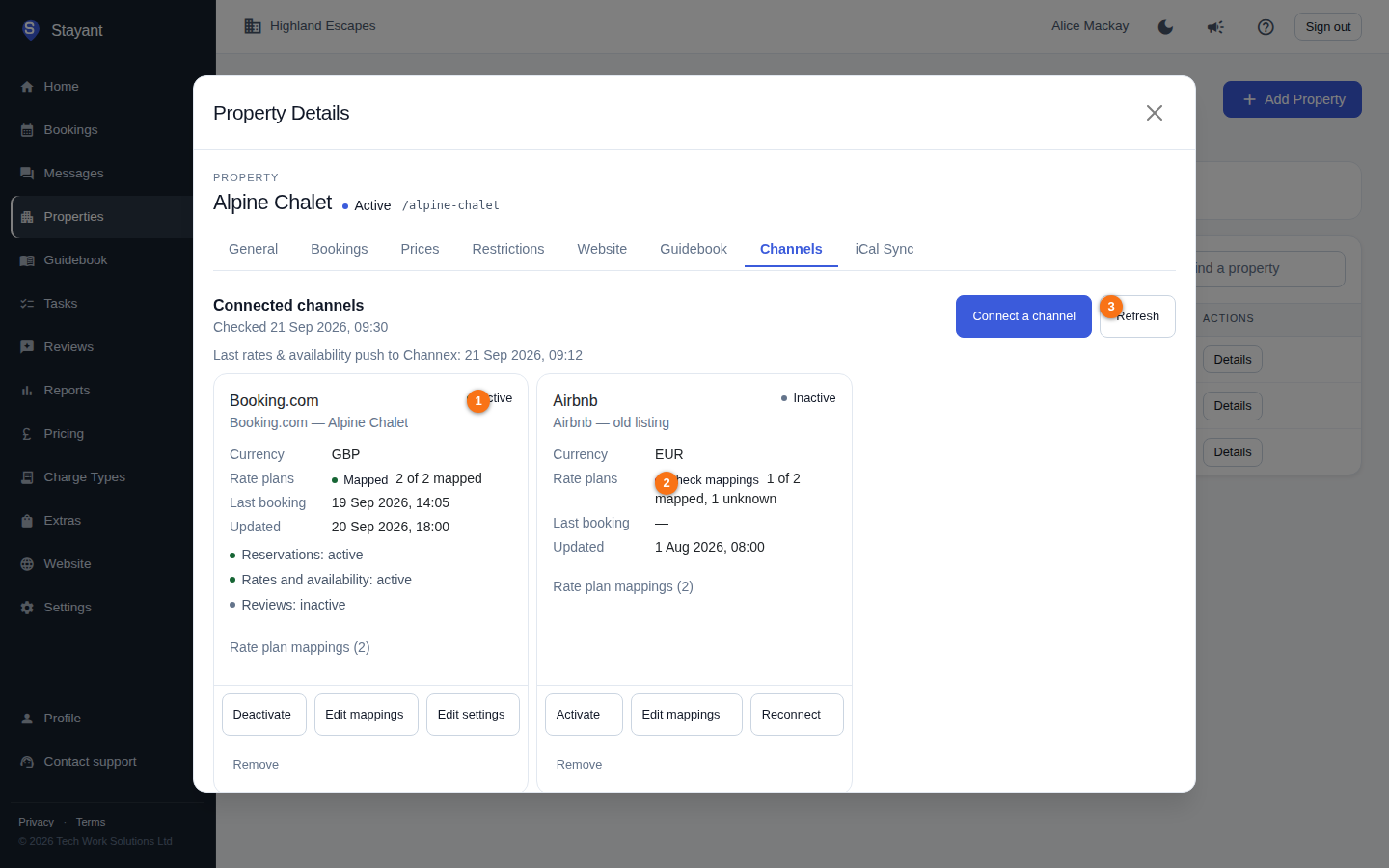
For a connected property, Connected channels lists one card per OTA connection Channex holds for it — Booking.com, Airbnb, Expedia and so on — straight from Stayant. Each card shows:
- Active / Inactive (①) — whether the connection is switched on in Channex. An inactive channel receives no rates or availability and sends no bookings.
- Currency — the currency the channel is set to.
- Rate plans (②) — how many of the property's rate plans are mapped to this channel, with a health badge:
- Mapped (green) — every rate plan is mapped and every mapping is one Stayant recognises.
- Partially mapped (amber) — some rate plans aren't mapped yet, so those rates won't be sold on this channel.
- Check mappings (red) — the channel is mapped to a rate plan Stayant doesn't know about. This usually means a stale mapping from an old set-up; use Edit mappings to re-map it.
- Not mapped (grey) — the connection exists but nothing is mapped to it yet.
- Last booking — when the most recent booking from that OTA arrived in Stayant.
- Where Channex reports them, small badges show which features are syncing (reservations, rates and availability, reviews).
Open Rate plan mappings on a card to see exactly which room and rate plan each mapping points at. Above the cards, Last rates & availability push to Channex tells you when Stayant last successfully sent an update for the property.
The list is a snapshot from Channex and can be up to about two minutes old; reloading the page after that fetches it fresh. Press Refresh (③) to fetch it again right away — for example after changing a mapping. If Channex can't be reached, the list shows a warning; try Refresh again shortly.
Connecting a channel from Stayant
Press Connect a channel above the list to set up a new OTA connection without leaving Stayant. The wizard has four steps:
- Channel — pick the OTA. Channex offers a long list, so type in the search box to narrow it; the list scrolls on its own inside the dialog. The line under each channel says what it needs from you (a hotel id, a sign-in on the OTA's site, and so on). Airbnb follows its own path (see Connecting Airbnb below); a channel marked Channel manager can't be set up from Stayant yet — contact support and we'll connect it for you.
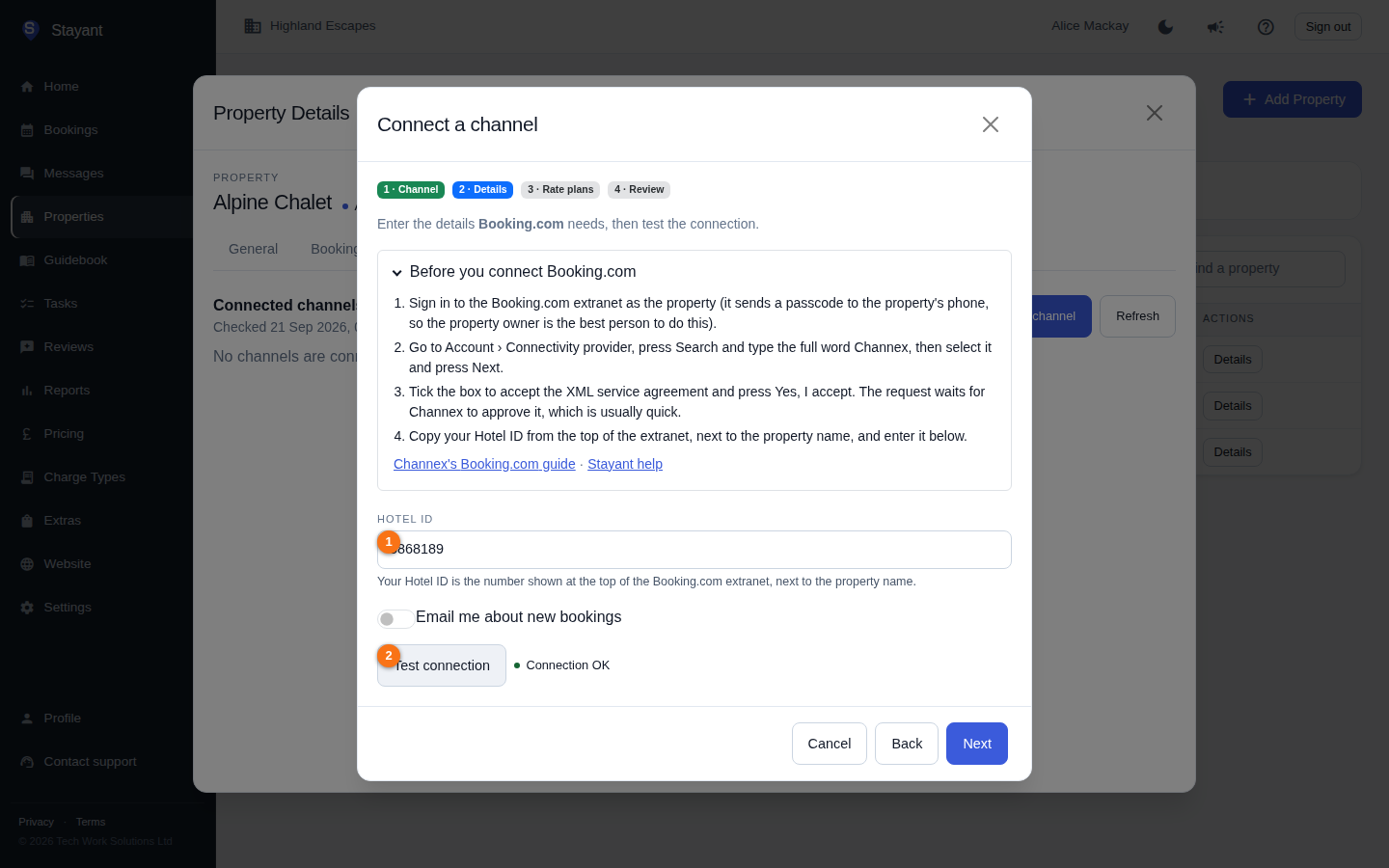
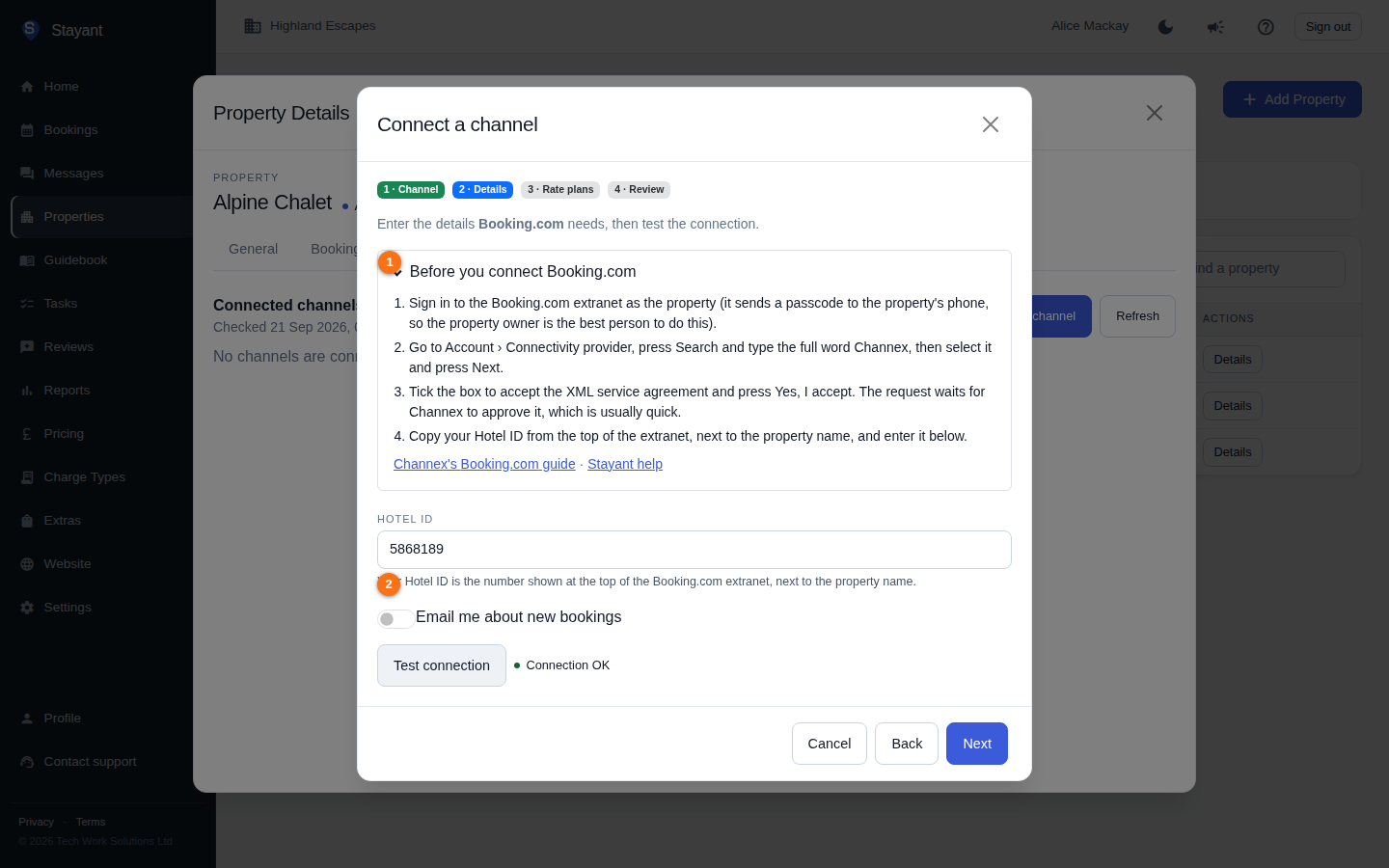
- Details — enter what the channel needs, such as your Booking.com Hotel ID (①). The fields come from the channel itself, so they differ per OTA. For the channels Stayant knows well, a Before you connect panel at the top of the step lists what to do on the OTA's side first and where the id comes from — the same steps as Getting a channel ready to connect below — with a link to Channex's own guide. Press Test connection (②); you can only continue once the channel accepts the details. If it doesn't, the message shown is the channel's own reason — for Booking.com that usually means Channex hasn't been enabled as the connectivity provider in your Booking.com extranet yet.
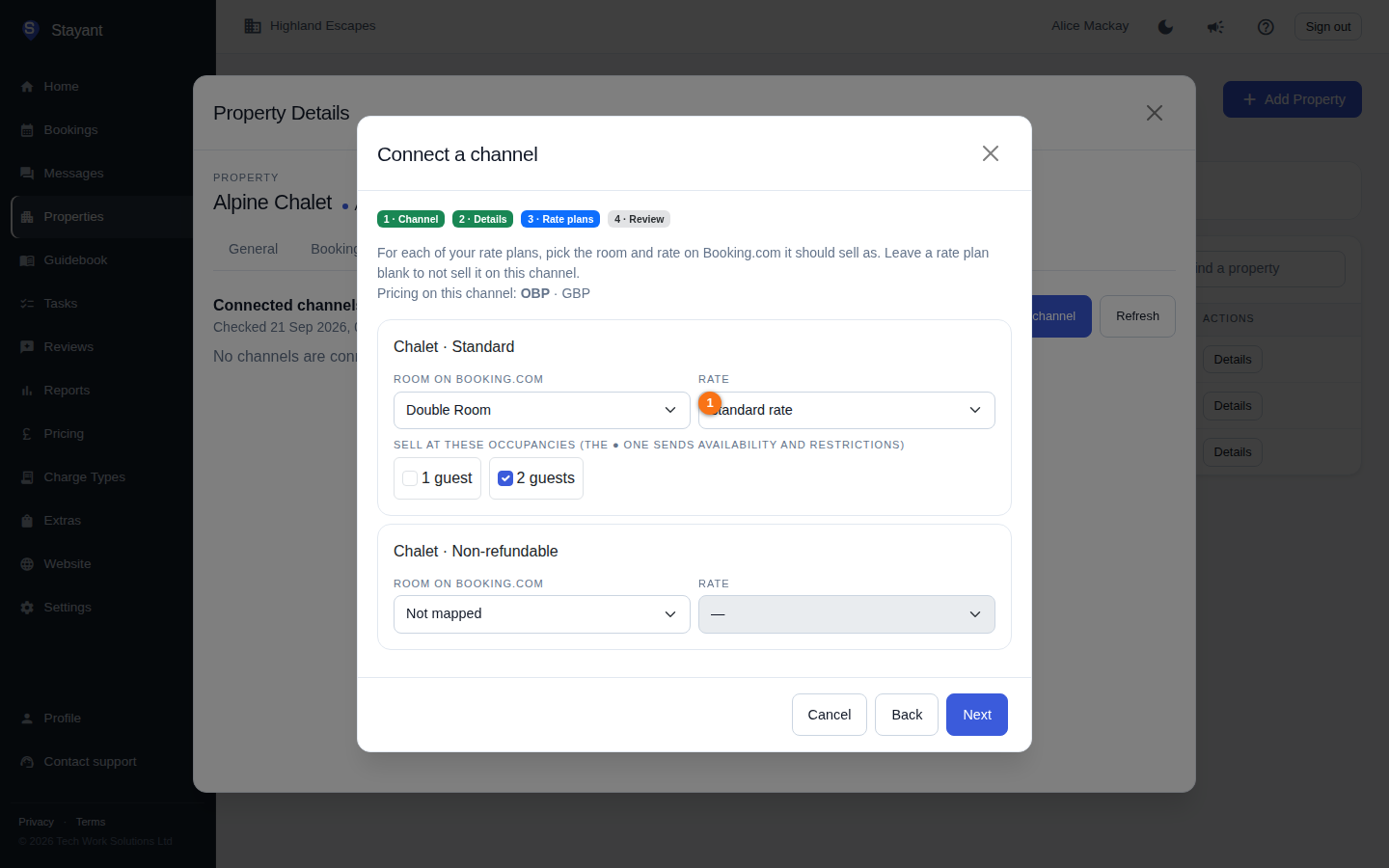
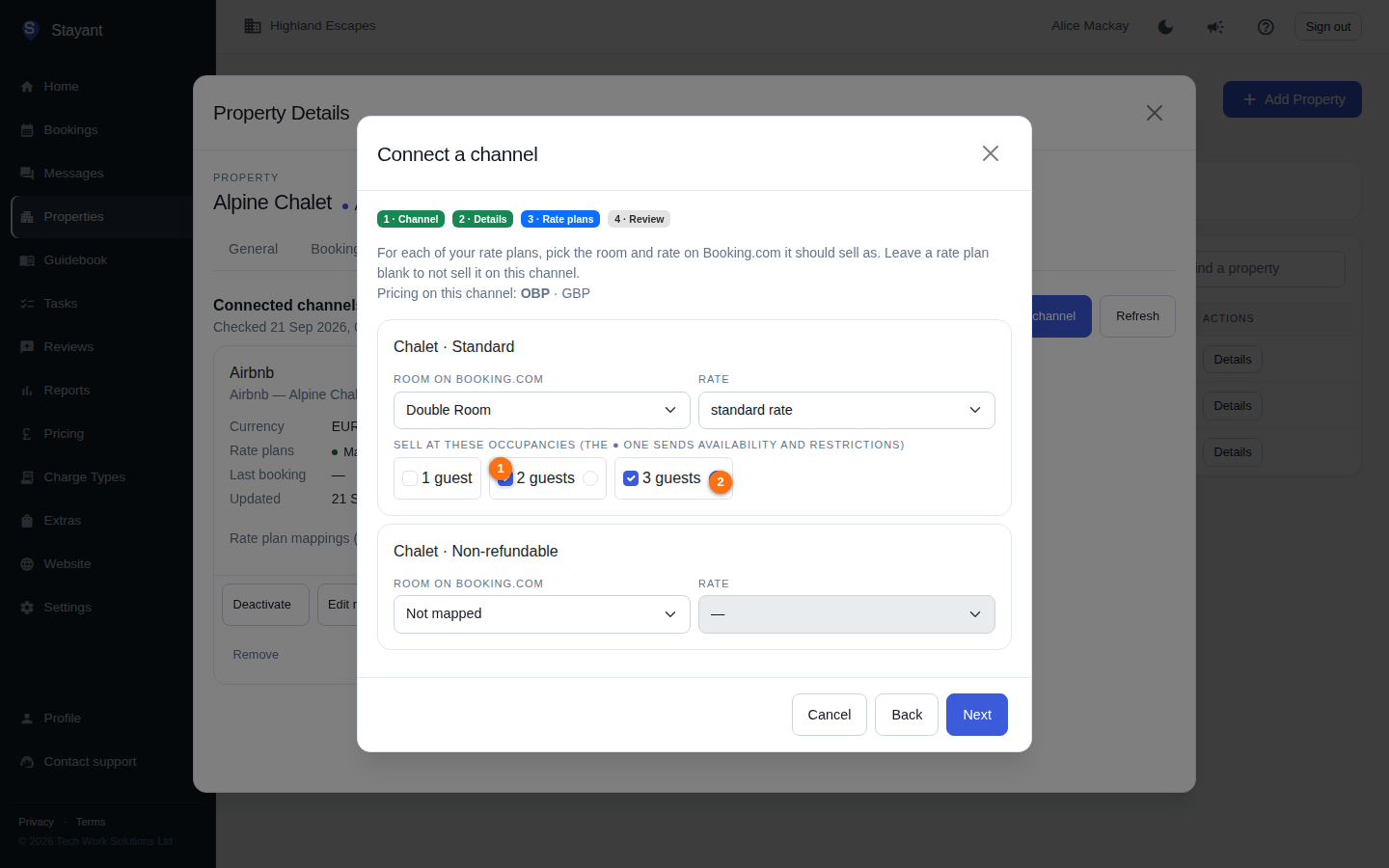
- Rate plans — for each of the property's rate plans, choose the room and rate on the OTA it should sell as (① in the second screenshot). Where the OTA prices by occupancy, tick the occupancies to sell at (see Selling at more than one occupancy below); the largest is ticked by default. Leave a rate plan blank to not sell it on this channel.
- Review — check the name, currency and mappings, then press Connect. Activate immediately is on by default, which starts sending rates and availability straight away; switch it off to create the connection switched off and activate it from its card later.
Not every channel can be set up here yet. If the wizard tells you a channel has to be configured in the channel manager, contact support and we'll set it up for you.
Selling at more than one occupancy
Some OTAs (Booking.com is the usual one) price a rate by how many guests stay. On the Rate plans step, such a rate shows a row of occupancy boxes (①): tick every occupancy the rate plan should sell at. When more than one is ticked, choose which one is primary with the ● radio next to it (②) — that's the occupancy Stayant sends availability and restrictions for; the others receive prices only. Your per-room price is sent at every ticked occupancy, so use Channel price markups if the channel needs different amounts per guest count.
Channels that list properties rather than rooms
A few OTAs don't have rooms and rates: they list whole properties. When Stayant recognises that shape, the Rate plans step shows one listing drop-down per rate plan instead of room and rate. Pick the listing each rate plan sells as and continue; the channel checks the mapping when you connect. If Stayant can't work out how a channel describes its inventory, the wizard says so; contact support and we'll finish the mapping for you.
Getting a channel ready to connect
Every OTA has to be told to let Channex manage the property before Test connection will pass, and each does it differently. These are the steps for the channels Stayant documents; the wizard shows the same list in its Before you connect panel (①), and the Hotel ID field says where to find the id (②). For any other channel, Channex's own guides at docs.channex.io are the place to look.
Booking.com
- Sign in to the Booking.com extranet as the property. Booking.com sends a passcode to the property's phone at this point, so the property owner is the best person to do it.
- Go to Account › Connectivity provider, press Search and type the full word Channex. Select it and press Next.
- Tick the box to accept the XML service agreement and press Yes, I accept. The request then waits for Channex to approve it, which is usually quick.
- Your Hotel ID is the number shown at the top of the extranet, next to the property name. Enter it on the wizard's Details step.
Until the provider request has been approved, Test connection fails with Booking.com's own message. Booking.com prices most rates by occupancy, so expect to tick occupancies on the Rate plans step (see Selling at more than one occupancy).
Expedia
- Sign in to Expedia Partner Central and open Rooms and Rates › Connectivity settings. It asks for two-factor authentication.
- Choose Channex for both connectivity and bookings, and save.
- Your Hotel ID is the Expedia property ID shown in Partner Central. For the minimum-stay type, Arrival is the usual choice.
- The booking total type decides what Stayant records for each booking: the payout amount you receive, the total amount the guest paid with taxes and fees, or that total excluding taxes (used by US properties).
Agoda
- You need a direct contract with Agoda, and the property's details and images completed in YCS first.
- In YCS go to Settings › Property settings › Optional settings, tick Enable channel manager mode, choose Channex from the list and press Save.
- Your Hotel ID is the property ID in your Agoda account. If Test connection fails, confirm the ID with Agoda support.
- Agoda always maps rates per occupancy. If you price per room, map the same rate at every occupancy on the Rate plans step.
Hostelworld
- Email Hostelworld support and ask them to connect Channex as the property's channel manager.
- They confirm the property ID to enter on the Details step. If Test connection fails, check the ID with them.
- Hostelworld doesn't support closed-to-arrival or closed-to-departure restrictions, so Stayant never sends those to it.
Hotelbeds
- Sign in to the Maxiroom extranet and choose Channex from the list of channel managers. If Channex isn't listed, raise a ticket with Hotelbeds support asking them to connect Channex for the property.
- Enter the username and password Hotelbeds provided. They are often identical, which is normal.
- One connection covers one contract, so connect again for each additional contract.
Connecting Airbnb
Airbnb doesn't use a hotel id; the owner of the Airbnb account authorises the connection on Airbnb's own website. Before you start: sign in on airbnb.com to the account that owns the listings (the authorisation goes to whichever account is signed in), make sure its host details are complete with a verified email address, and disconnect any other channel manager or PMS from it, because Airbnb allows one at a time. Pick Airbnb in the wizard and:
- Airbnb step — choose how the connection behaves (which minimum-stay rule is sent, which booking amount is recorded, whether to email you about new bookings) and give it a name (①). Press Continue to Airbnb (②).
- Authorise on airbnb.com — you're taken to airbnb.com. Sign in with the account that owns the listings and approve Channex. Airbnb brings you straight back to this property's Channels tab. If you cancel on Airbnb, you come back with a message and nothing is connected.
- Listings step — the wizard reopens on the listing step. For each of your rate plans, pick the Airbnb listing it should sell as (① in the second screenshot); each listing can be used once. Activate after saving is on by default. Press Save mappings.
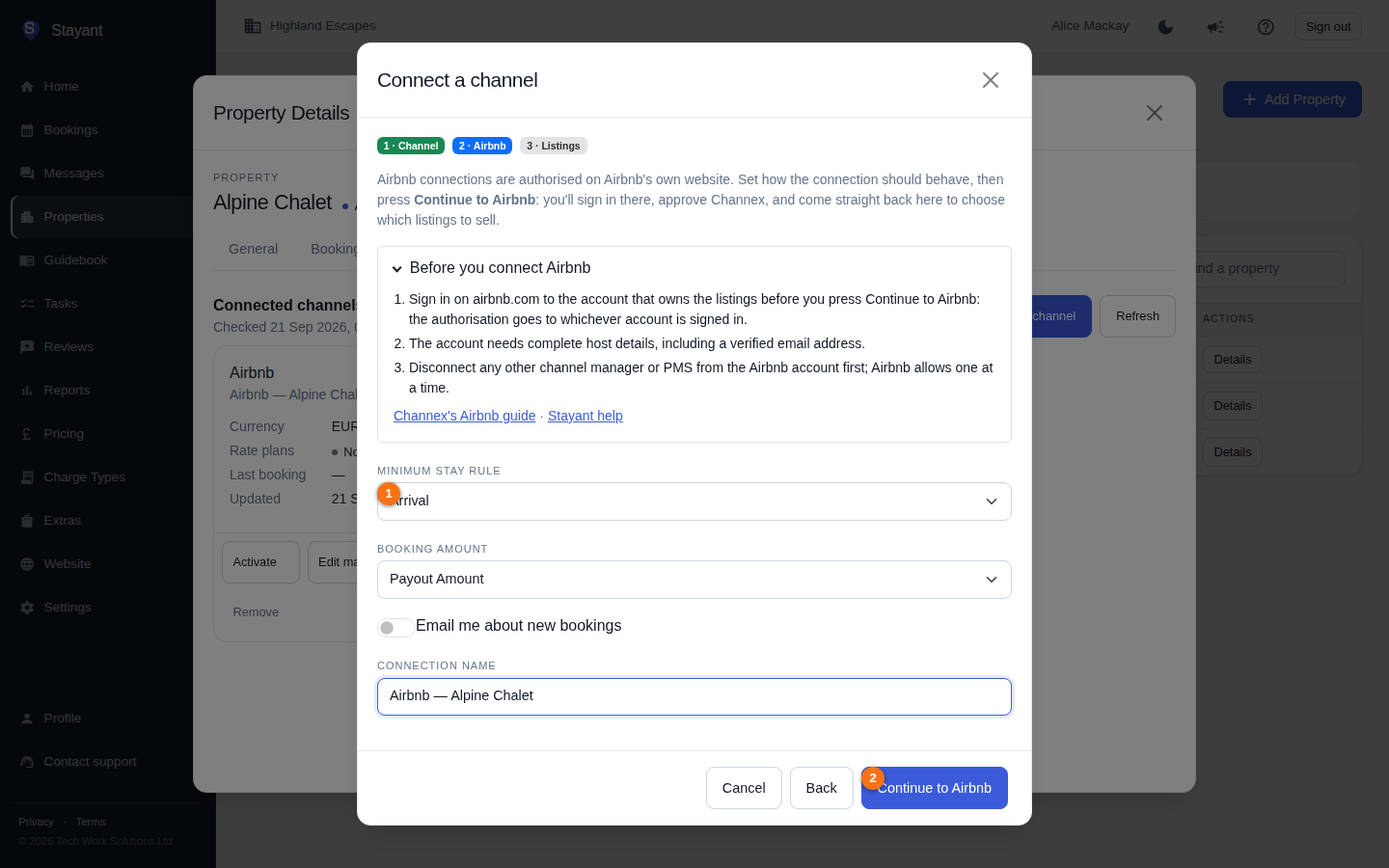
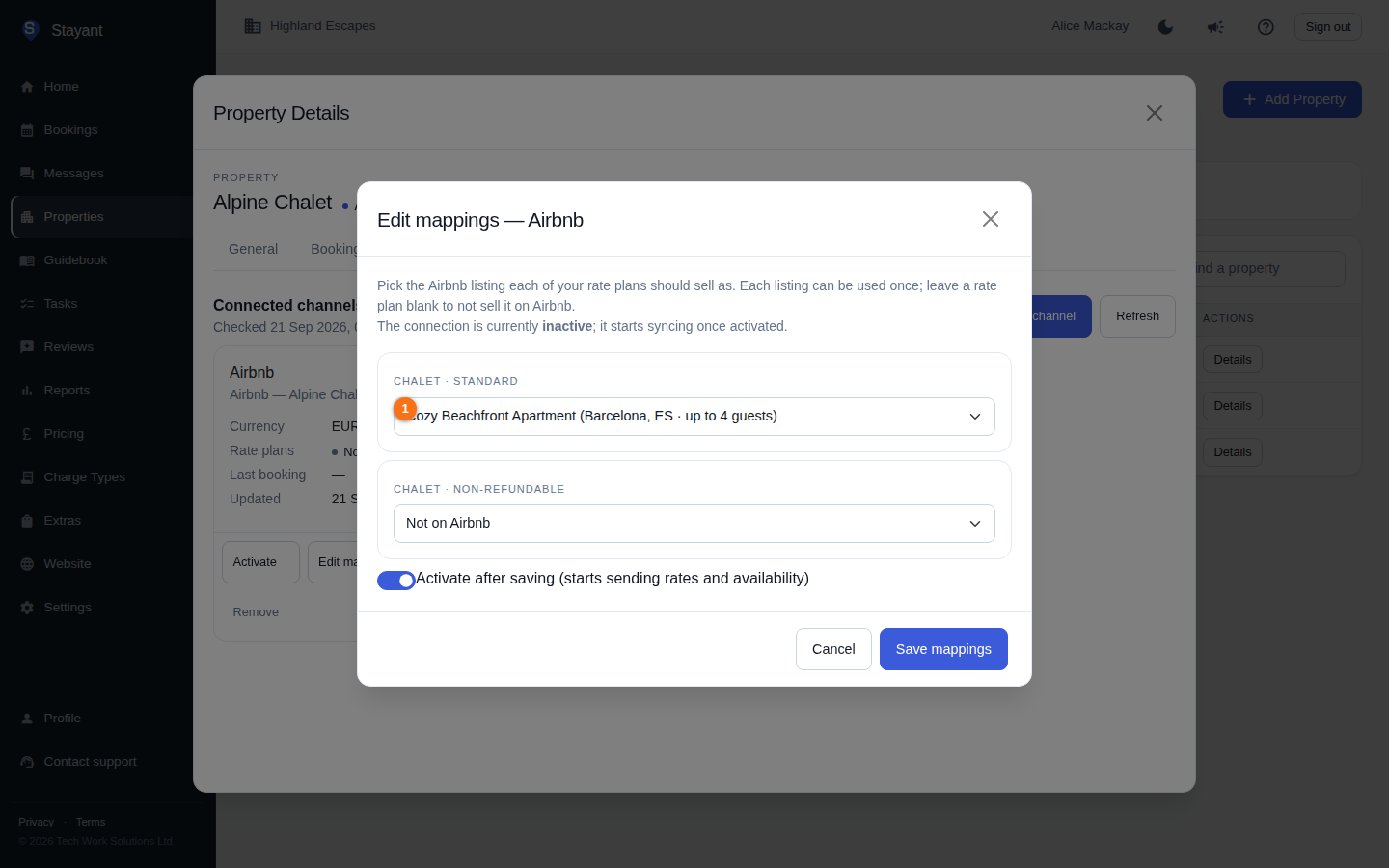
Airbnb confirms each listing mapping in the background, usually within about 30 seconds; press Refresh on the channel list if a card looks out of date right after saving. If activating fails straight after mapping because Airbnb hasn't confirmed yet, use Activate on the card a minute later.
An Airbnb card also has Reconnect, for when the authorisation lapses (Airbnb revokes it, or the password changes): it takes you through the same approval on airbnb.com and keeps the connection and its mappings. Remove on an Airbnb card unmaps every listing first, as Airbnb requires, then disconnects.
Airbnb listing settings
Once Airbnb has confirmed a listing mapping, its row on the listings step (open it with Edit mappings on the Airbnb card) gains a Listing settings button. The dialog shows what Airbnb holds for that listing and lets you change it without leaving Stayant:
- Availability rules (①) — notice before check-in, how far ahead guests can book, default minimum and maximum nights, turnover days, and which weekdays allow check-in and check-out. Press Save availability (②).
- Pricing on Airbnb — the daily and weekend price, how many guests are included and the price per extra guest. Stayant's own nightly rates overwrite the daily price every time they sync, so it only matters before the first push; the guest settings are Airbnb-side and stay as you set them.
- Published on Airbnb — Unpublish hides the listing from guests on Airbnb; Airbnb asks for a reason, so pick one from its list (and add details if you like) first. Publish puts it back.
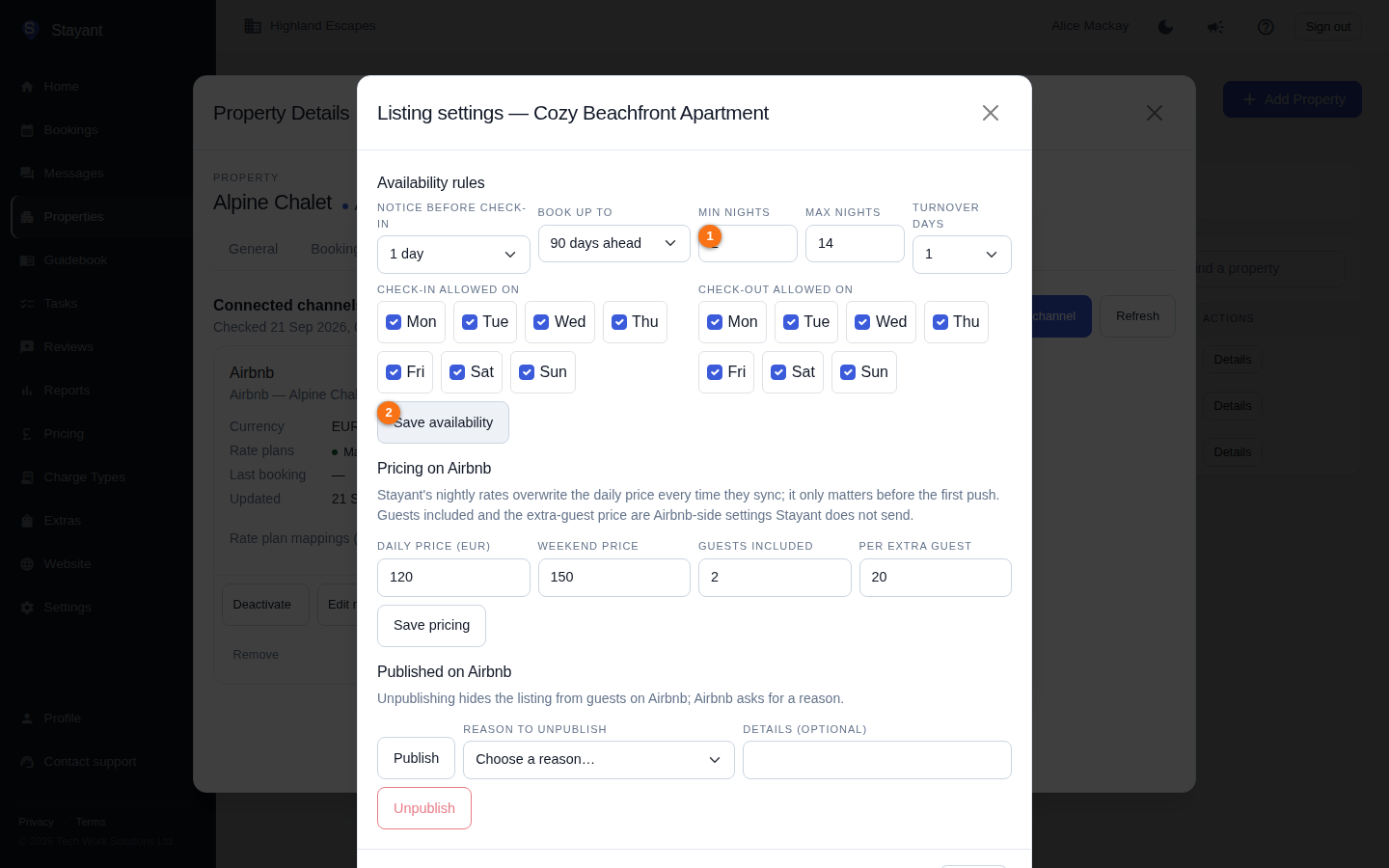
Anything Airbnb holds for the listing that isn't shown here is left exactly as it is.
Connecting Vrbo
Vrbo doesn't use a hotel id either: the account owner signs in with the Vrbo login and confirms with a code sent by SMS. Before you start: if the account was connected to another PMS or channel manager before, ask Vrbo support to convert it back to a normal account; remove any iCal connections from the Vrbo listings, because an iCal feed left connected overwrites what Channex sends; and have the phone that receives the account's SMS codes to hand. Pick Vrbo in the wizard and, on the Details step:
- Enter the Vrbo username and password (①) and press Authenticate. If Vrbo rejects the login, the wizard says so; nothing is created.
- Choose which of the account's phones Vrbo should text the code to (②) and press Request verification code. If the account has no phone yet, Expedia asks for one to add to the profile first: pick the country code and enter the number.
- Enter the code and press Verify code. Stayant then tests the connection straight away and, once it passes, Next takes you to the usual Rate plans and Review steps.
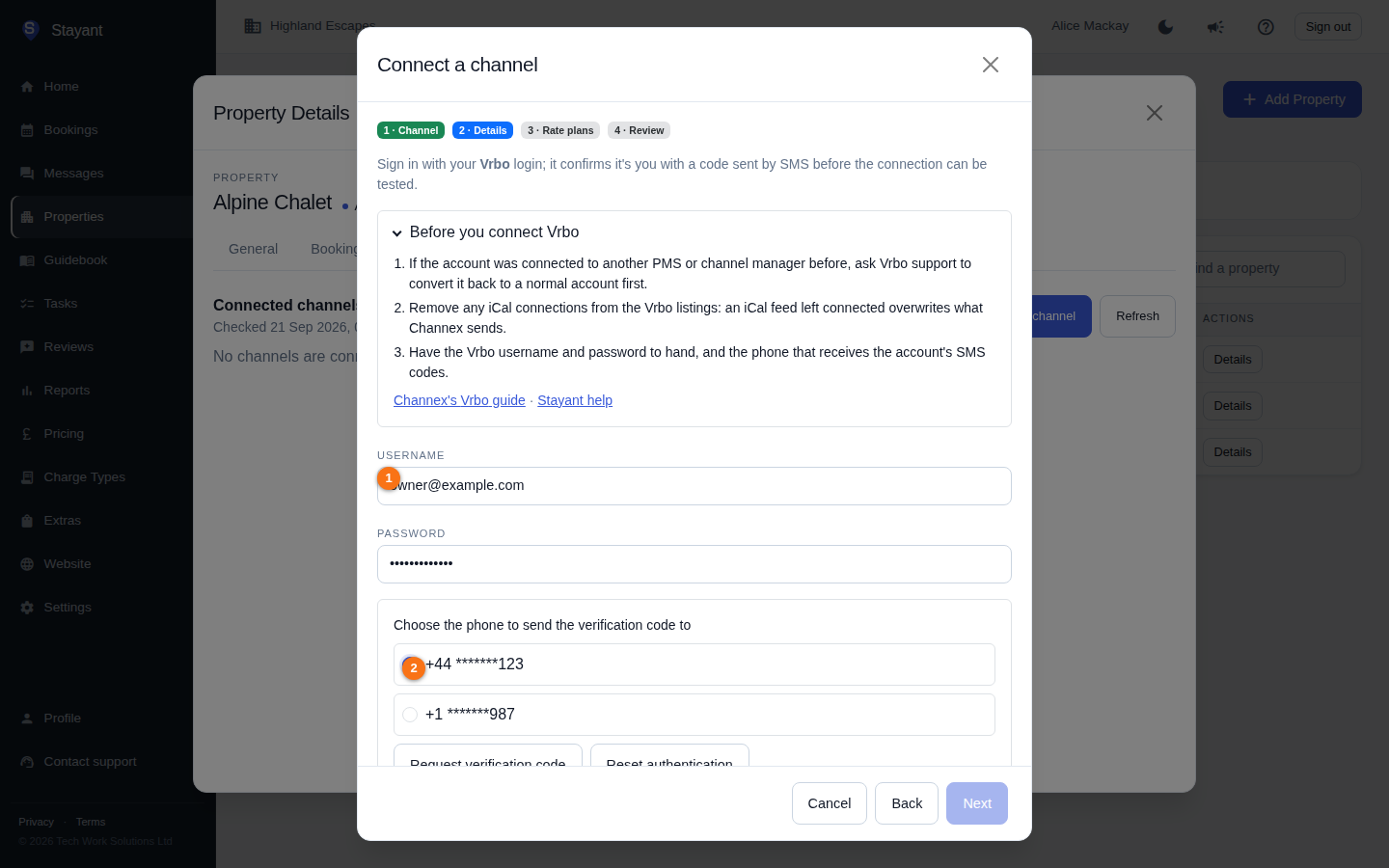
Reset authentication starts over, and changing the username or password does the same, because the confirmation belongs to that login. Edit settings on a Vrbo card asks you to authenticate again before it saves, for the same reason.
Vrbo's confirmation step isn't part of Channex's published API; Stayant uses the same calls the Channex channel manager makes. If the step ever fails in a way the wizard doesn't recognise, contact support.
Managing a connection
Each channel card has these actions along the bottom:
- Activate / Deactivate — switch the connection on or off. A deactivated channel receives no rates or availability and sends no bookings, but keeps its mappings.
- Edit mappings — change which room and rate (or listing) each rate plan is mapped to. Rate plans you clear are unmapped on the channel.
- Edit settings — change the details the channel was connected with, such as a new hotel id or password. The form is pre-filled with what Channex holds; a password is never shown, and leaving it blank keeps the current one. Test connection must pass before Save settings is enabled, and the mappings are untouched. (Airbnb connections have Reconnect instead; Vrbo asks you to authenticate again.)
- Remove — disconnects the channel entirely (deactivating it first if needed). Bookings already received are kept. You'll be asked to confirm.
Every one of these is recorded in the audit log.
Working with a connected property
For a connected property, everything happens in the Connected channels list on the property's card: connect a new channel, edit its mappings or settings, and activate, deactivate or remove it. If you need a channel the wizard doesn't cover yet, contact support and we'll set it up for you.
Changes made on the channel
When a guest or the channel changes a booking, Stayant updates its copy automatically:
- Dates, guests and price: the booking takes the channel's new dates, guest details and total, and availability is updated on every other channel.
- Room type: if the channel moves the guest to a different room type at the same property, Stayant moves the booking to the matching room and applies that room's rate plan. The old room's nights open again and the new room's nights are blocked. This works when each room type is mapped to its own rate plan on the Rate plans step.
- Cancellation: the booking is cancelled and its nights go back on sale.
If the change would put the booking on nights that are already booked in Stayant, the booking keeps its previous dates and room and an Overbooking operational task is raised for you to resolve on the channel.
Channels can't move a booking to a different property. To do that, cancel the booking on the channel and rebook the guest on the other property. Stayant receives the cancellation and the new booking separately.
Asking us to connect a property
The Stayant team links each property to Channex for you; it isn't something you do yourself yet. On the Channels page, or a property's Channels tab, a property that isn't connected shows Set up channels for this property:
- Press Set up channels for this property.
- Tick the channels the property is listed on: Airbnb, Booking.com and/or Vrbo (①). Add anything that helps us find the listing in the note box, such as your Airbnb listing link or Booking.com hotel ID. You can mention other channels there too.
- Press Send request (②).
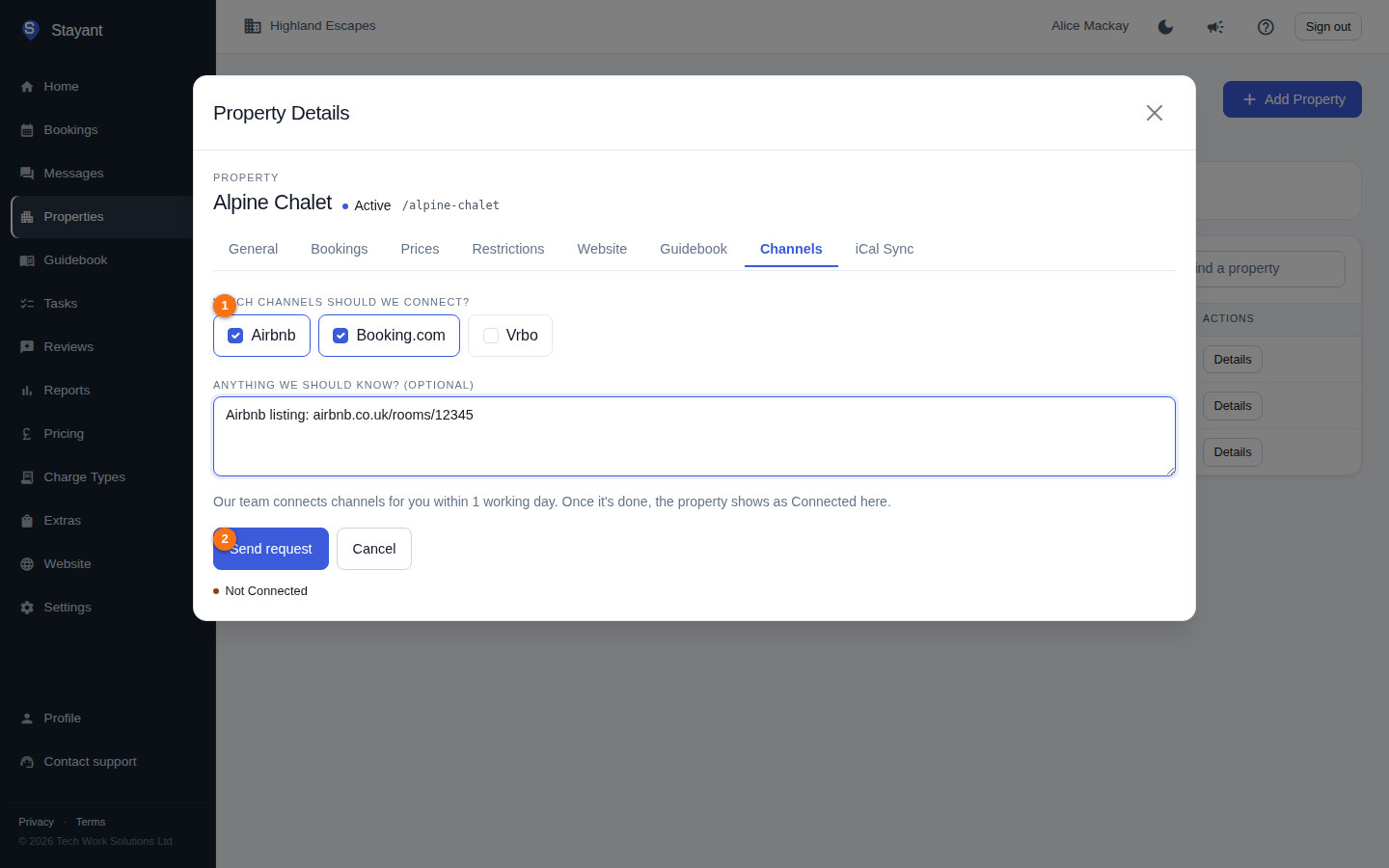
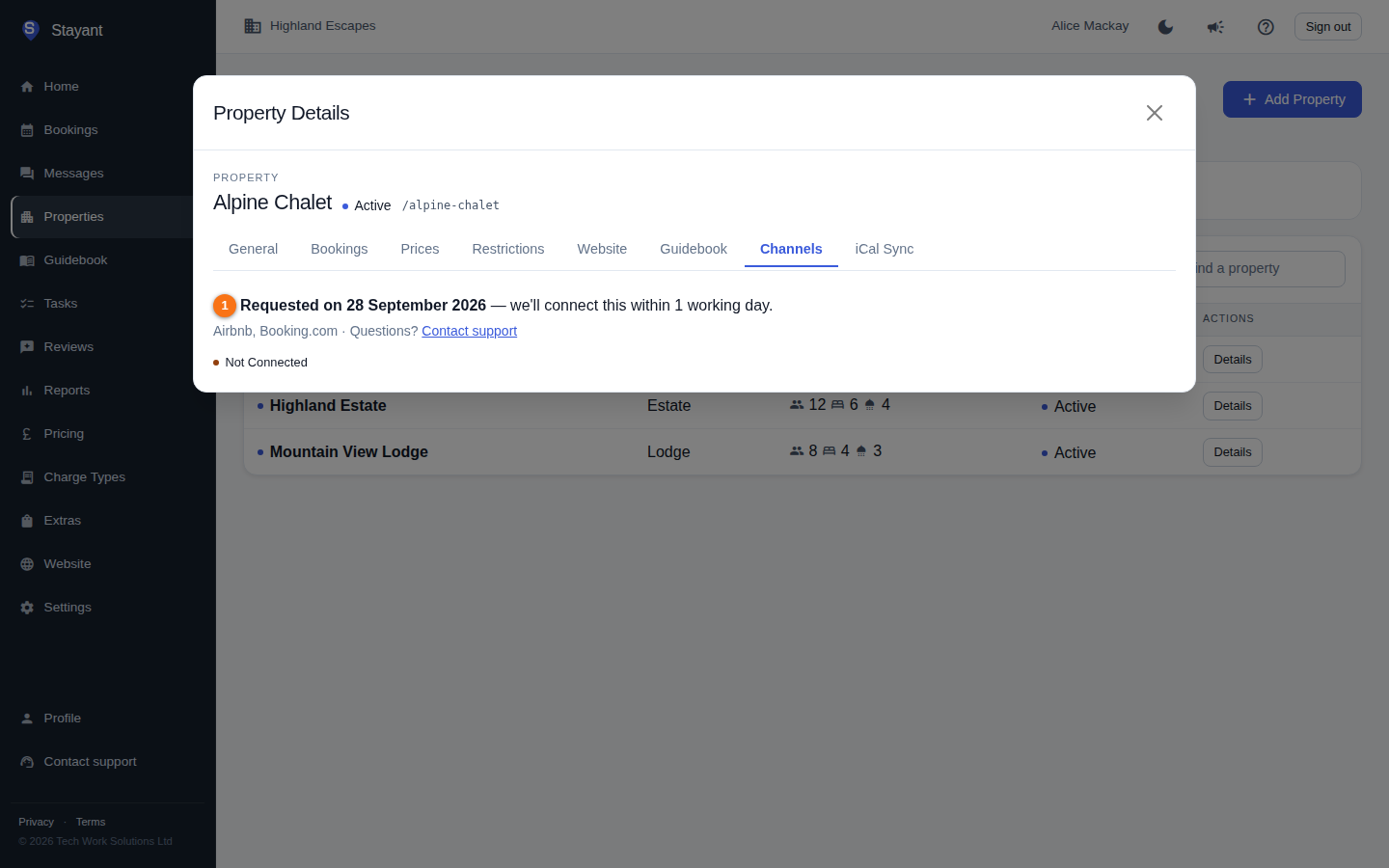
The request goes straight to our team, and we connect the property within 1 working day. Until then the property shows Requested on and the date you asked (①), with the channels you picked. Sending the request again doesn't create a second one. If you need to add something, use Contact support on the same card. Once the property is linked, its card switches to Connected, and the channel list appears.
Only account Owners and Admins can send a request, the same people who can see channel status.
Related
- For lightweight one-way calendar sharing without a full Channex connection, use iCal feeds instead — see iCal import & export.
- To adjust the price sent to each channel, see Channel price markups.
- For what you can and can't do with rate plans on this page, see Channex rate plans.