iCal import & export
iCal calendar feeds keep your availability in step with other booking sites that don't connect through a full channel manager. Each property has its own iCal Sync settings:
- An export feed — a URL you hand to sites like Airbnb or Vrbo so they can read your bookings and block those dates on their side.
- One or more import feeds — iCal URLs from those same sites, which Stayant polls to block the dates booked elsewhere.
You manage both from a single property's iCal Sync tab. It needs a manager-level role or higher, and import and export are separate plan features — you may have one without the other.
Open the iCal Sync settings
- Open the property from the Properties list.
- Select the iCal Sync tab.
The tab has two sections: Export (Outbound Feed) at the top and Import (Inbound Feeds) below it.
Share your export feed with an OTA
The export feed lets other platforms import your availability from Stayant.
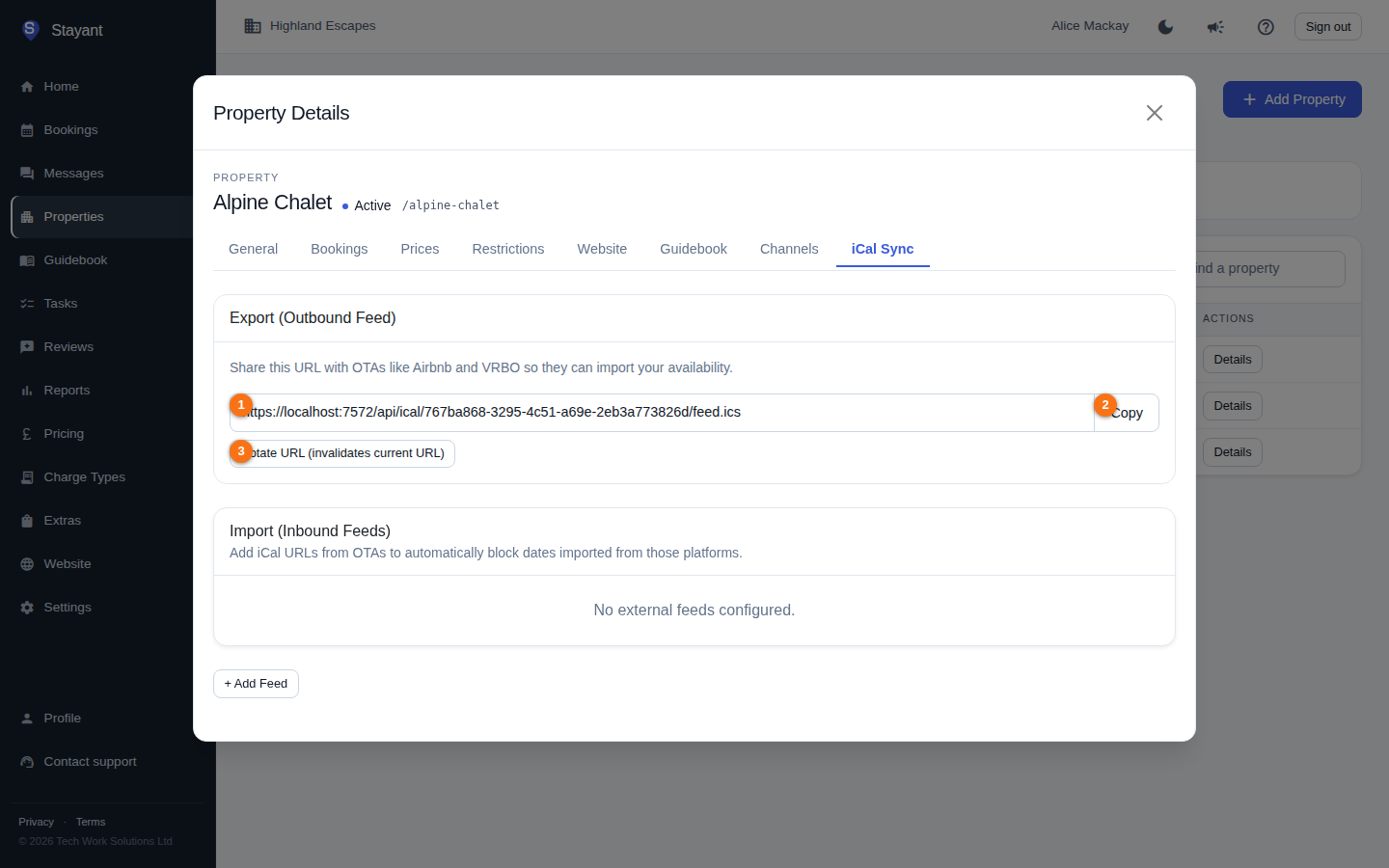
- In the Export (Outbound Feed) card, find the feed URL shown in the read-only box (①).
- Click Copy (②) to copy it to your clipboard. A "Copied to clipboard!" confirmation appears.
- Paste the URL into the calendar-import setting of the other platform (for example, Airbnb's "Import calendar" field).
Rotate the export URL
If the feed URL has been shared somewhere it shouldn't have been, click Rotate URL (③). This generates a brand-new URL and invalidates the current one immediately — any platform still using the old URL stops receiving updates until you give it the new one. Only rotate when you're ready to update every place the old URL is used.
Import a calendar from another site
Import feeds (①) pull in bookings made on other platforms and block those dates in Stayant so you don't get double-booked.
Import blocks the default room only. Imported dates are blocked against the property's default room, not every room. On a property with more than one room the other rooms stay bookable, so iCal import suits single-room properties — use Channex for multi-room distribution.
- In the Import (Inbound Feeds) section, click + Add Feed (②).
- Enter a Name to identify the source (for example, "Airbnb" or "Vrbo").
- Paste the platform's iCal URL (it starts with
https://). - Click Save.
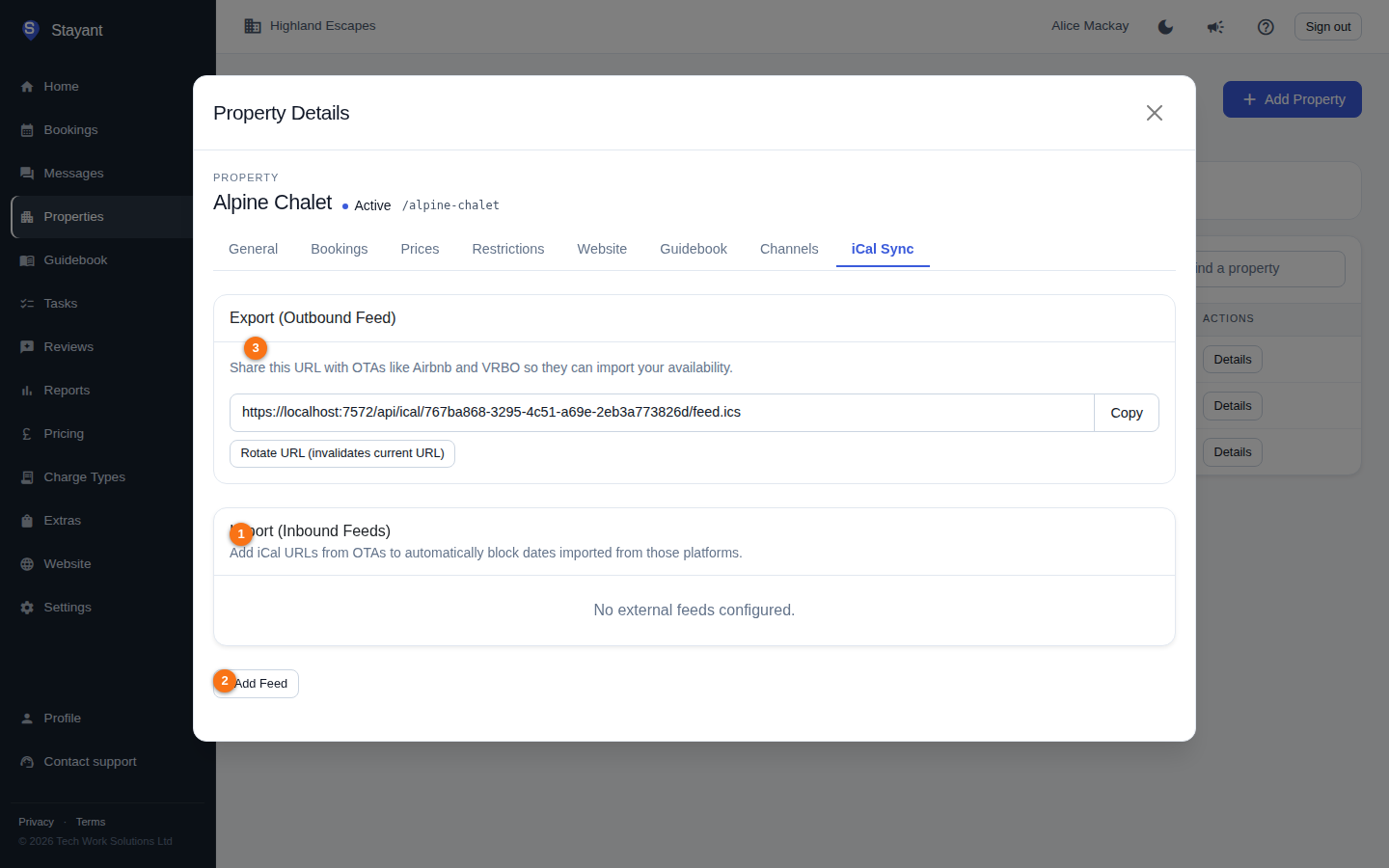
Once you've added feeds, each one appears as a row in this card (if present) showing its name, status, and last-synced time.
The feed is added to the list and Stayant begins syncing it automatically.
Manage existing feeds
Each feed in the import list shows its name, URL, status, and when it was last synced:
- Status is Active (syncing normally), Error (the last sync attempt failed), or Inactive (syncing paused). The Error tooltip only ever says Fetch failed — Stayant deliberately doesn't expose network detail — so troubleshoot by re-checking the URL and confirming the other site still serves it.
- The timestamp on each row is the last time Stayant tried to sync that feed, successful or not; it reads "Never synced" until the first attempt. A recent timestamp next to an Error badge means the last attempt ran and failed.
For each feed you can:
- Edit — change the name or URL, and toggle the feed Active on or off.
- Sync — trigger an immediate poll instead of waiting for the next scheduled sync.
- Delete — remove the feed. This stops future imports from that source and removes the dates that feed blocked, so those dates become bookable again straight away.
Tips
- Use a clear feed name — it's the only label distinguishing one import source from another in the list.
- If a feed shows an Error status, re-check the URL you pasted; an expired or mistyped iCal URL is the most common cause.
- iCal feeds exchange availability only. For richer two-way distribution (rates, restrictions, and instant booking sync), connect the property through Channex instead — see Connecting OTAs via Channex.