Sales tax and VAT
Stayant applies a single company-wide sales tax — UK VAT, or whatever your jurisdiction calls it —
across accommodation, charges and extras. Open Settings → Sales tax (/settings/sales-tax).
Three things to set:
- Enable company-wide sales tax — the master switch. With it off, no tax element is recorded on any booking.
- Tax Name — what guests see on invoices and in the guest portal. Defaults to
VAT. - Rate (%) — enter
20for standard UK VAT.
Do your prices include the tax, or not?
This is the setting that decides what guests actually pay, so it is worth getting right first time.
Prices exclude the tax — add it on top
The prices you enter are net. Stayant adds the tax on top of every taxable line, and the guest pays the larger figure.
A £100.00 nightly rate at 20% VAT is quoted and charged to the guest at £120.00, of which £20.00 is VAT.
Choose this if you think of your rates as pre-tax figures — common where tax varies by guest or jurisdiction, and the normal setting outside the UK.
Prices already include the tax
The prices you enter are gross — what the guest pays, tax and all. Stayant does not add anything; it works out how much of that price is tax and records it separately.
A £100.00 nightly rate at 20% VAT is quoted and charged to the guest at £100.00, of which £16.67 is VAT.
Choose this if you are VAT-registered and advertise tax-inclusive prices, which is the usual UK short-let case. It is the setting to use if you previously turned sales tax off to stop Stayant inflating your prices: your prices stay exactly as they are now, but your invoices and reports gain the VAT element they were missing.
The maths is price × rate ÷ (100 + rate), so £100 at 20% is £100 × 20 ÷ 120 = £16.67.
What shows up where
With inclusive pricing on, an invoice reads "Includes VAT (20%) £16.67" rather than adding a VAT line to the total, and your website and guest portal quote the same price they did before. The grand total is identical to having tax switched off — the difference is only that the tax is now recorded, which is what your bookkeeping needs.
Opting individual items out
Whichever mode you pick, you can keep specific items out of the tax base:
- A property — tick Exclude this property from company sales tax on the property's General tab.
- A charge type — tick Exclude from company sales tax on the charge type.
- An extra — tick Exclude from company sales tax on the extra's definition.
Excluded items keep their face value and still count toward the booking total; they just do not contribute to the tax.
Changes affect new bookings only
Each booking stores the tax name, rate and inclusive/exclusive mode that were in force when it was taken. Changing these settings never re-prices existing bookings, so an invoice you reissue next year still matches the one the guest holds and the money you actually collected.
Booking channels (Airbnb, Booking.com)
When your prices include the tax, the rate sent to your channel manager is your gross price, so OTA guests pay the same figure (plus any channel markup) with nothing added on top.
VAT on bookings from a channel
If your prices include VAT, a booking that arrives from an OTA records its VAT from what the guest actually paid the OTA: the VAT is taken out of the OTA's total, less any tourist or city tax the OTA listed separately and any tax the OTA collects and pays over itself (Airbnb does this in some places). Your own charges that Stayant adds to the booking, such as a cleaning fee the OTA had already built into its price, no longer push the VAT up. The booking's total is always the OTA's figure.
If your prices exclude VAT, channel bookings currently record no VAT: the OTA's total is treated as the whole amount. Check these with your accountant.
Before this change, a channel booking with one of your mandatory charges could show more VAT than it really contained. Stayant has not changed those older bookings. If your accountant needs the corrected figures, ask Stayant support for the VAT recompute export: a spreadsheet listing each channel booking with the VAT recorded and the VAT recomputed from the OTA total.
On a booking's detail panel the VAT of a channel booking is set as a tax override (see Adjust Tax Override). That is expected: it is the figure fixed from the OTA's total. If you change it by hand, a later change to the booking on the OTA keeps your figure.
When OTA pricing is switched on
Once Stayant has switched on OTA pricing for your account, your charges and sales tax are also sent to your channels. This page then shows a notice that changes are published to your connected booking channels.
- If your prices include VAT, VAT is sent as included, never as an extra on top. Tourist and city taxes (charge types marked as a tax charge) are sent as a city tax, outside VAT.
- Booking.com has its own VAT settings on its extranet, under VAT/Tax/Charges. They must say VAT is included and must not list a cleaning fee of their own, or guests can be charged twice. Only Booking.com can change those settings, so check them with Booking.com before OTA pricing is switched on.
Switching between "include" and "exclude" with OTA pricing on
Changing how your prices are entered moves your OTA prices straight away, so Stayant asks you to confirm first:
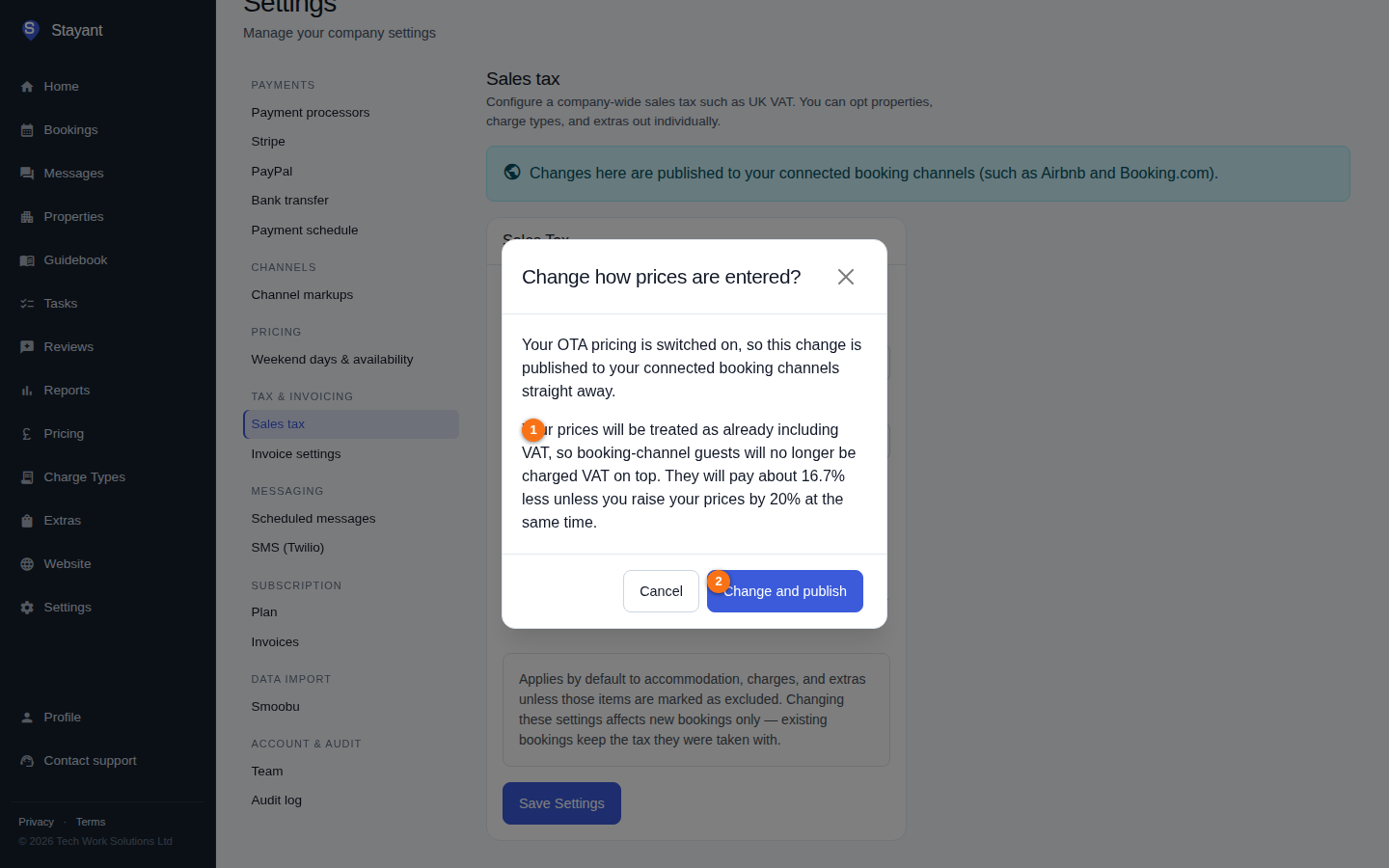
- Exclude → include: your channels stop adding VAT on top. At 20% VAT, OTA guests pay about 16.7% less unless you raise your prices by 20% at the same time.
- Include → exclude: your channels start adding VAT on top, so OTA guests pay 20% more unless you lower your prices at the same time.
Bookings already taken keep the tax they were taken with.