Adding charges & extras
A booking's total is built from accommodation plus any charges and extras. Both are managed in the Charges and extras card on the booking's Overview tab, which has a Charges section and an Extras section (open a booking from Bookings → View). Charges are ad‑hoc line items (for example a cleaning fee); extras are billable items you've pre‑defined in your account (for example a welcome hamper).
Charges
The Charges section ① lists each charge with its name and line total, and beneath the name its frequency, source and (where set) its cost. Mandatory charges are flagged Required with a padlock and can't be removed — only edited. If any of the booking's charges are flagged as taxes (set on their charge type), they're grouped under their own Taxes heading, separated from other charges, at the bottom of the list.
On a booking from a connected channel, a charge the channel has already collected from the guest is marked Charged by <channel> and isn't billed again by you.
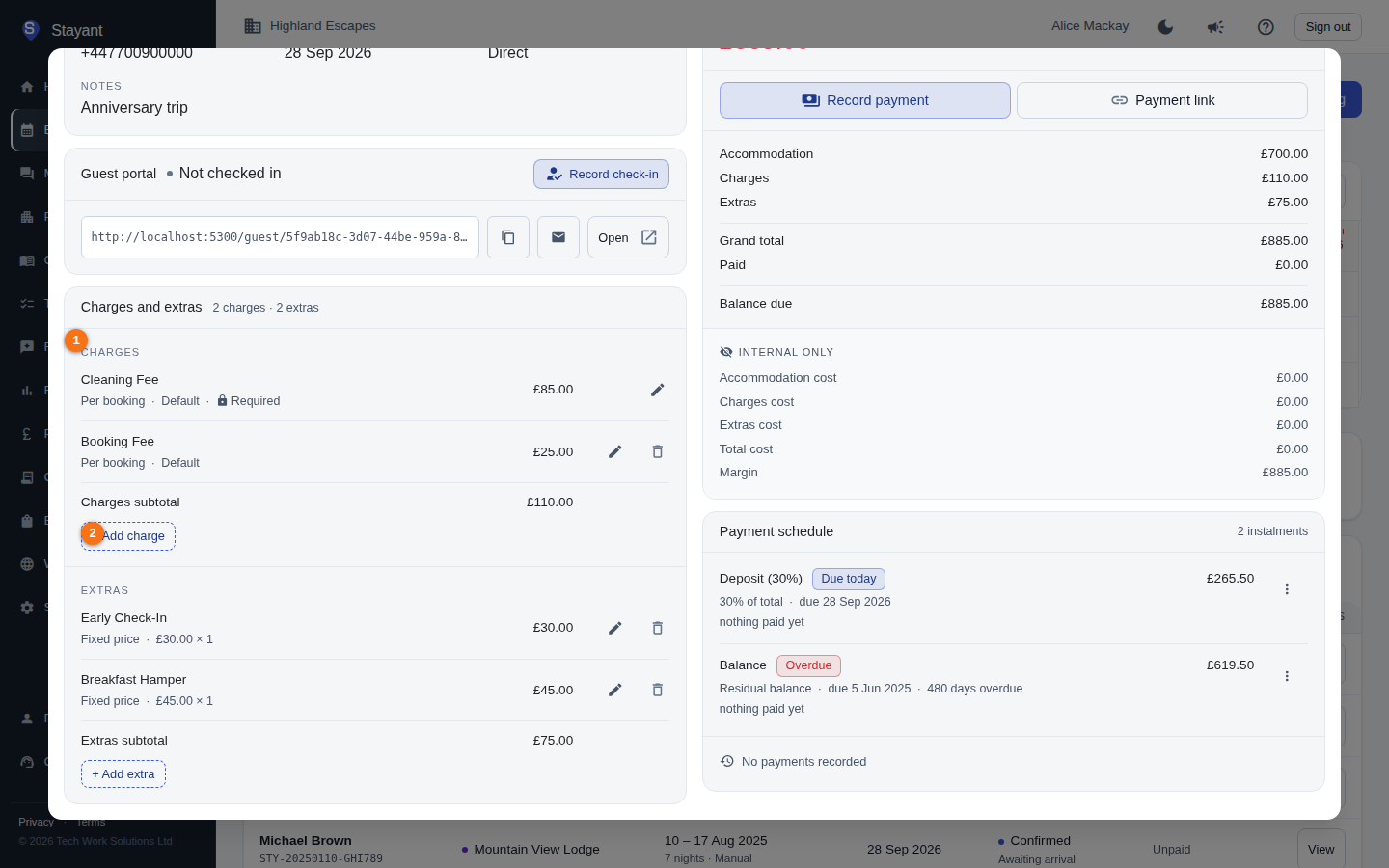
Add a charge
- In the Charges section, click + Add charge ②.
- Optional — pick a charge type from the From a charge type (optional) dropdown. This prefills the name, calculation type, and amount from one of your charge types, and links the charge back to it so its cost and tax grouping carry over correctly. Only charge types with Allow manual addition on booking enabled appear here. Leave it on — Enter by hand — for a one-off, free-text charge.
- Enter a Name (already filled in if you picked a charge type).
- Choose the Frequency: Per Booking (a one-off amount), Per Night (multiplied by the number of nights), Per Guest (multiplied by the guest count), or Percentage of Accommodation (a percentage of the accommodation total — enter e.g.
10for 10%). - Enter the Amount (labelled Percent for Percentage of Accommodation) and a Qty (quantity).
- Tick Exclude from sales tax if this particular charge shouldn't be taxed. This option only appears for a hand-entered charge — when you pick a charge type, that type's own tax setting is used instead.
- Click Add.
The charge appears in the list and the Charges subtotal and Billing totals update. If the booking has any tax-flagged charges, the Billing card also shows an "of which taxes" line under Charges so you can see the tax portion of the total at a glance.
Tax treatment is fixed at the moment you add the line. A charge added from one of your charge types inherits that type's Exclude from sales tax setting; a hand-entered charge uses the checkbox above. Changing the setting on the charge type later only affects new bookings — the tax on bookings that were already quoted, invoiced and paid never moves.
Edit a charge
- Click the Edit (pencil) button on the charge's line.
- Adjust the amount and quantity inline.
- Click Save (or Cancel to discard).
Remove a charge
Click the Remove (bin) button on the charge's line. Removed charges are shown struck through and no longer count toward the total. Charges flagged mandatory (marked Required with a padlock) cannot be removed — only edited.
Charges and extras follow a change of dates or guests
If you edit a booking's dates or guest count, the lines that depend on them are recalculated automatically along with the accommodation total:
- Per Night charges follow the new number of nights.
- Per Guest charges follow the new number of guests.
- Percentage of accommodation charges are re-struck against the new accommodation total.
- Per Night and Per Guest extras are re-priced for the new stay — their Qty (how many of the item) is left exactly as you set it.
Anything that doesn't depend on what changed is left alone: Per Booking charges, extras priced per unit or per stay, charges you added by hand yourself, and any charge whose quantity you (or a property-level default) pinned to a fixed number rather than the night or guest count. If you amended a charge's amount, that amount is kept and simply applied to the new number of nights.
Extending a 3-night stay to 7 therefore rebills a £25/night cleaning charge at £175 rather than leaving it at £75, and the payment schedule and payment status update in the same step.
When charges and extras can be changed
Charges can be added, edited and removed on a booking that is Draft or Confirmed — so a mistake on a confirmed booking is correctable rather than permanent.
Extras follow the same rule: they can be added, edited and removed while the booking is Draft or Confirmed. A guest-added extra that turns out to be wrong, or a price that was mis-keyed, can be corrected directly on the row rather than papered over with a charge.
Cancelled and expired bookings are closed. Once a booking is cancelled (or its website hold has expired) its financial record is final and charges and extras can no longer be added, edited or removed.
The balance updates immediately. Any change to a charge or extra recalculates the booking's total, its payment schedule, and its payment status. So adding a £150 charge to a booking that was fully paid moves it back to Part paid and shows £150 outstanding — and Stayant will chase and auto-charge that balance like any other. Removing a charge works the same way in reverse.
Extras
The Extras section ① lists each extra with its name and total, and beneath the name its pricing model, unit price × quantity and (where set) its cost. An extra with its own discount shows the discount and the net figure under its total.
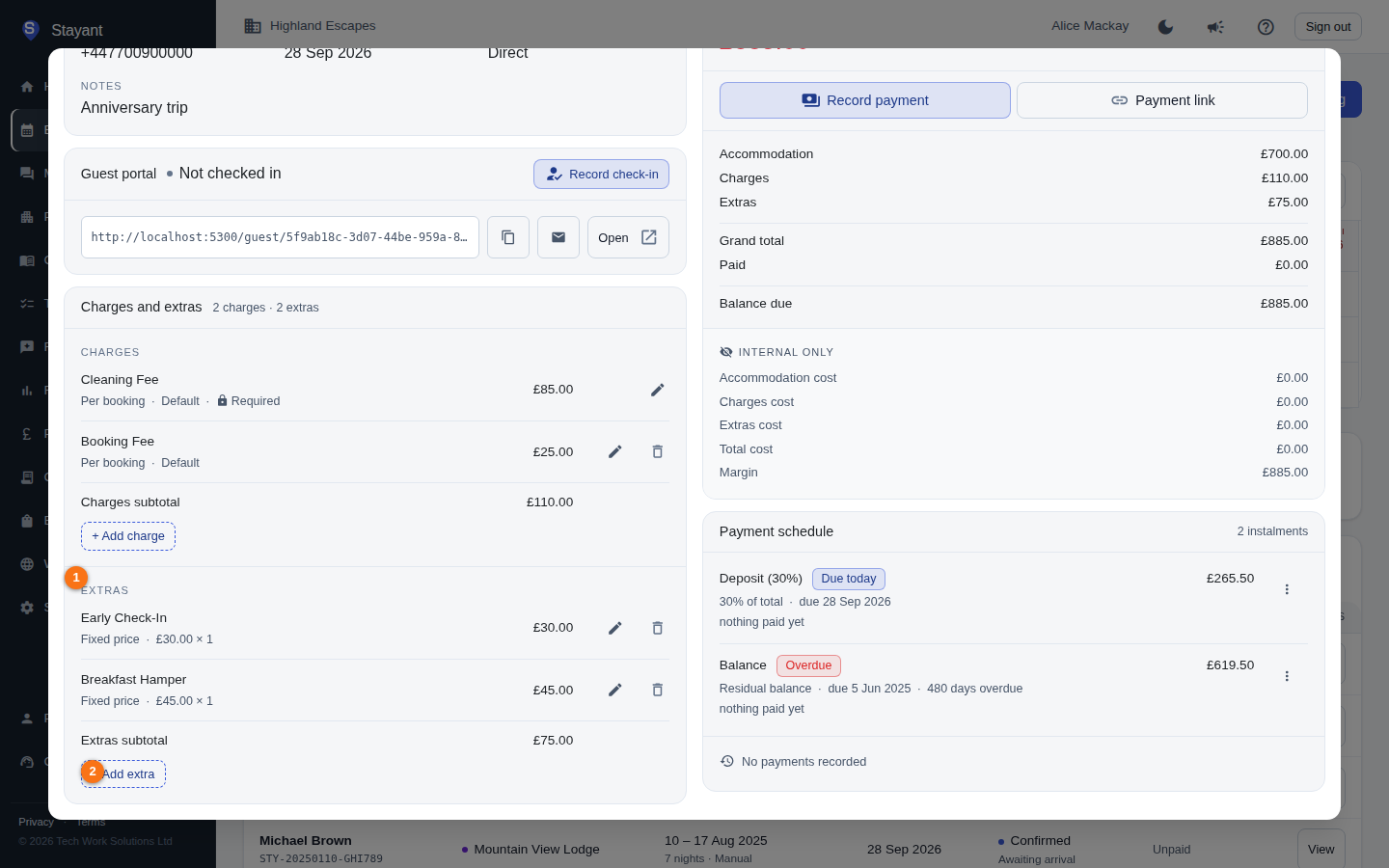
Add an extra
- In the Extras section, click + Add extra ②.
- Pick a pre-defined extra from the Extra dropdown, which starts on — Select an extra — (the list comes from your account's active extras, each showing its default price).
- Enter a Qty.
- Click Add.
Edit an extra
- Click the Edit (pencil) button on the extra's line. Beneath the line you get Unit price, Qty and Discount fields with Save and Cancel buttons.
- Change the price, the quantity and/or the line's discount (see Booking discounts), then click Save.
The line's Total is recalculated from the extra's pricing model — a Per Night extra is still multiplied by the number of nights, a Per Guest extra by the guest count — and the Billing card, payment schedule and payment status update in the same step. Editing the price here changes only this booking; the extra's Default Price in your catalogue is untouched.
<!-- TODO(screenshots): tests/playwright/docs/captures/bookings.js now has a 03-extras-edit
state that captures the inline editor (unit price, Qty, Save). Run the docs pipeline to
generate ../assets/charges-and-extras-on-a-booking/03-extras-edit.png and embed it here. -->
Remove an extra
Click the Remove (bin) button on the extra's line. As with charges, removed extras are shown struck through and stop counting toward the total, but stay on the booking as a record of what was once billed. A removed extra can't be restored — add it again if it was removed by mistake.
Extras a guest added online
If an extra is marked available on the online booking flow, guests can tick it (and choose a quantity) for themselves while booking on your public property page. Their selection arrives on the booking as a normal extra in this section, so you don't need to add it again; it's already reflected in the guest's payment total. Paying confirms the booking, so a guest-added extra usually lands on a Confirmed booking — you can still edit or remove it there (see When charges and extras can be changed); the balance the guest owes updates accordingly.
Common gotchas
- Extras must be defined first — and offered for this property. The dropdown lists only extras that are active and available to this booking's property (either "all properties" or explicitly assigned to it). If it's empty, check both the extra's active flag and its property scoping.
- Totals refresh automatically. Adding, editing, or removing a line updates the Billing card on the right. Use its refresh icon if a total looks stale.
- Mandatory charges stay. You can change their amount but can't delete them from the booking (marked Required with a padlock), and you can't set the amount to zero — that would be a deletion by another name.
- Mandatory charge types can't be opted out of per booking. If a charge type is marked Mandatory, every booking that gets it — whether it applies automatically ("Apply to every booking") or through a property charge — always has it locked as mandatory; change that at the charge type or property-charge level, not on the booking.
- Manually adding a charge from the picker doesn't make it mandatory, even if the linked charge type is marked Mandatory. That lock only applies when the charge type reaches the booking automatically or through a property charge, not a manual one-off addition.
- The "From a charge type" picker only offers charge types allowed for manual use. If a charge type you expect isn't in the dropdown, check its Allow manual addition on booking setting under charge types.