Guest check-in and check-out
Alongside a booking's status (Draft/Confirmed/Cancelled) and payment status, Stayant tracks a separate stay status — whether the guest has actually arrived and departed. This is distinct from the Guest Portal's pre-arrival check-in form (which collects arrival time, ID, and other guest-submitted details): stay status is a simple front-desk record of when the guest turned up and when they left.
The stay-status badge
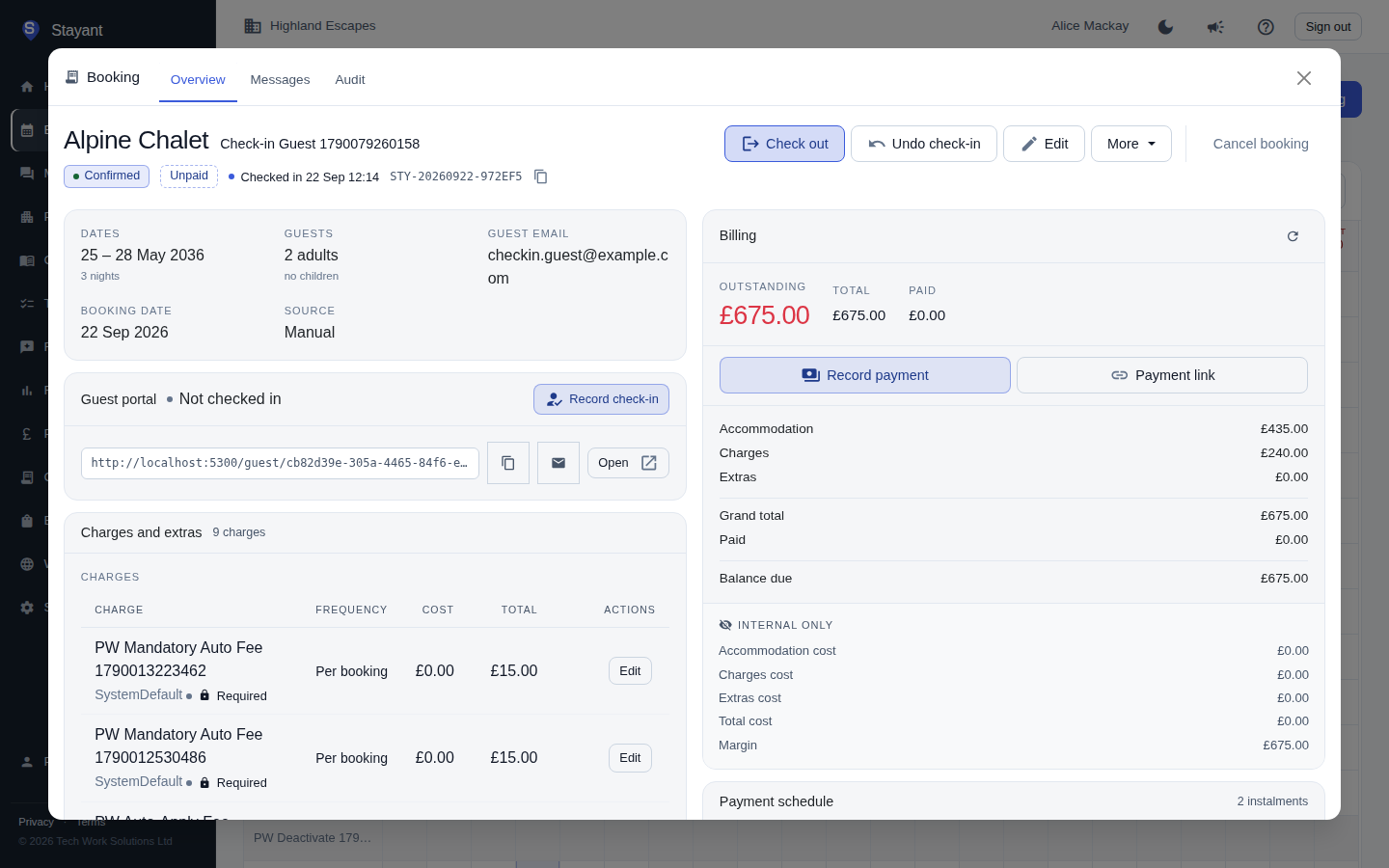
Every confirmed booking shows a stay-status badge next to the status and payment badges:
- Awaiting arrival — the guest hasn't been checked in yet.
- Checked in — the guest has arrived, showing the date and time.
- Checked out — the guest has departed, showing the date and time.
Recording an arrival or departure
Open a Confirmed booking's Overview tab. The action buttons next to the badges change with the current stay status:
- Awaiting arrival — click Check in when the guest arrives.
- Checked in — click Check out when the guest leaves, or Undo check-in if it was recorded by mistake.
- Checked out — click Undo check-out if it was recorded by mistake or the guest is staying longer than planned.
Each click updates the badge immediately. The stay status lives on the booking's Overview tab — the Bookings list shows only the booking status (Draft / Confirmed / Cancelled).
Common gotchas
- Only Confirmed, non-cancelled bookings show these controls. Draft and Cancelled bookings have no stay status to track. A booking the guest has paid for is already Confirmed — the first payment confirms it automatically (see Managing a booking) — so a paid arrival can always be checked in.
- A guest in the room can't be cancelled, and a cancelled booking can't be checked out. Once Checked in, cancelling is blocked (it would re-open the nights for sale mid-stay) — undo the check-in first if the check-in was a mistake.
- Undo only steps back one stage. Undoing a check-out returns the booking to Checked in, not all the way to Awaiting arrival — click Undo check-in again if you need to clear it completely.
- This is separate from the guest's own check-in form. The Guest portal card's "Record check-in" / "Edit check-in" button (further down the Overview tab) captures arrival time, ID, and other details the guest submits — it doesn't change the stay-status badge.
- Also separate from the property's check-in/out time windows. See Check-in & check-out times for the earliest/default/latest arrival and departure times a property advertises to guests — those windows don't drive this badge either; only the Check in / Check out buttons do.