Managing a booking
Each booking has a detail view with three tabs — Overview, Messages, and Audit. The Overview tab is where you read the booking's details and change its status; the Audit tab shows the booking's full change history. To open a booking, click View on its row in the Bookings list (or click its pill in the Calendar View). On a phone the list is a compact three-line row per booking with no View button: tap anywhere on the row to open it.
What the Overview shows
The header shows the property name, guest name, the Booking ID (reference), and any channel/OTA identifiers for bookings imported from a channel. The status and payment badges ① show the current state, and the header action buttons sit alongside — Confirm while the booking is still a Draft, Check in / Check out once it's Confirmed (see Guest check-in and check-out), Edit, More, and Cancel booking:
- Status — Draft, Confirmed, or Cancelled — or Expired for a website hold that was never paid (see Held bookings and expired holds).
- Payment status — Unpaid, Part Paid, Paid, or Paid via OTA when the channel collected the payment.
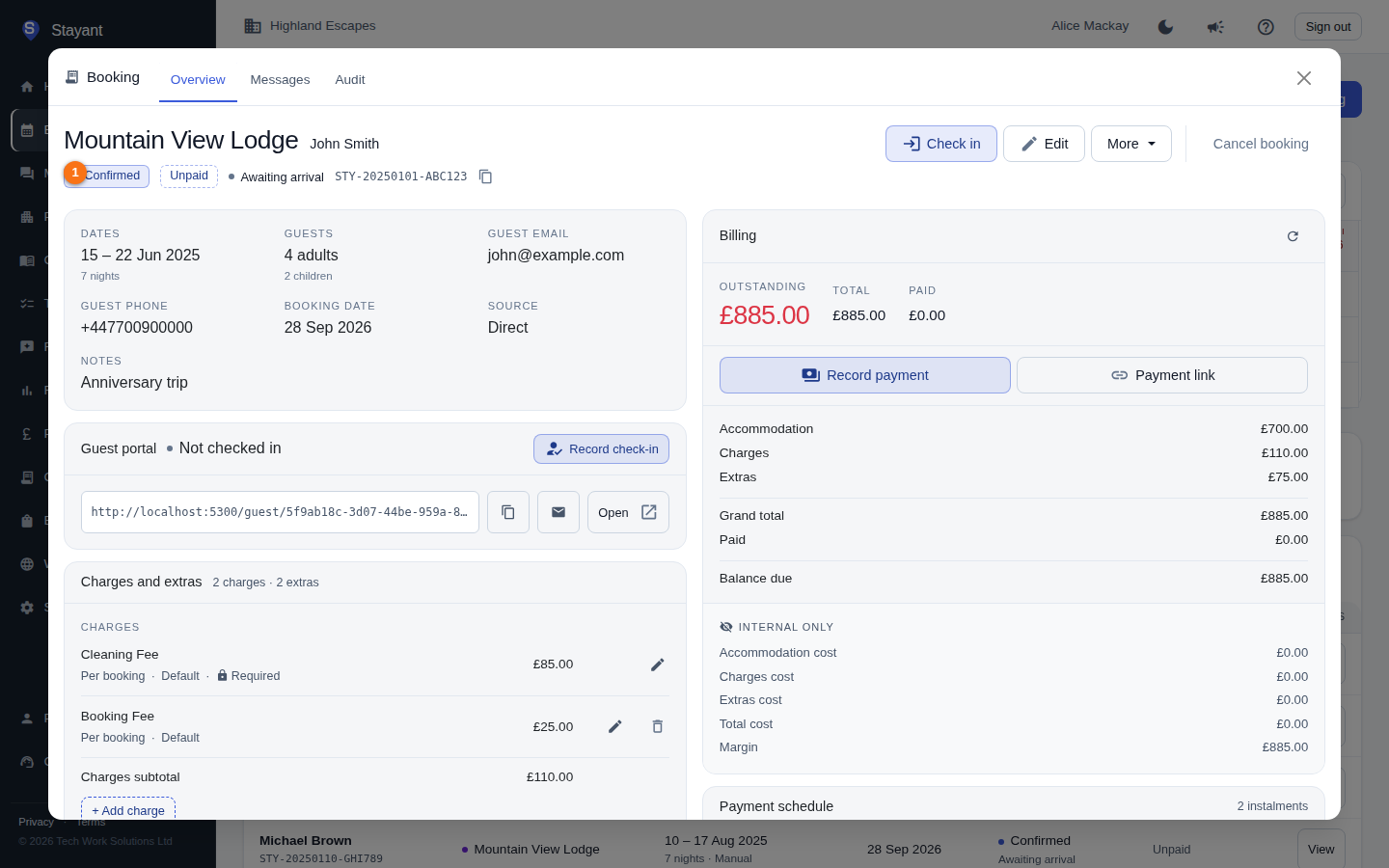
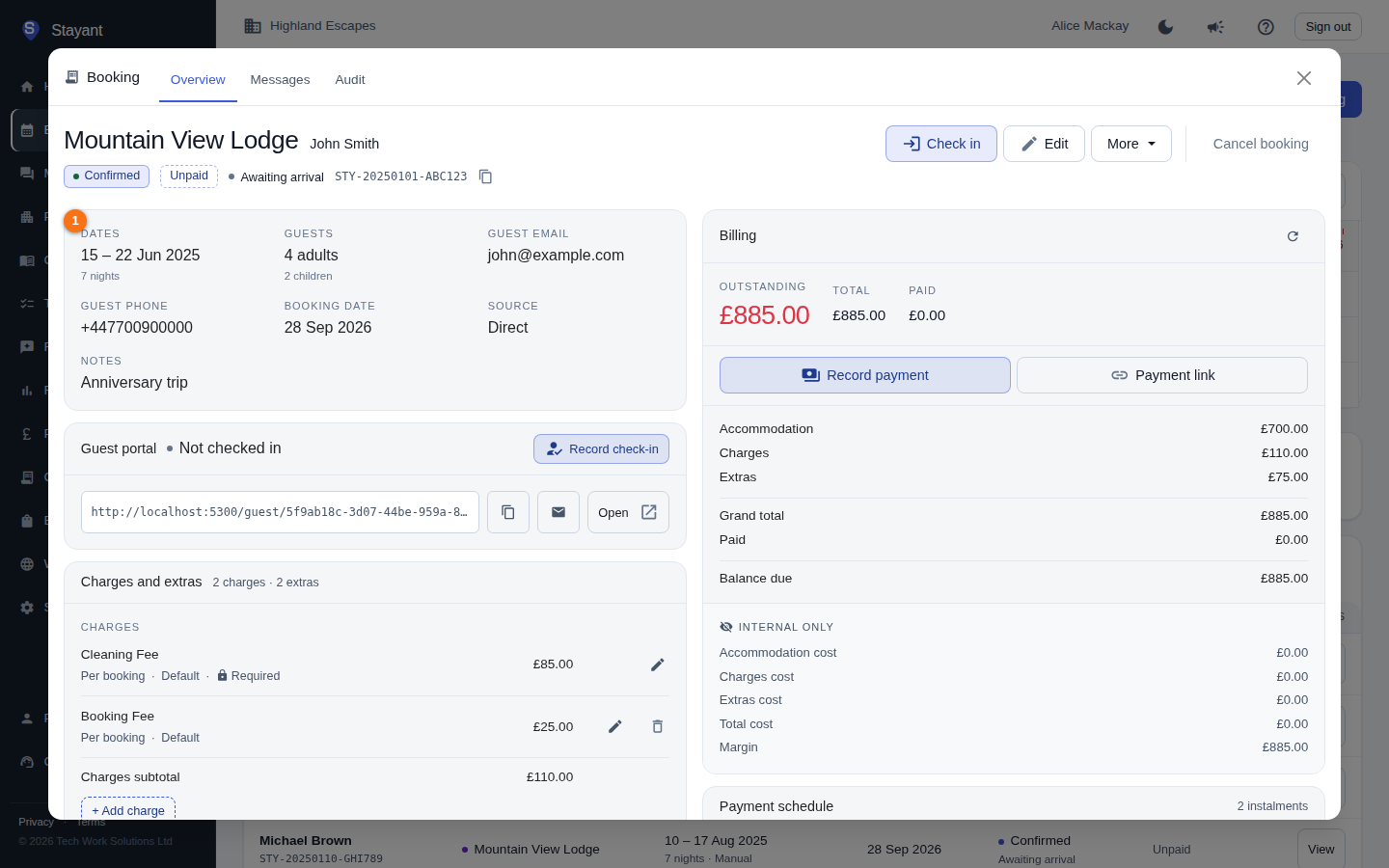
Below the header, the booking's details card ① lists the dates (and room and rate on a multi-room property), guest counts, guest email and phone, the date the booking was made, its source, and any notes. Other cards on the Overview cover the Guest portal (check-in link and submitted check-in data), Charges and extras, Billing (totals, Record payment and the payment link), and Payment schedule (instalments, payments, and refunds) — each of these has its own help article.
Confirm a booking
A new booking starts as Draft. To confirm it:
- Open the booking.
- Click Confirm (shown in the header while the booking is a Draft).
The status changes to Confirmed. Confirm is only available from the booking's own header — open the booking first by clicking its row (or View) in the list.
A payment confirms the booking for you. As soon as any money is received against a Draft — a card payment on your website, a guest payment link, a bank transfer you marked as received, a payment you keyed in, or an automatic balance charge — the booking becomes Confirmed on its own. A deposit is enough; you don't need to wait for the balance. So Confirm is only needed for bookings you want to confirm before any money has arrived (a phone reservation, a held date, an agency booking paying on arrival).
This matters because Confirmed is what unlocks check-in, and because your iCal feed and channel availability treat the nights as taken either way — a paid booking that stayed a Draft used to block your own calendar while still looking bookable to guests arriving through a channel.
Send a confirmation email
Once a booking is Confirmed, open the More menu in the header and choose Send Confirmation Email. Confirm the guest's email address in the dialog and click Send Email.
Cancel a booking
- Open the booking and click Cancel booking.
- In the confirmation dialog, if the booking has online (card) payments, you can tick Also refund all online payments to refund the guest at the same time. The amount that will be refunded is shown.
- Click Yes, Cancel Booking.
Cancelled bookings drop off the calendar, and recording payments and creating payment links are disabled. The + Add charge and + Add extra buttons still appear, but saving is refused — a cancelled booking's financial record is final.
Two things to know:
- A checked-in guest can't be cancelled. While the stay is in progress, cancelling would release the room and re-open the nights for sale on every channel with the guest still in it, so Stayant refuses. Use Undo check-in first if the check-in was a mistake; for a guest leaving early, edit the booking's dates instead.
- The refund is limited by the rate plan's cancellation policy. A non-refundable rate refunds nothing, and a rate with a cancellation fee retains that fee if you cancel after the free-cancellation cut-off. The cancellation itself always goes through — see Recording payments & refunds for how the cap is worked out.
Changing dates, room, rate plan, or guest details
Click Edit in the header to change the stay's dates, room, rate plan, guest counts, guest contact details, or notes — see Editing a booking for the full walkthrough. To move a stay to a different property, use More → Move to another property instead of cancelling and re-creating it — see Move a booking to another property.
Other adjustments
The More menu also lets you Adjust Discount, Adjust Tax Override, and Adjust Total Override for the booking — these change how the billing totals are calculated (see Booking discounts, Recording payments & refunds and Booking invoices for how those totals flow through).
Filtering, sorting, and browsing large booking lists
Above the list, a filter toolbar narrows down which bookings you see:
- Checks out from / Checks out to — a date range filtering on the booking's check-out date. By default, Checks out from is set to the first day of the current month, so the list opens showing only bookings that check out this month or later — past stays don't clutter the view. Widen or clear the range to see older bookings.
- Status — All, Draft, Confirmed, or Cancelled. (Expired holds appear under All.)
- Payment — All, Unpaid, Part Paid, Paid, or Paid via OTA.
- Overdue — All, Overdue (only bookings with a late payment) or Not overdue (everything else). Combine it with Payment — for example Part Paid + Overdue shows guests who paid a deposit but have missed the balance.
- Property — All Properties, or a specific property.
- Search — matches guest name or booking reference as you type.
- Reset — clears every filter and sort back to the defaults (this-month-or-later check-outs, no other filters, unsorted).
A red Overdue label means a payment is late. In the Payment column (or under the stay on a tablet or phone) a red Overdue label appears next to the payment status when a confirmed booking has an instalment in its Payment schedule that is unpaid and past its due date. A payment due today isn't overdue yet, and an instalment you've put on hold doesn't count. Cancelled and Draft bookings, and bookings already Paid or Paid via OTA, never show it. To clear it, record the payment, or change the instalment's due date or put it on hold from the booking's Payment schedule card.
Changing any filter reloads the list from page 1 — it never affects the Calendar View above it, which always shows its own date window regardless of the list filters.
Click a sortable column heading (Guest, Property, Stay, Booked, Status, Payment) to sort by it; click again to reverse the direction. The booking reference is shown under the guest's name rather than in a column of its own. On a phone, where the column headers aren't shown, use the Sort by dropdown in the toolbar instead — it offers the same orderings, plus sorting by reference and by check-out date.
The Booked column shows the date the booking was made (hover it for the exact time), as distinct from the Stay column, which shows when the stay is. Sort by Booked newest-first to review what has come in recently, or oldest-first to find long-standing bookings that are still in Draft. On narrower screens the Booked column is hidden to keep the table readable, but the Sort by dropdown still offers Booked (newest first) and Booked (oldest first).
The list loads 25 bookings at a time. When there are more than 25 matching the current filters, a Prev / Next pager appears beneath the list, along with a "Showing X–Y of N" count so you can see where you are. Any filter or sort change resets the list back to page 1.
Common gotchas
- Confirm only appears on Drafts. Once a booking is Confirmed, the Confirm button is gone — that's expected. It also disappears on its own as soon as a payment lands, because the payment confirms the booking.
- Cancelling is not reversible. A cancellation can't be undone — its nights may already have been re-sold, so create a fresh booking if the guest rebooks. (Confirming a cancelled booking is refused for the same reason.)
- Cancelled bookings can't be checked in or out. If a stay was cancelled mid-visit through a channel, undo nothing — record the departure outside Stayant and contact support if the record needs correcting.
- Can't find an older booking? The list defaults to check-outs this month or later. Clear or widen Checks out from to see bookings that have already ended.