Getting ready for your first booking
A new account starts with a Get ready for your first booking card at the top of the dashboard. It lists the six things that get you from sign-up to a first booking, shows how many you've done, and takes you straight to where each one is done.
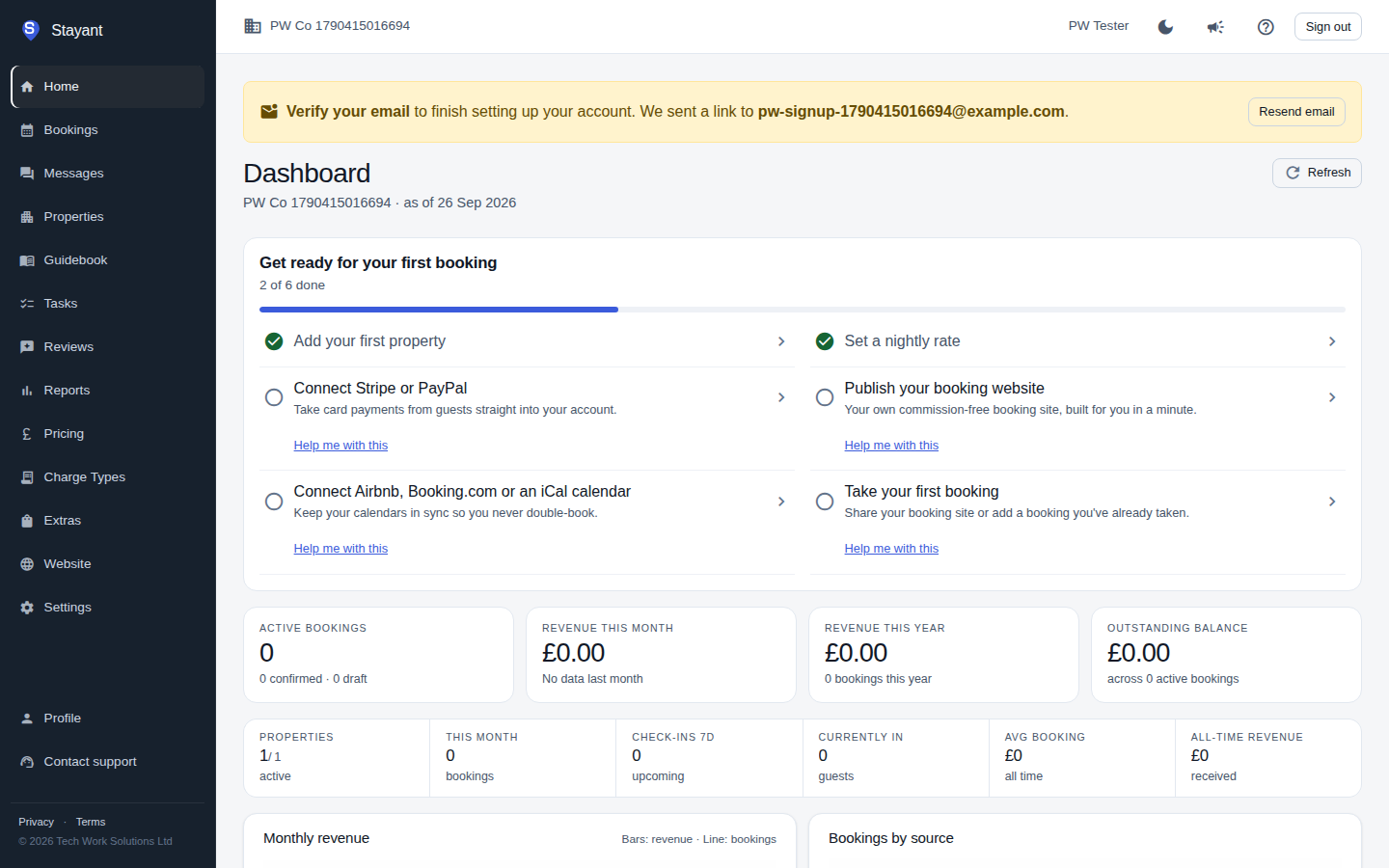
The card is shown to account Owners and Admins, the people who can connect payments and channels.
How steps are ticked off
You never tick a step by hand. Each time the dashboard loads, Stayant checks your account and ticks every step you've already done, wherever you did it. A step you finished in the setup wizard, in Settings, or before this card existed is ticked the same way.
| Step | What counts as done | Where it takes you |
|---|---|---|
| Add your first property | You have at least one property. | Properties |
| Set a nightly rate | At least one property has a nightly price above £0, either its default nightly rate or a weekday or weekend price on the Pricing page. | Pricing |
| Connect Stripe or PayPal | Stripe is connected and able to take card payments, or PayPal is switched on and verified. | Settings → Stripe |
| Publish your booking website | Your booking website is published. | Website |
| Connect Airbnb, Booking.com or an iCal calendar | A property is connected to the channel manager, or you're importing at least one iCal calendar. | Channels, where Set up channels asks our team to connect Airbnb, Booking.com or Vrbo for you (done within 1 working day) |
| Take your first booking | You have at least one confirmed booking. Draft bookings, unpaid website checkouts that expired, and bookings that were later cancelled don't count. | Bookings |
If your plan doesn't include a feature, such as the website builder, that step isn't shown and doesn't count towards your total.
Getting help with a step
Every step that isn't done yet has a Help me with this link underneath it. It takes you to Stayant support, the same place as Contact support in the sidebar. If support opens as an email, the step is already filled in as the subject, so we know what you're stuck on and can help you set it up.
On a phone
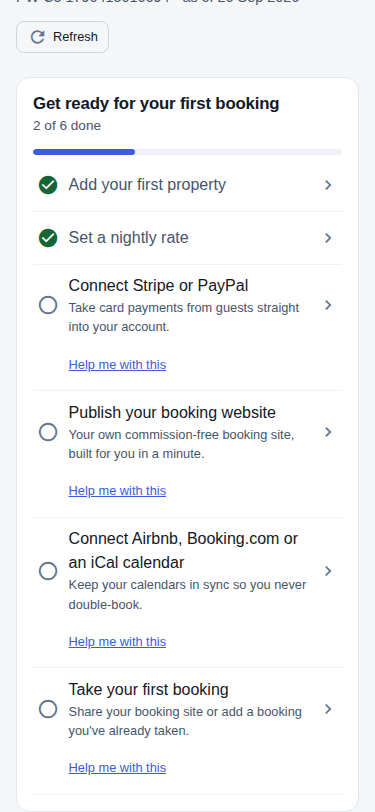
On a phone the steps stack one above the other, and every step and help link is large enough to tap comfortably.
When the card goes away
- When every step is done. The card disappears on its own once your account is fully set up.
- Hiding it yourself. Once your first booking has come in, a Hide button appears on the card. Hiding it only affects you, on that device. Other people on your account still see it. Before your first booking there's no Hide button, because the card is the quickest way to get there.
The setup wizard
The setup wizard that opens when you first sign up is separate from this card. If you click Skip for now in the wizard, it stops opening every time you sign in, and this card keeps track of what's left. See Setting up your account for the wizard itself.