Your dashboard at a glance
The dashboard is your home page in Stayant. It opens when you click Home in the sidebar (or sign in). It gives you a live snapshot of your bookings, revenue, and upcoming activity, and it surfaces anything that still needs setting up.
Key numbers (top row)
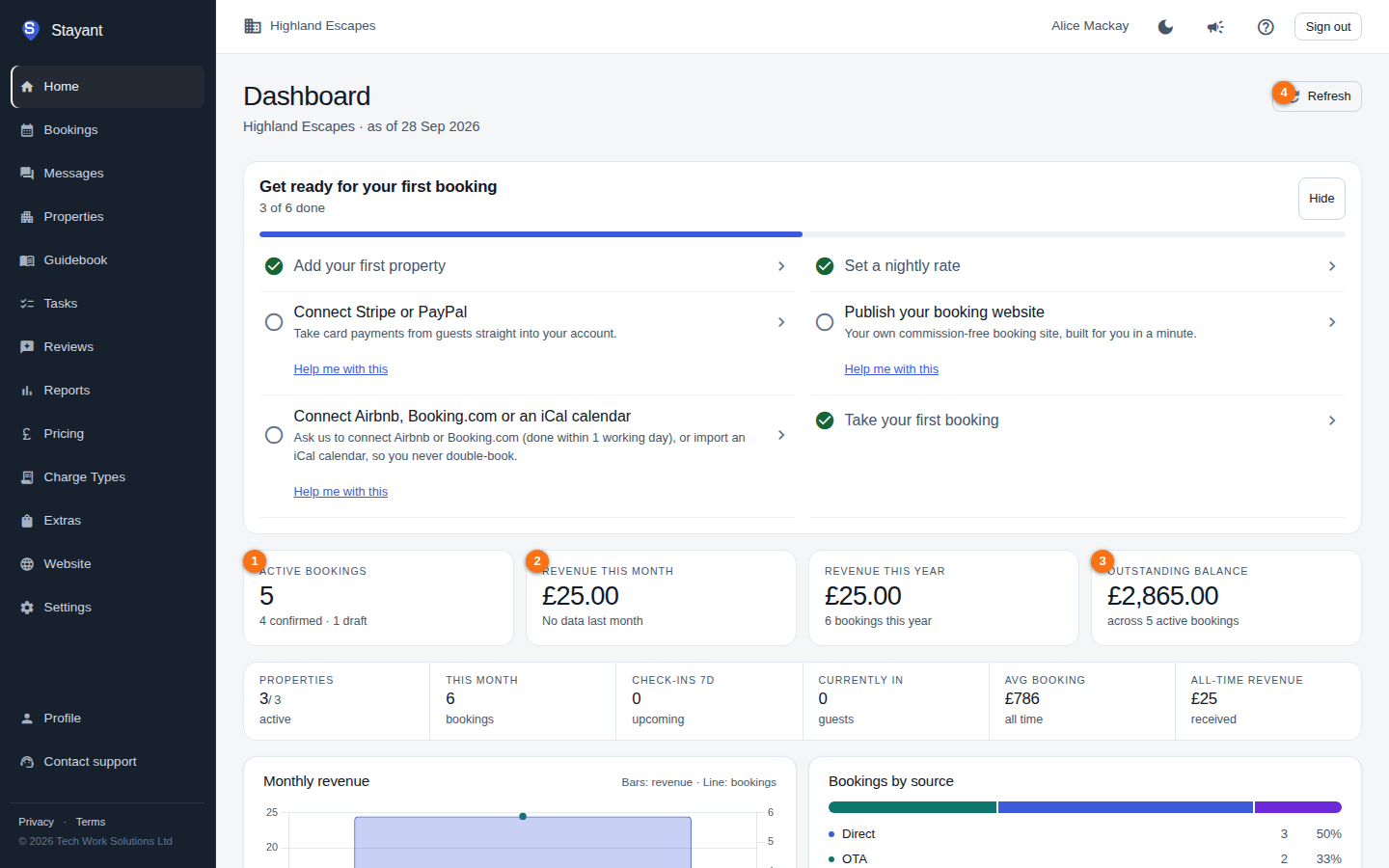
The four large cards across the top show your headline figures:
- Active bookings (①) — total live bookings, split into confirmed and draft.
- Revenue this month (②) — income for the current month, with an up/down arrow and percentage comparing it to last month.
- Revenue this year — income so far this year, plus the number of bookings.
- Outstanding balance (③) — money still owed across your active bookings.
To pull the latest figures at any time, click Refresh (④) in the top-right corner.
Finishing setup
Until your account is fully set up, a Get ready for your first booking card sits at the top of the dashboard for Owners and Admins. It shows how many of the six steps to a first booking you've done, from adding a property to taking a booking.
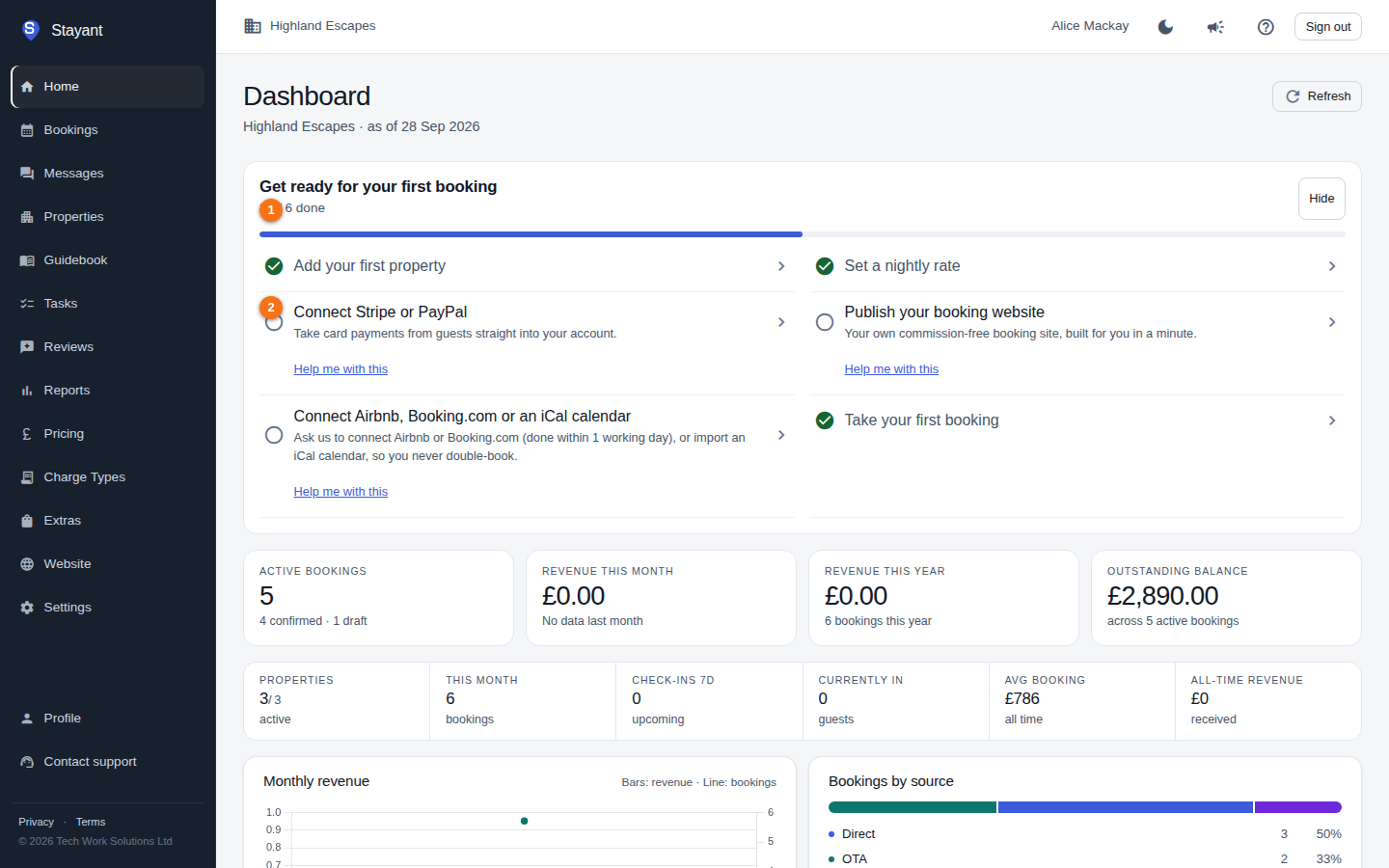
This card only appears while setup is unfinished, so you may not see it on a fully configured account — the screenshot above falls back to the standard dashboard when the card isn't present.
- Tap any step to go straight to the page where it's done.
- Steps tick themselves off as soon as you've done them, wherever you did them.
- Each step you haven't done yet has a Help me with this link to our support team.
The card disappears automatically once every step is complete. See Getting ready for your first booking for what counts as done for each step.
Secondary metrics
A second row gives you more detail at a glance: active vs. total Properties, bookings This month, Check-ins 7d (the next seven days), guests Currently in, Avg booking value, and All-time revenue.
Charts and tables
Below the numbers you'll find:
- A revenue/bookings chart for trends over time.
- An Upcoming check-ins table.
- A Recent bookings table.
- A bookings by property breakdown.
Click any row in the upcoming or recent tables to open that booking. It opens in a panel over the dashboard rather than taking you to the bookings screen, so closing it puts you straight back where you were — same scroll position, same view.
Keeping it current
The dashboard loads automatically. Use Refresh (top-right) whenever you want to re-pull the latest figures.
Common questions
- "Unable to load dashboard." — This usually means a connection problem. Click Retry in the warning banner.
- Numbers look empty? — New accounts show zeros until you add properties and take bookings. Use the setup checklist to get going.