The pricing calendar
The Pricing page is where you manage daily rates, seasonal rules, and bulk pricing across all of your properties in one place. Open it from the main navigation, or jump to it from a property's Prices tab using the Manage in Pricing → link.
At the top of the page are two cards — click one to open its panel beneath them — and below them is the grid:
- Bulk pricing tools — set or adjust prices for a whole month at once (see Setting nightly rates).
- Seasonal pricing rules — fixed rates for a date range (see Seasonal & weekend pricing).
- Daily rate grid — the calendar itself, covered below.
Reading the daily rate grid
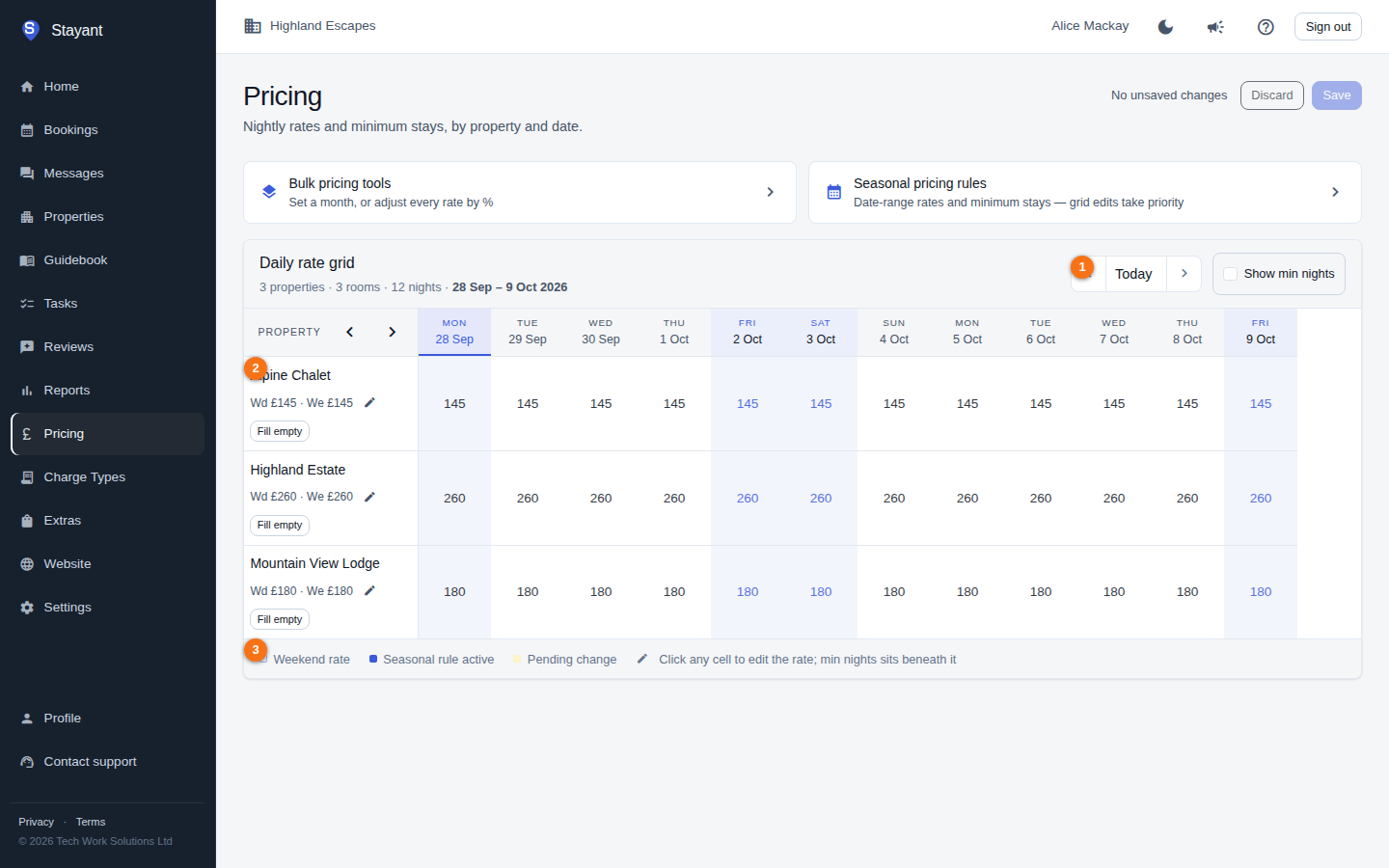
The grid shows one column per night and one row per room (②). The first (sticky) column, headed Property, lists your property and room names and stays visible as you scroll sideways.
The toolbar above the grid summarises the current view: the number of properties, rooms, and nights, and the visible date range (for example 3 Jun – 16 Jun 2026). The date navigation (①) on the right of the toolbar slides the window; a legend (③) under the grid repeats the Weekend rate, Seasonal rule active, and Pending change keys.
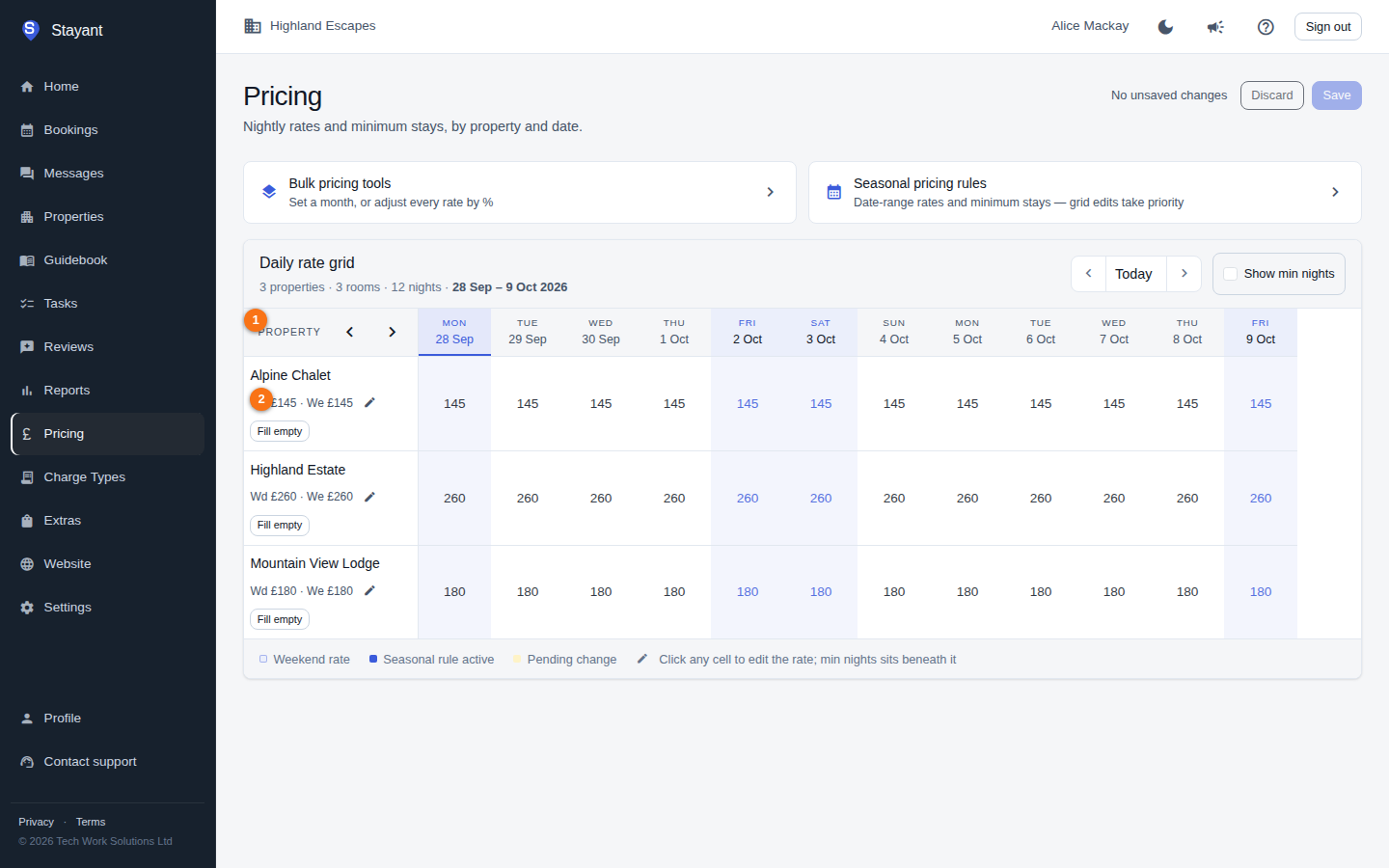
The sticky property and room column (①) stays visible as you scroll sideways.
- Properties with more than one room are shown under a property header with a rooms badge, and each room is indented beneath it.
- Single-room properties show the property name directly on the room row.
- Each room row also shows its weekday / weekend defaults (②, labelled Wd and We) next to the room name.
Cell colours and badges
Cells are styled to tell you where a night's price comes from:
- Weekend columns are shaded so you can see them at a glance. Which days count as weekend is configurable — see Seasonal & weekend pricing.
- Today is highlighted.
- A cell with an orange pending style has an unsaved edit.
- An empty cell that shows a price in faint text is showing what that night inherits — the room's weekday/weekend default, or an active seasonal rule. A cell priced by a seasonal rule is tinted and shows the rule's price in colour; hovering shows Seasonal rule active: £… /night — daily rates override. A daily rate you type in always overrides the rule.
- A blocked cell (shown with a dash placeholder) can't be priced because the date is blocked for that property.
A legend under the grid repeats the Weekend rate, Seasonal rule active, and Pending change keys.
Rooms with more than one rate plan
If a room has more than one active rate plan, the room row becomes a header (with a plans badge) and each plan gets its own indented sub-row of price cells. You can then price each plan independently. Rooms with a single rate plan show one flat row of cells, as normal. Rate plans are created per room — see Rate plans.
Turn on Show min nights in the grid toolbar to add a Min nights sub-row beneath each room for per-date minimum-stay rules — see Minimum-night rules.
Navigating dates
Use the date controls in the grid toolbar (① in the first screenshot above):
- ‹ (Previous window) — slide back to the earlier set of nights.
- Today — jump back to a window around today (with a night or two of look-back, so recent past nights stay visible).
- › (Next window) — slide forward to the next set of nights.
The grid's header row (the dates) stays pinned to the top of the screen as you scroll down a long list of rooms, and its first cell carries its own ‹ and › arrows. So you can move the dates from anywhere in the grid without scrolling back up to the toolbar. On a phone the arrows replace the Property label in that cell.
The grid resizes itself to your screen, fitting as many nights as will fit without horizontal scrolling. On a narrow phone screen it shows fewer, more compact columns; on a wide desktop it shows more nights at once. You don't choose the number of days manually — it adapts to the available width.
Saving changes
Edits you make in the grid are held as pending changes until you save them. The page header shows a running count (for example 3 pending changes), and the Save button beside it shows the same total — for example Save (3). Click Save to commit every pending change at once, or Discard to throw them all away. Sliding the date window or resizing does not lose your pending edits.
Gotcha: Nothing is saved automatically. If you navigate away with pending changes still showing, those edits are lost. Always click Save when the page header shows pending changes.