Reports & analytics
The Reports page gives you two analyses of your business over a date range you choose:
- Occupancy — how full your properties were, month by month.
- Profit and loss — accommodation, charges, extras, refunds, costs, and profit, month by month.
Reports are read-only: you pick a date range and (optionally) which properties to include, run the report, then read or export the results. Nothing on this page changes your bookings or properties.
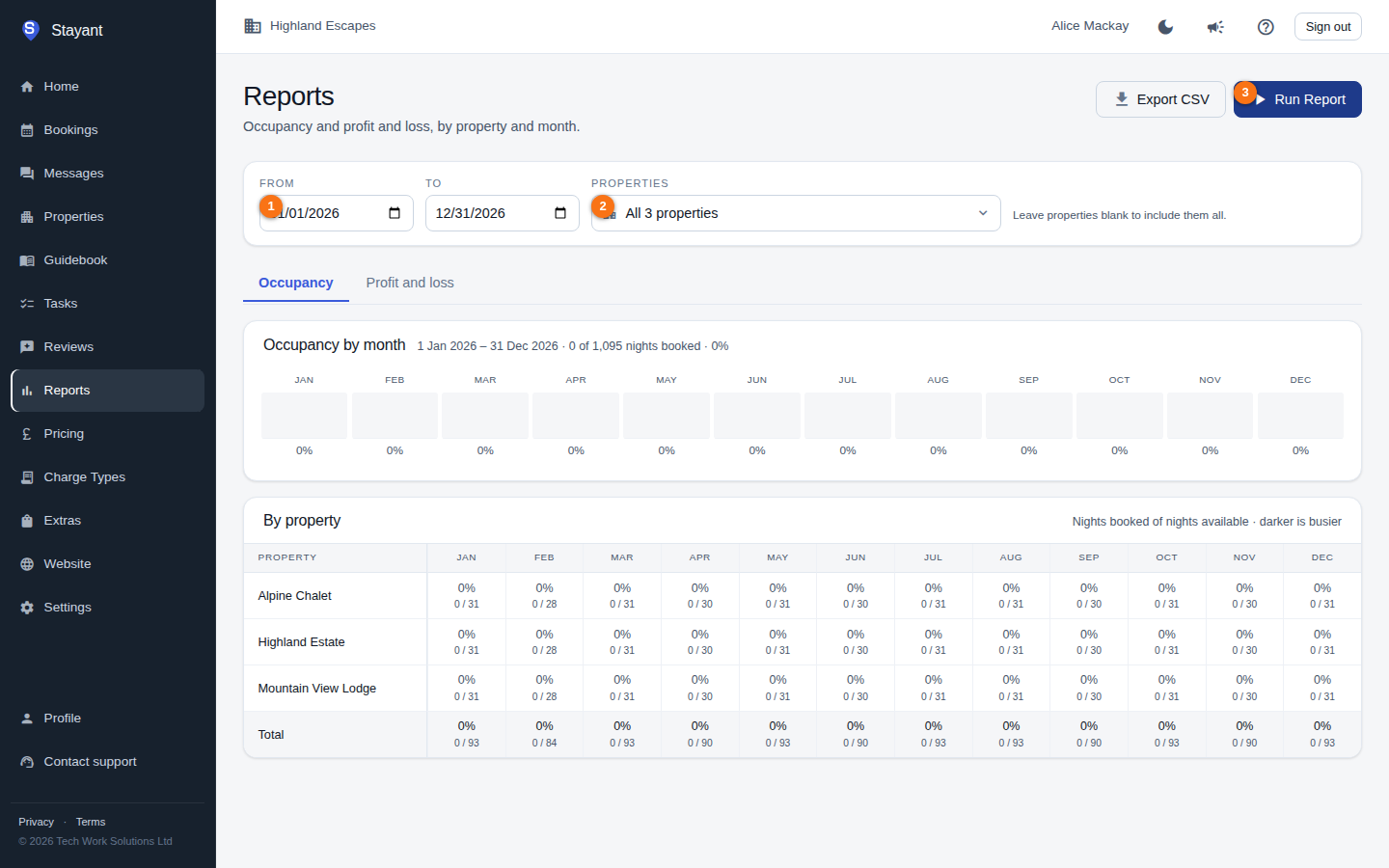
In the filter bar you set the From / To date range (①) and, if you want fewer than all of them, choose the Properties to include (②). Then click Run Report (③) at the top right of the page.
Access note: the Reports page is available to managers and above. If you don't see it, ask an account owner or admin to raise your role.
Run a report
- Go to Reports.
- In the filter bar, set the From and To dates (①). The page defaults to 1 January to 31 December of the current year.
- Optionally choose which Properties (②) to include. The control reads All N properties
until you narrow it:
- Click it to open the list, then tick one or more properties to limit the report to just those. The control then reads, for example, 2 of 15 properties.
- Leave nothing ticked to include all properties (the hint beside it reads "Leave properties blank to include them all").
- Click Clear selection to go back to including everything.
- Click Run Report (③) at the top right of the page.
The report won't run until you click Run Report — until then you'll see a prompt to choose a date range and run it. The To date must be after the From date, or you'll get a validation message.
The two tabs
After running, switch between the results using the tabs — Occupancy (①) and Profit and loss (②):
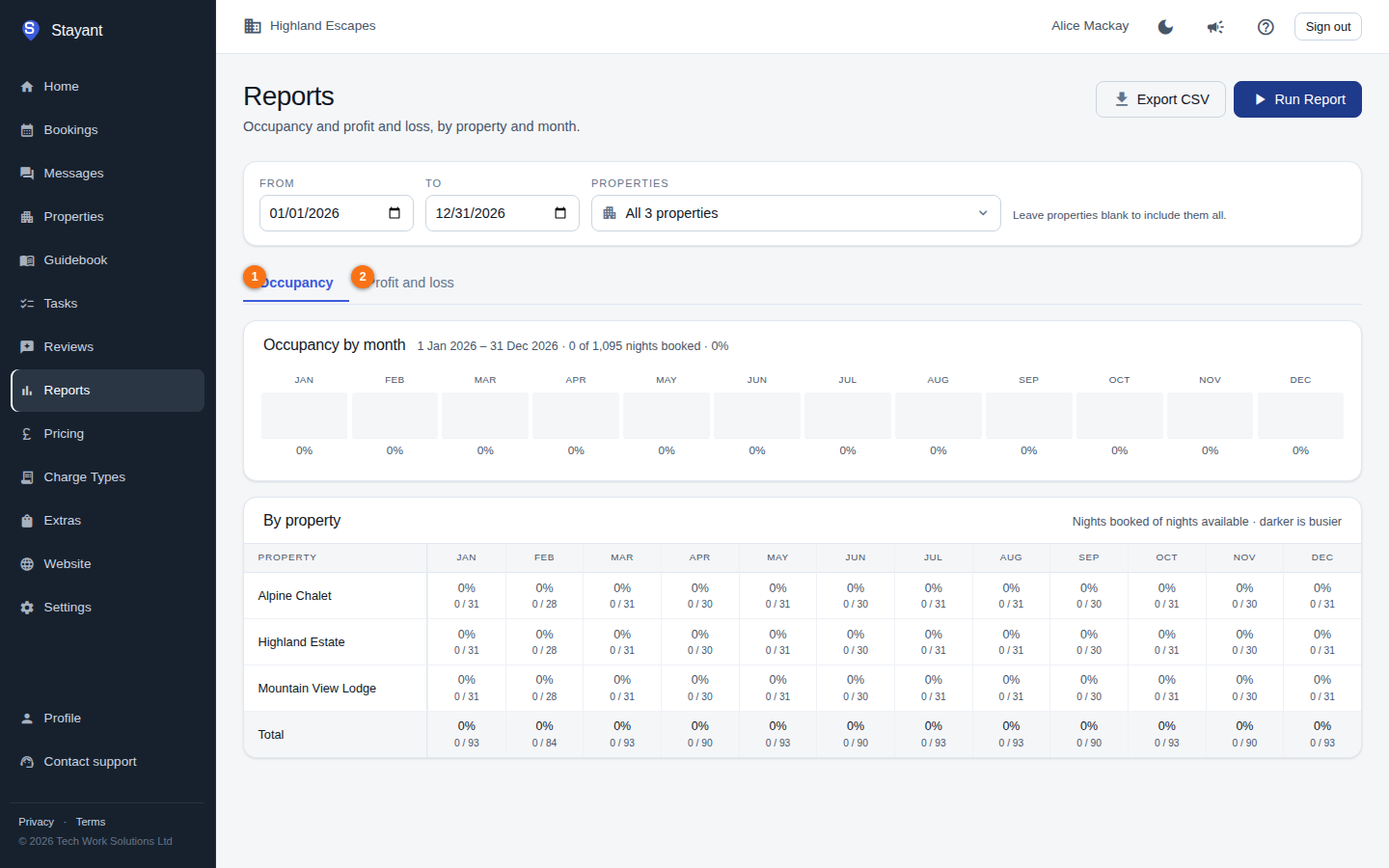
- Occupancy — a month-by-month strip plus a per-property breakdown table.
- Profit and loss — a monthly financial table (revenue, costs, and profit), with an optional per-property breakdown.
See Revenue & occupancy for what each figure means.
Both tabs are calculated from the same date range and property filter you ran the report with. Switching tabs does not re-query — change the filters and click Run Report again to refresh both.
What's counted
- Both reports include all bookings that overlap your date range. Nights are then counted per whole calendar month, so a range that starts or ends mid-month still reports those months in full.
- Cancelled and expired bookings are excluded from both occupancy and profit/loss.
- Only active properties are included.
Export
Once you've run a report, an Export CSV button appears next to Run Report at the top of the page. It downloads a row-per-booking spreadsheet for the dates and properties currently set in the filter bar. See Exporting data.
Gotchas
- If you change the dates or property selection, the on-screen figures don't update until you click Run Report again.
- The Export CSV button only appears after a report has been run successfully.
- A property with no bookings in the range still appears in the per-property tables, showing zeros.