Rate plans
A rate plan is a named set of booking terms for a room — its refundability, cancellation cut-off, and cancellation fee. Every room starts with a single default plan (usually called Standard). You can add extra plans to offer guests a choice, such as a flexible refundable plan alongside a cheaper non-refundable one. Each plan can be priced independently in the daily rate grid.
Rate plans are managed per room, inside the room's card. For a single-room property the room card is on the property's General tab; for a multi-room property it's on the Rooms tab. Open the property from the Properties list to reach either.
Where rate plans appear
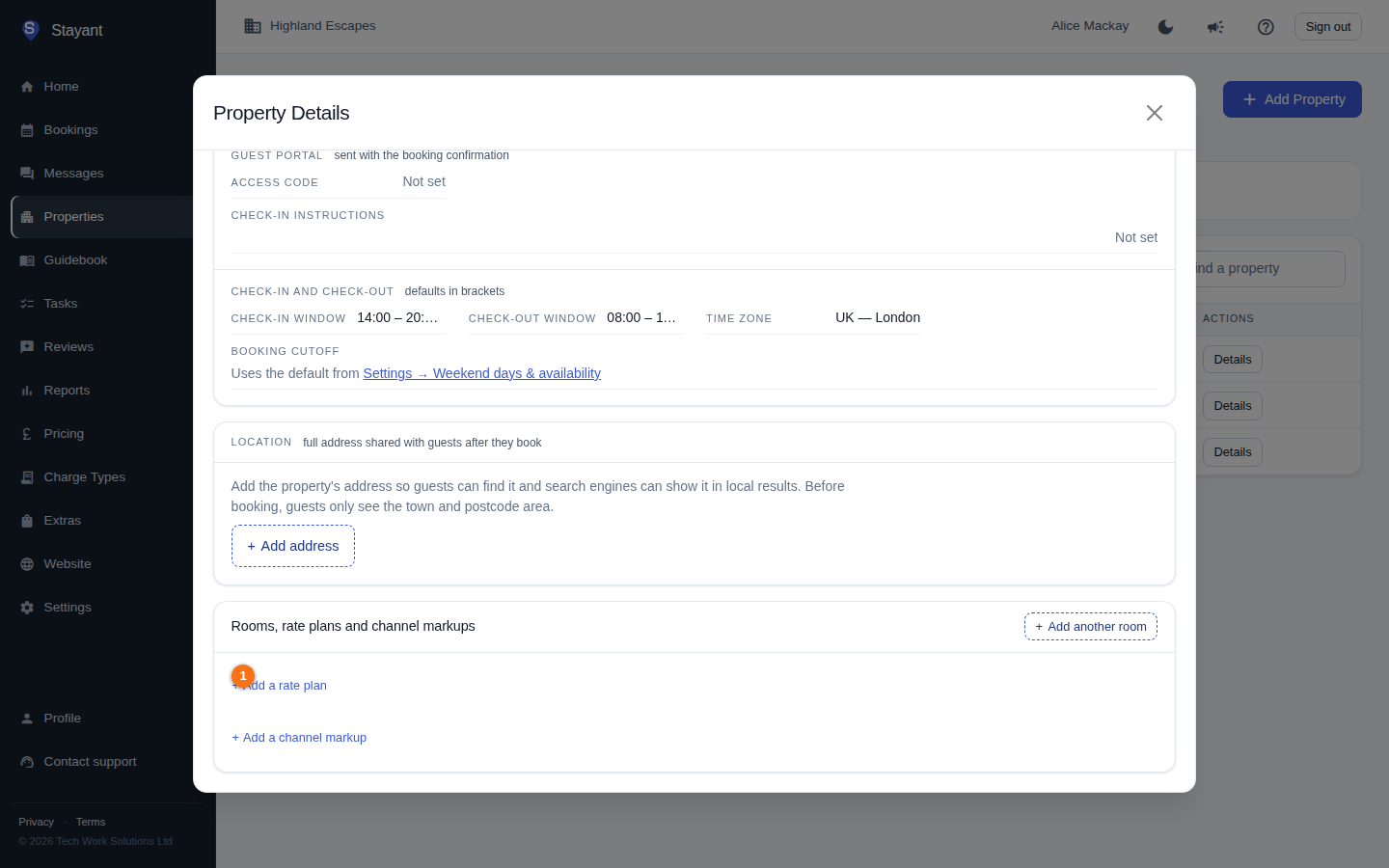
- A room with one active plan shows no rate-plan list at all — just a small + Add a rate plan link (①) on the room card. This keeps the screen uncluttered when you only use the default plan.
- A room with two or more plans (or with any inactive plan) shows a full Rate plans list with each plan's terms, plus per-plan Edit, Activate / Deactivate, and — for plans that have never been booked — Delete controls.
Once a room has more than one active plan, it also gains per-plan rows in the daily rate grid and the property Prices tab, so you can set different prices for each plan — see The pricing calendar.
Add a rate plan
- Open the property and go to the room card (General tab for single-room, Rooms tab for multi-room).
- Click + Add a rate plan.
- Enter a Plan name (for example Non-refundable).
- Set Refundable on or off.
- If refundable, set Refundable until (days) — how many days before arrival the booking can still be cancelled for a refund. Leave blank for no day limit. This field is disabled when Refundable is off.
- Set Cancellation fee % — a value between 0 and 100.
- Optionally, under Pricing (vs Standard), choose the plan's Selling price and Internal cost (Same as Standard, % of Standard, or Fixed amount). See Override price & cost on a rate plan — note that a Same as Standard plan doesn't copy the Standard plan's prices, so you'll need to price it in the daily rate grid.
- Click Add rate plan.
Edit a rate plan
- In the room's Rate plans list, click Edit on the plan.
- Change the Plan name, Refundable toggle, Refundable until (days before arrival), or Cancellation fee % — and, for any plan other than Standard, its Selling price and Internal cost.
- Click Save.
Activate or deactivate a plan
- Click Deactivate to retire a plan you no longer offer. Deactivated plans show an Inactive badge and stop appearing in pricing.
- Click Activate to bring an inactive plan back.
Gotcha: A room must always keep at least one active rate plan. When only one active plan remains, its Deactivate button is disabled with a tooltip explaining why.
Delete a plan
A plan that has never been booked also has a Delete button, which removes it permanently. Plans with bookings have no Delete button — use Deactivate instead so their booking history is kept. You can't delete the last active plan on a room; add or activate another plan first.
Channel markups
When a room has more than one active plan, each plan row also offers a + Add a channel markup link. Channel markups let you raise the price sent to a specific booking channel (for example an OTA) above your direct rate. Markups can be set at the rate-plan, room, property, or tenant level, with more specific levels overriding more general ones; the editor shows an inherited hint when a value is flowing down from a higher level.