Setting nightly rates
There are two ways to set rates on the Pricing page: edit individual cells in the daily rate grid, or use the Bulk pricing tools to change many nights at once. Both create pending changes that you commit with the Save button — see The pricing calendar for how the grid and saving work.
Editing a single night
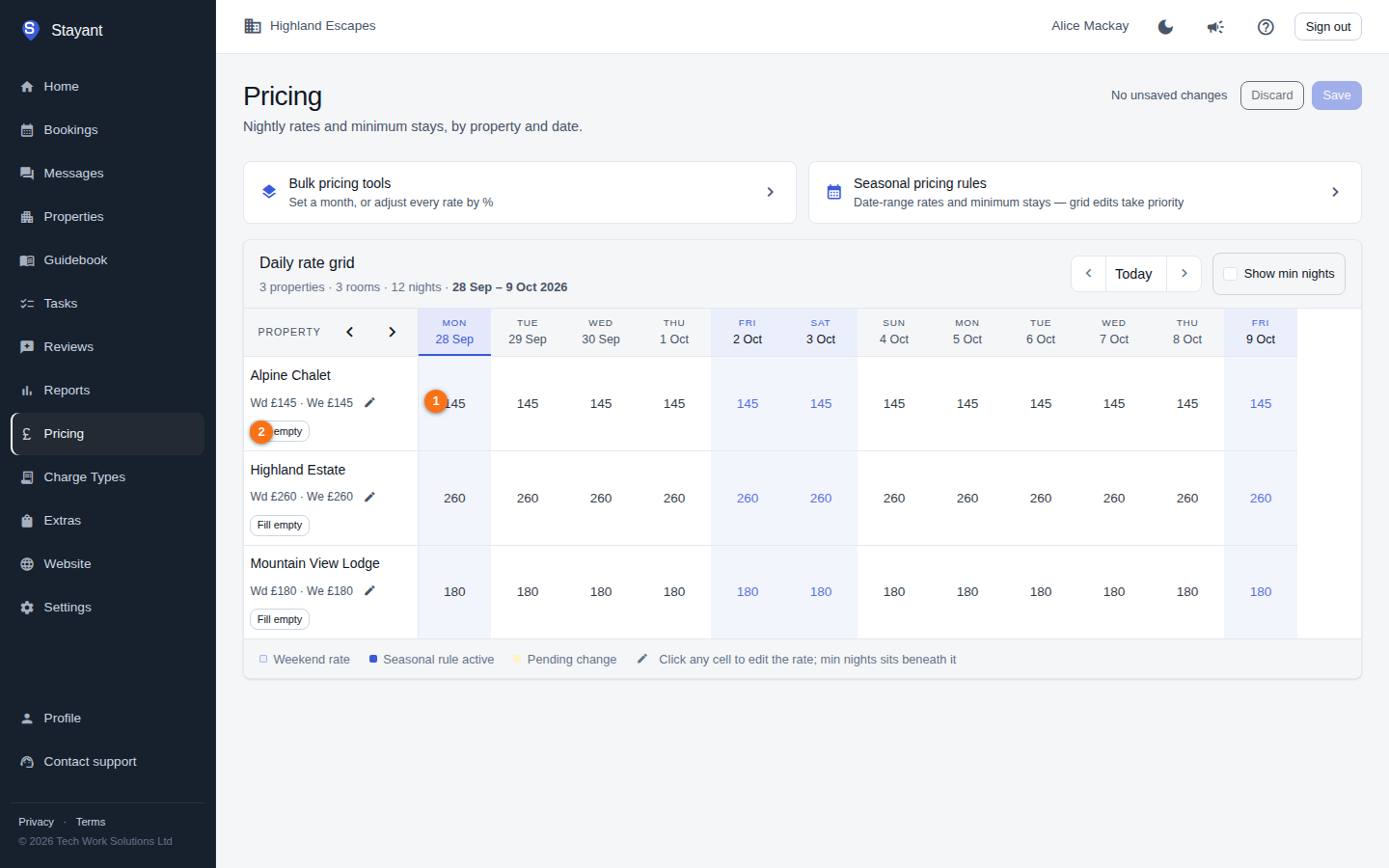
- Find the room's row and the night's column in the daily rate grid.
- Type the price into the cell (①). The cell turns to its pending style to show the edit isn't saved yet.
- Repeat for any other nights.
- Click Save in the page header to commit all pending changes.
To remove a price you've set on a night, click the small × (clear override) button in the corner of the cell. The cell falls back to any active seasonal rule, or to the room's weekday/weekend default, on the next save.
Filling a row from its defaults
Each room shows its weekday / weekend defaults (Wd / We) next to its name. If a room has defaults set, a Fill empty button appears next to them (on rooms with a single rate plan — rooms with several plans are priced per plan instead). Click it to copy the defaults into every empty night in the visible window — weekday nights get the weekday default, weekend nights get the weekend default. Existing rates aren't overwritten. To edit the defaults themselves, click the small edit (pencil) button next to them and enter the weekday (Wd £) and weekend (We £) values.
Bulk pricing tools
Expand the Bulk pricing tools section at the top of the page. It has three modes (①), selected with the tabs at the top of the panel.
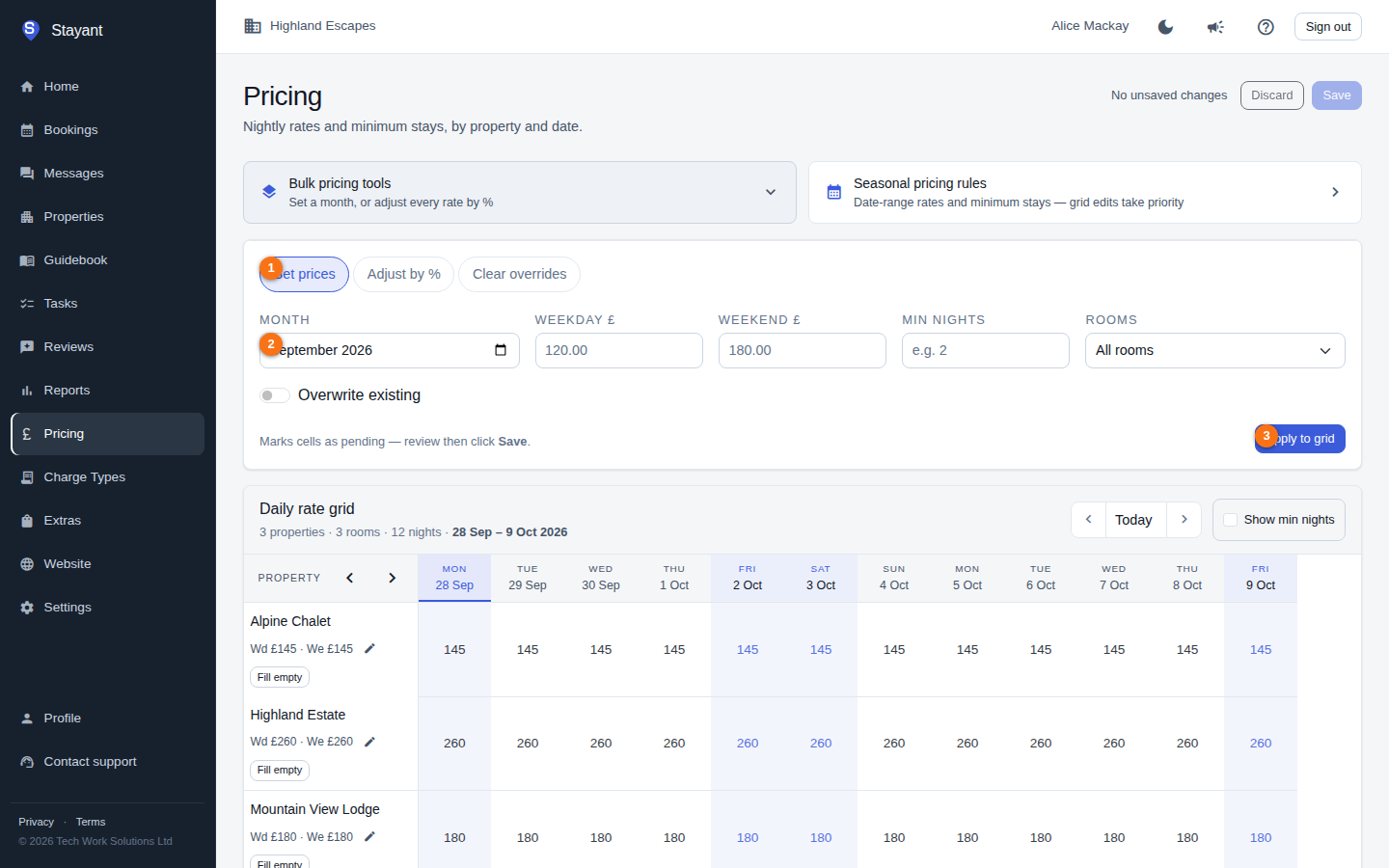
Pick a mode (①), fill in that mode's fields (②), then click its action button (③) to stage the changes as pending.
Set prices (for a month)
- Select Set prices.
- Choose the Month.
- Enter a Weekday £ and/or Weekend £ price.
- Optionally enter Min nights to set a minimum stay for those dates at the same time.
- Choose Rooms — All rooms or a single room from the list.
- Turn on Overwrite existing if you want to replace prices that are already set; leave it off to only fill nights that are currently empty.
- Click Apply to grid.
This marks the affected cells as pending — review them in the grid, then click Save.
Adjust by %
- Select Adjust by %.
- Enter an Adjustment % — a positive number to raise rates (for example
10) or a negative number to lower them (for example-5). - Choose Rooms — all rooms or one room.
- Click Apply to grid.
This adjusts the rates currently shown in the visible window by that percentage. It only affects nights that already have a rate.
Clear overrides
- Select Clear overrides.
- Choose the Month.
- Choose Rooms — all rooms or one room.
- Click Clear overrides.
This removes the daily rate overrides and any per-date min-nights values for the month. On Save those nights fall back to any active seasonal rule, or to the room's weekday/weekend defaults and the room's default Min nights.
Rooms with more than one rate plan: the bulk tools don't change prices on a room with several active rate plans — each plan has its own row, so price those plans individually in the grid. Stayant shows a warning naming any rooms it skipped. Min nights values from Set prices and Clear overrides still apply to those rooms.
Gotcha: Every bulk action only stages changes — it marks cells as pending. Nothing is written until you click Save in the page header. Adjust by % acts on the dates you currently have loaded, so slide the grid to the nights you want before applying. Clear overrides and Set prices use the Month you pick — though Clear overrides can only clear nights that are currently loaded, so slide to that month first.