Revenue & occupancy
After you run a report, the Occupancy and Profit and loss tabs show your results month by month. This article explains what each figure means.
All figures cover only the date range and properties you selected, and exclude cancelled and expired bookings.
Occupancy tab
The Occupancy tab (①) is active by default after a run. At the top is the Occupancy by month strip (②).
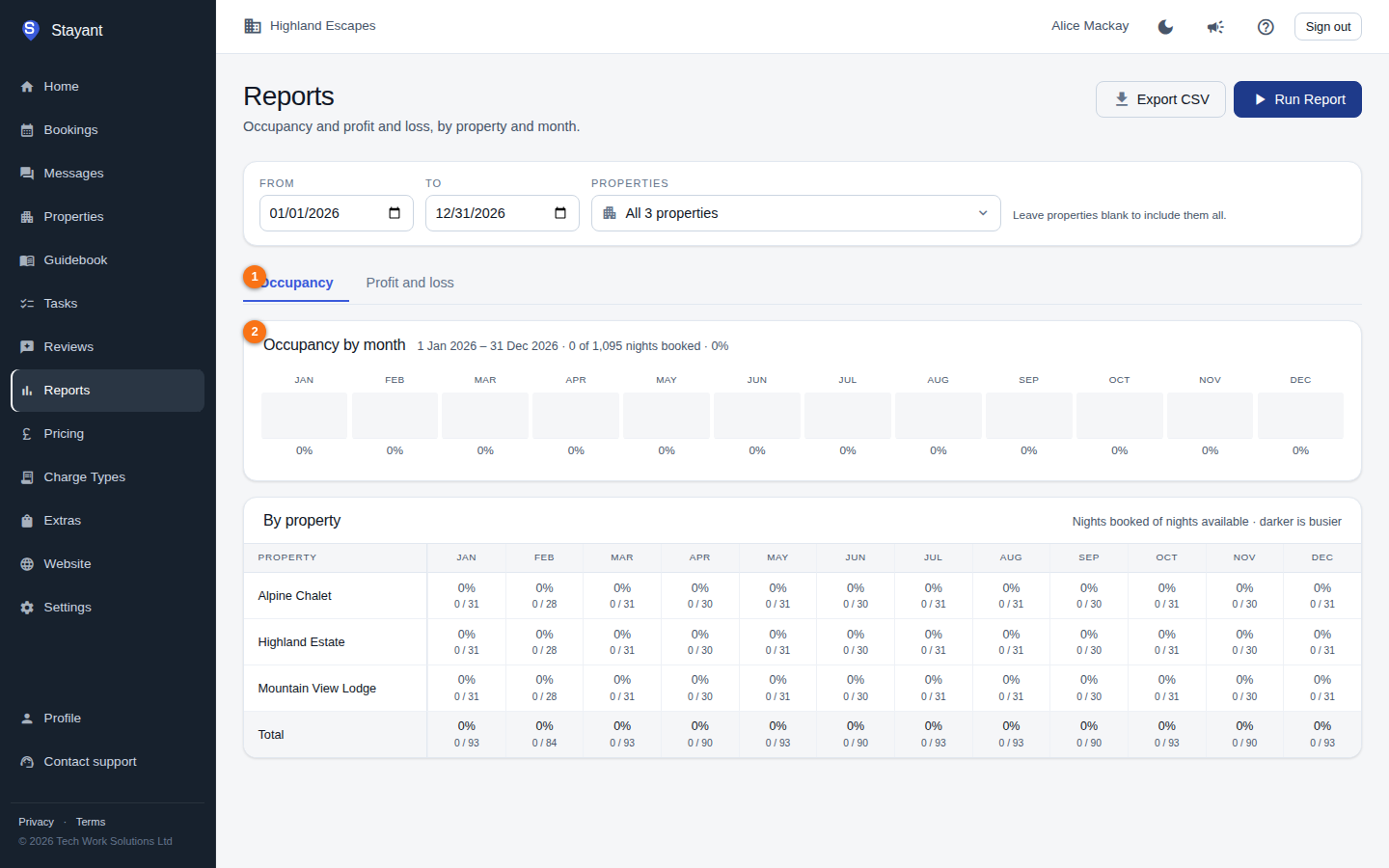
Occupancy by month
The strip shows one bar per month in your range, with the month's occupancy percentage beneath it, for all selected properties combined. The heading states the whole range in one line: nights booked of nights available, and the rate that gives. An empty month shows a flat grey bar; the bar fills in blue as occupancy rises.
By property
Below the strip, a table breaks occupancy down by property. Each row is a property and each column is a month, showing that property's occupancy percentage and its booked / total night counts. The cell's shading is the same measure: a 0% month is plain, and the blue deepens through four steps as occupancy rises, so a busy month stands out and a quiet one stays quiet. The Total row at the bottom matches the strip.
On a phone the table shows four months at a time, with earlier and later buttons above it to move through the range.
How occupancy is calculated
For each property and month:
- Total nights = the number of nights in that calendar month (so a property contributes the whole month's nights).
- Booked nights = nights covered by non-cancelled bookings that fall within the month.
- Blocked nights = nights covered by date blocks (manual blocks or blocks tied to a room), clamped so they never double-count nights already booked.
- Available nights = total − booked − blocked.
- Occupancy rate = booked nights ÷ total nights, as a percentage (one decimal place internally, shown rounded to a whole number).
Occupancy is driven by booked nights only — blocked nights reduce availability but do not raise the occupancy percentage.
Profit and loss tab
Switch to the Profit and loss tab (①) to see the financial table (②) — one column per month and a row per figure. Figures are right-aligned; only a negative profit is shown in red.
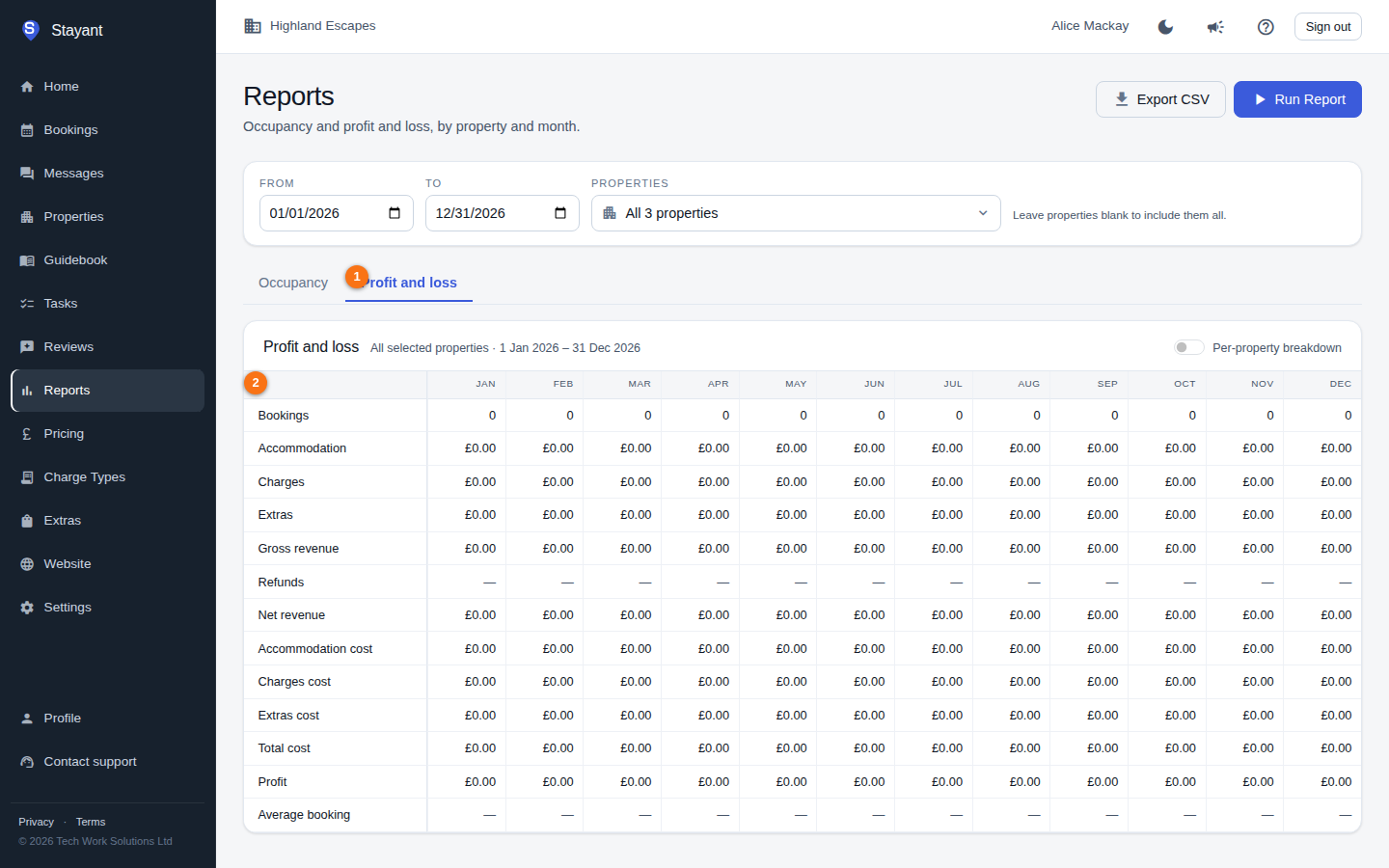
Toggle Per-property breakdown to add a separate table for each property beneath the combined totals.
The rows
| Row | Meaning |
|---|---|
| Bookings | Number of bookings contributing to the month. |
| Accommodation | Accommodation revenue. |
| Charges | Revenue from booking charges (e.g. cleaning, fees). |
| Extras | Revenue from booking extras (add-ons). |
| Gross revenue | Accommodation + Charges + Extras. |
| Refunds | Refunds issued, shown greyed in parentheses; a dash when none. |
| Net revenue | Gross revenue − Refunds. |
| Accommodation cost | Your cost of accommodation for the nights stayed. |
| Charges cost | Your cost behind the charges. |
| Extras cost | Your cost behind the extras. |
| Total cost | Accommodation cost + Charges cost + Extras cost. |
| Profit | Net revenue − Total cost (emphasised; shown in red when negative). |
| Average booking | Average gross revenue per booking that month; a dash when there are no bookings, or when the month's gross revenue is zero. |
How the figures are split across months
When a booking spans more than one month, its money is apportioned by nights. Each revenue, refund, and cost figure for a booking is multiplied by the share of its nights that fall in a given month, so a stay crossing a month boundary contributes to both months proportionally.
Where the cost numbers come from
- Accommodation cost comes from the booking's rate plan: the room's internal nightly cost price — not the guest-facing nightly rate — with the plan's cost override applied (Inherit, Fixed, or a percentage), multiplied by the number of nights and apportioned by month. Bookings whose rate plan can't be resolved fall back to the first active room's nightly cost price for that property. See Nightly rate vs cost price and Rate plan price & cost override.
- Charges cost and Extras cost come from the cost recorded on each individual charge and extra.
If you haven't set nightly cost prices or charge/extra costs, those cost rows will be zero and Profit will equal Net revenue.
Gotchas
- Profit can look high if cost figures haven't been configured — a blank nightly cost price counts as zero cost, so accommodation profit equals the full accommodation revenue until you enter your real cost. Check that nightly cost prices and charge/extra costs are set.
- Revenue here is recognised by stay nights, not by payment date — a booking paid in advance still shows its revenue in the month(s) of the stay.
- The on-screen totals don't refresh when you change filters; click Run Report again.