Billing & invoices
Every time Stayant bills your company for its subscription it generates an invoice. View your full billing history at Settings → Invoices (/settings/invoices). Invoices are created automatically on each billing date — you don't raise them yourself.
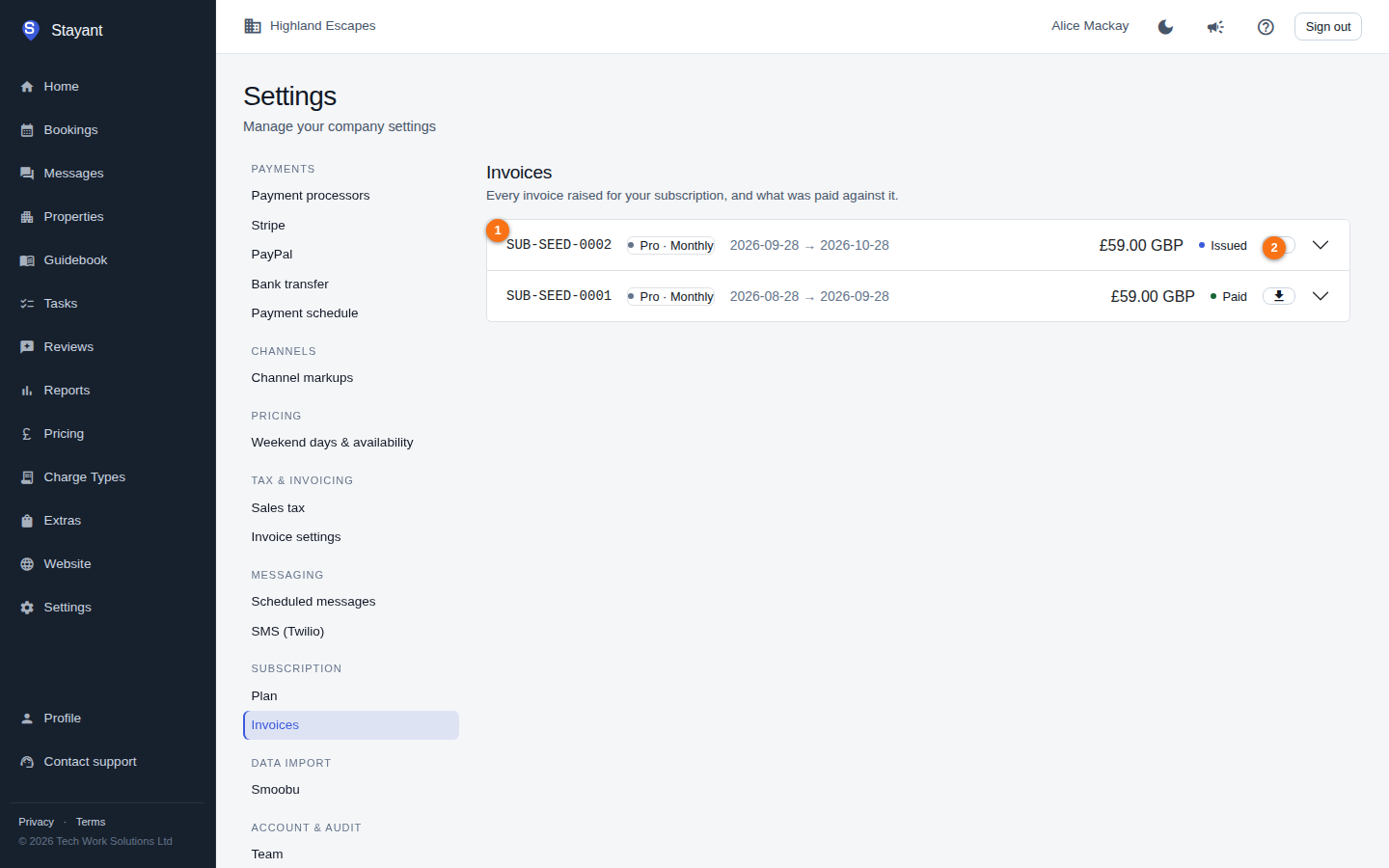
Your invoices are listed on the page (①), each with a download button (②). If you've never been billed yet, the page shows a "No invoices found" notice instead — invoices are generated automatically on each billing date.
Reading the invoice list
Invoices are listed newest first, each as a collapsible row. The row header shows, at a glance:
- The invoice number (a monospaced reference).
- A badge with the package name and billing cycle (e.g. Pro · Monthly), when known.
- The billing period the invoice covers (start → end date).
- The total amount and currency.
- A status badge:
Paid(green),Issued(blue, awaiting payment), orVoid(grey). - A download button to save the invoice PDF.
Click anywhere on a row to expand it and see the full breakdown.
Invoice details
Expanding an invoice shows two panels.
Invoice Details lists:
- Invoice # and the subscription (package and billing cycle).
- The period covered.
- Properties — the number of properties counted for this invoice. Because plans can charge per property, this is what the per-property portion is based on.
- Base Amount — the package's base charge.
- Property Amount — the per-property charge total.
- Discount — shown in green only if a discount was applied, with the reason where available.
- Total — the amount due, in the invoice currency.
- Issued and Due dates, the status, and, once paid, the Paid At timestamp.
If your package includes a yearly billing discount, the base and per-property amounts on a yearly invoice are shown already discounted — there is no separate discount line for it (the Discount line is only used for account-specific discounts arranged with Stayant).
Payments shows what's been paid against the invoice. If payments haven't loaded yet, click Load Payments. Each payment row shows the date, the method used, and the amount. If nothing has been recorded, it reads "No payments recorded."
Downloading an invoice PDF
To save a copy — for your accounts or expense records — click the download icon on the invoice's row. Stayant generates a PDF and your browser downloads it. This works whether or not the invoice row is expanded.
The PDF lists the base fee, the property fee and, when one applies, a Discount line with its reason. These lines add up to the invoice total. Your own Invoice Notes (from Settings → Invoice settings) are for the invoices you send your guests, so they don't appear on Stayant's invoices to you.
How your payment method relates to invoices
You don't pay invoices from this page — when you have a saved payment method, Stayant charges it automatically on the billing date and the invoice moves to Paid. Manage or update the card itself on the Your subscription plan page (Settings → Plan). If an automatic charge fails, the subscription is marked PastDue and the failure reason is surfaced on the subscription page; correct or update your payment method there.