Auto-generated tasks
Stayant automatically creates a turnover cleaning task for each booking as it checks out, so you don't have to add them by hand. These appear in the Tasks list (①) alongside any tasks you create yourself, grouped by status (②).
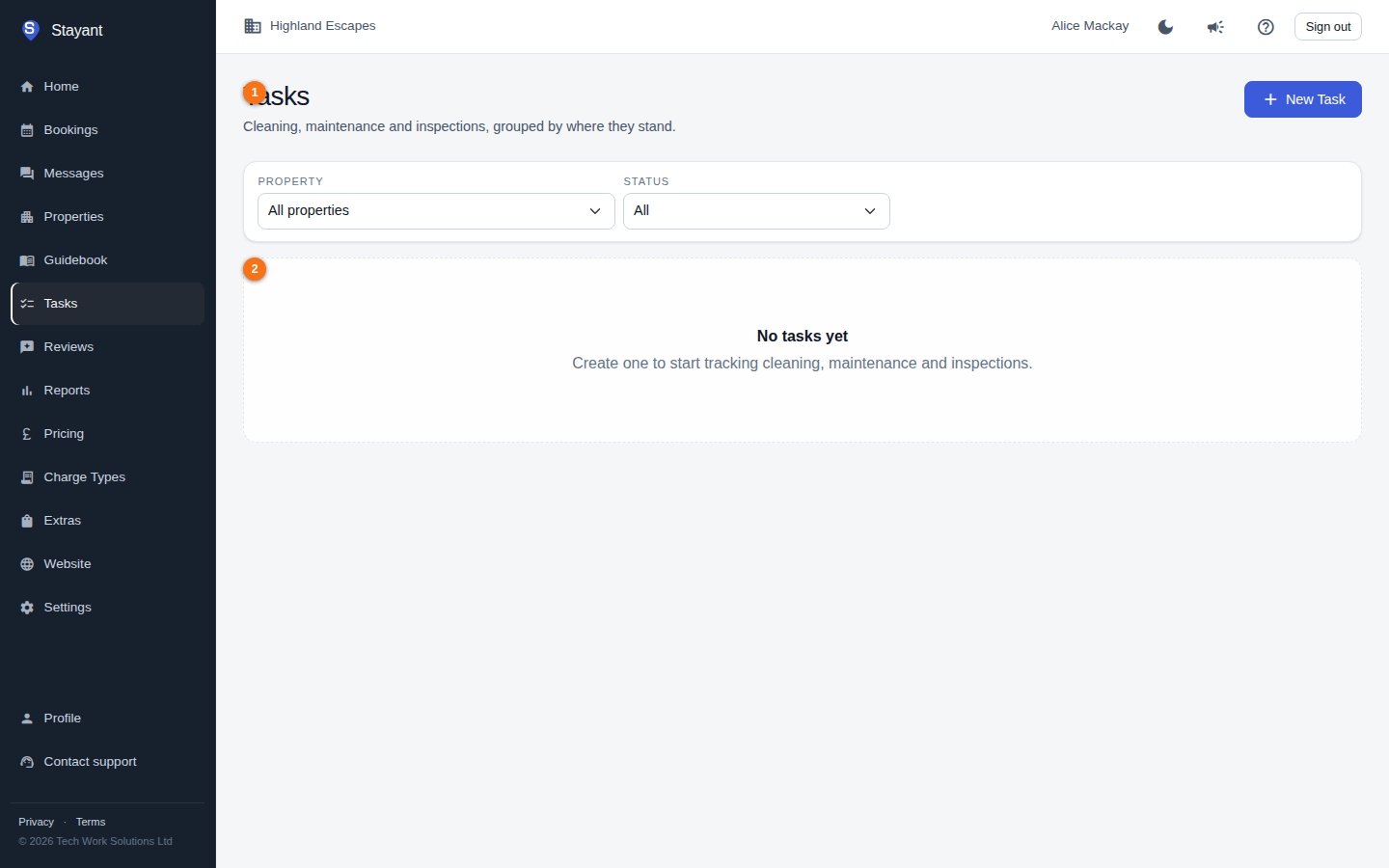
When a turnover clean has been generated it shows in the list as a row titled "Turnover clean — property name" with a Cleaning badge. If your list doesn't show one yet, none of your confirmed bookings have checked out since the last daily run.
What triggers an auto-generated task
Once a day (early in the morning, at 04:00 UTC), Stayant scans for confirmed bookings checking out that day and creates one Pending Cleaning task for each. It also re-checks the previous day, so a missed run doesn't lose any checkouts. The task is:
- Titled "Turnover clean — property name".
- Linked to the booking, with a description noting the booking reference it came from.
- Scheduled for the property's default check-out time on the check-out date, in the property's own time zone (so a 10:00 check-out is 10:00 at the property all year round, including during summer time). See Check-in & check-out times for where that time is set.
Only confirmed bookings generate cleaning tasks. Draft and cancelled bookings do not, because the property isn't occupied.
No duplicates
Auto-generation is safe to run repeatedly. If a booking already has a cleaning task — whether Stayant created it automatically or you added it manually — no second cleaning task is created for that booking. In other words, if you create your own cleaning task for a booking, Stayant won't add another one on top.
Managing auto-generated tasks
Once created, an auto-generated task behaves exactly like one you create yourself. From the Tasks page you can:
- Start it, Complete it (with optional notes), or Cancel it.
- Reopen it if it was completed or cancelled.
- Filter by property or status to find it.
See Operational tasks for the full set of actions.
What you can and can't configure
Auto-generation of cleaning tasks runs automatically for every account whose plan includes Task Management — there is no separate on/off switch or rule editor in the app. If your plan doesn't include Task Management, no cleaning tasks are generated (see What your plan includes). The one setting that affects it is the property's default check-out time, which determines the time the cleaning task is scheduled for. Adjust that on the property's General tab — see Check-in & check-out times.