Using other websites and your own documents for inspiration
The AI assistant doesn't only work from what you type — it can also look at other websites for design ideas, or read your own existing content so it can reuse your actual wording instead of writing new copy from scratch.
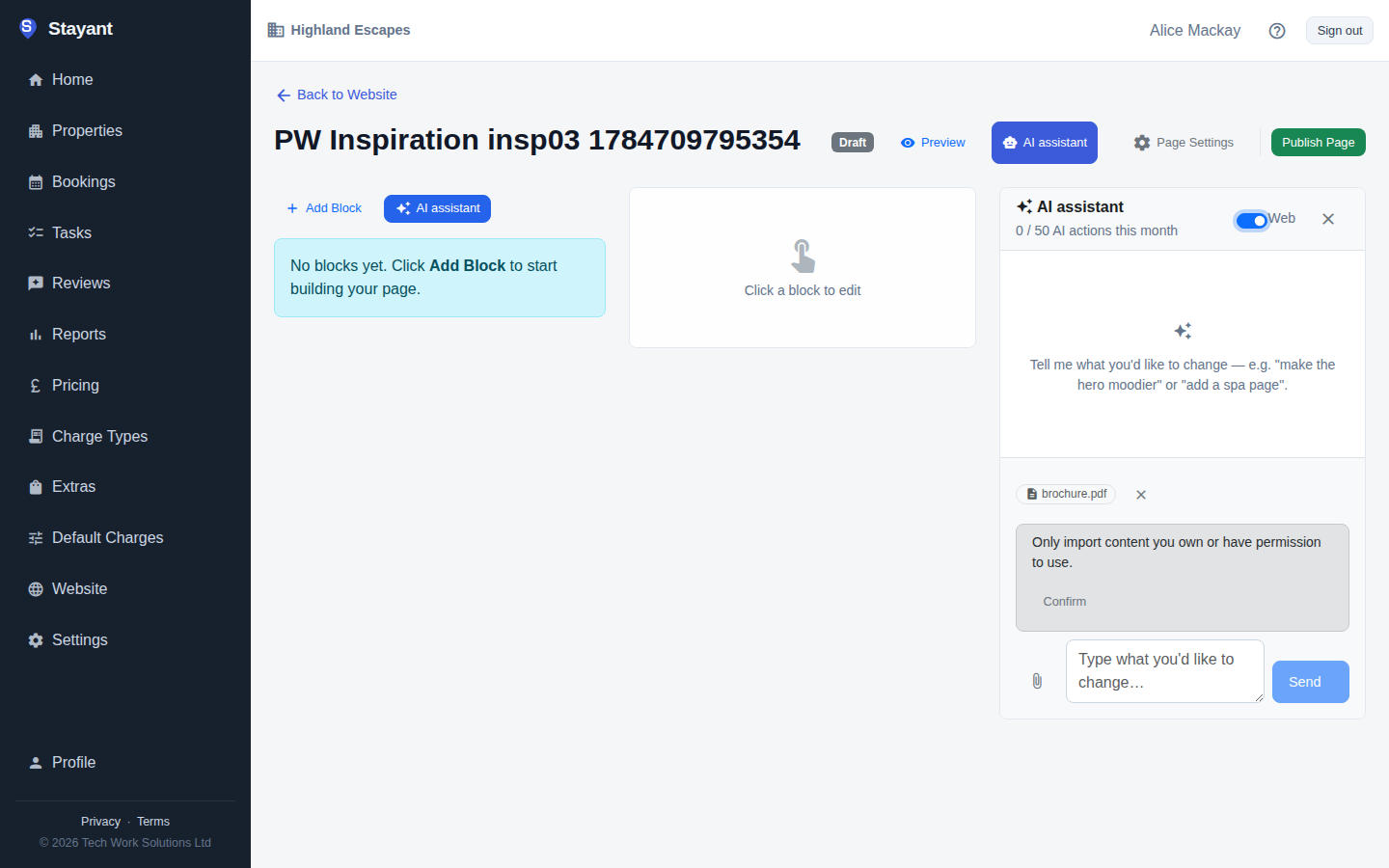
Look at other sites for ideas
Turn on Web in the assistant's header, then ask for what you want — "make my hero feel like example.com" or "look at modern boutique-hotel sites for ideas." The assistant takes design and structure inspiration from what it sees, but still writes the words in your own voice. It doesn't copy a third-party site's text or images.
Bring over your own content
Moving from an existing website? Turn on Web first, then say something like "import the text from my current site example.com" — a confirmation strip appears, and you click Confirm to attest you own that content before the assistant reuses it word-for-word. Without the Web toggle on there's nowhere to record that confirmation, so the assistant writes original copy instead. You can also attach a PDF (a brochure, a menu, a rate sheet) with the paperclip icon next to the message box; once it's attached, the assistant can use your actual wording from it for the rest of the conversation.
Once you've confirmed you own a page, the assistant can bring over its real photos too, not just its wording — so a hero shot or gallery image from your current site can end up in your new draft instead of a stock substitute. The same ownership confirmation covers both, so there's nothing extra to approve.
You're always in control
The assistant follows the same rules here as for any other request: new pages it creates are drafts that stay hidden until you publish them, but changes to a page that's already published — and to your site theme — go live as soon as they're made. To try out a new direction safely, ask for it on a new draft page, or unpublish the page first. See What goes live, and when. Each request counts as one of your monthly AI actions, whether or not Web access is on.