Editing your website with the AI assistant
The AI Website Assistant is a conversational way to build and edit your site — describe what you want in plain language ("make the hero moodier", "add a spa page", "give the site a warmer colour theme") and it makes the change for you. It's a plan feature with a monthly allowance of AI actions. It never publishes or unpublishes a page for you — but changes it makes to pages that are already published go live straight away.
What it can do
The assistant works with the same building blocks and theme system as the manual editor, so anything it creates or changes is fully editable by hand afterwards — there's no separate "AI-only" content. It can:
- Add, edit, and reorder pages — create a new page from a description, update an existing one, or change page order.
- Add, edit, and reorder blocks on a page — hero banners, rich text, galleries, and the other block types the manual editor offers.
- Change your site theme — fonts, colours, spacing, and the other design tokens that apply across the whole site.
- Use your uploaded property photos — it can find and drop in images you've already added to a property, instead of only working with placeholder content.
You can start a conversation scoped to the whole site or to a single page, depending on what you're working on.
What goes live, and when
The assistant edits the same pages you edit by hand. There's no separate draft copy of a page's content: when a page is published (on a published site), an edit — yours or the assistant's — is live for guests as soon as it saves. So:
- New pages it creates are always drafts. They stay hidden from guests until you publish them with the Publish controls on the Website hub or in the block editor.
- Changes to a page that's already published go live immediately — added, edited, moved or deleted blocks, and changes to the page's title, slug or SEO fields.
- Theme changes apply to the whole site at once, so on a published site guests see them straight away.
It can never publish or unpublish a page, never deletes a page that's already published, and can't touch your custom domain or embed settings. If you want to rework a live page without guests seeing it half-done, unpublish it first (or ask the assistant to build the new version as a new draft page), then publish when you're happy. If a change isn't what you wanted, Undo rolls it back.
It checks its own work
After a meaningful change, the assistant can double-check itself: it reads back the rendered draft page it just edited to confirm the right pages, blocks, and copy landed the way it intended. It does this on its own when it judges it useful, or when you ask something like "does that look right?" — there's no separate button for it. You should still review the result yourself — in the editor, or with Preview — especially on a page that's already live.
For changes that affect how a page looks, the assistant can also take a look at it: it can request a rendered picture of the page — on mobile or desktop, in light or dark mode — to check things a wording check can't, like cramped spacing, low contrast, or content that overflows or breaks on a phone. As with the content check, it decides on its own when this is worth doing (there's no button for it), and looking at a picture never changes or publishes anything.
Built for mobile and dark mode
Your site is viewed on phones far more than desktops, and can be seen in both light and dark mode depending on the visitor's device. The assistant is told this up front, so it prefers your theme's own colours over fixed ones and favours short, mobile-friendly headings and simple layouts — the same design guidance a careful human editor would follow.
Usage and plans
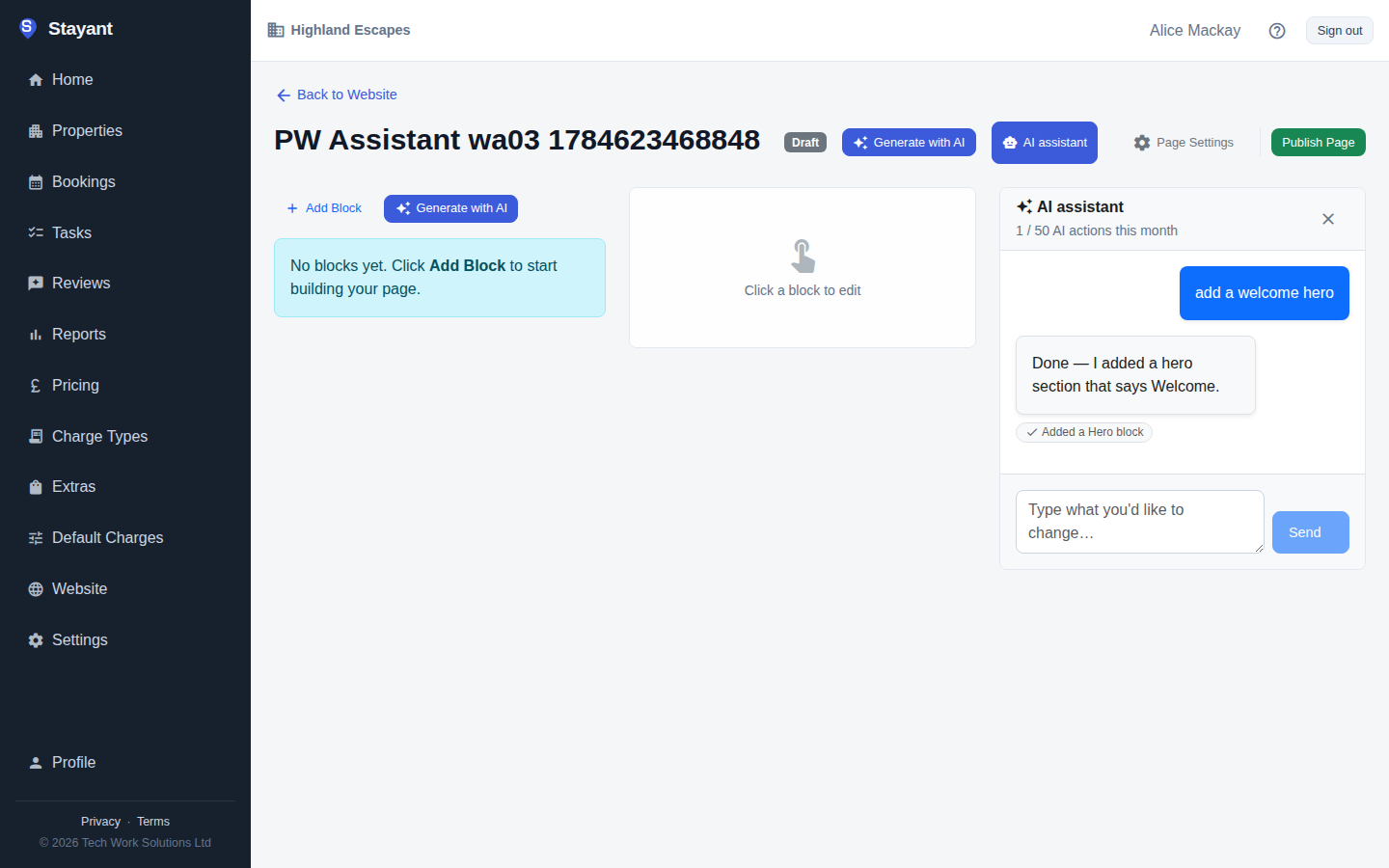
The AI Website Assistant is a feature of your subscription plan, metered by a monthly allowance of AI actions — each edit request you send counts as one action. If you reach your plan's allowance for the month, the assistant panel tells you you've used all your AI actions, and you can send more once the allowance resets next month. Your usage so far this month is shown at the top of the assistant panel — "3 / 50 AI actions this month" means you've used 3 of your 50.
How to open it
Look for the AI assistant button in the toolbar:
- On the Website hub, open it for a conversation about the whole site — good for "add an about page" or "give the site a warmer theme".
- Inside a page in the block editor, open it for a conversation scoped to that page — good for "make the hero moodier" or "add a gallery under the intro".
On a desktop the assistant docks alongside your page as a side panel; on a phone it slides up as a full-height sheet, so you can edit your site by chat wherever you are. Type what you'd like to change, press Send, and the assistant replies with a short summary and a list of the exact changes it made — your page or page list refreshes automatically so you can see the result straight away. Draft pages stay hidden until you publish them; on a published page, the changes are already live.
Switching between the chat and block settings
Inside the block editor, the assistant and the Block settings panel share the same column on the right, with a tab at the top of each. Opening the assistant starts you on the chat, and your page stays as wide as possible so you can watch it change.
- Click any block on the page and the panel switches to Block settings for it.
- Click the AI assistant tab to go back — your conversation is exactly where you left it.
- If a reply arrives while you're in Block settings, a dot appears on the AI assistant tab so you know there's something to read.